What Does SRT Stand For? A Guide for Video Creators
Learn what srt stand for, how SRT files boost captions, accessibility, and SEO, and easy steps to create and use them.
tl;dr: SRT stands for SubRip Subtitle, which is a plain text file format used to add timed captions or subtitles to videos. It's the universal standard supported by platforms like YouTube and Vimeo. The file contains a sequence number, a precise timecode for when the text should appear and disappear, and the actual subtitle text. Using SRT files makes your videos more accessible, boosts engagement for "sound-off" viewers, and improves your video's SEO. The easiest way to create one is with an AI transcription service.
If you've ever heard someone toss around the acronym "SRT" in a video context, they were almost certainly talking about a SubRip Subtitle file. It's a surprisingly simple, plain-text file that holds all the captions and subtitles for your video, telling the player exactly what to show and when.
While there's a second, highly technical meaning floating around out there, the SubRip file is the one that truly matters for content creators, marketers, and pretty much anyone working with video today. Let's break down what it is and why it's so important.
Unpacking the Meaning of SRT
Chances are, if you've ever uploaded a video online, you've come across a file ending in .srt. It might not look like much, but this little text file is the universal standard for adding captions to video content. It works everywhere, from YouTube and Vimeo to LinkedIn and Instagram.
Think of an SRT file as a simple script for your video’s dialogue, but with very specific stage directions. It tells the video player what text to display, when to display it, and when to take it away. This ensures your captions sync up perfectly with the spoken words, a task that used to be a painstaking manual process but is now largely automated, thanks to tools like AI.
The Two Sides of SRT
Just to make sure we’re all on the same page, it's helpful to know about both meanings of SRT, even though you’ll likely only ever deal with one of them.
- SubRip Subtitle (.srt): This is the one you care about. It’s a text file packed with your video's captions and the timecodes that sync them to the audio. This file is your key to better video accessibility, engagement, and even SEO.
- Secure Reliable Transport (SRT): This is a different beast entirely. It’s a highly technical streaming protocol used by broadcast engineers to send high-quality, stable live video over shaky internet connections. Think live sports or news broadcasts.
For business users, marketers, and creators, when the topic is SRT, it's always about the subtitle file. This is the format you’ll use to make your videos more impactful and accessible for a wider audience.
To help you tell them apart at a glance, here’s a quick breakdown.
The Two Types of SRT Explained
This table helps you instantly identify which SRT you're dealing with based on its use case and format.
| Attribute | SRT (SubRip Subtitle File) | SRT (Secure Reliable Transport) |
|---|---|---|
| What It Is | A plain text file (.srt) containing timed text for captions. | An open-source video transport protocol. |
| Primary Use | Adding captions/subtitles to pre-recorded or live videos. | Streaming high-quality, low-latency video over the internet. |
| Who Uses It | Content creators, marketers, editors, accessibility specialists. | Broadcast engineers, live event producers, video technicians. |
| Key Feature | Simple, human-readable format that can be edited in any text editor. | Reliability and security for video streams over unpredictable networks. |
Essentially, one is a simple file you create and upload, while the other is a complex protocol that works behind the scenes.
The real beauty of an SRT file is that it keeps the text separate from the video itself. This means viewers can toggle captions on or off, and you can easily edit the text or add translations without having to re-render the entire video.
This need for accurate, timed text has caused a boom in related technology. The AI is revolutionizing remote collaboration, and the demand for searchable records of conversations is driving incredible growth in the transcription space. Services like WhisperAI's AI transcription have completely changed the game, automating the creation of these essential SRT files. What once took hours of meticulous work can now be done in just a few minutes.
How an SRT Subtitle File Actually Works
So, what’s really going on inside an SRT file? It’s far less intimidating than you might think. We're not talking about complex code that requires special software. An SRT is just a plain text file, which means you can crack it open and edit it with something as simple as Notepad on Windows or TextEdit on a Mac.
Think of it as a perfectly timed script for your video. Each bit of dialogue gets its own set of instructions: exactly when to pop up on screen and when to fade away, all synced perfectly to the audio. This elegant simplicity is the secret behind its success—it’s why SRT has become the gold standard for captions everywhere, from YouTube to your company’s training videos.
The Four Core Components of an SRT File
Every single caption in an SRT file is built from the same four pieces, repeated one after another for the entire video. This predictable structure is what makes the format so reliable and easy for video players to understand.
Here’s a look at what makes up each caption block:
- Sequence Number: This is just a counter (
1,2,3…) that keeps the captions in order. It tells the video player, "This is the first caption, this is the second," and so on. - Timecode: This is the most critical part. It dictates the exact start and end time for the caption to be on screen, following a strict
hours:minutes:seconds,milliseconds --> hours:minutes:seconds,millisecondsformat. - Caption Text: This is the actual text your audience will read. To keep things clean and easy to follow, it’s best to stick to one or two lines per caption.
- Blank Line: A simple empty line separates one caption block from the next. This is the signal for the video player that one caption has finished and it's time to get ready for the next one.
This straightforward structure means anyone can create or edit captions without needing a degree in computer science. If you want to go deeper, our guide on video transcription and subtitles has even more advanced tips and tricks.
A Real-World SRT Example
To see how these four pieces work together in the wild, let's look at a classic example. The image below shows the standard format you'd find inside any .srt file.
You can see it plain as day. The file kicks off with the number 1, then the timecode instructs the player to display the text from just after the one-second mark until the four-second mark. Right after the text "This is the first subtitle," there's a blank line, signaling the end of that caption before the sequence starts again with number 2.
This clean, predictable pattern is exactly why SRT files are so universally supported. They contain only the essential info—when to show the text and what text to show—without any complicated styling. That minimalist approach guarantees compatibility across a huge range of devices and platforms, from social media apps to professional video editing suites.
Why SRT Files Are a Secret Weapon for Your Content
It's one thing to know what an SRT file looks like, but it’s another thing entirely to understand why you absolutely need to be using them. This isn't just some techy file format; it’s a simple tool that unlocks three massive wins for your videos: accessibility, engagement, and visibility.
Think of an SRT file less like a script and more like a key. It unlocks your content for people who couldn't access it otherwise and opens doors to new audiences you might be missing.
This simple flowchart shows how the pieces fit together: the number, the timecode, and the line of text. It's this clean, predictable structure that makes it work everywhere.
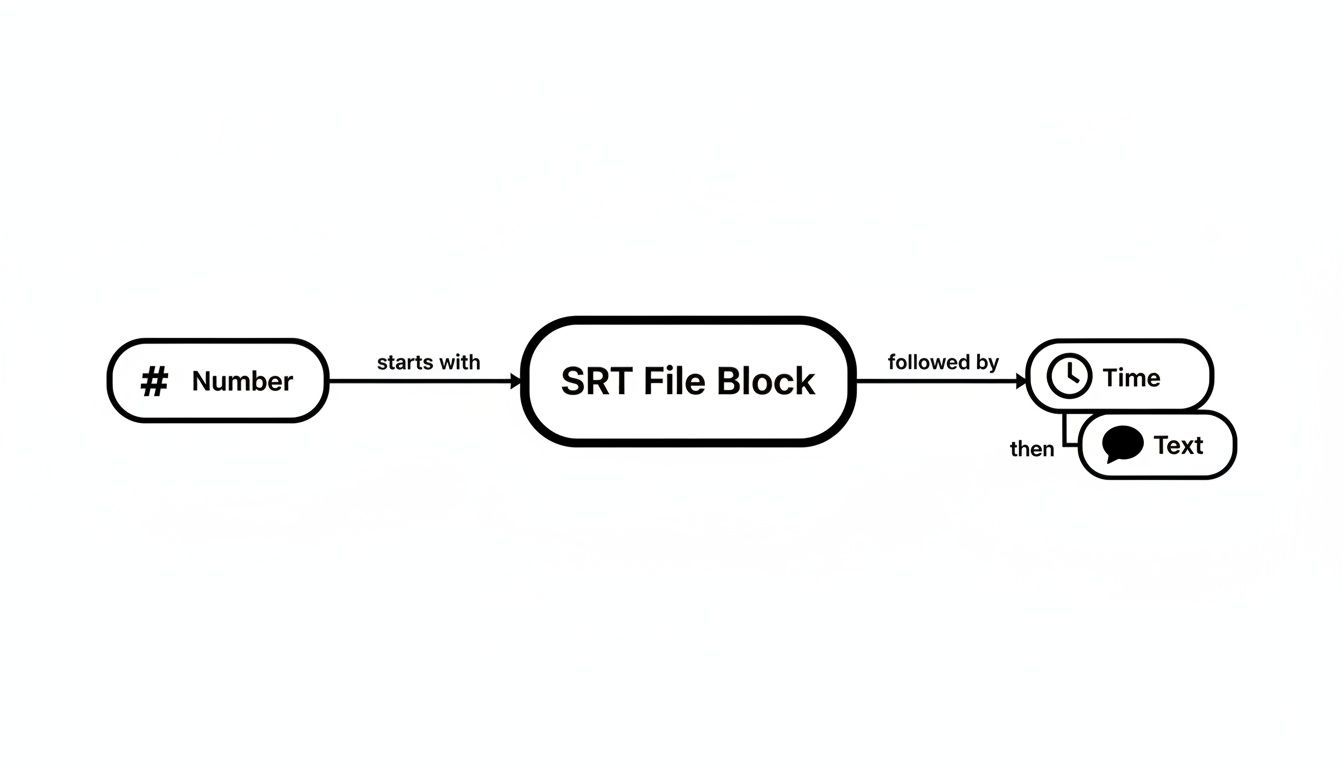
Each block is a tiny, self-contained instruction for the video player, telling it exactly what to show and when.
1. You'll Make Your Content Accessible to Everyone
First and foremost, SRT files make your videos accessible. This isn't just about ticking a compliance box; it's about basic inclusivity. Captions give viewers who are deaf or hard-of-hearing the same experience as everyone else.
But the need for captions goes way beyond that. Think about all the places people watch video now—a noisy train, a quiet library, or an open-plan office. In all those situations, audio is off. Captions ensure your message still lands, no matter the environment. By adding an SRT, you're welcoming in a huge group of people who would otherwise have to skip your content. You can learn more about building inclusive digital experiences with these essential accessibility features.
2. You Can Finally Reach the "Sound-Off" Crowd
Let's be honest: most people scrolling through social media have their sound off. It's the default behavior on platforms like Instagram and Facebook. Without captions, your carefully crafted video is just moving pictures with no context. People won’t stick around to figure it out; they'll just keep scrolling.
In a world of silent scrolling, your captions become the headline. They have to grab attention and deliver the hook immediately. They're often the only thing that makes someone stop and watch.
SRT files are your direct line to this massive audience. They turn a silent, confusing video into an engaging one that people will actually pay attention to.
3. You'll Give Your Videos a Serious SEO Advantage
Search engines are brilliant, but they can't watch a video to figure out what it's about. They understand text. When you upload an SRT file alongside your video, you’re basically giving Google a word-for-word, time-stamped transcript.
This text is SEO gold. It’s packed with keywords and context that tell search engines exactly what your video covers. The result? Your video is far more likely to show up in search results when people look for information on your topic, driving free, organic traffic for months or even years to come.
How to Create Perfect SRT Files with AI
So, you're sold on why you need SRT files. But the idea of making one by hand? That can feel pretty overwhelming.
The good news is you don't have to. Modern tools have turned this once-painful process into a simple, automated task. Honestly, AI transcription is the fastest and easiest way to get it done.

Platforms like WhisperAI use powerful artificial intelligence to churn out accurate, time-stamped captions in minutes, not hours. This isn't just a minor convenience—it's a massive time and resource saver.
And it's clear people are catching on. According to Grand View Research, the growth of the transcription market shows just how vital accurate text versions of audio and video have become in every industry.
The Simple AI Workflow for SRT Files
Creating an SRT file with an AI tool is incredibly straightforward. It really just comes down to a few basic steps that anyone can handle, no technical background required. This frees you up to focus on what you should be doing: creating great content.
The whole process is designed to be as hands-off as possible:
- Upload Your Media: Just drag and drop your video or audio file into the platform. Most services handle all the common formats, so it's easy to get started.
- Let the AI Do the Work: The AI listens to your audio and converts it into a time-stamped transcript. I've seen these tools handle different accents, background noise, and even technical jargon with impressive accuracy.
- Review and Refine: Once the AI is done, you can use a simple editor right in your browser to make any quick fixes. This usually just means correcting a bit of punctuation or a misspelled name—a process that takes a few minutes, max.
- Export Your SRT File: With a single click, you can download a perfectly formatted .srt file, ready to upload wherever your video lives.
This workflow takes what used to be a multi-hour headache and turns it into a quick, easy to-do list item.
Why AI is the Best Method
Sure, you could technically create an SRT file by hand in a text editor. But it's painfully slow and incredibly easy to mess up. Trying to sync timecodes manually is a meticulous job that requires a ton of patience and precision.
AI transcription eliminates all the guesswork. It automatically handles the hardest part—the timing—so your captions show up on screen at the perfect moment, every single time.
Using a service like WhisperAI ensures you get a professional-quality SRT file without putting in the professional-level effort. It’s simply the most reliable way to create captions that make your videos better for viewers and easier to find.
Once you have your text, you can also learn how to convert TXT to SRT yourself, which is a great skill to have. For a deeper look at how different platforms handle this, check out this SRT export guide comparing WhisperAI to competitors. By bringing AI into your process, you’re not just making captions; you’re building a smarter, faster content workflow.
What to Do When Your SRT File Goes Wrong
Even with the best tools, things can get a little quirky. You’ve got your SRT file, it looks right, but when you upload it, the captions are a mess. It's a frustrating, but common, part of the process.
The good news is that most of these headaches are caused by just a few simple issues. We'll walk through the three most frequent culprits—captions out of sync, text that looks like scrambled nonsense, and formatting glitches that break the whole file. No need to stress; the fixes are usually surprisingly easy.
Fixing Out-of-Sync Captions
This is probably the most familiar problem: the text on screen shows up a few seconds too early or too late. It completely throws off the viewing experience and often happens if the video was edited after the SRT file was made, or if there's a subtle mismatch in framerates.
The solution is to shift all the timestamps at once. You could open the file and manually adjust every single timecode, but that would take forever. A much smarter approach is to use a free online subtitle editor. Just upload your SRT and the video, and you'll get a timeline where you can simply drag all the captions forward or backward until they line up perfectly.
Solving Gibberish Text and Encoding Issues
Ever uploaded a caption file and seen strange symbols like ’ or a bunch of ??? where your words should be? That’s a classic encoding problem. It just means your SRT file was saved in a character format that your video player doesn't understand. The gold standard for SRT files is UTF-8, because it supports characters from pretty much every language on earth.
Fixing this is a breeze. Just open your SRT file in a basic text editor—Notepad on Windows or TextEdit on a Mac will do. Go to "File," then "Save As," and look for a dropdown menu labeled "Encoding" in the save window. Choose "UTF-8" from the list, save the file (overwriting the old one), and you're done. That one small tweak almost always clears up the scrambled text.
It's worth remembering that the whole point of a subtitle file—and the reason people search for what "SRT stand for"—is to make content accessible. Encoding errors get in the way of that, but thankfully, the fix is simple.
Correcting Common Formatting Errors
The SRT format is incredibly rigid. A single misplaced character can make the entire file unreadable to a video player. A missing blank line, a period where a comma should be in a timecode, or even an extra space can bring everything to a halt.
If your file won't load, comb through it and look for these common mistakes:
- Missing Blank Lines: Make sure there's a single, completely empty line separating each numbered caption section.
- Incorrect Timecode Separator: The arrow between the start and end times has to be exactly
-->(a space, two dashes, a greater-than sign, and another space). - Wrong Millisecond Delimiter: Timecodes must use a comma before the milliseconds, like
00:00:05,123. A period will break it.
When you're stuck, sometimes the fastest fix is to generate a new file from scratch. Using a reliable service like the AI transcription platform at WhisperAI guarantees a perfectly formatted file every time, so you can sidestep the risk of manual errors altogether.
What About the Other SRT?
Now, just to make sure we're covering all the bases, let's talk about the other SRT you might stumble upon. This one stands for Secure Reliable Transport, and it has absolutely nothing to do with captions and everything to do with professional live video streaming.
Think of it like an armored car for a live video feed. Its sole purpose is to get a video signal—say, from a live NFL game or a breaking news report—from point A to point B over the internet without any hiccups, even if the connection is choppy.
A Tool for Broadcasters, Not Creators
This version of SRT is a highly specialized protocol used by broadcast engineers and the technical wizards who manage live streams. It's the invisible plumbing that makes sure the video arrives intact.
Here’s the simple breakdown of what sets it apart:
- Its Job: Secure Reliable Transport is all about sending the live video itself.
- Who Uses It: This is a tool for technical experts in the broadcasting world.
- What It Is: It’s a protocol—a set of rules for communication—not a file you can open or edit on your computer.
The key takeaway is simple: one SRT is about the transmission of video, while the other is about the text that appears on top of it. For your work as a creator or marketer, you can confidently ignore the broadcast protocol and focus entirely on your SubRip subtitle files.
Making this distinction is more important than ever. The demand for accurate text on video is exploding. You can read more about the expanding AI transcription market to see the trends and understand just how critical automated transcription has become for businesses.
Ultimately, for your needs, the humble .srt file you get from a tool like WhisperAI’s AI transcription is exactly what you’re looking for.
A Few Common Questions About SRT Files
Let's clear up some of the most common questions that pop up when people first dive into the world of SRT files. Getting these answers straight can save you a ton of headaches down the road.
So, Can I Just Edit an SRT File Myself?
You sure can. At its core, an SRT file is just a simple text document. You can pop it open in any basic text editor—like Notepad on Windows or TextEdit on a Mac—and make changes directly.
The catch? You have to be extremely careful with the formatting. One wrong character in a timecode or a missing blank line can throw the whole thing off and cause your captions to disappear. It's doable, but it requires a bit of precision.
Do Video Platforms Actually Use SRT Files?
Almost all of them do. The SRT format is pretty much the gold standard for captions across the web.
Think of the major players: , Vimeo, Facebook, and LinkedIn all seamlessly support SRT uploads. This universal acceptance is precisely why it’s stuck around for so long—it just works everywhere.
What's the Real Difference Between Open and Closed Captions?
This is a fantastic question because the terms are often mixed up.
- Closed Captions (CC): These are the captions you get from an SRT file. They exist as a separate track that viewers can toggle on or off according to their preference. It gives your audience control.
- Open Captions: These are "burned" directly into the video file itself. They are part of the picture, like subtitles in a foreign film, and can't be turned off.
SRT files are exclusively for closed captions, which is what you'll want to use in most cases to improve accessibility and user experience.
Is an SRT File Just a Transcript?
Not quite, but they're definitely related. A transcript is the raw text of everything spoken in the video—just a wall of words.
An SRT file takes that transcript and gives it superpowers. It breaks the text into bite-sized chunks and matches each piece to a specific start and end time. It’s the "when" that turns a simple transcript into functional, synchronized captions.
Tired of wrestling with timecodes and formatting? WhisperAI can generate perfectly synchronized SRT files for you in minutes. Just upload your video or audio, and our AI transcription handles all the tricky parts, leaving you with a polished, ready-to-use caption file.