TL;DR
The best way to turn audio into text is with a good AI service. You just upload a clean audio file, pick a few settings like speaker identification, and let the AI do the heavy lifting. After a quick review, you can export it as a DOCX, SRT, or whatever you need. This process has completely replaced manual transcription because it's insanely fast, surprisingly accurate, and won't break the bank. It's now the go-to for creators, researchers, and businesses alike.
This guide will walk you through exactly how it works, step by step, with practical tips I've picked up from real-world use. Let's turn that audio into something you can actually use.
Why AI Transcription Is the New Normal
Not too long ago, turning spoken words into written text was a painful, manual chore. Today, learning how to transcribe audio to text is easier than ever, and you can thank artificial intelligence for that. What used to be a pricey, time-consuming service is now a simple tool anyone can use, from podcasters editing their latest episode to corporate teams documenting meetings.
It all comes down to a powerful mix of speed, accuracy, and cost. Modern AI tools can chew through an hour of audio in a few minutes, hitting accuracy rates that are often highly accurate when the recording is clear. That kind of efficiency has made transcription a routine part of workflows, not a luxury.
The Real Reason for the Shift
The demand for fast, reliable transcription has absolutely exploded. Think about it: so much of our work and content now lives in recordings—Zoom meetings, webinars, video interviews, you name it. We need that content to be searchable, accessible, and easy to repurpose, and that's where transcription comes in.
This isn't just a niche trend; the market growth tells the whole story.
The global audio transcription software market is on a tear, jumping from an estimated $2.5 billion in 2025 and projected to grow at a Compound Annual Growth Rate (CAGR) of 15% through 2033. This boom is all thanks to AI making the process faster, smarter, and cheaper. You can dig into more of the data over at Archive Market Research.
Before we jump into the nitty-gritty details, let's look at the overall process. It's a lot more straightforward than you might think.
AI Transcription Process At a Glance
This table breaks down the main stages of turning your audio into a polished transcript. Think of it as our roadmap for the rest of this guide.
| Stage | Key Action | Why It Matters |
|---|---|---|
| Preparation | Clean up your audio file (reduce noise, use a good format). | A clearer audio file directly translates to a more accurate transcript. Garbage in, garbage out. |
| Transcription | Upload the file to an AI service and choose your settings. | This is where the AI does its magic. Settings like speaker labels are key for multi-person recordings. |
| Review & Edit | Read through the AI-generated draft while listening to the audio. | No AI is perfect. A quick human review catches errors in names, jargon, or unclear phrases. |
| Export | Choose your final file format (e.g., DOCX, SRT, TXT). | The right format makes the transcript immediately usable for your specific need, like video captions or a meeting summary. |
See? It's a simple, repeatable workflow.
What This Guide Will Actually Teach You
This isn't just theory. We're going to cover the practical, actionable steps to get you from a raw audio file to a perfect transcript.
Here's what you'll learn:
- How to Prep Your Audio: A few simple tweaks to your audio can dramatically boost the AI's accuracy. It's the easiest win you can get.
- Navigating the Tools: We'll demystify the key settings, like when to use speaker labeling and why timestamps are so important.
- Editing Like a Pro: Learn how to quickly polish the AI draft into a final document that looks like it was done by a human.
- Exporting for Any Use Case: We'll cover which file format to choose, whether you're creating video captions (SRT) or a formal report (DOCX).
By the end of this, you'll realize that mastering AI transcription isn't about being a tech wizard. It's about learning a simple process that unlocks all the value hidden away in your audio content.
Here's a look at the simple prep work that can save you hours of headaches and editing down the line.
Tidy Up Your Audio First
Background noise is the number one enemy of accurate transcription. Seriously. That low hum from an air conditioner, the distant chatter in a coffee shop, or even a passing siren can completely throw off an AI model, leading to garbled words and nonsensical phrases.
For instance, a consistent low-frequency buzz from a server rack can easily be misinterpreted as spoken words by an algorithm. The good news? You don't need a fancy audio engineering degree to fix this.
A free tool like Audacity is perfect for the job. It has a surprisingly powerful "Noise Reduction" effect that works wonders. You just highlight a few seconds of pure background noise, let the tool learn what to filter out, and then apply it to the entire track. I've seen this one simple action boost accuracy by a noticeable margin, every single time.
The old saying "garbage in, garbage out" couldn't be more true here. Even the most sophisticated AI will struggle with messy audio. Taking a few minutes to clean up your source file is probably the single most important thing you can do to get a great transcript.
Another classic issue, especially in recordings with multiple people, is inconsistent volume. You know the drill: one person is practically shouting into their mic while another is barely audible. The AI might just skip over the quieter person's speech entirely.
Most audio editors have a "Normalize" or "Loudness Normalization" function. This automatically brings the entire track to a consistent, standard volume. It's a quick fix that ensures every single word has a fighting chance of being transcribed correctly.
Choose the Right File Format
The format of your audio file also plays a part, though maybe a smaller one than cleanup. While most services are pretty flexible, knowing the difference can help you squeeze out that last bit of quality.
- WAV (Waveform Audio File Format): Think of this as the raw, uncompressed version of your audio. It contains all the original data, giving the AI the richest possible source to work with. If accuracy is your absolute top priority and you don't mind a larger file size, WAV is the gold standard.
- MP3 (MPEG Audio Layer III): This is what most people are familiar with. It's a compressed format, meaning it cleverly discards some audio data to keep file sizes small. For most things, like transcribing a podcast or a team meeting, a high-bitrate MP3 is perfectly fine and uploads much faster.
- M4A or AAC: These are also compressed formats, often found on Apple devices. They tend to offer slightly better quality than MP3s at similar file sizes, making them another great, efficient choice for transcription.
Ultimately, the goal is to give the AI the clearest possible "picture" of the spoken words. While we've focused on audio here, the exact same principles apply when you're pulling audio from a video file. For a deeper dive on that, check out our comprehensive video transcription guide.
By tidying up noise, leveling out the volume, and picking a solid file format, you're setting the stage for the AI to do its best work. This little bit of effort upfront means you get a transcript that's far more accurate from the very first draft.
Quick Guide
For a great transcript, upload your clean audio, and then pick the right settings. Use speaker labeling for interviews or podcasts so the AI knows who's talking. Always turn on timestamps—they're essential for video captions or jumping to a specific spot in the audio. If your file is huge, either compress it a bit or use a service built for large uploads.
A Practical Walkthrough of AI Transcription
With a clean audio file ready to go, you're at the most exciting part—letting the AI do its thing. But this isn't just a "click and wait" game; the choices you make now directly shape how useful your final transcript will be. Let's walk through the key settings you'll see, using a tool like WhisperAI as our example, to get this right.
First up, you'll either upload your prepared audio file or start a live recording. Most professional platforms are flexible, supporting common formats like MP3, WAV, M4A, and WEBM. The file you prepped earlier should work just fine.
Once your file is loaded, you'll face a few critical options. These settings are what turn a basic text dump into a structured, professional document.
When to Use Speaker Labeling
One of the most powerful features in modern AI transcription is speaker labeling, sometimes called diarization. It's the AI's ability to tell different voices apart and tag them (e.g., "Speaker 1," "Speaker 2").
This feature is an absolute game-changer in a few key scenarios:
- Interviews: You need to clearly separate the interviewer's questions from the guest's answers. Speaker labels make this effortless.
- Podcasts with Multiple Hosts: For conversational shows, labels prevent a confusing wall of text and make the transcript easy to follow.
- Team Meetings or Focus Groups: Knowing exactly who said what is vital for accurate meeting minutes and assigning action items later.
But you don't always need it. If you're transcribing a solo narration, a lecture, or a personal memo, speaker labeling is just extra clutter. Turning it off can sometimes even speed up the processing time a little.
Pro Tip: Once you get your transcript back, do a quick "find and replace" to swap generic labels like "Speaker 1" with the person's actual name, like "Jane Doe." It's a small touch that makes the final document look far more polished and professional.
The Power of Automatic Timestamps
Next up: timestamps. My advice? Just leave this feature on. Always.
Timestamps are markers that connect specific words or phrases in the text to their exact moment in the audio. This might seem like a minor detail, but it's incredibly powerful.
For video creators, timestamps are the backbone of good captions. An SRT file—the industry standard for subtitles—is basically just a transcript broken down by timestamps. Without them, you'd be stuck in a painful manual process trying to sync everything up.
Even if you're not making videos, timestamps are a lifesaver for editing and review. If you spot a weird phrase in the transcript, you can click it and instantly jump to that point in the audio to hear what was really said. This makes proofreading so much faster. For researchers or journalists, it means you can cite quotes with pinpoint accuracy.
Handling Large Audio Files
So what happens when you have a massive, multi-gigabyte WAV file from a two-hour conference? Uploading something that big can be painfully slow and might even hit the service's file size limit, which often sits around 5GB.
You've got a couple of options.
The easiest is simple compression. You can use an audio editor to convert that huge WAV file into a high-quality MP3 (think 320 kbps). This will slash the file size with almost no noticeable drop in audio quality, making the upload a breeze.
Alternatively, many professional-grade services like WhisperAI are built to handle large files right out of the box. These platforms use more robust upload tech that won't time out on you. For a deeper dive into different methods, checking out a dedicated audio to text converter guide can give you more specific solutions. If you're curious about the model doing the heavy lifting, our Whisper transcription guide covers what OpenAI's Whisper actually does and the four practical ways to run it. This is especially true for enterprise users who deal with long-form recordings all the time.
Selecting the Language
The last key setting is telling the AI what language the audio is in. While many advanced AIs offer automatic language detection these days, it's always best practice to manually select the language if you know it.
This removes any guesswork for the AI and ensures it pulls up the correct phonetic and grammatical models from the very start. It's especially important for languages with lots of dialects or for recordings where people might switch between languages. If your audio has a mix of English and Spanish, for instance, some tools can handle that, but setting the primary language gives the AI a solid foundation for accuracy.
By being intentional with these settings—speaker labeling, timestamps, and language—you're guiding the AI to produce a transcript that isn't just accurate, but perfectly formatted for whatever you need it for. Once you've got everything configured, hit start and let the algorithm get to work.
TL;DR
Your AI transcript is a first draft. Always give it a quick human review to catch errors in names or technical terms. Use the synchronized audio player to check tricky spots instantly. When you're done, export it in the right format: DOCX for reports, SRT for video captions, or a simple TXT for notes. Getting this last step right makes your transcript immediately useful.
How to Polish and Export Your Transcript
The AI has done the heavy lifting, giving you a transcript that's probably over 90% accurate. But that last 10%? That's where you come in. This final review and export stage is what turns a solid AI draft into a polished, professional document you can actually use.
Think of the AI as a brilliant assistant that's a little too literal. It nails the vast majority of a conversation but can easily get tripped up on things that need a bit of human context, like unique names, industry jargon, or words that sound the same but mean different things.
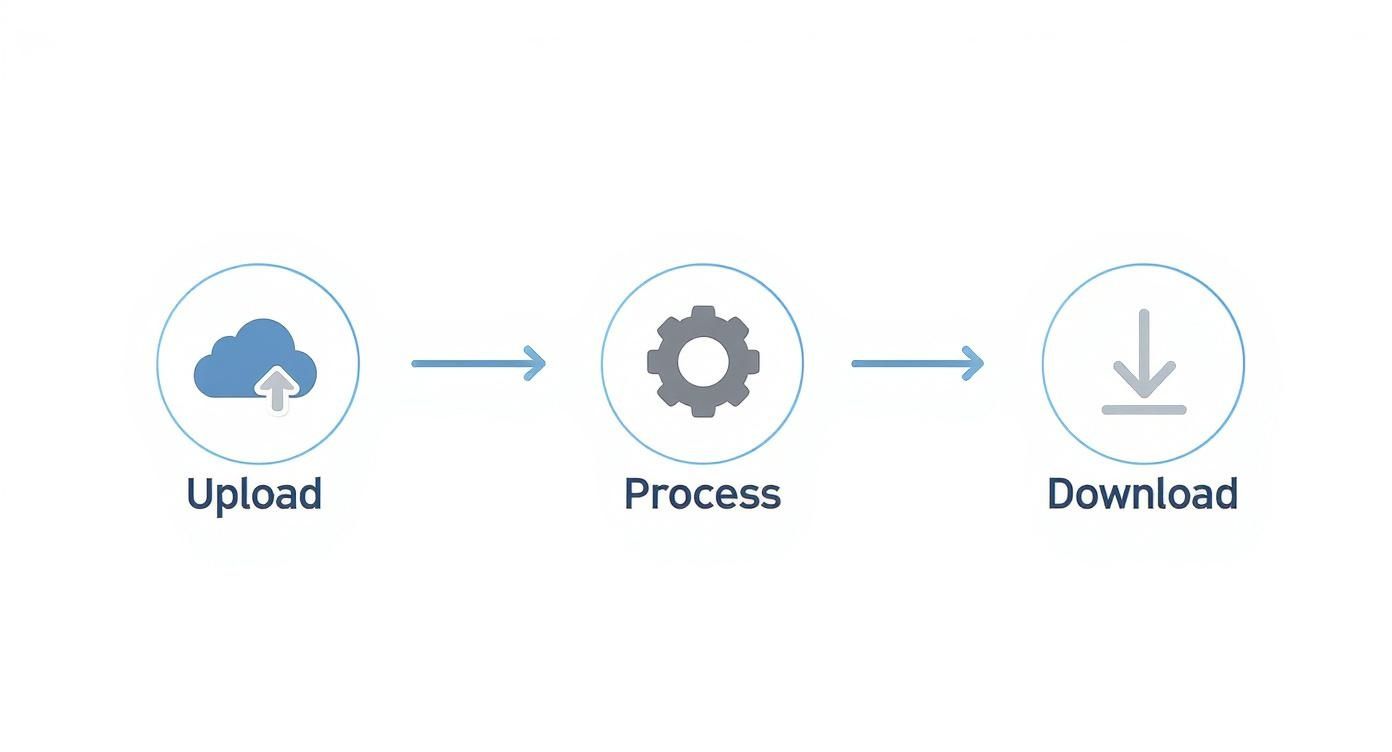
The simple three-stage workflow from audio upload to finished transcript
As you can see, it's a straightforward path from uploading your file to having a ready-to-use document, all in just a few clicks.
Efficiently Reviewing Your Transcript
Speeding through your review comes down to using the right tools. Modern transcription platforms like WhisperAI have an interactive editor, which is your command center for polishing the text. The transcript is synchronized word-for-word with the audio player.
This means you can click on any word in the text and instantly hear the exact moment it was spoken. No more frustrating scrubbing back and forth trying to find that one garbled phrase.
Your editing should be fast and focused on high-impact fixes:
- Proper Nouns: Scan for the names of people, companies, and products. The AI might hear "Acme Corp" but type out "Ack Me Corp."
- Technical Jargon: If your audio is full of specialized terms, give those a once-over. A medical discussion about "enalapril" could easily be misinterpreted as "a real april."
- Punctuation and Flow: AI has gotten much better at punctuation, but it's not perfect. A quick read-through ensures the commas, periods, and paragraph breaks make sense and match the speaker's natural pacing.
The goal here isn't to re-transcribe the audio yourself. It's about making targeted, strategic fixes that boost clarity and accuracy. A focused 10-minute review can take a transcript from good enough to perfect.
The demand for accurate transcripts is exploding, especially in fields where precision is everything. The U.S. transcription market was valued at an incredible USD 30.42 billion in 2024, driven by critical needs in the legal, medical, and media industries. You can dig into the numbers and trends in this detailed industry analysis.
Choosing the Right Export Format
Once your transcript is clean, the last step is to export it. The format you choose is everything—it's what makes the text immediately useful for whatever you're doing next.
This isn't just a "Save As" moment. Picking the right format saves you from having to do a ton of frustrating reformatting later on.
| Format | Best For | Key Features |
|---|---|---|
| DOCX (Word Document) | Reports, articles, meeting minutes, and academic papers. | Rich text formatting, easy to edit, and universally compatible. Perfect for documents that need to be shared and styled. |
| SRT (SubRip Subtitle) | Video captions for platforms like YouTube, Vimeo, and social media. | A plain text file containing timestamps and text segments. This is the industry standard for creating accurate, synchronized subtitles. |
| TXT (Plain Text) | Raw data, coding, personal notes, or importing into other software. | No formatting, just the text. It's lightweight, fast, and compatible with virtually every application. |
| PDF (Portable Document Format) | Final reports, legal documents, and secure sharing. | Preserves formatting across all devices and is difficult to alter. Ideal for creating a final, read-only version of your transcript. |
So, what does this look like in the real world?
Imagine you've just transcribed a podcast. You might export it as a DOCX to write show notes, a TXT to pull quotes for social media, and an SRT to create captions for the video version on YouTube. Each format serves a distinct purpose.
If you're focused on video, you'll want to dive deeper into subtitle creation. For a closer look, check out our guide comparing SRT export options from WhisperAI and competitors.
TL;DR
To get a great transcript, you need great audio. Ditch your laptop's built-in mic for an external USB one. Then, set it and forget it by automating your workflow with tools like Zapier to transcribe new files automatically.
Pro Tips for Maximum Accuracy and Efficiency
Once you've got the basics down, it's time to dig into the techniques that separate the pros from the beginners. These are the strategies I use to squeeze every last drop of accuracy out of an AI transcript while cutting my manual editing time to almost zero.

Professional audio setup for optimal transcription quality
The single biggest factor for a better transcript is your source audio. It's that simple. While the AI in a tool like WhisperAI is incredibly powerful, it's not magic. It can't decipher what it can't hear clearly.
A small investment in an external USB microphone will make a night-and-day difference. Compared to your laptop's built-in mic, it captures much cleaner audio with far less of that annoying background hum and echo.
Automate Your Transcription Workflow
Real efficiency isn't just about how fast the AI transcribes; it's about making the entire process invisible. This is where automation comes in, turning transcription from something you do into something that just happens.
Using tools like Zapier or Make.com, you can connect your transcription service to the other apps you live in every day. This unlocks a ton of hands-off workflows.
Here are a few setups I've seen work wonders:
- The Podcast Machine: Create a rule where any new MP3 file dropped into a specific Dropbox or Google Drive folder is automatically sent to WhisperAI for transcription.
- Instant Meeting Notes: Link your calendar or recording app (like Zoom) so that when a meeting ends, the cloud recording is immediately transcribed and the text is emailed to all attendees.
- Content Repurposing Engine: Build an automation that sends a finished transcript to a tool like Trello or Asana as a new task, pinging a team member to turn it into a blog post or social media updates.
Workflows like these are why AI transcription is exploding. The market was valued at around USD 4.5 billion in 2024 and is projected to hit USD 19.2 billion by 2034. That growth is all about integrating this tech into real-world business processes. By connecting these simple dots, you eliminate manual work and turn your audio into useful text without even thinking about it.
TL;DR
When transcribing sensitive audio, security is non-negotiable. Always go with a service that provides end-to-end encryption and has a transparent privacy policy. You'll need to know the difference between cloud services and on-premise solutions to fit your company's risk profile, and absolutely make sure the provider is compliant with standards like GDPR or HIPAA if you're handling protected data.
Keeping Your Sensitive Audio Data Secure

Security is paramount when transcribing confidential audio data
If you're dealing with confidential client meetings, private interviews, or legal depositions, security isn't just a feature—it's the foundation of the entire process. Any workflow that involves transcribing audio to text must include rock-solid safeguards to protect that information from ever falling into the wrong hands.
Your first line of defense is always going to be end-to-end encryption. This is what guarantees your audio file is secure from the moment it leaves your computer, while it's being processed on the server, and all the way until the final transcript is back with you. Don't even consider using a service that doesn't explicitly guarantee this level of protection for your data, both in transit and at rest.
Evaluating Service Security Models
Next up, you have to understand where your data is actually being processed. This is a critical distinction that has huge implications for both security and legal compliance.
You really have two main options here:
- Cloud-Based Services: This is how most AI transcription tools operate. It gives you incredible convenience and scalability, but it means you have to do your homework on the provider's security measures. Stick with established names that are serious about their protocols.
- On-Premise Solutions: For organizations with the most stringent security needs—think government, healthcare, or finance—an on-premise solution keeps all your data inside your own network. You get maximum control, but it usually comes with a higher price tag and more maintenance overhead.
Choosing the right service means actually reading the privacy policy. A provider you can trust will be completely transparent about what they do with your data, whether they use it for model training, and exactly how long they hold onto it.
For any industry that handles protected information, compliance is simply not optional. Make sure whatever service you pick meets key standards like GDPR for European user data or HIPAA for patient health information in the U.S. Any reputable service will have detailed documentation on their compliance frameworks ready for you to review. You can learn more by checking out our commitment to WhisperAI enterprise-grade security and our strict adherence to these critical standards.
Your Top Questions About AI Transcription, Answered
If you're just getting started with AI transcription, you probably have a few questions. That's a good thing. Let's clear up some of the most common ones I hear from people making the switch.
The TL;DR
Modern AI is shockingly accurate, often hitting industry-leading precision with decent audio. It can easily tell different speakers apart and handles various accents. While you can find free tools, they're usually too limited for any serious work.
How Does AI Transcription Accuracy Stack Up Against a Human?
Modern AI transcription typically achieves highly accurate results with clear audio, which is remarkably close to human transcriptionists. The gap has narrowed significantly in recent years. For most use cases—podcasts, meetings, interviews—AI accuracy is more than good enough, especially when you factor in the massive speed and cost advantages. Human transcriptionists are now primarily reserved for the most demanding contexts, like legal depositions or medical dictation where absolute perfection is required.
Can the AI Actually Tell Different Speakers and Accents Apart?
Yes! Modern AI transcription services include speaker diarization (labeling) that can identify and separate different speakers in a recording. This works by analyzing voice characteristics like pitch, tone, and speaking patterns. While not perfect—especially if speakers have very similar voices—it's impressively accurate for most multi-person recordings.
As for accents, AI models are trained on diverse datasets that include various English accents (British, Australian, Indian, etc.) and other languages. They handle accents far better than they used to, though heavy accents or strong regional dialects can still pose challenges. If you're consistently working with a specific accent, some services let you select regional variants (like "English - UK") to boost accuracy.
Are Free Transcription Tools Worth Using?
Free tools can be useful for basic, occasional needs—like transcribing a short personal memo or testing out AI transcription for the first time. However, they typically come with significant limitations:
- File size restrictions (often just 5-10 minutes of audio)
- No speaker labeling or timestamps
- Lower accuracy rates
- Limited export formats
- Slower processing times
For professional work, a paid service like WhisperAI offers better accuracy, advanced features (speaker labels, multiple export formats), faster processing, and reliable customer support. The small monthly cost is easily justified by the time saved and higher quality results.
Ready to Transcribe Audio to Text?
Start using WhisperAI today for fast, accurate AI transcription with speaker labeling, timestamps, and 100+ languages.