7 Best Fonts for Subtitles for Maximum Readability in 2025
Searching for the best font for subtitles? Discover our top 7 picks for accessible, clear, and professional video captions and where to find them.
tl;dr: For the best subtitle font, choose a clean sans-serif like Roboto or Noto Sans. The goal is maximum readability and accessibility. This guide breaks down the top 7 resources for finding fonts, from free options like Google Fonts to professional standards set by Netflix, and gives you practical styling tips for ultimate clarity.
We've all been there: you're trying to follow a video, but the subtitles are a blocky, unreadable mess. It’s a frustrating experience that can make anyone click away in a heartbeat. Choosing the right subtitle font is way more than just a style choice; it's a critical part of making your content accessible, engaging, and professional. A great font makes your message clear and easy to read, keeping your audience hooked on the story, not squinting at the words on screen.
Finding the best font for subtitles isn't about picking something flashy. It's about understanding the design principles that ensure text is legible on all kinds of screens and in any viewing condition. If you want to dive deeper into creating an inclusive viewing experience, check out these resources on the most accessible fonts for maximum readability.
This guide cuts straight to the good stuff, giving you a curated list of the best places to find subtitle-ready fonts. We'll look at everything from the free treasure trove of Google Fonts to the professional-grade library of Adobe Fonts, and even peek at the standards set by industry giants like Netflix. Plus, we'll cover essential styling tips for size, color, and background to make sure your subtitles are always crystal clear. It all starts with a clean transcript, and using a tool like WhisperAI to generate accurate SRT files gives you the perfect canvas to apply these highly readable fonts.
1. Google Fonts
tl;dr: An essential, completely free resource for open-source subtitle fonts. Its vast library, especially the Noto Sans family for multilingual support, and easy web implementation make it the best starting point for any subtitling project, from YouTube videos to custom web players.
Google Fonts is, without a doubt, the best place to start your search for the perfect subtitle font, especially since it costs nothing. It’s a huge library with over 1,500 font families, all available under open-source licenses that let you use them for free, even commercially. This gets rid of any complicated licensing headaches, whether you're burning captions into a social media video or streaming them online.
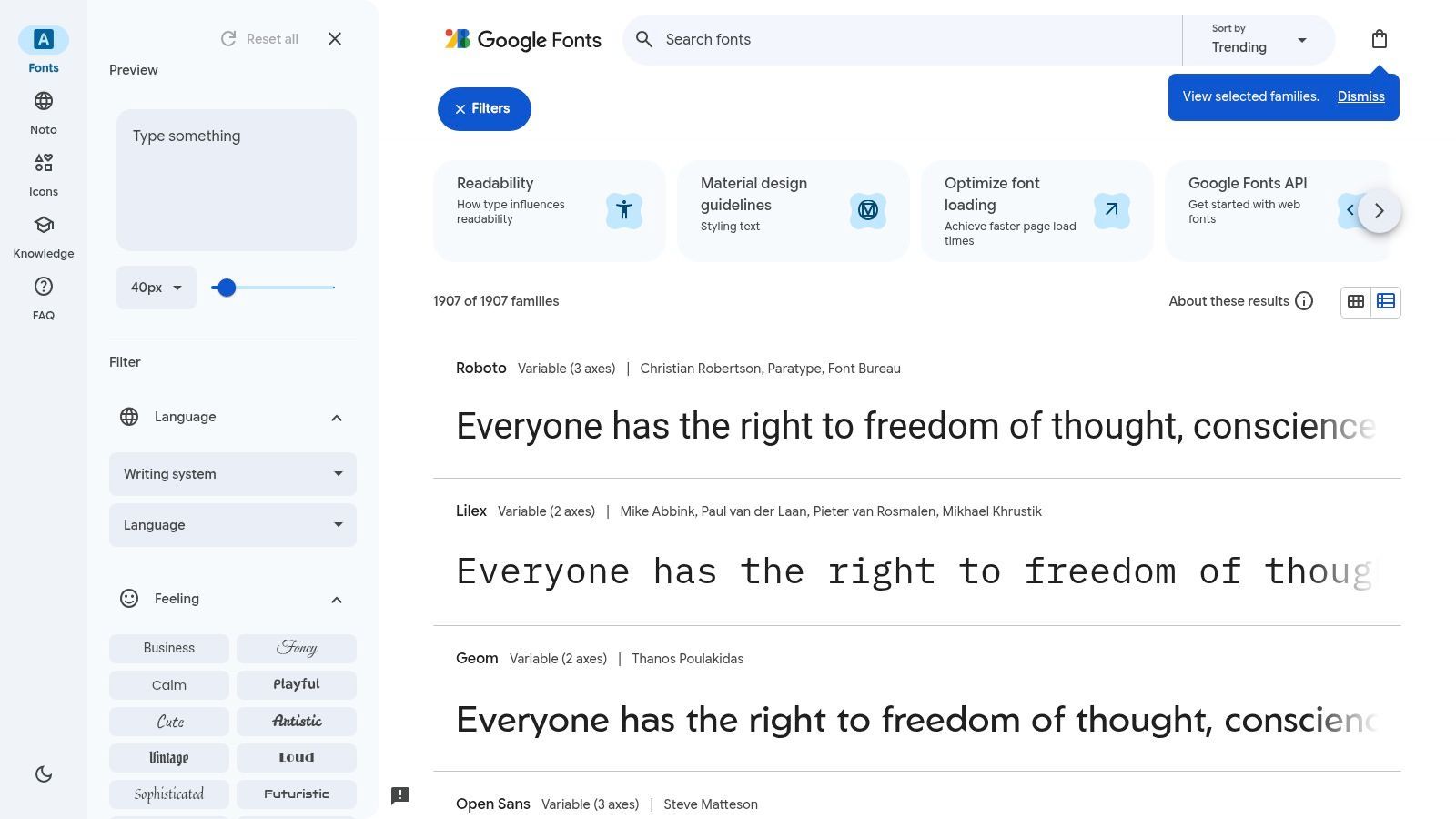
The platform's real strength is its fantastic selection of clean, highly readable sans-serif fonts that are perfect for on-screen text. Families like Roboto, Open Sans, and Lato are popular for a reason: they were designed for digital screens and stay sharp even at small sizes or on low-resolution displays.
Key Features and Why It Stands Out
What really makes Google Fonts a must-have is the Noto Sans family. This massive collection aims to support every language in the world, making it a game-changer for global content creators. If you export a multilingual SRT file from a service like WhisperAI, Noto ensures you have a consistent, high-quality font that can handle any script without showing those annoying empty boxes (tofu).
- Cost & Licensing: Completely free. All fonts are open-source (mostly under SIL Open Font License or Apache License), allowing for commercial use without fees.
- User Experience: The website is clean and super easy to use. You can type in your own text to preview it, adjust font weights, and filter by language to find exactly what you need in seconds.
- Unique Offerings: The Noto project is its standout feature, offering unmatched language support. The platform also has a powerful API for easily embedding fonts in web-based video players.
Practical Tips for Subtitle Work
When you're using Google Fonts, start with the "sans-serif" category and use the "language" filter to find fonts that cover your specific needs. For web-based subtitles, you can link directly to the font, which helps it load quickly. For offline video editing, just download the font family to your computer. To take your font accessibility even further, you can explore more accessibility-focused design features here.
| Feature | Rating | Notes |
|---|---|---|
| Selection | ★★★★★ | Massive library with excellent sans-serif options perfect for subtitles. |
| Cost & Licensing | ★★★★★ | Entirely free for commercial use, removing any financial or legal barriers. |
| Ease of Use | ★★★★★ | Simple web interface and straightforward implementation for both web and desktop applications. |
| Multilingual Support | ★★★★★ | The Noto family is the gold standard for global language support, a key advantage for accessible and localized content. |
Website: https://fonts.google.com
2. Adobe Fonts (with Creative Cloud)
tl;dr: An essential, highly-curated font library for video professionals already in the Adobe ecosystem. Its seamless integration with Premiere Pro and After Effects, combined with high-quality, pre-licensed fonts, makes it the most efficient choice for subtitling workflows that demand professional polish.
For editors and creators who live and breathe the Adobe Creative Cloud suite, Adobe Fonts is the smoothest way to find the best font for subtitles. Instead of an overwhelming, unfiltered library, it offers a beautifully curated collection of thousands of high-quality fonts. The best part? They're included with most Creative Cloud subscriptions, so you don't have to worry about buying and licensing fonts separately.
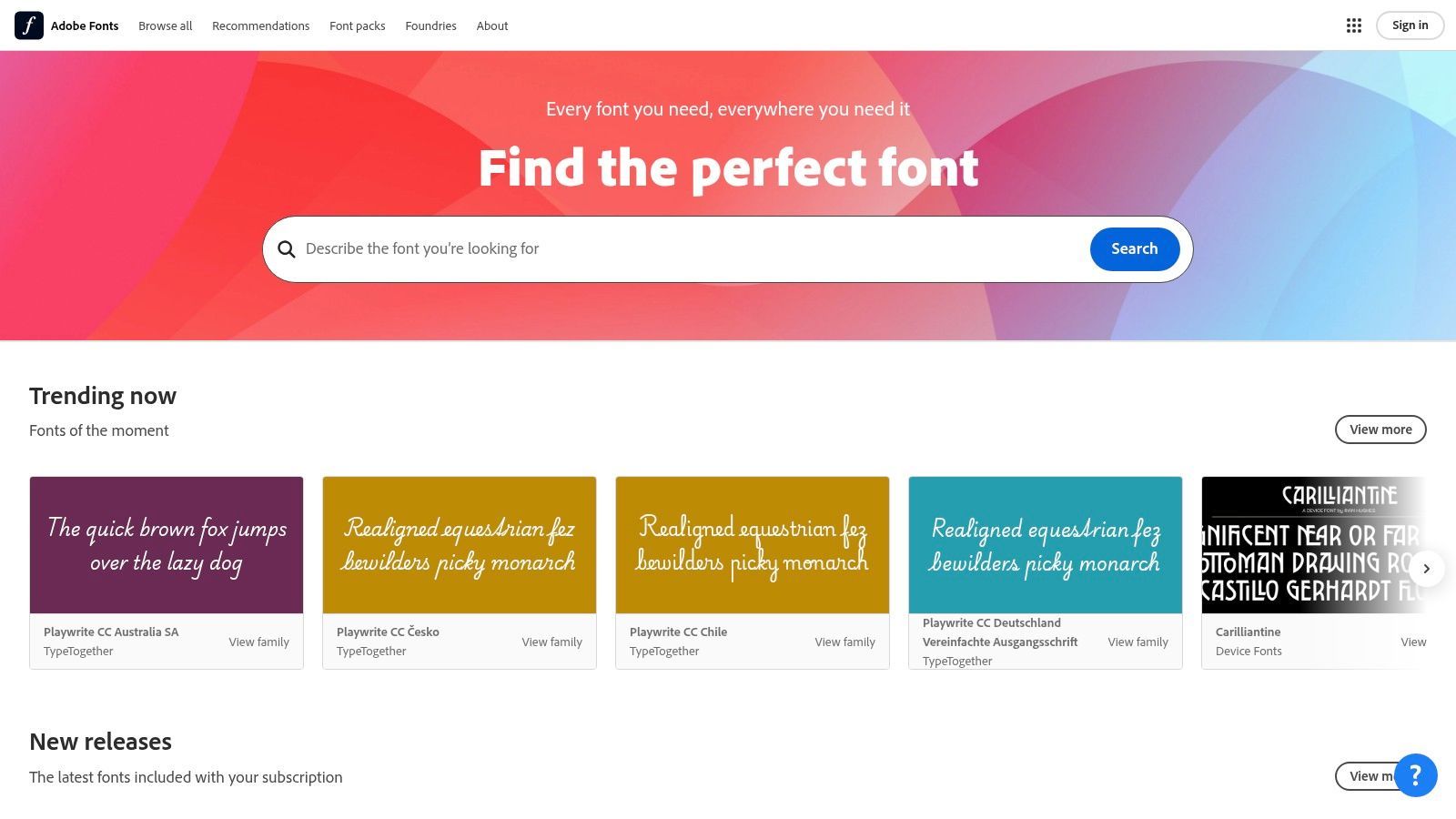
The platform’s biggest selling point is its deep integration. With a single click, you can activate a font like Proxima Nova or Avenir Next, and it instantly shows up in Premiere Pro’s Essential Graphics panel. This slick workflow saves a ton of time compared to downloading, installing, and managing font files by hand.
Key Features and Why It Stands Out
What makes Adobe Fonts a top pick for pros is the sheer quality and convenience of its library. It includes subtitle design staples that are often pricey to license on their own, like the complete Helvetica Now and Din Next families. It also hosts Google’s Noto Sans, giving you powerful multilingual support for global captioning right inside your editing software.
- Cost & Licensing: Included with most Adobe Creative Cloud subscriptions. This covers most standard commercial use cases for web and desktop, removing extra licensing steps.
- User Experience: The font activation process is flawless. Fonts sync across all devices logged into the same Adobe account, keeping everything consistent for teams and solo creators alike.
- Unique Offerings: The direct integration with Premiere Pro and After Effects is its killer feature. It also lets you create web projects to use the same fonts for custom online video players.
Practical Tips for Subtitle Work
You can activate fonts directly from the Adobe Fonts website or the Creative Cloud desktop app. In Premiere Pro, they’ll pop up in your font dropdowns immediately. For subtitle workflows using SRT files from services like WhisperAI, just import the text and style it with an activated font in the Essential Graphics panel. This makes it easy to stick to your brand's style guide without ever leaving your editor.
| Feature | Rating | Notes |
|---|---|---|
| Selection | ★★★★☆ | Highly curated, professional-grade library, though smaller than Google Fonts. Focuses on quality over raw quantity. |
| Cost & Licensing | ★★★★☆ | Excellent value if you already have a Creative Cloud subscription, but it is a paid service. |
| Ease of Use | ★★★★★ | Unbeatable integration with Adobe apps. Activating and using fonts is a one-click, seamless process for video editors. |
| Multilingual Support | ★★★★☆ | Very strong support, including access to the Noto family for comprehensive language coverage. |
Website: https://fonts.adobe.com
3. MyFonts
tl;dr: A massive commercial marketplace for professional fonts, ideal for projects needing specific, high-quality, or broadcast-proven typefaces. MyFonts is the go-to when you have a budget and require a font with extensive licensing options for web, broadcast, or app use.
When your project needs a specific look or a font that has a proven track record in broadcasting, MyFonts is a top-tier commercial marketplace. Owned by Monotype, it’s one of the largest digital font retailers out there, offering thousands of professionally designed typefaces. While it isn't free, it gives you access to premium fonts you won't find in open-source libraries, making it an essential resource for high-end video production and branding.
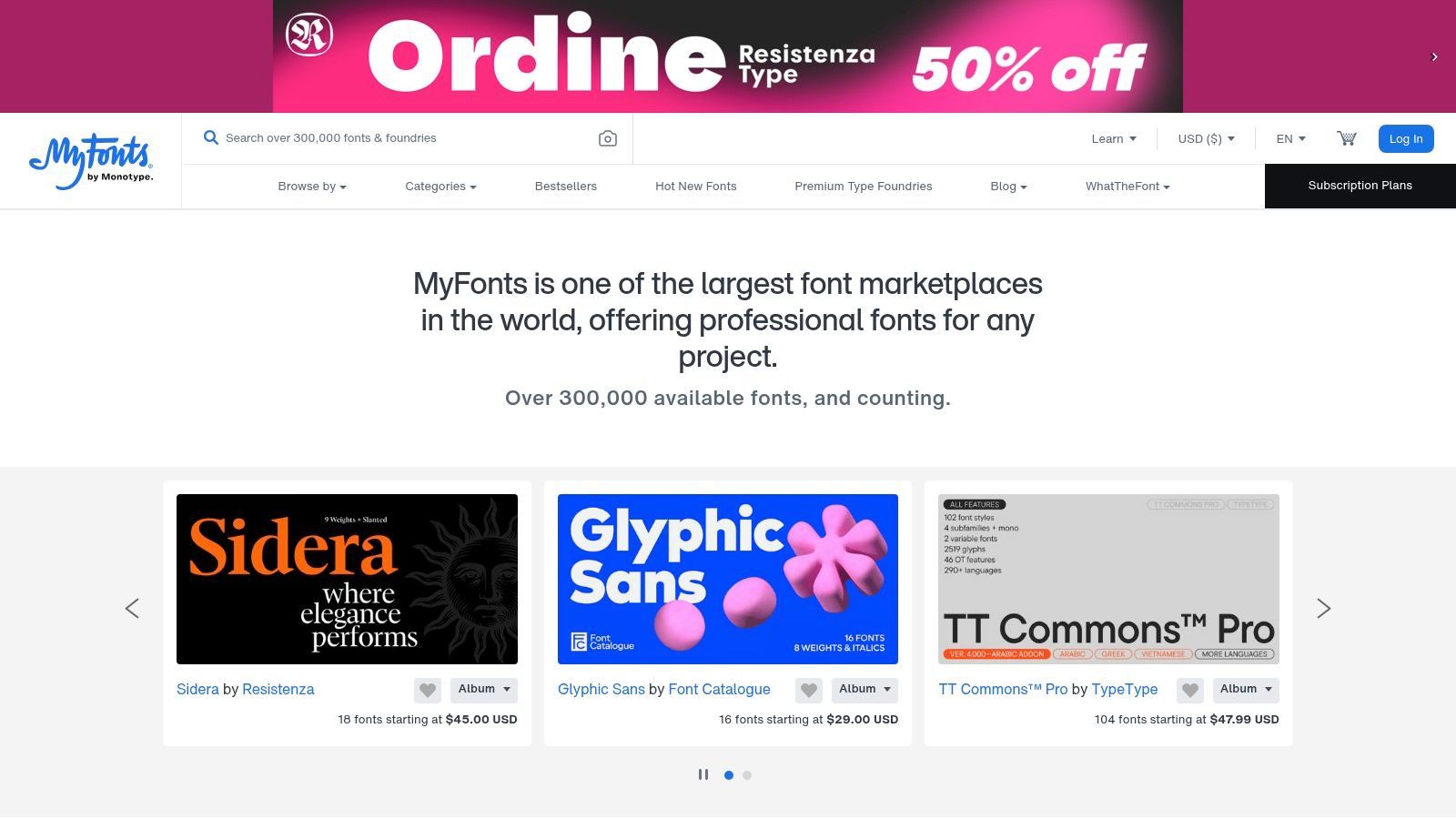
The platform’s value is in its curated selection of incredibly legible sans-serif families and specialty fonts. You can find industry workhorses like Helvetica Now and Avenir Next, along with fonts designed specifically for on-screen text, like Tiresias, which was originally created for digital TV subtitles and is famous for its exceptional clarity.
Key Features and Why It Stands Out
MyFonts does a great job of simplifying the often-confusing world of font licensing. It offers clear, separate licenses for desktop, web, app, and broadcast video, so you can buy exactly what you need. This is a big deal for commercial projects where legal compliance is a must, ensuring your font is properly licensed for every channel you distribute it on. The handy dashboard helps you manage all your purchases and licenses in one spot.
- Cost & Licensing: Commercial. Prices vary by font and license type (desktop, web, app, etc.). Webfont licenses are often tiered by monthly pageviews.
- User Experience: The website has powerful search and filtering tools. Users can preview their own text in any font, making it easy to test a typeface for subtitles before buying.
- Unique Offerings: Access to an extensive catalog of professional and broadcast-specific fonts like Tiresias. The Monotype licensing framework provides clear legal coverage for commercial use cases.
Practical Tips for Subtitle Work
Use the search filters to narrow down options to "sans serif" and look for properties like "legible" or "humanist." Before you buy, use the preview text feature to type out a few lines of typical subtitle text, including punctuation and numbers, to see how it looks. Always read the End-User License Agreement (EULA) carefully to make sure the license you're buying covers your intended use, whether you’re burning subtitles into a YouTube video or embedding them in a web player.
| Feature | Rating | Notes |
|---|---|---|
| Selection | ★★★★★ | Enormous professional library, including industry-standard and specialty fonts for on-screen text. |
| Cost & Licensing | ★★★☆☆ | Can be expensive, but offers clear, comprehensive commercial licenses that protect your projects legally. |
| Ease of Use | ★★★★☆ | Powerful search and preview tools make finding the right font straightforward. The licensing process is well-defined. |
| Multilingual Support | ★★★★☆ | Most professional fonts offer extensive language support, but you need to check the glyph set for each font before purchase. |
Website: https://www.myfonts.com
4. Fontspring
tl;dr: A font marketplace ideal for teams and creators who need clear, worry-free licensing. Fontspring’s perpetual, one-time purchase licenses for desktop, web, and video make it a safe and straightforward choice for finding a high-quality, professional font for subtitles without subscription headaches.
While free fonts are great for many situations, sometimes a project just needs a unique, premium typeface. Fontspring is a font retailer that makes the often-confusing world of font licensing simple. Its "Worry-Free" license promise means that a one-time purchase usually covers desktop, web, app, and e-book use. This is perfect for creators who need to use subtitles in both offline videos and online players.
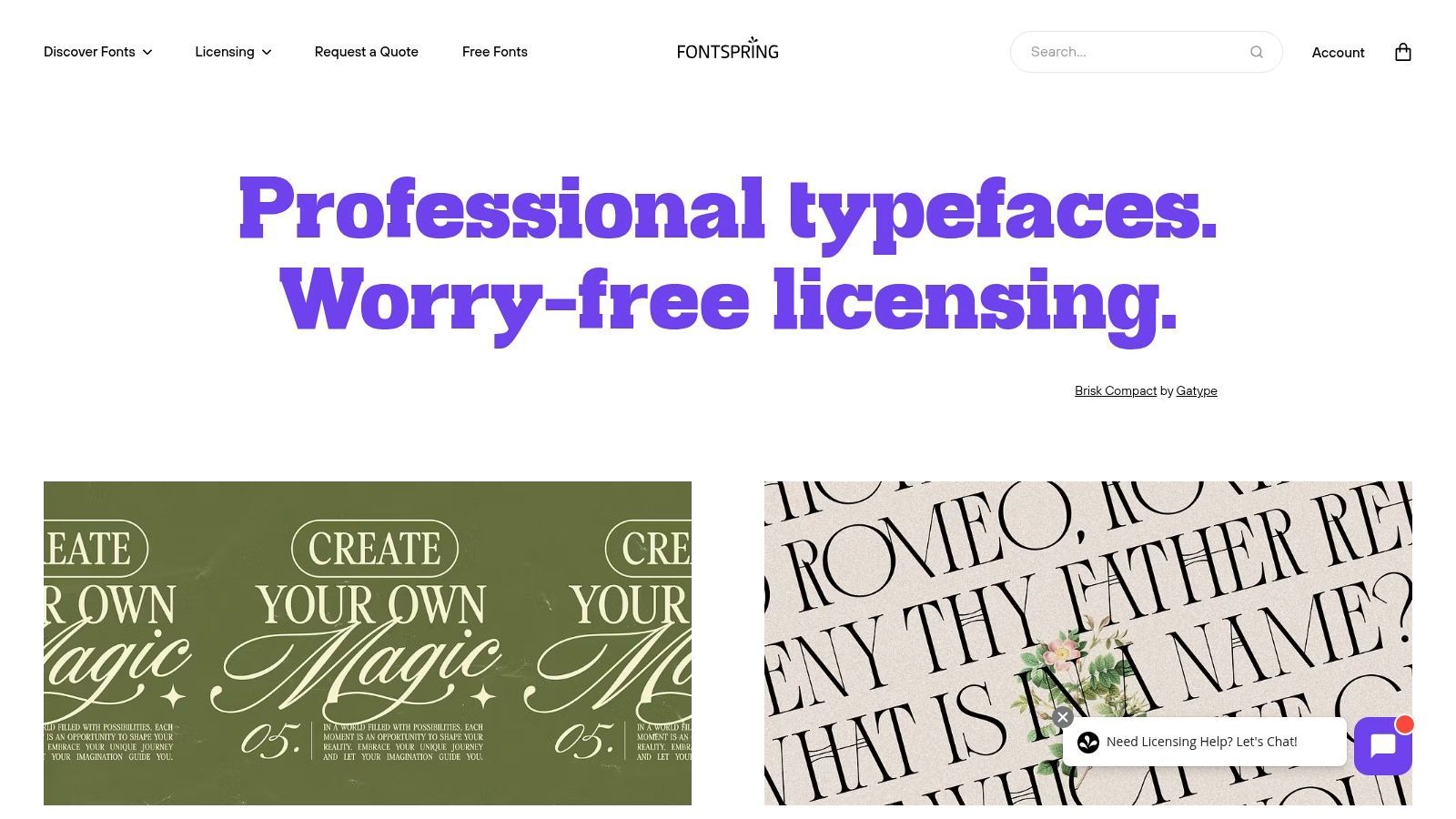
Unlike services that require subscriptions or complicated tracking for webfonts, Fontspring offers perpetual licenses. You buy the font once and can use it forever within the terms, which often include generous limits for web use. That kind of clarity is priceless for businesses, agencies, and independent creators who need to stay legally compliant without dealing with recurring costs.
Key Features and Why It Stands Out
Fontspring’s biggest advantage is its straightforward, designer-friendly approach to licensing. You won't need a law degree to figure out the terms. The platform clearly spells out what you can and can't do, and a single purchase often bundles all the permissions you need for a complete content strategy, including burning subtitles into a video for social media.
- Cost & Licensing: Premium fonts with one-time purchase prices. Licenses are perpetual and often all-inclusive, removing the need for separate web and desktop purchases.
- User Experience: The website is clean and has robust search filters. Each font page details the included glyphs and language support, which is critical for multilingual subtitling projects.
- Unique Offerings: The "Worry-Free" licensing model is its biggest differentiator. The platform also provides excellent customer support and clear documentation for using fonts across different applications.
Practical Tips for Subtitle Work
When you're browsing Fontspring, use the "Test Drive" feature to preview your own text (like common subtitle phrases) in different weights and styles. Pay close attention to the language support listed on each font page to make sure it covers all the languages in your SRT file. Once you buy a font, you get the files directly, making it simple to install them on your editing machine for use in software like Adobe Premiere Pro or DaVinci Resolve.
| Feature | Rating | Notes |
|---|---|---|
| Selection | ★★★★☆ | A curated, high-quality collection, though smaller than massive marketplaces like MyFonts. |
| Cost & Licensing | ★★★★★ | The best-in-class for clarity and simplicity. One-time perpetual licenses are a huge advantage for budget and legal certainty. |
| Ease of Use | ★★★★☆ | Simple interface and checkout process. Finding and testing fonts is easy, though demo downloads require an account. |
| Multilingual Support | ★★★★☆ | Many premium fonts offer extensive language support, but you must verify it on a per-font basis. |
Website: https://www.fontspring.com
5. Envato Elements (Fonts Library)
tl;dr: A cost-effective subscription service offering thousands of commercially licensed fonts. It's ideal for creators who want to experiment with a wide variety of subtitle styles across multiple projects without the high cost of individual font licenses.
For content creators and agencies who want more stylistic options than free resources provide, Envato Elements offers an affordable ticket to a massive library of premium fonts. It's a subscription service that gives you unlimited downloads from its font collection (and other assets) for a flat monthly fee. This makes it a fantastic platform for trying out different subtitle fonts to find the perfect fit for your brand's look and feel.
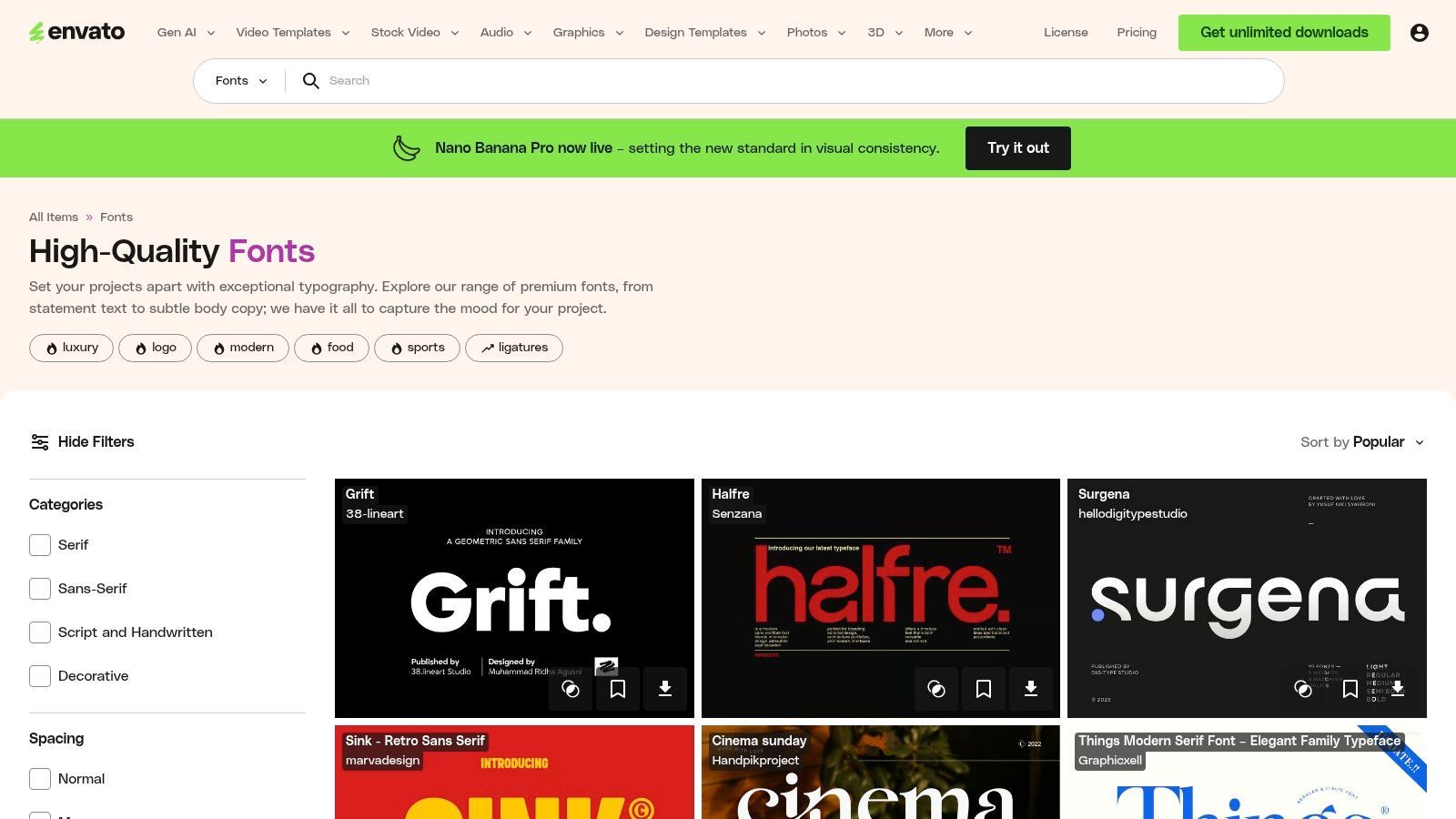
Unlike buying fonts one by one, the all-access model encourages you to get creative. You can download and try out dozens of clean, professional sans-serif families like Objective or Config to see how they perform in your video editor. The platform’s single, straightforward commercial license simplifies the legal side of things for any project you work on while subscribed.
Key Features and Why It Stands Out
Envato Elements’ main draw is its incredible value. For one fixed cost, you get access to a deep well of creative assets, which is especially useful when you're defining the visual identity for a new YouTube channel or web series. The freedom to prototype with numerous high-quality subtitle fonts without paying for each one is a huge boost to any creative workflow.
- Cost & Licensing: Subscription-based (starting from $16.50/month). A single commercial license covers all downloads, which you register per project.
- User Experience: The site is well-organized with powerful filters for finding specific font styles, such as sans-serif fonts with multiple weights suitable for subtitles.
- Unique Offerings: The "unlimited downloads" model is its key feature, making it a design sandbox for creators. It's cost-effective for anyone producing a high volume of content.
Practical Tips for Subtitle Work
When browsing, use filters to narrow your search to sans-serif fonts and check the font's character map to ensure it supports any special characters or languages you need. Since your license is tied to an active subscription, make sure to register the font to your project when you download it. This ensures you have the rights to use it in that project forever, even if you cancel your subscription later. This workflow is an essential part of a content creator's toolkit for efficient transcription and production.
| Feature | Rating | Notes |
|---|---|---|
| Selection | ★★★★☆ | Large and diverse library, though not as comprehensive for niche multilingual scripts as specialized foundries. |
| Cost & Licensing | ★★★★☆ | Excellent value for high-volume users. The need for an active subscription for new projects can be a limitation for some. |
| Ease of Use | ★★★★★ | The platform is intuitive to navigate, and downloading and licensing assets is a simple, streamlined process. |
| Multilingual Support | ★★★☆☆ | Varies significantly by font. Many professional fonts have good language support, but it's less standardized than Noto or Adobe. |
Website: https://elements.envato.com/fonts
6. Font Squirrel
tl;dr: A reliable, curated source for commercially free fonts, perfect for creators on a budget or those needing to quickly prototype different subtitle styles. While you must double-check each license and its language support, it's an excellent resource for finding high-quality, no-cost options beyond the usual suspects.
Font Squirrel has been a favorite destination for designers and creators looking for quality freeware for years. Unlike huge, uncurated archives, Font Squirrel hand-picks fonts that are licensed for commercial use, saving you the hassle of sifting through thousands of fonts with restrictive licenses. This makes it a fantastic platform for finding a unique and effective font for your subtitles without spending a dime.
The platform provides a solid collection of sans-serif families that work well for on-screen text. While its library isn't as massive as Google Fonts, the careful curation ensures that most of what you find is well-made and perfect for professional video projects, from social media clips to independent films.
Key Features and Why It Stands Out
What makes Font Squirrel so valuable is its focus on usability and verification. Each font is presented with clear icons showing its permitted uses (like desktop or web font), and the team often packages them with pre-made web font kits. This simplifies the process for anyone embedding subtitles in a custom web player.
- Cost & Licensing: Completely free, with a strong focus on fonts cleared for commercial use. However, it's crucial to review the specific license for each font you download.
- User Experience: The website is straightforward and easy to navigate. You can filter by classification (sans-serif, serif), tags, and license type to quickly narrow down choices for your subtitle needs.
- Unique Offerings: The curation itself is the key feature. It saves time by filtering out fonts that aren't suitable for commercial projects, acting as a trusted first stop for budget-conscious creators.
Practical Tips for Subtitle Work
When browsing Font Squirrel, use the "sans-serif" filter and pay close attention to the glyphs included in a font family before downloading. A font might look great in English but lack the characters needed for multilingual subtitles from a WhisperAI export. Always test your chosen font with a sample SRT file containing special characters or different languages to confirm it works correctly.
| Feature | Rating | Notes |
|---|---|---|
| Selection | ★★★★☆ | A well-curated but smaller selection compared to giants like Google Fonts. Quality over quantity. |
| Cost & Licensing | ★★★★★ | Excellent source for commercially free fonts, though users must verify each license individually. |
| Ease of Use | ★★★★☆ | Simple, user-friendly interface that makes finding and downloading fonts quick and easy. |
| Multilingual Support | ★★★☆☆ | Varies significantly between fonts. You must manually check the character set of each font for specific language needs. |
Website: https://www.fontsquirrel.com
7. Netflix Partner Help Center – Timed Text Style Guides
tl;dr: Not a font library, but an essential free resource from a streaming giant. These guides provide the industry-standard rules for subtitle formatting, helping you choose the best font for subtitles by understanding professional legibility standards.
While you can't download fonts from the Netflix Partner Help Center, it offers something arguably more valuable: the official playbook for creating professional, broadcast-quality subtitles. These are the Timed Text Style Guides that Netflix requires its partners to follow, offering a masterclass in what makes on-screen text effective and accessible for millions of viewers around the globe.
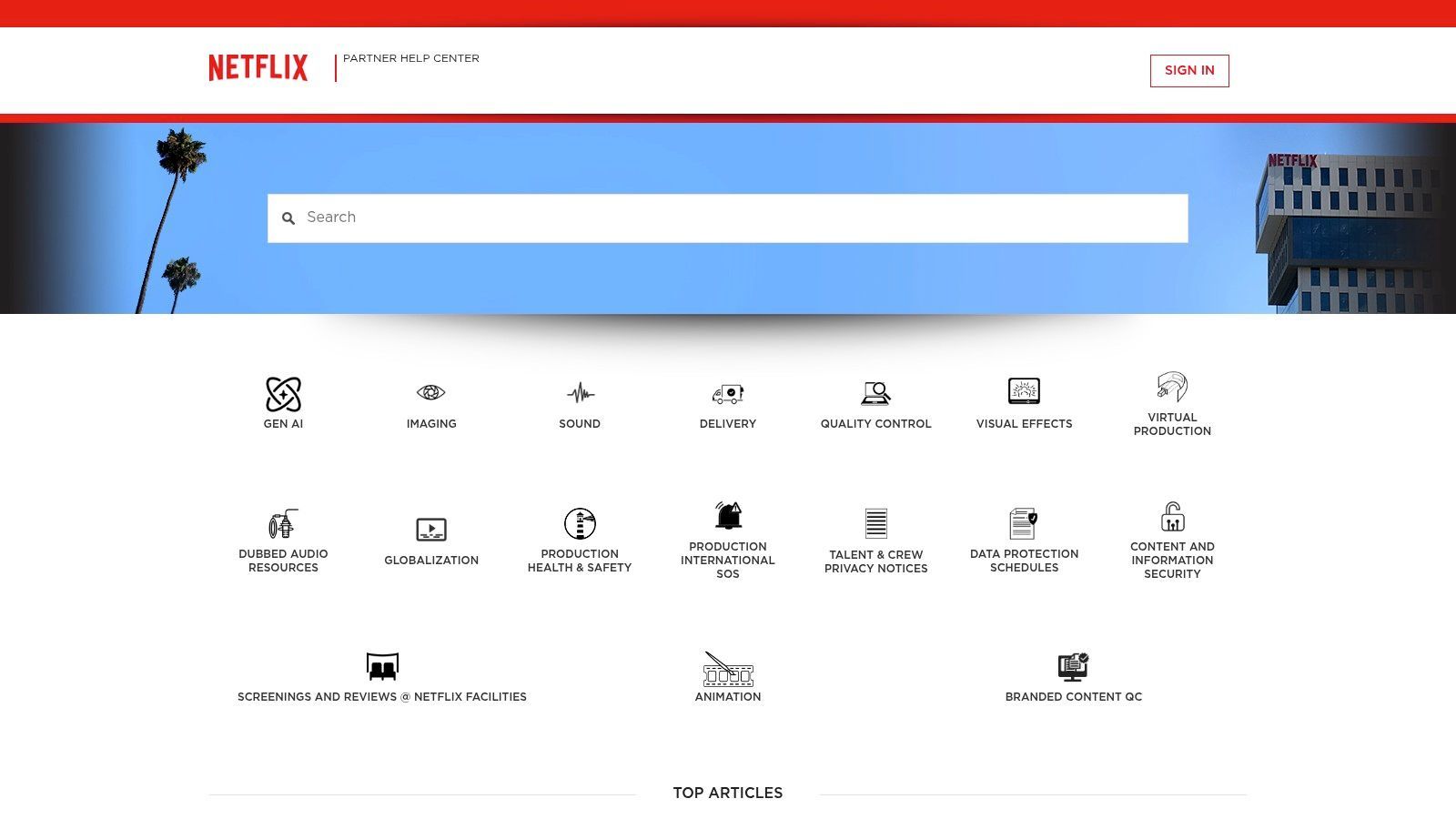
This resource clears up the mystery of subtitle design by giving you concrete rules on everything from font properties and character limits to text positioning and color. By studying these guidelines, you can learn the principles behind choosing a readable font, ensuring your own subtitle workflow meets a professional standard, whether it's for a streaming platform or a corporate video.
Key Features and Why It Stands Out
What makes this resource so unique is that it explains the "why" behind subtitle best practices. For instance, instead of just suggesting a font, the guides recommend a "proportional sans-serif" font and then provide detailed rules on sizing, line length, and safe areas. This teaches you how to evaluate any font for its suitability.
- Cost & Licensing: Completely free to access and read. It is an informational resource, not a collection of licensed assets.
- User Experience: The site is a technical knowledge base. It's clean, well-organized, and searchable, with specific guides available for dozens of languages, addressing unique script requirements.
- Unique Offerings: It provides an inside look at the technical and creative standards of a global streaming leader. The localized style guides offer unparalleled insight into global typography and accessibility practices.
Practical Tips for Subtitle Work
Use these guides as a reference when setting up your project in a video editor or subtitling tool. For example, you can mirror Netflix's line-length and characters-per-second rules to improve reading pace. When you integrate your video transcription and subtitle workflow, applying these professional standards will seriously upgrade the final quality of your SRT or VTT files. Think of these guides as the perfect blueprint for creating a style guide for your own brand's video content.
| Feature | Rating | Notes |
|---|---|---|
| Selection | N/A | This is not a font library; it is a set of standards and guidelines. |
| Cost & Licensing | ★★★★★ | Freely available knowledge base, offering immense value at no cost. |
| Ease of Use | ★★★★☆ | The information is clear but can be technical. It is designed for production partners, so some terms may require research. |
| Industry Insight | ★★★★★ | Unmatched access to the professional standards that define modern subtitle legibility and accessibility on a global scale. |
Website: https://partnerhelp.netflixstudios.com/hc/en-us/categories/4405743444499-Timed-Text
Top 7 Subtitle Font Sources Comparison
| Item | Implementation complexity 🔄 | Resource requirements ⚡ | Expected outcomes 📊⭐ | Ideal use cases 💡 | Key advantages ⭐ |
|---|---|---|---|---|---|
| Google Fonts | Low — simple CSS API or self-hosting 🔄 | Minimal bandwidth; zero cost ⚡ | High readability; broad script coverage (Noto) 📊 | Zero-cost web/video subtitles; multilingual captions 💡 | Free open-license library; easy integration ⭐ |
| Adobe Fonts (with Creative Cloud) | Medium — sync via Creative Cloud and web embedding 🔄 | Requires Adobe subscription; cloud sync ⚡ | Consistent, professional assets inside Adobe apps 📊⭐ | Teams using Premiere/After Effects; studio workflows 💡 | Seamless Adobe integration; curated families ⭐ |
| MyFonts | Medium–High — purchase and license selection per use 🔄 | Paid licenses; review EULAs and pageview tiers ⚡ | Broadcast-grade typography; large variety 📊⭐ | Commercial/broadcast projects needing specialty faces 💡 | Huge catalog including broadcast-proven faces; clear commercial licensing ⭐ |
| Fontspring | Low–Medium — straightforward purchase and documentation 🔄 | One-time perpetual fees; no tracking scripts ⚡ | Predictable licensing and deployment; reliable use in video 📊 | Teams needing perpetual licenses for desktop/web/video 💡 | Perpetual (buy-once) licenses and clear documentation ⭐ |
| Envato Elements (Fonts Library) | Low — subscription-based access and downloads 🔄 | Active subscription required for new installs ⚡ | Fast prototyping; variable family quality 📊 | Rapid testing of multiple subtitle candidates and styles 💡 | Unlimited downloads while subscribed; cost-effective for exploration ⭐ |
| Font Squirrel | Low — browse and download free candidates; verify license 🔄 | Free to use (per-font licenses vary); minimal cost ⚡ | Good for prototypes; quality and coverage vary 📊 | Budget projects and quick subtitle testing 💡 | Curated free-for-commercial-use options for fast trials ⭐ |
| Netflix Partner Help Center – Timed Text Style Guides | Low — read and apply platform specs 🔄 | Knowledge resource only; no font downloads ⚡ | Standards-compliant subtitles; improved accessibility and consistency 📊⭐ | Aligning subtitles with OTT delivery and device rendering requirements 💡 | Actionable, platform-focused styling and technical guidance ⭐ |
Your Final Check: Choosing Clarity Over Creativity
We've explored a ton of tools and typefaces, from the endless free libraries of Google Fonts to the curated collections of Adobe Fonts and the strict guidelines from Netflix. Through it all, one simple rule holds true: the best font for subtitles is the one your audience doesn't even notice. The goal is invisible communication, where the words on screen are absorbed effortlessly, not admired for their cool design.
If you're looking for a safe bet that works almost anywhere, you can't go wrong with sans-serif workhorses like Roboto, Open Sans, or Noto Sans. These fonts were designed specifically for digital screens, offering clean letterforms and excellent readability at all sizes and resolutions. They provide a reliable foundation for any video project, whether it's a corporate training session, a university lecture, or a quick social media clip.
Key Takeaways for Perfect Subtitles
Remember, picking a font is just the beginning. How you use it is what truly makes subtitles accessible and professional.
- Prioritize Legibility Above All: The main job of a subtitle is to be read quickly and easily. Steer clear of overly stylized, decorative, or complex script fonts that can distract or confuse your viewer.
- Context is King: The perfect font for a cinematic documentary will be different from the best choice for a fast-paced news report. Always think about your content's tone and the platform where it will be seen.
- Accessibility is Non-Negotiable: Proper styling—like a large enough size, strong contrast against the background, and a subtle outline or shadow—ensures your content is accessible to everyone, including viewers with visual impairments.
- Test, Test, and Test Again: Always preview your subtitles on different devices, especially mobile phones. A font that looks great on a big monitor might become unreadable on a small screen.
Ultimately, your choice of subtitle font should serve the message, not steal the show. The true test of success is when a viewer can follow the dialogue without ever thinking about the text at the bottom of the screen. By focusing on clarity, readability, and accessibility, you create a more inclusive and powerful viewing experience for your entire audience. Choosing the best font for subtitles is an act of clear communication, ensuring your story is not just seen, but fully understood.
Now that you know how to choose and style the perfect font, the first step is getting your words down accurately. Try WhisperAI - #1 AI Transcription to generate a flawless transcript and export a ready-to-style SRT file in minutes. Elevate your video's accessibility and make your message heard-and read-by everyone.