How to Transcribe a Voice Memo on Your iPhone: The Easy Way
Learn how to transcribe voice memo on iPhone with built-in features and powerful AI tools. Get fast, accurate text from your audio recordings today.
tl;dr: For quick, personal notes, your iPhone's built-in Voice Memos app might be enough if you have a newer model. For everything else—meetings, interviews, or any audio with background noise—use a dedicated AI service like WhisperAI. It's far more accurate, handles multiple speakers, and saves you hours of editing.
Here’s the deal: you have a voice memo on your iPhone, and you need it in text form. Maybe it was a flash of genius on your morning walk, a critical client meeting, or a lecture you couldn't afford to miss. That audio is packed with valuable stuff, but it's not much use until you can read, search, and share it.
Thankfully, turning that recording into a transcript is simpler than you might think. It really all boils down to picking the right tool for the job.
The choice usually comes down to a classic trade-off: do you need it fast and easy, or do you need it perfect?
Quick Notes vs. Professional Transcripts
For simple things like personal reminders or a clean recording of just your own voice, the features already on your iPhone might be all you need. They're built-in, they’re free, and you don't have to download a thing. This is a fantastic way to capture your thoughts and get a rough draft down that you can clean up later.
But when the stakes are higher—think business meetings with multiple people, academic interviews for your research, or audio you plan to repurpose for content—accuracy is everything. This is where dedicated AI transcription services like those from whisperai.com/ai-transcription really come into their own. They are designed to handle messy, real-world audio with background noise, overlapping speakers, and different accents, giving you a polished document that saves a ton of editing time.
This little decision tree can help you figure out which path to take.
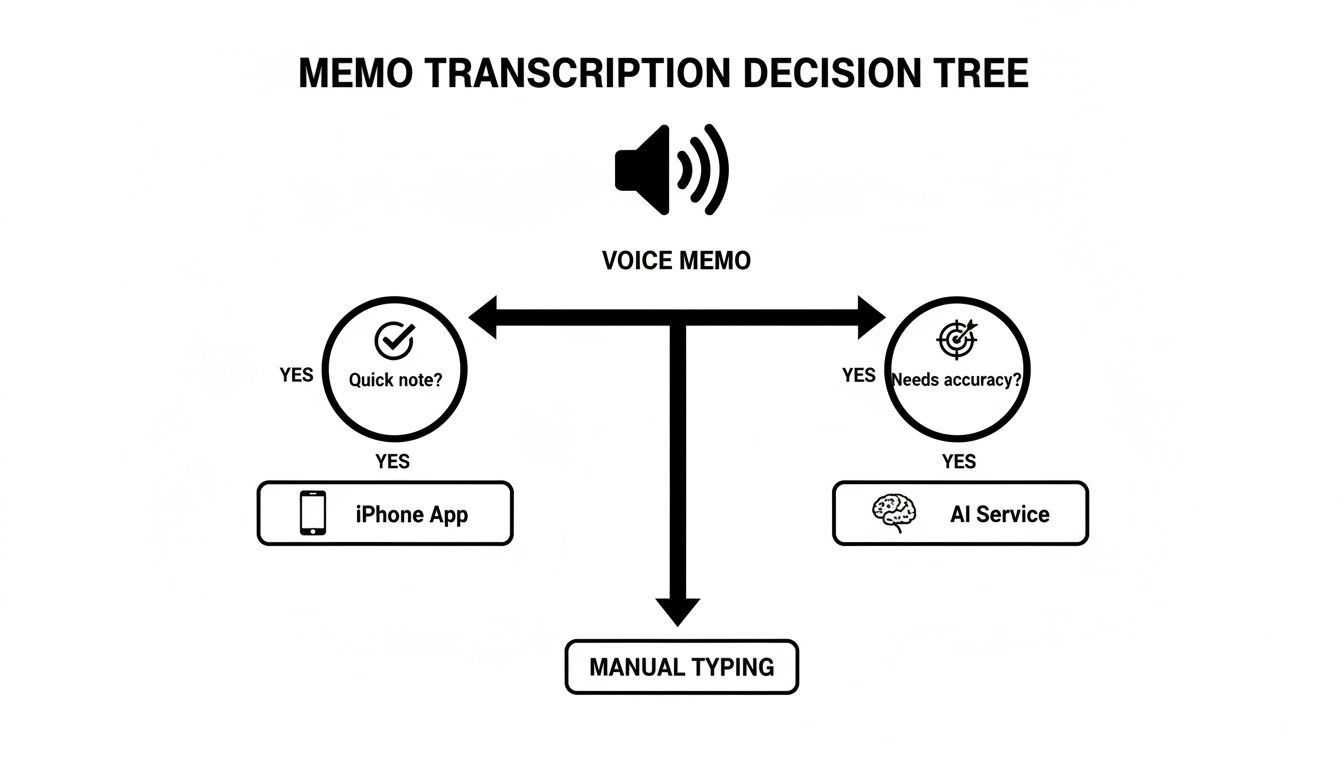
As you can see, what you need the transcript for is what really matters. It guides you to the most efficient tool, whether it's for a quick note-to-self or a high-stakes project.
iPhone Transcription Methods at a Glance
To give you a clearer picture, here's a quick rundown of your main options. Think of this as a cheat sheet to help you decide on the fly.
| Method | Best For | Accuracy | Cost | Effort Level |
|---|---|---|---|---|
| Native iOS Features | Quick personal notes, brainstorming, single-speaker dictation. | Fair to Good | Free | Low |
| Third-Party Apps | On-the-go transcription with more features than native tools. | Good to Very Good | Varies (Free to Subscription) | Low to Medium |
| AI Transcription Services | Business, academic, and professional use; noisy files. | Very Good to Excellent | Per Minute/Subscription | Low |
| Manual Typing | Short, critical clips where 100% accuracy is essential. | Excellent (Human-dependent) | Free (Your Time) | High |
This table should help point you in the right direction. Ultimately, knowing how to create a transcript from any audio file is a powerful skill, and in the sections below, we’ll walk through exactly how to use each of these methods, step-by-step.
Using Apple’s Built-In Transcription Feature
Sometimes, the simplest solution is hiding in plain sight. For many quick transcription needs, you don’t have to look any further than the tool Apple built right into the Voice Memos app. It's already on your phone, costs nothing, and is incredibly handy for turning a spoken thought or a clear, simple conversation into text without jumping through hoops.
The whole point of this feature is convenience. After you record a memo, you can often get a text version of your audio almost instantly. It’s perfect for capturing those fleeting ideas you have on the go, making them easy to copy, paste, and search for later.
The standard share sheet in the Voice Memos app is your gateway. From here, you can easily send your audio or its transcription straight into other apps like Notes or Mail, which is great for quick edits or saving it for later.
Setting the Right Expectations
It's crucial to know what this built-in tool is good at—and where its limits are. Apple's native transcription is a game-changer for simple tasks. On a clean recording with a single speaker and minimal background noise, you can expect up to 90% accuracy, especially for recordings under ten minutes.
However, once you introduce real-world chaos—like background noise, multiple speakers talking over each other, or heavy accents—that accuracy can easily dip to around 75%.
This kind of voice-to-text is a huge win for daily productivity and accessibility. If you're interested in how tech like this helps people with different needs, you might find our guide on accessibility features insightful.
My Personal Takeaway: I love using Apple's tool for my own brainstorming. If I'm out for a walk and dictating ideas for an article, it gets the job done. I can easily organize my thoughts later. But when I tried it on a client interview recorded in a noisy café, the transcript was a mess and needed a ton of cleanup.
Who Can Use This Feature?
Here’s the catch: Apple's native transcription isn't on every iPhone. It was introduced with iOS 18.1 and is generally limited to newer, more powerful models that can handle the processing. This usually means you'll need one of these:
- iPhone 15 Pro and 15 Pro Max
- The entire iPhone 16 series and any newer models
- A device with the absolute latest iOS updates installed
If you’ve poked around the Voice Memos app and don't see a transcription option, it’s likely your device doesn’t support it or you need a software update. Always check that you're running the latest iOS version. Knowing this upfront will help you decide whether to stick with the built-in tool or look for a more powerful, universal solution from the get-go.
The Professional Workflow for Flawless Transcripts
Let’s be honest, sometimes the free, built-in tools just don't cut it. When you've recorded a crucial client interview, an academic lecture, or a high-stakes business meeting on your iPhone, "good enough" isn't good enough. You need precision. This is exactly when a dedicated AI transcription service becomes indispensable.
I personally use this approach for any audio I can't afford to get wrong. It’s a simple process that connects your iPhone recording to a powerful transcription engine, ensuring you nail every single word.
Getting Your Voice Memo to a Pro Tool
First things first, you need to move your recording from the Voice Memos app into a service like WhisperAI. You've got a couple of easy ways to do this, depending on what works best for you.
- Share Directly from iPhone: Just open the voice memo, hit the "Share" icon, and send the file straight to a cloud service like iCloud Drive, Google Drive, or Dropbox. From there, you can grab it on any device.
- Upload from Your Computer: I often sync my voice memos to my Mac. This lets me just drag and drop the audio files directly into the web platform, which is a huge time-saver when I'm working with a batch of recordings.
This flexibility is key. You can capture ideas on the move and then handle the heavy lifting back at your desk—a workflow most professionals swear by.
Why This Workflow Makes a Difference
Using a dedicated service isn’t just about turning audio into text. It’s about the quality and the features that can save you hours of painful manual cleanup. These platforms are engineered to understand the messiness of real-world audio in a way that basic tools simply can't.
For instance, services built on sophisticated AI models can hit 99% accuracy or higher, even when the audio is less than perfect. They really shine in situations where native tools stumble.
Key Advantage: A professional AI transcription service can cut through background noise, distinguish between multiple people talking over each other, and even understand technical jargon from fields like medicine or finance. It transforms a chaotic recording into a pristine, actionable document.
This is especially true for content creators who need to repurpose audio into blog posts or video scripts. If that's you, our content creator transcription guide has some great tips for making the most of your audio.
Advanced Features That Matter
Beyond just getting the words right, a professional workflow gives you tools that make the entire process smoother from start to finish. These are the features that really set the pro tools apart.
- Automatic Speaker Labeling: The AI can automatically tell who is speaking and label them (e.g., "Speaker 1," "Speaker 2"). For interviews or meeting minutes, this is a game-changer.
- Precise Timestamps: Every word or phrase is linked to a specific point in the audio. Need to check a quote? Just click the text to jump right to that moment in the recording.
- Support for Multiple Formats: You can export your final transcript in whatever format you need—DOCX for reports, TXT for notes, or even SRT for video captions. It slots right into your existing workflow.
At the end of the day, this professional method for transcribing an iPhone voice memo is about moving past a raw text dump. It's about creating a polished, accurate document that truly reflects the value of what you recorded.
Is a Free Transcription Tool Good Enough?
Let's get straight to it: for quick, personal notes where you're the only one talking, the free tool on your iPhone is perfectly fine. It’s convenient and gets the job done. But the moment your recording involves other people, background noise, or is for anything remotely important—think meetings, interviews, or client calls—the limitations of a free tool become glaringly obvious.
It’s not about one being “good” and the other “bad.” It’s about picking the right tool for the task at hand. You wouldn't use a butter knife to chop down a tree, right? Same principle applies here. A quick brainstorm idea doesn't need the same level of precision as a transcript you're sending to your boss.
Accuracy: The Hidden Cost of "Free"
The biggest gap between free and professional tools is, without a doubt, accuracy.
In a perfect world—a quiet room with one person speaking clearly—the iPhone's built-in transcription can hit around 92% accuracy. That sounds pretty good! The problem is, that's not the real world. The minute you add background noise or more than one speaker, accuracy plummets to just 68%. And let's be honest, that covers about 70% of professional recordings.
This is where dedicated services like WhisperAI really shine. They're engineered for complexity, supporting over 100 languages and dialects, and they come with enterprise-grade security like SOC 2 compliance. There's a reason tens of thousands of professionals rely on them—the results are consistently clean, saving you hours of painful editing. If you're curious about the landscape, checking out some of the best AI transcription apps gives a good overview of what’s out there.
What You're Missing With the Built-in App
Beyond just getting the words right, professional tools offer a whole suite of features that you simply won't find in a basic, free app. These aren't just nice-to-haves; for many professionals, they're essential.
Feature Showdown: Apple Voice Memos vs. WhisperAI
To make it crystal clear, here’s a side-by-side look at what you get with the built-in tool versus a professional service. This should help you decide which one truly fits your needs.
| Feature | Apple Voice Memos (Built-in) | WhisperAI (Professional Tool) |
|---|---|---|
| Speaker Identification | No | Automatic labeling of each speaker |
| Timestamps | Basic/None | Precise, clickable word-level timestamps |
| Language Support | Limited to English in select regions | 100+ languages and dialects |
| File Handling | Best for short, simple files | Handles large files and various formats |
| Export Options | Plain text (via copy/paste) | DOCX, PDF, TXT, SRT, and more |
These features are what transform a raw, messy audio file into a polished, searchable document you can actually use. For instance, automatic speaker labels mean you don't have to guess who said what, and precise timestamps let you jump straight to a specific moment in the audio. If you want to see how this kind of AI-powered transcription is used in other areas, exploring things like YouTube AI transcript generation can give you a broader perspective.
The Bottom Line: Free tools are great for casual, low-stakes recordings. But for any professional, academic, or content-creation work, a dedicated service pays for itself almost immediately in time saved and accuracy gained.
Knowing the difference means you can make a smart choice. You'll know when the simple, built-in tool is enough and when it's time to bring in a professional-grade workflow to get results you can actually trust.
Simple Tips for Better Transcription Accuracy
It doesn't matter which transcription tool you end up using—the quality of your original audio is the single biggest factor in getting an accurate result. I've learned this the hard way: "garbage in, garbage out." A clean, clear recording is a breeze for any software to understand, but a messy, noisy file will trip up even the most sophisticated AI. A few small tweaks before you hit record can save you hours of painful editing later.
The easiest habit to get into is just getting closer to your audio source. Your iPhone's microphone is surprisingly capable, but it isn't magic. Try to keep the phone about 1-3 feet from whoever is speaking. This one small change dramatically cuts down on ambient room noise, letting the primary voice shine through.
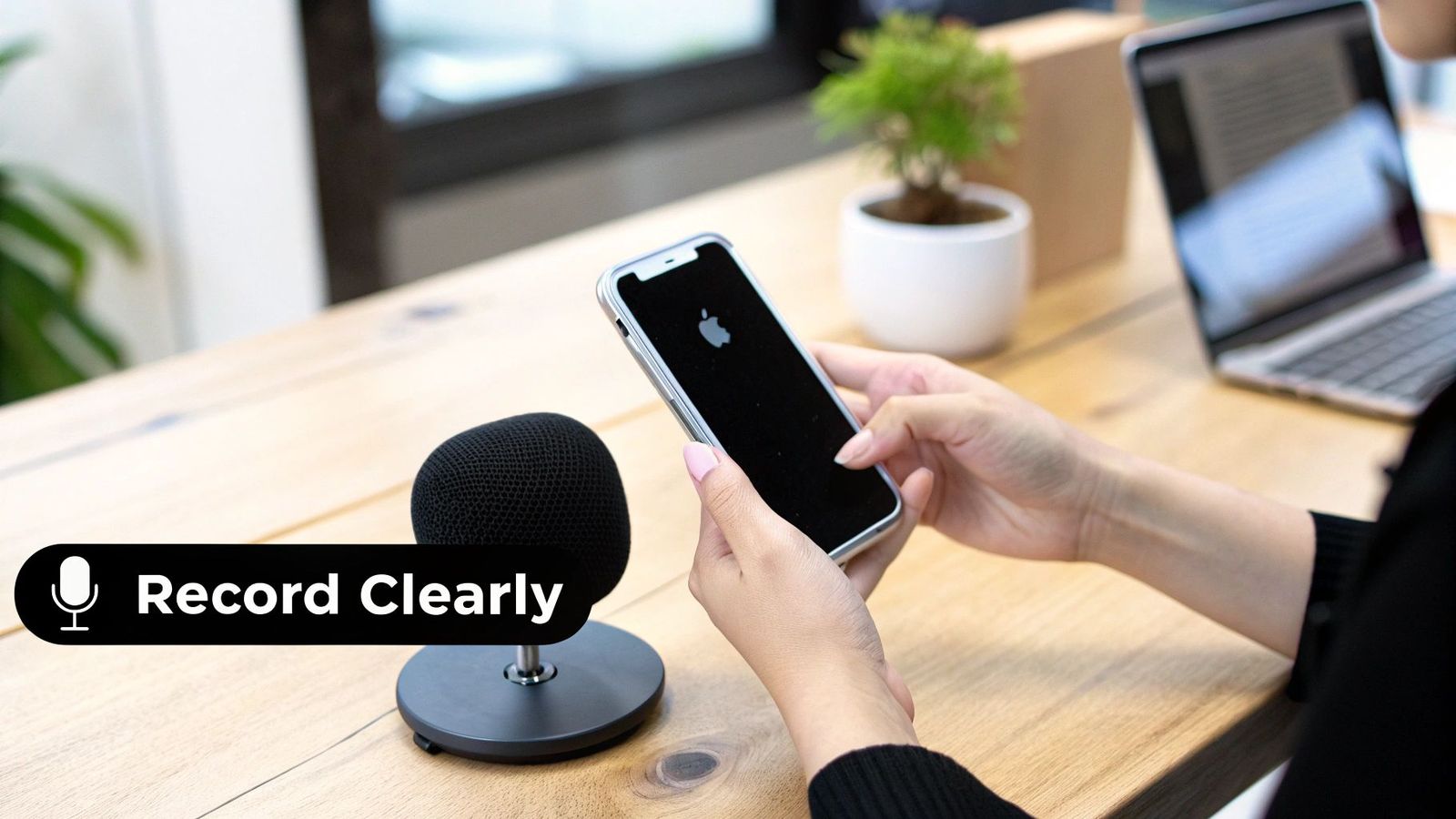
This isn’t just a friendly suggestion; it has a real impact on accuracy. For example, Apple’s built-in tool can hit 96% accuracy with pristine, solo speech, but that number can plummet to just 70% in real-world scenarios with background noise. On the other hand, services built on OpenAI's Whisper engine, like WhisperAI, can often maintain up to 98% accuracy even when conditions aren't perfect. It's no wonder that 65% of professionals pair their native recording app with an advanced AI to get reliable results.
Fine-Tuning Your Recording Environment
Beyond just getting close to the speaker, your surroundings matter. A lot. Before you start recording, take a quick second to check out the space.
- Find a Quiet Spot: If you can, step into a room away from humming refrigerators, street noise from an open window, or general office chatter. Your car can actually work as a fantastic makeshift recording booth in a pinch.
- Minimize Echo: Soft surfaces are your friend because they absorb sound. A room with carpets, curtains, and furniture will give you much cleaner audio than a space with bare walls and tile floors where sound bounces everywhere.
- Speak Clearly: Make an effort to enunciate and speak at a steady, natural pace. When you rush or mumble, you force the software to guess, and that’s a recipe for transcription errors.
Here's my personal pro-tip: spend a few bucks on a small lavalier (lapel) mic that plugs right into your iPhone. You can find decent ones for under $20, and the difference is monumental. It captures audio directly from the speaker and filters out nearly all the background noise. It's the single best upgrade for anyone who needs clean transcripts regularly.
Got Questions About Transcribing Voice Memos?
Even with the best tools, you're bound to have a few questions when you start transcribing voice memos from your iPhone. That's totally normal. Getting into a new workflow always brings up some practical stuff, from file types to privacy concerns.
Let's walk through some of the most common questions I hear.
First off, people always wonder about the file format. iPhone Voice Memos are saved as M4A (MPEG-4 Audio) files. This is a solid, high-quality format that doesn't eat up all your phone's storage. The good news is that just about every modern transcription tool or service is built to handle M4A files without a problem. You can usually just upload them directly—no conversion needed.
What's the Easiest Way to Share a Voice Memo?
Getting your recording out of the Voice Memos app is the first real step. Thankfully, your iPhone’s built-in share sheet makes this a piece of cake.
Just open the Voice Memos app, tap on the recording you want to send, and hit the "Share" button (it's that little square with an arrow pointing up). A menu will pop up with all your options. You can send it straight to:
- Cloud Storage: I do this all the time. Sending a memo to iCloud Drive, Google Drive, or Dropbox is super reliable. I actually have a dedicated "To Transcribe" folder in my cloud drive to keep things organized.
- Email or Messages: If it's a short recording, you can just email it to yourself and download it on your computer. Easy.
- A Transcription App: If you have a transcription app on your phone, it will usually show up right in the share sheet. One tap and the file is on its way.
How Long Can a Voice Memo Be?
This is a big one, and the answer really depends on the tool you're using. Apple’s own features and a lot of the free apps out there are great for shorter clips, typically anything under 15-20 minutes. Try to feed them a long recording, and they might struggle or just time out.
This is where professional services really shine. Platforms like WhisperAI are built to handle massive files—we're talking several hours long—without even blinking. If you’re recording long-form interviews, lectures, or entire meetings, going with a robust service is the only way to go.
Pro Tip: If you're stuck with a basic tool but have a long recording, use the "Trim Memo" feature in the Voice Memos app. You can chop your audio into smaller, more manageable chunks before you transcribe each one.
Is My Data Secure When I Transcribe?
Security is a massive—and totally valid—concern, especially if your recordings contain confidential information. Anytime you use a third-party app or service, you're sending your data to their servers.
Here’s how to think about it:
- Apple's Native Tools: Apple generally processes data on your device or within its own secure ecosystem. For personal stuff, this offers a high level of privacy.
- Free or Consumer Apps: This is where it gets tricky. Privacy policies can be all over the place. You really need to read the fine print to see how your data is being stored, used, or even shared.
- Professional Services: Reputable platforms live and die by their security. Look for terms like 256-bit encryption, GDPR and SOC 2 compliance, and transparent data privacy policies. These services are designed for business and research, where confidentiality is everything.
The bottom line is to match the tool to the sensitivity of your audio. If you're transcribing a confidential client meeting, don't mess around—use a service with enterprise-grade security.
Ready to get flawless, secure transcripts from your iPhone voice memos in minutes? WhisperAI uses advanced AI to deliver near-perfect accuracy, automatic speaker labels, and support for over 100 languages. Stop wasting time on manual cleanup and start creating professional-grade transcripts today. Learn more and try WhisperAI now.