A Practical Guide to Zoom Meeting Transcription
Discover how to master Zoom meeting transcription. Our guide offers actionable steps for recording, transcribing with AI, and editing for maximum accuracy.
tl;dr: To get a useful transcript from your Zoom meeting, you need three things: good audio, the right tool, and a quick human review. Start with decent mics in a quiet room, enable Zoom's cloud recording and audio transcript settings, then choose between Zoom's built-in feature for basic notes or a dedicated AI service for high-accuracy results. Always give the final text a quick proofread to fix any errors before sharing.
Let's be honest, Zoom meeting transcription isn't just about having a record of who said what. It’s about turning those long, rambling conversations into something you can actually use—searchable notes, clear action items, and a solid source of truth for your team.
Getting it right, though, boils down to a few key things: good audio quality, the right tool for the job, and a quick once-over by a human to catch any weirdness.
Your Quick Guide to Zoom Transcription
If you're in a hurry, here’s the gist: a clean transcript makes your meetings more accessible for everyone and holds people accountable for what they promised to deliver. Nail this simple process, and you’ll get a valuable asset out of every single call.
Here’s what that looks like in practice:
- Prep for Quality Audio: This is non-negotiable. It means using decent microphones and keeping background chatter to a minimum. Garbage in, garbage out.
- Pick Your Transcription Tool: You can stick with Zoom’s built-in features for basic stuff, or you can level up with a dedicated AI service for more accuracy and advanced features.
- Review and Finalize: AI is smart, but it's not perfect. Always give the final transcript a quick read-through to fix names or technical jargon before you share it.
For a deeper dive into making this workflow seamless, check out our other WhisperAI guides.

Let's be honest, accurate Zoom meeting transcription isn't just about having better notes. It's a genuine business asset that transforms fleeting conversations into a strategic advantage. It makes meetings more accessible, creates a searchable knowledge base out of thin air, and holds everyone accountable.
This is about turning talk into tangible value.
Why Accurate Transcription Is a Business Superpower
In a world where so much business happens over video, having a precise record of your Zoom meetings is no longer a "nice-to-have." It’s about moving beyond messy, incomplete notes and unlocking the real intelligence trapped in your team's conversations.
A truly accurate Zoom meeting transcription converts every discussion into a permanent, searchable resource. Think about it: you can instantly find the exact moment a client mentioned a key requirement or pinpoint when a critical decision was made weeks ago. This creates a powerful, living knowledge base that new hires can use to get up to speed or that teams can reference to keep projects on track.
Driving Accountability and Clarity
When action items are captured in black and white, there's nowhere to hide. Ambiguity just vanishes. A transcript creates undeniable accountability by documenting exactly who committed to what, and by when. You can finally say goodbye to the classic "I thought you were handling that," because the record is crystal clear.
This clarity benefits everyone. For colleagues who couldn't make the meeting, a full transcript is infinitely more useful than secondhand summaries. For team members who are deaf, hard of hearing, or non-native speakers, it guarantees they have the exact same access to information, fostering a more inclusive and effective team dynamic.
An accurate transcript doesn't just record what was said. It establishes a single source of truth that cuts down on miscommunication and keeps projects moving forward.
Unlocking Data-Driven Insights
The smartest companies aren't just storing their transcripts; they're mining them for gold. By analyzing the text from sales calls, product feedback sessions, or internal strategy meetings, you can start to spot emerging trends, identify common customer pain points, and even gauge team sentiment without resorting to guesswork. You're effectively turning qualitative discussions into quantitative data.
This isn't some futuristic idea—it's happening now. AI-powered transcription has become a core part of modern business operations, driving huge gains in efficiency and accuracy. With top-tier speech recognition, companies can analyze meeting data and pull out actionable insights in minutes, which is a massive accelerator for decision-making in any remote or hybrid work setup.
Ultimately, this process empowers you to make smarter, data-backed decisions much faster. But it all starts with a clean, reliable transcript. To get there, it's worth understanding the factors that influence AI transcription accuracy. Getting this right ensures the insights you're pulling are built on a solid foundation, turning casual conversations into a real competitive edge.
How to Prepare for a Flawless Transcription
The secret to a great Zoom meeting transcription isn’t some hidden AI setting or a pricey software upgrade. It’s much simpler than that: a great transcript starts with great audio. Think of it as a pre-flight checklist for your meeting. Taking just a few minutes to get things right beforehand will save you a ton of cleanup time later.
Whether you're using Zoom's built-in tools or a more powerful service like WhisperAI, these steps will dramatically cut down on errors and frustration.
Activate the Right Zoom Settings
First things first, you need to tell Zoom what you want it to do. This means a quick one-time trip into your account settings to enable both cloud recording and audio transcripts. If you don't, you won't get the separate audio files that high-accuracy transcription tools need to work their magic.
- Enable Cloud Recording: Head over to your Zoom account settings, click on the 'Recording' tab, and make sure 'Cloud recording' is switched on. This is key because it saves everything to Zoom's cloud, not just a single file on your computer.
- Request an Audio Transcript: Right below that, you'll see an option for 'Audio transcript'. Check that box. Zoom will now generate its own transcript file alongside the video and audio.
- Save separate audio files for each participant: This is the real power-user move. Toggling this on gives you individual audio tracks for every single speaker. For advanced transcription services, this is gold—it makes speaker separation far more accurate.
Getting these settings dialed in is the foundation. It’s the difference between having the raw materials you need and having to scramble after the meeting ends.
Master Your Audio Environment
With your Zoom settings configured, the next step is all about the audio quality during the call. Even the smartest AI is going to stumble if it's fed a messy, chaotic audio stream. Your goal is to give it the cleanest signal possible.
A dedicated microphone will always, always beat the one built into your laptop. You don't need a professional studio mic; even a simple USB mic or a headset makes a massive difference. It isolates your voice and cuts down on the room echo that muddies the waters for transcription software. If you're stuck with your laptop mic, try to join from a quiet, carpeted room to absorb some of that background noise.
Your microphone is the single most important piece of hardware for transcription quality. A small investment here pays huge dividends in accuracy, saving you significant editing time later.
It also helps to set some ground rules at the beginning of the call. A quick "Hey everyone, please mute your mic when you're not speaking" can work wonders. Preventing people from talking over one another is crucial, as that kind of cross-talk is a primary source of transcription errors.
This is especially true when you consider the numbers. The average Zoom meeting runs for about 52 minutes with around 7 participants, creating a ton of chances for audio to overlap. With over 3.3 trillion meeting minutes hosted on Zoom each year, these simple habits have a massive collective impact on the quality of our meeting records. For more context, check out these interesting Zoom usage statistics on Notta.ai.
To help you get the best possible audio, I've put together a quick checklist. Running through this before your next important call will put you in the best position for a clean transcript.
Best Practices for High-Quality Meeting Audio
| Area of Focus | Actionable Tip | Why It Matters |
|---|---|---|
| Hardware | Use an external USB microphone or headset. | Laptop mics pick up keyboard typing, fan noise, and room echo, which confuses the AI. |
| Environment | Join from a quiet, enclosed space with soft furnishings (like carpet or curtains). | Hard surfaces create echo and reverb, making words blend together and harder to distinguish. |
| Meeting Etiquette | Ask all participants to mute themselves when not speaking. | This eliminates background noise from other participants (dogs, keyboard clicks, etc.). |
| Speaking Cadence | Encourage speakers to talk one at a time and avoid interrupting. | Overlapping voices are the number one cause of inaccurate speaker labels and jumbled text. |
| Connectivity | Use a wired internet connection if possible, or sit close to your Wi-Fi router. | A stable connection prevents audio from cutting out or becoming robotic and garbled. |
Following these tips might feel like extra work, but they directly translate into a more accurate, more useful, and far less frustrating transcription experience.
Don't Forget Recording Consent
Finally, and this is a big one, always be transparent. Before you hit that record button, make it crystal clear to everyone that the meeting is being recorded and will be transcribed. In many places, this isn't just good manners—it's a legal requirement.
A simple verbal confirmation at the start of the call is all it takes. This builds trust and ensures everyone is on the same page. It’s a non-negotiable part of any professional and ethical approach to Zoom meeting transcription. For a more comprehensive look at the entire workflow, dive into our complete guide on AI audio transcription.
Generating Your Zoom Meeting Transcript
Alright, with the prep work out of the way, it's time for the main event: turning that Zoom audio into a clean, usable transcript. This is where the magic happens, transforming your recorded conversation into a searchable, shareable document.
We'll look at two solid approaches here. First is the quick-and-dirty method using Zoom's own built-in tool. Then, we'll dive into a more advanced workflow with a dedicated AI service for those times when you need top-tier accuracy.
Each has its place. Zoom's native feature is fantastic for informal chats and quick notes, while a specialized service delivers the precision you need for professional, client-facing, or technical content.
Using Zoom’s Built-In Transcription Feature
For a lot of day-to-day meetings, you really don't need to look any further than Zoom itself. It's incredibly convenient. Since you've already enabled cloud recording and audio transcripts in your settings, most of the work is already done for you.
Once your meeting ends and the cloud recording finishes processing, Zoom automatically gets started on the transcript.
You'll get an email notification when it's all ready. To grab your files, just:
- Log in to your Zoom account on the web.
- Head to the Recordings tab in the left-hand menu.
- Click on the meeting you need. You'll see the video, audio, and transcript files sitting there, ready to go.
This is, by far, the fastest way to get a transcript without ever leaving the Zoom platform. The accuracy is generally pretty solid for clear conversations, making it a great option for internal team syncs or straightforward discussions.
The screenshot below shows exactly where you can double-check that the 'Audio transcript' setting is toggled on. It’s a set-it-and-forget-it thing.
With this enabled, Zoom generates that transcript file automatically every time you record to the cloud. No extra steps needed.
The Advanced Workflow with an External AI Service
When accuracy is non-negotiable, you'll want to bring in a dedicated AI transcription service. These platforms use much more powerful speech-recognition models that are absolute pros at handling multiple speakers, tricky accents, and niche jargon.
The global transcription market is growing fast for a reason—people need accuracy. Advanced tools can nail 97% accuracy or even higher, which is a massive leap from older tech.
This process is simple: you'll download the audio file from Zoom and then upload it to your chosen service.
Downloading Your Audio File
First things first, you need the source audio. Head back to your meeting in the Zoom Recordings portal. This time, instead of clicking on the transcript, look for the audio file itself. It’s usually an M4A file called "Audio only." Download that to your computer.
If you followed our advice earlier and enabled separate audio files for each participant, you'll see a few different audio tracks. For the best results with a high-end AI tool, stick with the main "Audio only" file, as it has the fully mixed conversation.
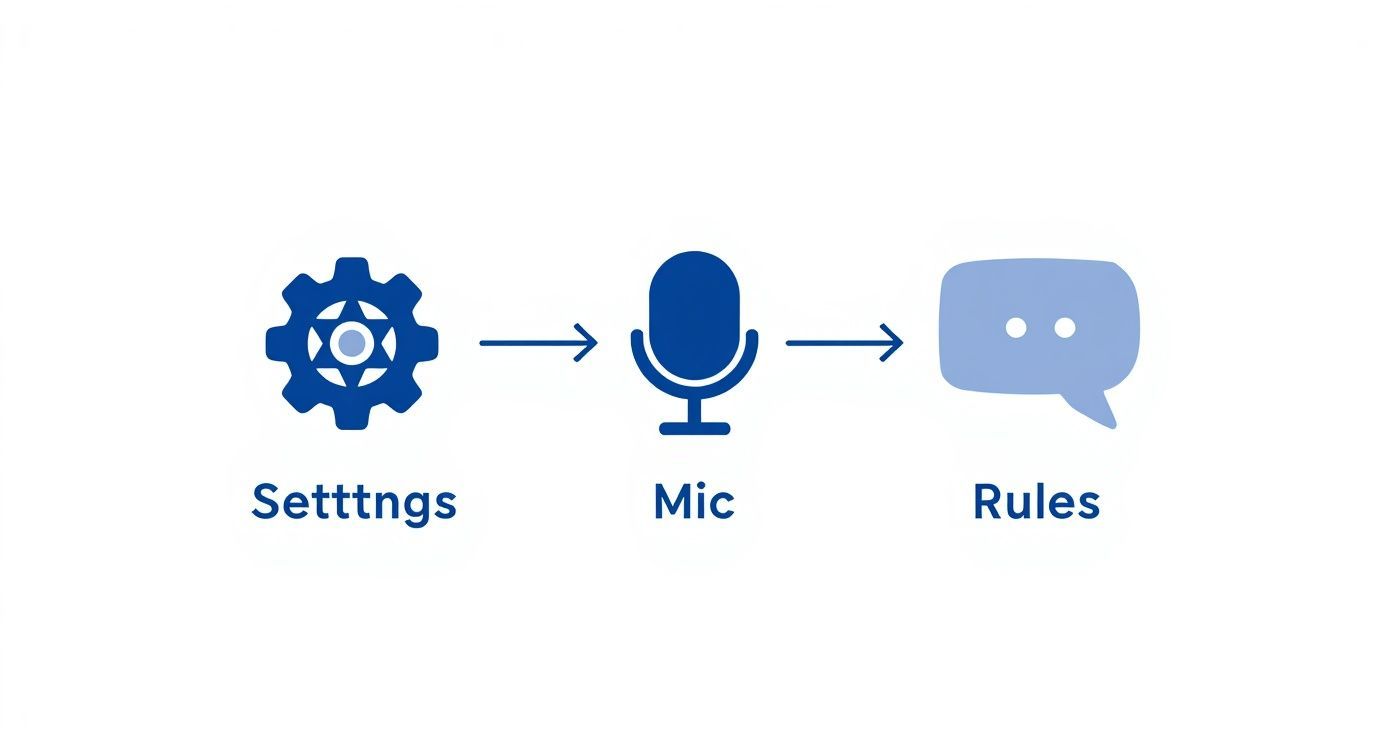
A clean audio file is the single most important factor for getting an accurate transcript. Garbage in, garbage out. This visual guide breaks down the three pillars of good audio prep.
Getting your settings right, using a decent mic, and establishing clear speaking rules before you even hit "record" are what separates a perfect transcript from a jumbled mess.
Processing with an AI Transcription Tool
Now you're ready to hand off the audio to the AI. Let's take a service like WhisperAI as an example. You'll upload that M4A file you just downloaded. This is where you can tweak a couple of settings that make a huge difference in your final output.
- Speaker Diarization: This is the feature that figures out who is speaking and when. You might also see it called "speaker labeling." Turning this on is absolutely critical. Without it, you just get a giant wall of text with no context, which is pretty useless for reviewing a conversation.
- Language Detection: Most modern services can automatically figure out what language is being spoken. This is a lifesaver for multilingual meetings or international teams. Just leave it on "auto-detect" unless you're 100% certain the entire call was in a single language.
The technology behind this has applications everywhere. For example, the same principles are used in specialized fields like AI medical transcription, where accuracy can be even more critical.
Once you’ve uploaded the file and picked your settings, the service will analyze the audio and produce a highly accurate transcript, complete with timestamps and speaker labels. This advanced route gives you a professional-grade document you can confidently edit, analyze, and share.
Polishing and Exporting Your Transcript
Think of your AI-generated transcript as a fantastic first draft, not the finished product. A quick human review is that last crucial step, transforming raw text into a polished, professional document you can share with confidence.
This isn't about rewriting the whole thing from scratch. It’s more of a focused cleanup to catch the small, nuanced errors that even the best AI can miss. Even with 97% accuracy, a 30-minute meeting can still have a few dozen small mistakes that a human can spot in just a few minutes.
Fine-Tuning Your Transcript for Readability
Your first editing pass should be all about clarity and correctness. The goal is simple: make the text easy to read and ensure it accurately reflects what was said. This is where you'll fix misheard words, check speaker labels, and clean up the overall flow.
Here are the key areas I always check first:
- Correcting Jargon and Names: AI often stumbles over industry-specific slang, unique product names, or people's names. A quick "find and replace" can fix a recurring error across the entire document in seconds.
- Fixing Speaker Labels: Sometimes, the AI might misattribute a sentence, especially when people talk over each other. I recommend scanning through the speaker labels to make sure the right person is credited for each part of the conversation.
- Adding Punctuation: Raw transcripts can be pretty light on punctuation, which leads to long, run-on sentences. Adding periods, commas, and question marks makes a world of difference in how easy the text is to read and understand.
This small time investment pays off big, creating a much more valuable asset. An edited transcript isn’t just a record; it's a reliable source of truth.
Choosing the Right Export Format
Once you’re happy with the edits, it’s time to export. The format you choose depends entirely on what you plan to do with the transcript next. Each option serves a distinct purpose, making sure your final Zoom meeting transcription is perfectly suited for its intended audience and use case.
Different workflows demand different file types. For example, a legal deposition needs a secure, unchangeable format, while a podcast needs something else entirely for its show notes.
Choosing the right export format is just as important as the transcription itself. It determines how your audience can interact with the information, whether it’s for reading, sharing, or integrating into another project.
Let's break down the most common formats and when I've found them to be most useful.
Common Export Formats and Their Uses
Picking the right file type ensures your transcript is immediately useful. Here’s a look at the most popular options and some real-world scenarios for each.
| Format | Best Use Case | Why It Works |
|---|---|---|
| DOCX (Word Document) | Creating formal reports, meeting summaries, or documents that need more editing and branding. | This is the most flexible format for collaboration. You can easily add headers, your company logo, and detailed notes before sharing with your team or clients. |
| PDF (Portable Document Format) | Sharing a secure, non-editable final version for record-keeping, compliance, or legal purposes. | PDFs lock in the formatting and prevent unauthorized changes, making them the gold standard for official documentation and archives. |
| TXT (Plain Text) | Quickly copying and pasting text into emails, project management tools, or other apps. | With zero formatting, TXT files are lightweight and universally compatible—perfect for getting action items into Asana or Slack without any hassle. |
| SRT (SubRip Subtitle) | Creating captions for your Zoom meeting video recording to be published online or shared. | SRT files contain both the text and the precise timestamps needed to sync subtitles with video, making your content more accessible and engaging. |
The SRT format is particularly powerful if you repurpose meeting content for training videos or public-facing webinars. Having accurate, time-coded captions is essential for accessibility and viewer engagement on platforms like YouTube. If this is part of your workflow, you should dive deeper into our guide on creating SRT files to see how different tools stack up.
By thoughtfully editing and exporting your transcript, you elevate it from a simple text file to a versatile business tool that’s ready for any task you throw at it.
Managing Security and Compliance
tl;dr: Your Zoom transcripts are packed with sensitive info. To keep that data safe, you need to actually read the privacy policies for both Zoom and any transcription tool you use. Pay close attention to encryption, data access, and where your files are stored. Make sure you're following rules like GDPR and have your own clear internal guidelines for handling transcripts to protect your company, your clients, and your team.
A Zoom meeting transcription isn't just a text file; it’s a digital vault. It holds everything from confidential project roadmaps and sensitive client data to candid internal strategy debates. Treating this information with care isn't just good form—it's an essential business function.
Get this wrong, and you're looking at data leaks, painful compliance violations, and a fast way to lose trust with clients and employees alike. That’s why you need a solid game plan for security and compliance before you even think about hitting that record button.
Understanding Data Privacy Policies
First things first: you need to know the rules of the road for every tool in your workflow. That means digging into the privacy policies for both Zoom itself and any third-party AI transcription service you use. Don't just scroll and click "agree."
You need to know exactly what happens to your data once it leaves your meeting. Here are the big questions I always ask:
- How is it protected? Is my data encrypted while it’s moving (in transit) and while it's sitting on a server (at rest)? Anything less is a non-starter.
- Where does it live? Is my data stored in the US, Europe, or somewhere else? This is a huge deal for regulations like GDPR.
- Who can see it? What are the provider’s internal access controls? You need to know that your confidential conversations aren't being reviewed by unauthorized employees.
A serious service will be transparent about its security measures. You can usually find this on their website, which gives you a good feel for how much they prioritize protecting your information.
Key Compliance Considerations
Beyond the tech provider's promises, the buck ultimately stops with you. If your business deals with customers in places with strict data protection laws, you're the one on the hook for compliance.
The General Data Protection Regulation (GDPR) in Europe is the perfect example. It requires a clear legal basis for processing any personal data, and transcripts full of names, emails, and other identifiers are squarely in its crosshairs.
Your biggest security risk often isn’t the technology—it’s the lack of a clear process. A strong firewall means nothing if your team doesn't have clear rules for handling sensitive information.
To keep regulators happy, you need to create and enforce your own internal policies. This means defining who gets to access transcripts, deciding how long you’ll keep them, and having a secure process for deleting them when they’re no longer needed.
Best Practices for Secure Transcript Management
Technology gives us the tools, but people are always the unpredictable variable. We’ve all seen it happen—the biggest security gaps often come down to human error. That’s why employee training is just as important as any software you buy, a point driven home in articles on The Human Factor in Information Security.
When deciding between Zoom's built-in tools and a dedicated service, security should be a major factor. Here’s a quick rundown of what to consider.
Comparing Transcription Security Features
| Security Feature | Zoom Native Transcription | Third-Party AI Services |
|---|---|---|
| Data Encryption | Provides encryption in transit and at rest for cloud recordings. | Varies; top services offer end-to-end 256-bit encryption. |
| Access Controls | Managed through Zoom account settings; can get tricky for teams. | Often have more flexible, role-based controls for organizations. |
| Compliance | Generally compliant with major rules like GDPR and HIPAA (w/ BAA). | Varies widely. Always check for certifications like SOC 2 Type II. |
| Data Handling | Covered by Zoom’s general (and very broad) privacy policy. | Policies are specific; some offer zero-data-retention options. |
By thinking through these points and setting up strong internal rules, you can make Zoom meeting transcription a powerful tool for your business without putting your sensitive data at risk.
Common Questions Answered
If you're just getting started with Zoom meeting transcription, you probably have a few questions. Here are the answers to the most common ones I hear.
Can I Get a Live Transcription During My Zoom Meeting?
Yes, you absolutely can. Zoom has a built-in live automated transcription feature (you might see it called live captions) available for all paid accounts. To get it working, you just need to enable it in your account settings under the 'In Meeting (Advanced)' section.
Once it's switched on, the meeting host can activate live transcription with a click. Instantly, captions will start appearing in real-time for everyone on the call. This is a game-changer for accessibility, helping participants who are deaf or hard of hearing, but it's also incredibly useful for anyone in a loud coffee shop or just wanting to make sure they don't miss a single word.
How Accurate Is Zoom's Native Transcription?
Honestly, Zoom's built-in transcription is pretty decent for straightforward conversations. If you have clear audio, minimal background noise, and everyone is speaking English without heavy accents, it does a respectable job for internal notes where perfection isn't the goal.
However, when you need high fidelity, specialized AI services like WhisperAI are in a different league. These platforms are built from the ground up to tackle the messy reality of human conversation—multiple speakers talking over each other, strong accents, and industry-specific jargon. They also offer much better speaker diarization (knowing who said what) and the ability to add custom vocabulary, which makes a huge difference in the final transcript's quality.
For any meeting that's mission-critical or content you intend to publish, a dedicated service is a smart investment. The hours you'll save editing a messy transcript easily pay for the service itself.
What Is the Best Way to Share a Zoom Transcript Securely?
The right method really boils down to how sensitive the information is and who you're sharing it with.
Here’s my advice:
- For internal, low-stakes chats: A password-protected link from the Zoom cloud is often good enough. It's simple and keeps things contained within your team.
- For sensitive or confidential information: Your best bet is to always download the transcript file. Don't leave it floating in the cloud. Store it on a secure company server or in a controlled environment like SharePoint or a restricted Google Drive folder. This way, you can grant access on a need-to-know basis.
Whatever you do, try to avoid sending transcripts as regular email attachments. If an email gets forwarded by mistake or an account is compromised, that sensitive conversation is suddenly out in the wild. If you must use email, make sure the file is encrypted first.
Ready to turn your Zoom conversations into accurate, actionable text? WhisperAI offers business-grade transcription with superior accuracy, security, and speed. Try WhisperAI today and see the difference.