YouTube Transcribe: Fast & Accurate AI in 2026
Learn how to YouTube transcribe videos fast. Use YouTube's built-in tool or AI for perfect accuracy, speaker labels, & multiple formats.

tl;dr: Need to transcribe a YouTube video quickly? Use YouTube's built-in transcript for most public videos with captions. It's fast, searchable, and timestamped, but it's not perfect. On videos with music, overlapping speech, or heavy accents, YouTube's auto-generated transcription accuracy can drop to 60–80% and lacks speaker labeling, according to this transcription analysis. For professional needs, an AI transcription tool is better. It handles missing captions, exports clean files, and cuts down on manual cleanup. Don't skip the final review: check names, technical terms, speaker turns, and formatting before publishing or sharing.
YouTube transcription isn't just a tech trick; it's a real need. Maybe you're turning an interview into a blog post, converting a lecture into research notes, or pulling quotes from a podcast clip. Replaying sections ten times isn't efficient.
Most guides don't go far enough. They show you how to copy-paste and call it a day. That's fine for rough notes, but not for readable, reliable transcripts needed for research, client work, or publication.
Table of Contents
- Why You Need More Than Just YouTube's Transcript
- The Built-in YouTube Method Fast but Flawed
- A Professional AI Workflow for Flawless Transcripts
- From Raw Text to a Polished Document
- Exporting and Using Your Transcript
- Accuracy Tips and Legal Considerations
Why You Need More Than Just YouTube's Transcript
YouTube's built-in transcript seems like a win at first. It gets text on the screen. For a creator needing a quick quote or a student scanning for key points, it's a quick fix.
But the problems start when you need more. Interviews require speaker attribution. Research notes need exact wording. Client work demands that names, product terms, and key claims are spot-on.
Most guides treat YouTube transcription as a simple copy-paste task, ignoring the high-stakes need for speaker attribution and error correction in professional contexts like legal or academic research, where auto-caption accuracy drops significantly with accents and technical terms, as noted in this guide on professional transcription workflows.
That's a bigger issue than most tutorials admit.
Why rough text often isn't usable
A copied transcript usually has at least one of these problems:
- Missing attribution: In interviews and panel discussions, readers can't tell who said what.
- Weak terminology handling: Technical language, names, and niche vocabulary often come through wrong.
- Poor readability: Short broken lines and caption-style chunks don't read like a document.
- No reliable editing process: Without a review pass, small errors turn into misleading quotes.
A useful YouTube transcribe workflow doesn't stop at extraction. It has to produce something a person can search, verify, edit, and publish.
Who feels this problem fastest
Some users can live with rough output. Others can't.
| Use case | Native transcript alone | Better workflow needed |
|---|---|---|
| Personal notes | Usually fine | Not always necessary |
| Blog drafting | Sometimes enough | Yes, if quotes matter |
| Academic research | Risky | Yes |
| Interviews and podcasts | Weak | Yes |
| Legal or compliance review | Not enough | Yes |
For casual use, speed wins. For serious use, cleanup time and trust matter more.
The Built-in YouTube Method Fast but Flawed
Many people start the same way. They open a video, need the spoken text fast, and use YouTube's built-in transcript because it's already there. For quick reference, that makes sense.
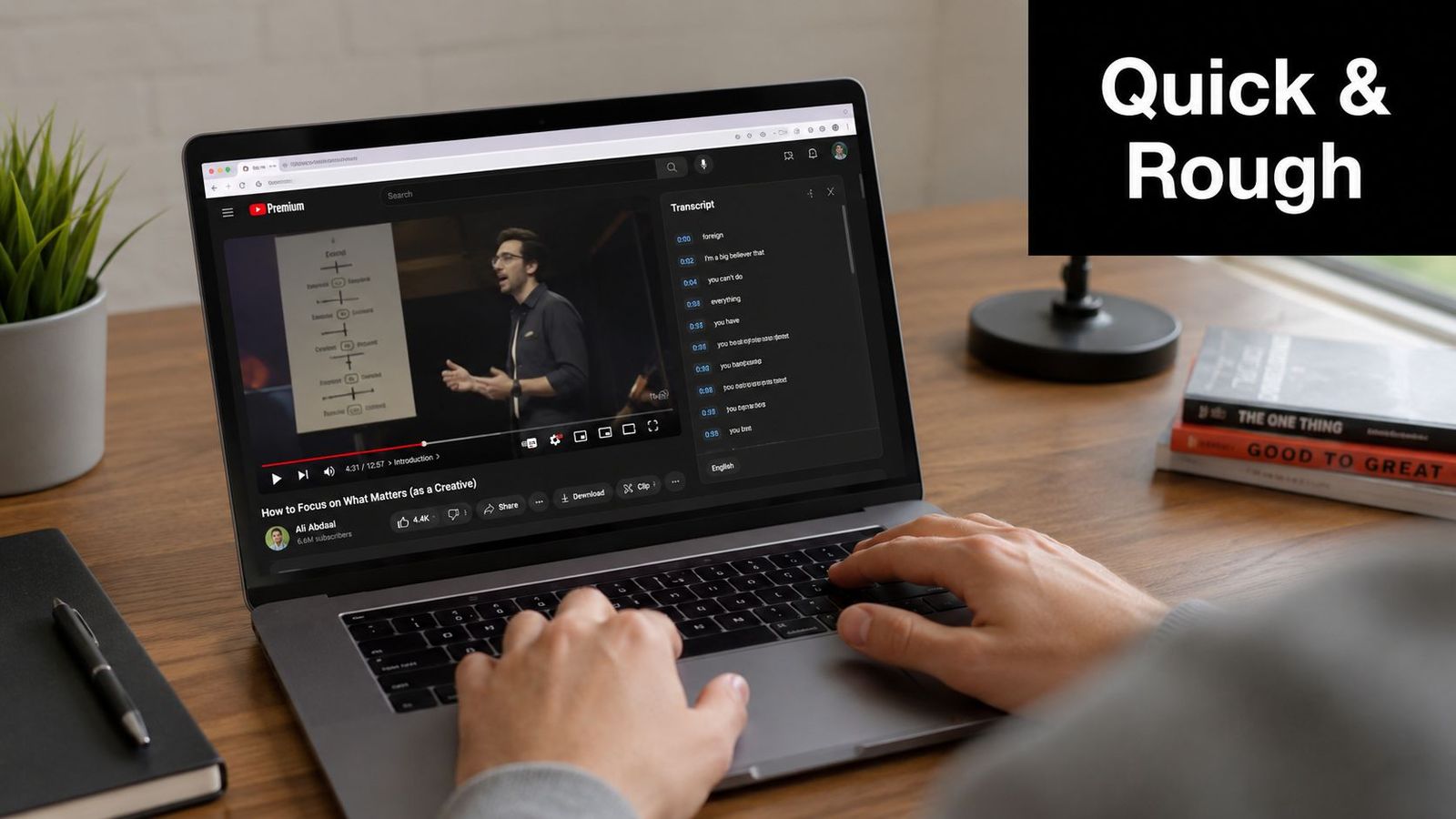
How to open the transcript
On many public videos, YouTube lets you open a transcript directly from the video page. One route is to expand the description and click Show transcript, which YouTube demonstrates in its own.
Another common path is the three-dot menu below the player. Click the menu beside Share and Save, then choose Show transcript. On mobile, the steps are less obvious, but the process is similar. Expand the description, scroll, and open the transcript panel, as shown in this step-by-step guide.
Once the panel is open, YouTube displays caption text with timestamps. That is useful for reviewing a lecture, pulling a rough quote, or jumping back to a specific moment in a long interview.
Where the native method starts to fail
The built-in tool is fast, free, and good enough for light use. I use it for triage. It helps answer a basic question quickly: is this video worth working from at all?
Problems show up as soon as accuracy matters. Auto-captions often struggle with accents, domain-specific terms, multiple speakers, and noisy audio. YouTube also does not provide native speaker labeling in the transcript panel, which creates extra cleanup work for interviews, podcasts, classroom recordings, and research material. That limitation matters in the same broader shift toward AI-assisted study and documentation discussed in the future of AI in learning.
Another practical issue is extraction. YouTube's transcript panel is built for viewing, not production work. In standard use, there is no clean one-click export to DOCX, SRT, or a fully formatted text file. Users usually copy and paste the transcript into Google Docs or Word, then spend time fixing line breaks, punctuation, and obvious caption errors. If the transcript is missing or the captions are disabled, the fallback is to extract the audio from a YouTube video and transcribe the source directly.
Use the native transcript for review, note-taking, and quick quote hunting. For anything you plan to publish, cite, subtitle, or hand to a client, treat it as a draft that still needs verification.
A Professional AI Workflow for Flawless Transcripts
The native route works only when YouTube already has captions available and the transcript quality is good enough. That's not always the case.
Some videos don't expose captions at all. Others are private, unlisted, or disabled. Existing guides often focus on extracting pre-existing captions, but they miss the workflow problem for the 30-40% of videos where captions are missing, which pushes users toward a clumsy download and re-upload process, as described in this analysis of YouTube transcription gaps.
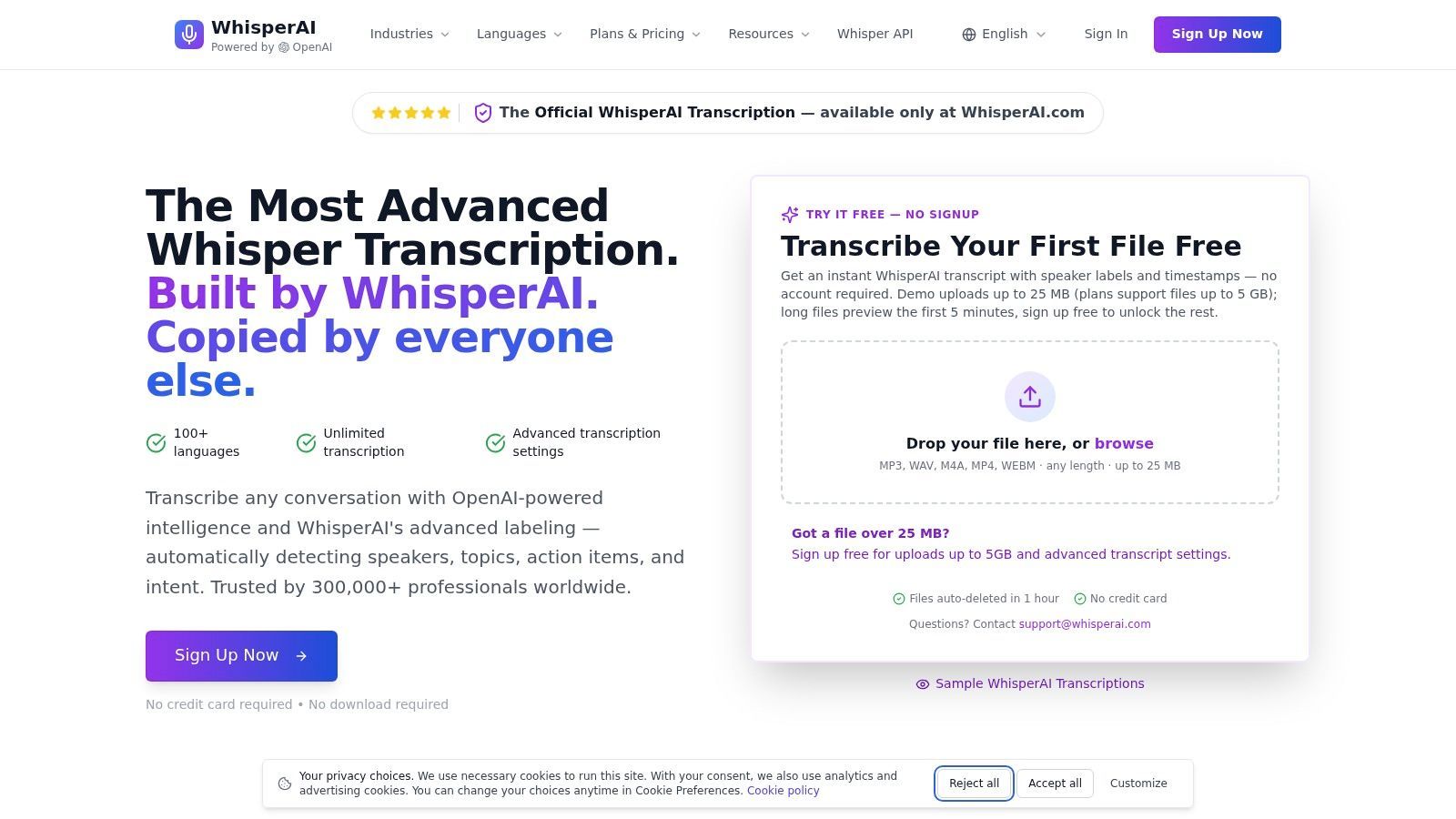
When the YouTube route is not enough
Professionals usually need one or more of these:
- Support for videos without captions
- Better handling of accents and noisy audio
- Cleaner exports
- Less manual correction
- A workflow that fits research, media, legal, or education work
That's where a dedicated AI workflow earns its place. Instead of scraping whatever YouTube exposes, the stronger method is to work from the media itself.
What a stronger workflow looks like
A practical workflow is simple:
- Get the video URL or extract the audio.
- Upload the source file to an AI transcription platform.
- Review the transcript for names, terminology, and speaker changes.
- Export in the format that fits the job.
Top-tier third-party AI transcription tools reach 94–99% accuracy and can solve the problem for the 30-40% of YouTube videos that lack pre-existing captions entirely, according to this guide to AI YouTube transcription tools.
For teams that regularly repurpose long-form video, this is the difference between “text exists” and “text is usable.” It also fits where content workflows are going more broadly. In education, research, and internal knowledge systems, transcripts are becoming part of the future of AI in learning, not just an accessibility add-on.
A clean setup often starts by extracting the source audio first. This walkthrough on how to get audio from YouTube is useful when the working file needs to be separated before transcription.
The main advantage isn't novelty. It's fewer corrections later. Good AI output reduces the hours lost to fixing every repeated term, every broken sentence, and every misheard product name.
From Raw Text to a Polished Document
Transcription isn't finished when the words appear. That's where editing starts.
Even strong AI output needs a final pass if the transcript will be published, cited, shared with a client, or used in analysis. A raw transcript captures speech. A polished transcript captures meaning without introducing errors.
Clean the words before fixing the formatting
Start with the terms most likely to be wrong. That usually means:
- Proper nouns: People, brands, companies, and places
- Specialized language: Medical, legal, academic, or technical vocabulary
- Numbers and product names: These create the most confusion if they're off
- Repeated wrong terms: Fix once, then replace globally where appropriate
This stage matters because readers forgive light punctuation issues faster than factual wording mistakes.
Label speakers and verify with timestamps
Multi-speaker content needs extra care. When transcribing interviews or panel discussions, users must manually identify voices and apply consistent labels such as Speaker 1 and Speaker 2, with timestamps for every speaker change, because YouTube's native transcript doesn't provide built-in speaker differentiation, according to this guide to speaker labeling for YouTube transcripts.
That sounds tedious, but timestamps make it manageable. YouTube's transcript sidebar displays the full text with precise timestamps for each line, and users can click a transcript segment to jump directly to that point in the video, as explained in this handbook on YouTube transcription.
Good editing is usually less about rewriting the whole transcript and more about checking the points where trust breaks first. Names, jargon, and speaker turns are the usual suspects.
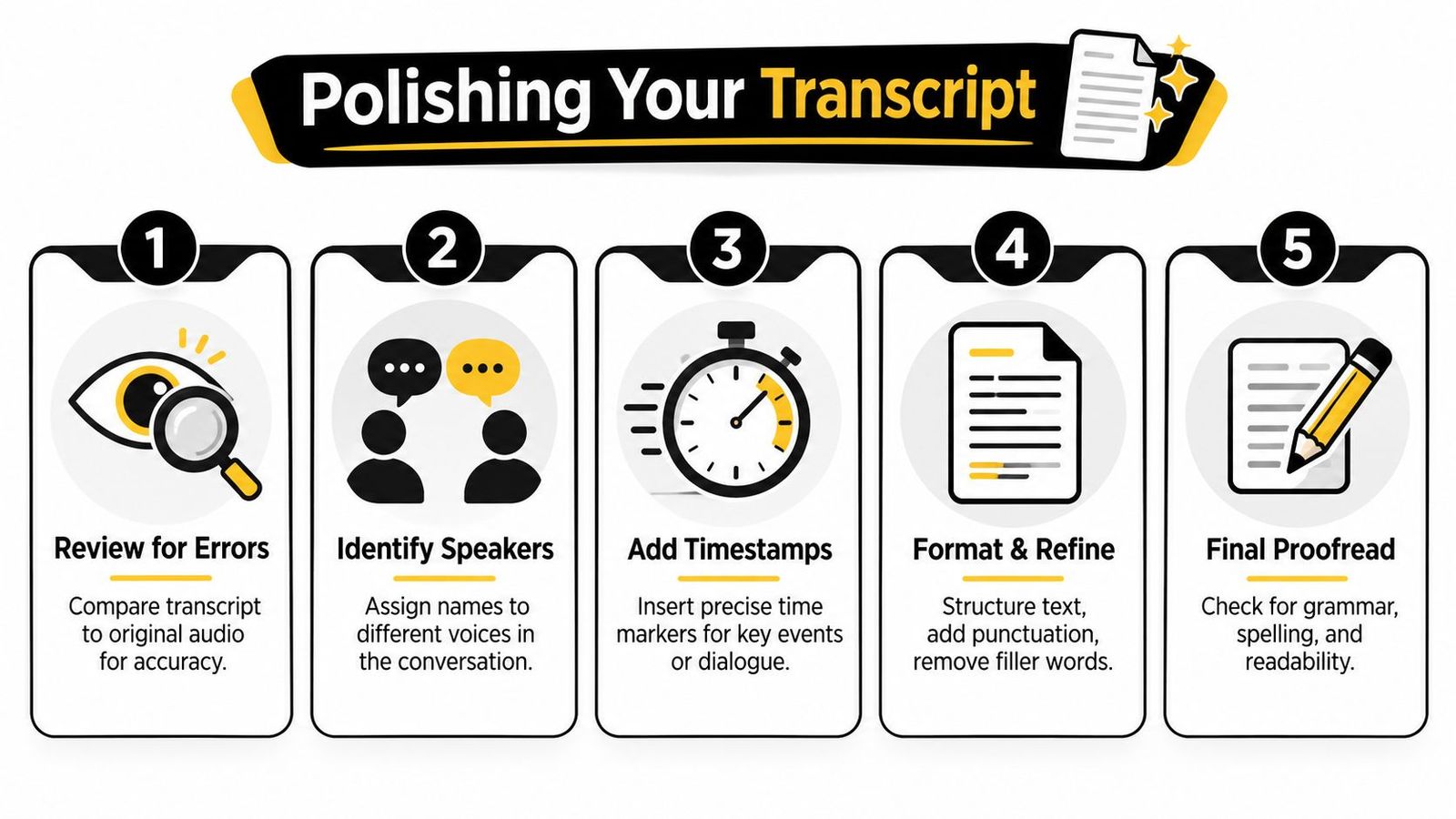
A simple polishing checklist works well:
- Correct key errors first: Fix the words that affect meaning.
- Assign speaker labels: Keep them consistent from start to finish.
- Use timestamps to verify: Jump back to the source for unclear passages.
- Merge caption fragments: Turn chopped lines into readable paragraphs.
- Proofread once more: Clean punctuation, spacing, and obvious filler where needed.
A transcript becomes valuable when another person can read it without hearing the audio in their head.
Exporting and Using Your Transcript
The best export format depends on what happens next. A transcript for captions shouldn't be packaged the same way as a transcript for a report or article draft.
Pick the format based on the job
A few formats cover most real-world needs:
- SRT or VTT: Best for subtitles and closed captions because they preserve timing.
- TXT: Best for quick notes, drafting, and simple content repurposing.
- DOCX: Best for editing, comments, and formal collaboration.
- PDF: Best when the transcript needs a fixed, shareable presentation.
For anyone comparing output options, this guide to video transcript format choices helps match the file type to the actual use case.
A transcript can do more than sit in a folder. Teams turn transcripts into blog posts, newsletter summaries, internal documentation, study notes, and searchable archives. Creators mine them for quote graphics and short clips. Researchers use them to mark themes across lectures or interviews.
That's why export options matter. The right format cuts friction from the next step.
Accuracy Tips and Legal Considerations
Better transcripts start before the software does. Clear source audio gives every method a better chance. If there's a choice between a noisy stream rip and a clean original file, the cleaner source wins.
Editing still matters after transcription. A focused review process catches names, terminology, and subtle wording issues faster than casual skimming. This article on proofreading in transcription is useful for building that final quality check into the workflow.
Legal and ethical use matters too. Transcribing a video for research, note-taking, accessibility, or commentary is different from republishing someone else's content as if it were original work. Sensitive material deserves extra caution, especially in professional settings.
The core decision is simple. YouTube's built-in transcript is fine for fast reference. When the transcript needs to be accurate, labeled, exportable, and ready for serious use, a dedicated AI workflow is the right tool.
For teams, researchers, and creators who need more than rough captions, WhisperAI - #1 AI Transcription is a strong option. It handles real-world audio, supports professional export formats, and fits the kind of YouTube transcribe workflow that saves time after the transcript is generated, not just during it.