How to Get Audio from YouTube: 4 Methods for 2026
Learn how to get audio from YouTube using online tools, yt-dlp, or system recording. Our guide covers quality, ethics, and turning audio into transcripts.
You've got a YouTube video open right now and you need it as audio. Maybe it's a lecture you want to transcribe, a podcast interview you want on your phone, or a webinar you need to save before it disappears. The tricky part isn't ripping the audio—it's choosing a method that won't waste your time or ruin the quality.
Many guides just say, "paste the URL into a converter." That can work, but it's not the whole picture. If you care about clean audio, repeatable workflow, and fewer headaches, the right method depends on whether you need speed, control, or live capture.
Your Guide to Getting Audio from YouTube
If you're searching for how to get audio from youtube, here's the quick rundown. For a one-off file, use an online converter. For better control and cleaner results, use yt-dlp. For live streams or content you can't download directly, record your system audio. If your real goal is notes, search, captions, or documentation, turn the audio into a transcript right away.
A common method is to paste a YouTube URL into an online converter, pick MP3, and download the result. This process can take under 60 seconds, according to SeaSalt's guide to downloading audio from YouTube. That's why this option is popular.
tl dr
- Need it now: Use an online converter for a single file.
- Need quality: Use yt-dlp and choose your format carefully.
- Need a live stream: Record your computer's system audio.
- Need something usable afterward: Convert the audio into text so you can search, quote, and organize it.
- Need post-processing help: If you're also working with local video files, this guide on learn to remove audio from video is a useful companion.
Quick rule: Start with the end use. If you only want casual listening, MP3 is usually enough. If you need editing or transcription, capture the cleanest file you can.
It all comes down to trade-offs. Fast methods save time now. Better methods save time later.
Using Online Converters for Speed and Simplicity
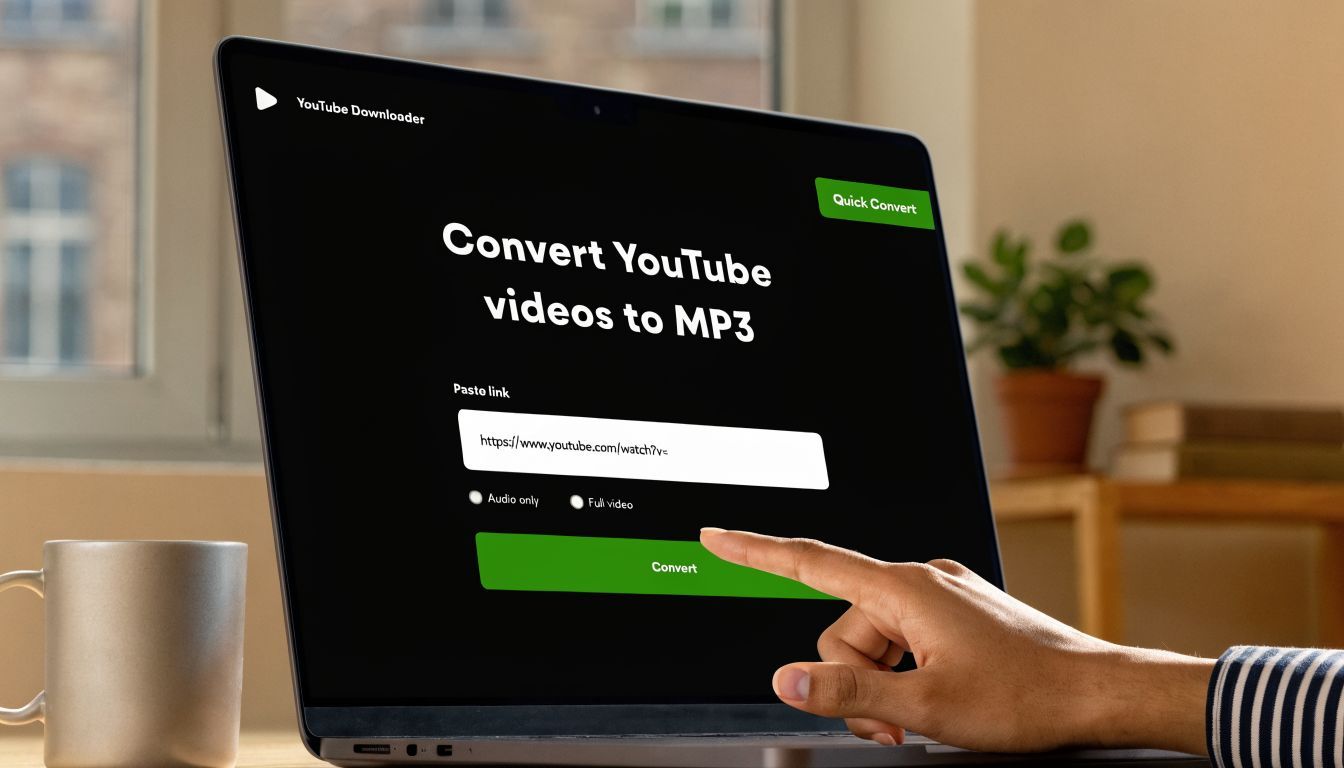
When people ask for the quickest way to get audio from a YouTube video, this is my go-to. Copy the URL, paste it into a converter site, choose your format, and download the file. No install, no setup, no learning curve.
That convenience is real. But treat these tools as a disposable option for low-stakes work, not a reliable production workflow.
What online converters do well
They're handy when the job is small and urgent:
- Single file downloads: Good for one lecture, one interview, one podcast episode.
- No local setup: Useful on machines where you can't install software.
- Simple output: Usually MP3, which works for everyday playback.
If you're editing a local file rather than downloading from the web, WhisperAI also offers a practical guide on taking sound from video.
Where they fall apart
The downsides are obvious:
- Security risk: Many converter sites are cluttered with misleading buttons, aggressive redirects, and ad-heavy pages.
- Lower control: You rarely get meaningful control over format, bitrate, metadata, or naming.
- Inconsistent quality: Fine for listening. Much less reliable if you plan to edit, archive, or transcribe.
Online converters trade quality and security for speed. They’re fine for a non-critical task, but not for professional work.
If I'm grabbing a clip for personal reference, I might tolerate the mess. But for research material, production audio, or anything that needs to hold up later, I move on to a better tool.
Mastering yt-dlp for Unmatched Quality and Control
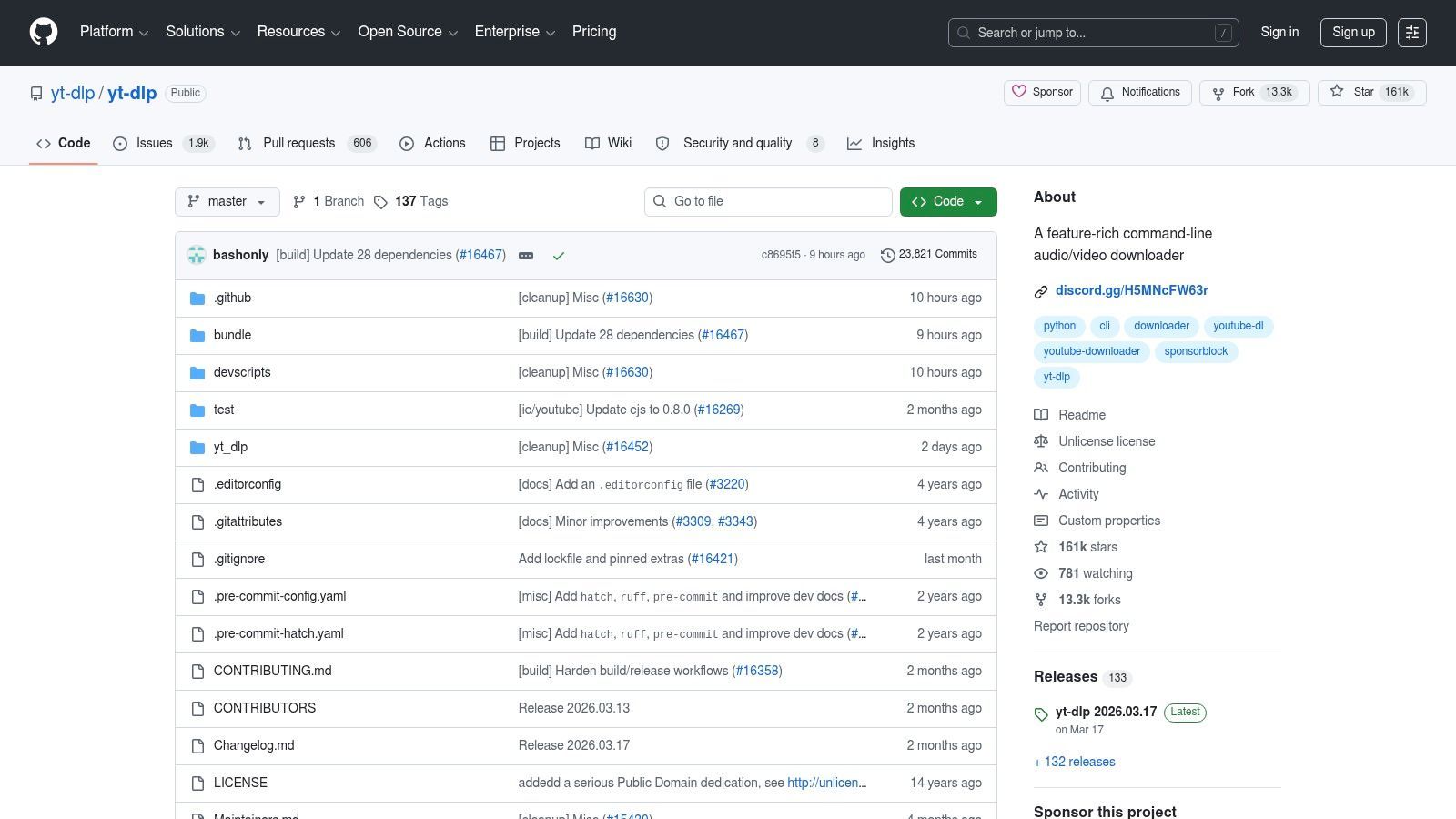
This is what the pros use. yt-dlp looks daunting if you're new to the command line, but it's one of the most effective tools for getting audio from YouTube without ads, clutter, or guesswork.
The basic command is straightforward:
yt-dlp -x --audio-format mp3 [YouTube_URL]
Here's what that does:
-xextracts audio only--audio-format mp3converts the output to MP3[YouTube_URL]is the video or playlist link
The big advantage is control. SeaSalt notes that yt-dlp can extract audio from entire playlists using parameters like -x and --audio-format mp3, making it a strong choice for repeatable batch work. That's an important point when choosing tools and planning workflows.
Why this beats converter sites
yt-dlp solves the exact problems that web tools usually create.
| Need | Online converter | yt-dlp |
|---|---|---|
| One-off speed | Good | Good once installed |
| Playlist handling | Weak | Strong |
| Format control | Limited | Strong |
| Ad-free workflow | No | Yes |
| Repeatability | Poor | Excellent |
You also get better options for output. In professional use, that matters. MP3 is convenient, but sometimes you'll want M4A, WAV, or FLAC depending on whether your priority is portability, editing, or transcription prep.
A practical workflow
Use yt-dlp when you need:
- Playlist extraction for lecture series, interviews, or course modules.
- Cleaner source files for editing and transcription.
- A repeatable process that doesn't depend on whatever converter site happens to be alive today.
Working rule: If you’ll ever need the file again, use a method you can repeat exactly.
One more point often missed: Just because a tool can download a file doesn’t mean every use is safe or legal. For a plain-English look at platform and copyright issues, check out this piece on understanding legal risks for Reels MP3.
Capturing Audio from Live Streams and Protected Content
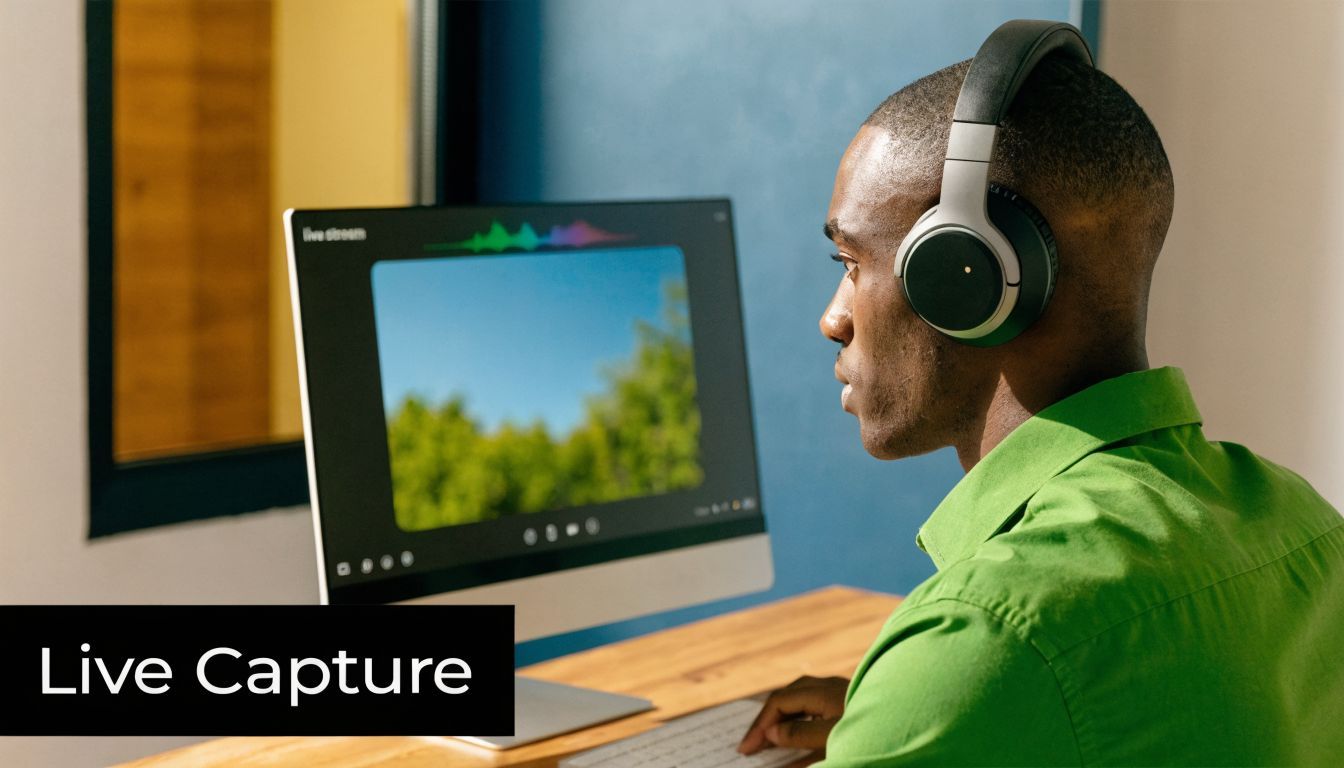
Some YouTube audio can't be grabbed with a downloader at all. Live streams are the obvious case. Sometimes the content is temporary. Sometimes playback works, but direct extraction doesn't. That's when system audio recording becomes the practical workaround.
On macOS, use Screenshot or QuickTime with an audio routing setup. On Windows, Xbox Game Bar can capture what's playing. For more control on either platform, Audacity is the better tool.
The setup that actually works
The goal is simple: Record what your computer is playing, not what your microphone hears.
A basic workflow looks like this:
- macOS: Route system output into a recordable input, then capture in QuickTime or Audacity.
- Windows: Use system audio capture options, then verify your levels before recording the full session.
- Cross-platform: Use Audacity when you want visible waveforms, level control, and cleaner monitoring.
This method is especially useful for webinars, premieres, and streams where waiting until later isn’t an option.
Avoid the mistake that ruins everything
The most common recording failure is clipping. SwellAI notes that transcription problems often start with recording-level misconfiguration. Their recommendation: reduce system volume to 70-80% and keep recording peaks between -6dB and -3dB, as explained in their Audacity recording guide.
Clipped waveforms usually have flattened tops and bottoms. Once that distortion is baked in, cleanup tools can only do so much.
Clean capture matters more than clever cleanup.
Before recording a long lecture or stream, do a short test. Play a loud section, record a few seconds, and inspect the waveform. If it's hitting the ceiling, lower the level and test again.
Best use cases for recording
This approach is right when:
- The stream is live: There may be no later download window.
- The platform blocks easy extraction: Recording sidesteps that limitation.
- You need a full session archive: Meetings, panels, talks, and event coverage all fit here.
It’s slower than direct extraction, but when direct extraction fails, this is the method that still gets the job done.
Understanding the Legal and Ethical Boundaries
Many users asking how to get audio from YouTube focus on the technical side. That's understandable. But the legal side matters just as much, especially if the audio is going into a report, production, archive, or client workflow.
YouTube's policies restrict unauthorized downloading of copyrighted content. That creates a real gap between what tools allow and what you're permitted to do. The takeaway is simple: technical access isn't the same thing as permission.
A reasonable rule to follow
Use downloaded or recorded audio only when your use is defensible for your situation. That might include your own content, material used with permission, or limited uses tied to commentary, criticism, or research where fair use may apply. That's not legal advice, just the basic professional standard.
For teams that also document interviews and spoken material, this article on how to record conversation clearly and responsibly is a useful operational reference.
What responsible use looks like
- Respect the creator: If you don't own it, assume there are limits.
- Keep context: Save the original link, title, and publication details.
- Know your use case: Personal reference is different from redistribution.
- Ask when needed: Permission solves a lot of gray areas.
If the audio is important enough to keep, it’s important enough to document properly.
That mindset saves trouble later, especially when multiple people touch the same file.
From YouTube Audio to an Actionable Transcript
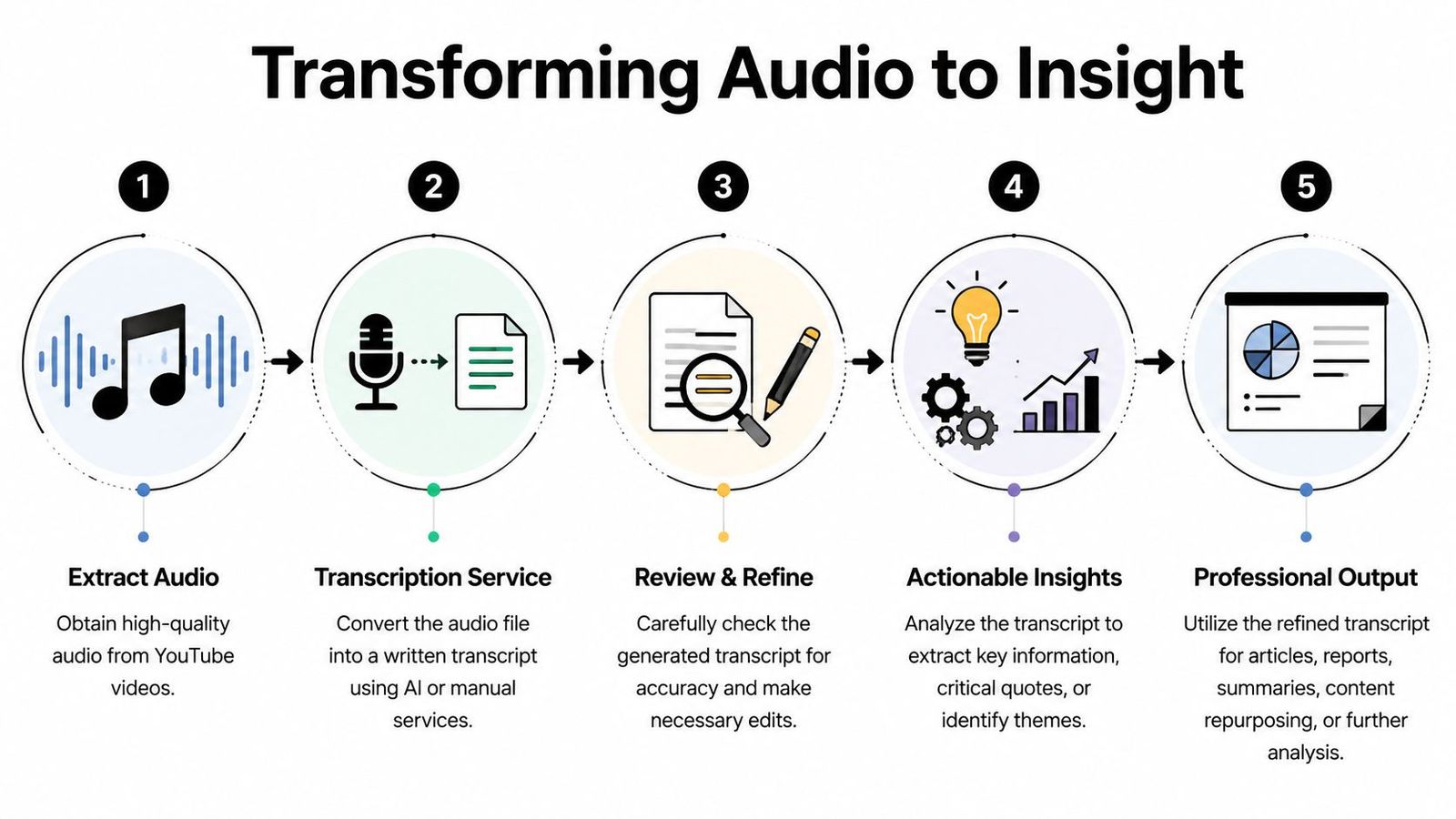
An audio file is useful. A searchable transcript turns it into working material.
This is where it stops being just a download task and becomes a workflow. Once you've extracted or recorded the audio cleanly, upload it to an AI transcription service. Turn it into text you can search, quote, edit, summarize, and reuse.
Descript notes that modern transcription platforms can automatically detect language, identify speakers, and turn hours of YouTube-derived audio into editable transcripts in minutes, as described in Descript's overview of extracting audio from YouTube video. That's where the real productivity gain is.
What makes the transcript useful
The best transcripts give you more than raw text:
- Speaker separation for interviews, panels, and lectures
- Editable output so you can clean names, jargon, and formatting
- Searchability for finding quotes and key moments fast
- Export options for documents, captions, and research notes
If you're starting from a YouTube caption workflow instead of an audio file, this guide on easily copy YouTube video transcripts can help you compare approaches.
The practical next step
A good working routine looks like this:
- Extract or record the cleanest audio you can.
- Upload it to a transcription tool.
- Review names, acronyms, and technical phrases.
- Export the transcript into the format your team uses.
Once you have the audio, our guide on how to transcribe a YouTube video shows how to turn it into text, or how to skip the download when YouTube already has a transcript.
If your end goal is notes, compliance records, content repurposing, or research, the time savings really show up at this stage. The extraction step gets attention because it feels technical, but the transcript is where the value usually lives.
If you want to turn YouTube audio, meetings, lectures, interviews, or podcasts into clean, searchable text fast, try WhisperAI - #1 AI Transcription. It's built for professional transcription workflows, with support for large audio files, speaker labeling, exports, and fast turnaround that fits real business and research work.