A Simple Guide to Convert MP3 to Text
Tired of manual transcription? Learn how to convert MP3 to text with our simple guide. Discover the best tools and tips for fast, accurate results.
tl;dr: Turning your MP3 audio files into text makes them instantly searchable, editable, and shareable. Modern AI can transcribe hours of audio into an accurate transcript in just minutes, which is a massive time-saver for students, journalists, and just about any professional. The best results come from clean audio, but a tool like WhisperAI can handle even challenging recordings with impressive accuracy.
Why Bother Converting MP3s to Text?
Let’s be honest, we've all been there: scrubbing through a long meeting recording trying to find that one specific comment someone made. It's a huge waste of time. So much valuable information from interviews, lectures, and team brainstorms gets locked away in audio files, making it a pain to access and use. This is exactly where AI transcription changes everything.
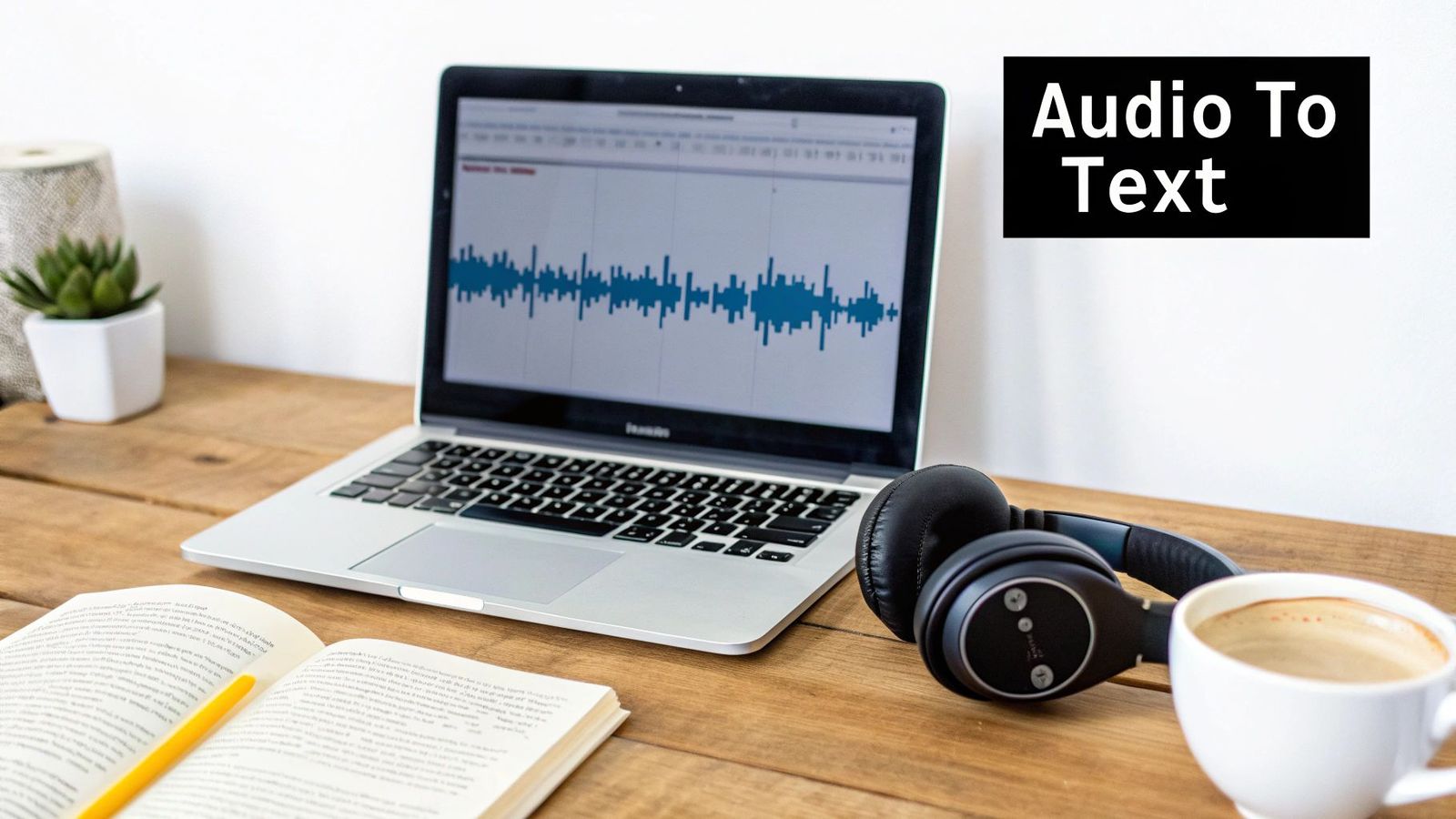
The ability to convert MP3 to text isn't just a neat trick; it completely overhauls how you work with your audio content. It turns a one-dimensional recording into a flexible, active asset you can actually do something with.
Set Your Audio Content Free
Think about the real-world difference this makes. A journalist can run a quick search through an interview transcript for a killer quote instead of re-listening to the whole thing. A student can transform a two-hour lecture into a searchable study guide, jumping to key concepts in seconds. For business teams, it means meeting notes are finally accurate and easy to act on.
The demand for this kind of tech is exploding. The global transcription market is already a multi-billion dollar industry and is projected to keep growing significantly, according to market analysis from Grand View Research. This isn't just a fleeting trend; it's a fundamental shift as professionals ditch slow, manual transcription for the speed and accuracy of AI.
A Huge Leap from Clunky Software to Smart AI
Not too long ago, transcription software was famously bad—it would get tripped up by different accents or a little background noise. Today’s AI tools are in a completely different league. They can easily handle challenges like:
- Multiple Speakers: They can tell who is talking, even in a busy group discussion.
- Different Accents: They understand a huge range of regional and international accents with impressive accuracy.
- Background Noise: They’re great at filtering out ambient sounds to isolate the important dialogue.
The real win here is turning "listening time" into "doing time." When you convert your audio, you’re not just getting a text file. You're getting back hours of your day that would have been lost to manual work.
This guide will walk you through a modern, practical way to turn your audio into a valuable text asset. We'll use AI transcription tools that are powerful yet simple to use. It’s a game-changer for anyone who deals with audio, and it’s much easier than you might think. For content creators, in particular, this opens up a ton of new ways to repurpose audio content.
Your Guide to Flawless MP3 Transcription
Quick version: The secret to a great transcript isn't just about the AI you use—it starts with the audio itself. A clean MP3 with clear voices is half the battle. Once you upload it to a service like WhisperAI, just make sure you’ve tagged the right language. The AI handles the heavy lifting, giving you a solid first draft that’s easy to polish up.
Now, let's walk through how this actually works. Getting a perfect transcript is surprisingly simple once you get the hang of a few key steps. It's not about memorizing a complicated manual; it's about understanding how to give the AI the best possible material to work with.
Just think of the AI as an incredibly sharp, but very literal, assistant. The cleaner the audio you provide, the more accurate your text will be. Honestly, this is the single most important thing to remember if you want to convert MP3 to text without a headache.
Prepping Your Audio for Success
Before you even think about hitting that upload button, give your MP3 a quick listen. Can you easily understand the main speaker? Is the recording cluttered with background noise, music, or street sounds?
Modern AI is pretty good at filtering out some of that ambient noise, but it's not magic. A recording from a packed coffee shop is always going to be a bigger challenge than one from a quiet room. If you can control the recording environment from the start, you’re setting yourself up for a much better result.
A few pro tips for getting clean source audio:
- Ditch the Built-in Mic: If you can, use an external microphone. Even an affordable lavalier mic plugged into a phone can dramatically improve clarity over a standard laptop mic.
- Find a Quiet Spot: Record in a space with minimal echo. Rooms with carpets, curtains, and other soft furnishings are great for absorbing stray sounds.
- Speak Clearly: Encourage speakers to use a natural, steady pace. Mumbling or rushing through words can easily confuse the AI.
Here's a simple rule of thumb: If a person would have trouble understanding the audio, the AI will too. A few minutes of prep here will save you a ton of editing time on the back end.
If you want to dig a bit deeper into the basics of turning spoken words into text, our guide on how to create a transcript from any audio file is a great place to start.
From Upload to First Draft
Once your MP3 is ready to go, it's time to hand it over to the transcription tool. This is where you’ll interact with the platform’s interface. Most modern services give you a couple of ways to get your audio into the system.
For pre-recorded files—like interviews, lectures, or podcast episodes—you can typically just upload the MP3 directly from your computer. It’s usually a simple drag-and-drop process right into your browser window.
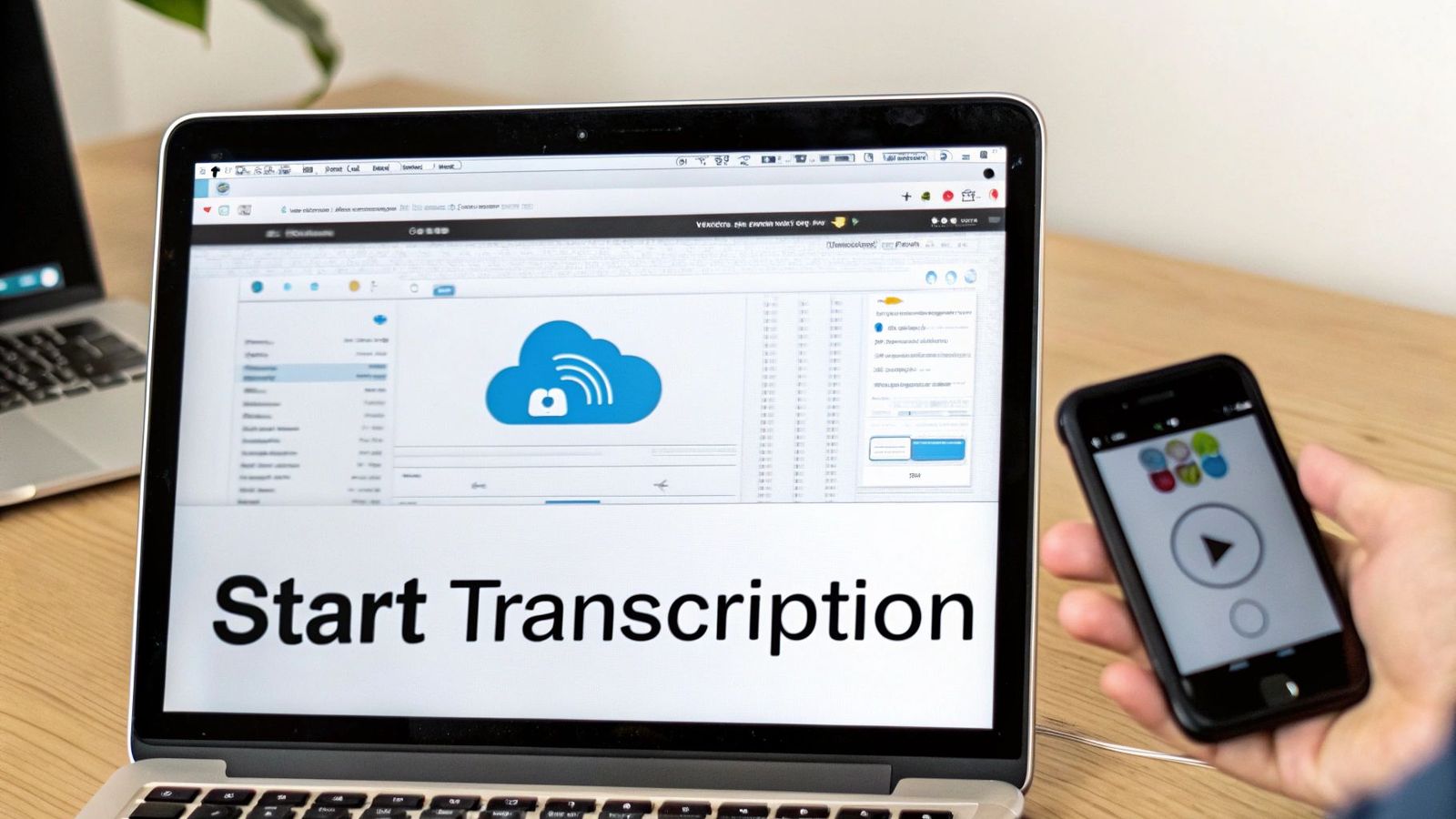
As you can see, the interface is designed to be straightforward. The goal is to get you from audio file to text document with as little friction as possible.
Many platforms also offer a live recording option. This is fantastic for capturing meetings or brainstorming sessions as they happen. Just press record, start talking, and the AI will generate the text in near real-time.
After your file is uploaded or your recording starts, you’ll usually be asked to confirm a few settings. The most important one is the language of the audio. While many tools can auto-detect the language, I always recommend selecting it manually. This ensures the highest accuracy, especially if the audio contains strong regional accents or industry-specific jargon.
From there, the AI takes the wheel. It breaks down the soundwaves, figures out the phonetic patterns, and converts them into words. Depending on the length and complexity of your MP3, this could take a few seconds or several minutes. What you get in return is a complete, time-stamped first draft of your transcript, all ready for a final review.
How to Refine Your AI-Generated Transcript
Let's be realistic: that first draft from an AI transcription tool is a fantastic starting point, but it's rarely perfect. Think of the AI as your hardworking assistant who gets you 95% of the way there. Your job is to come in and add that final 5% of human polish to ensure everything is crystal clear and readable. This is where you turn raw text into a professional document.
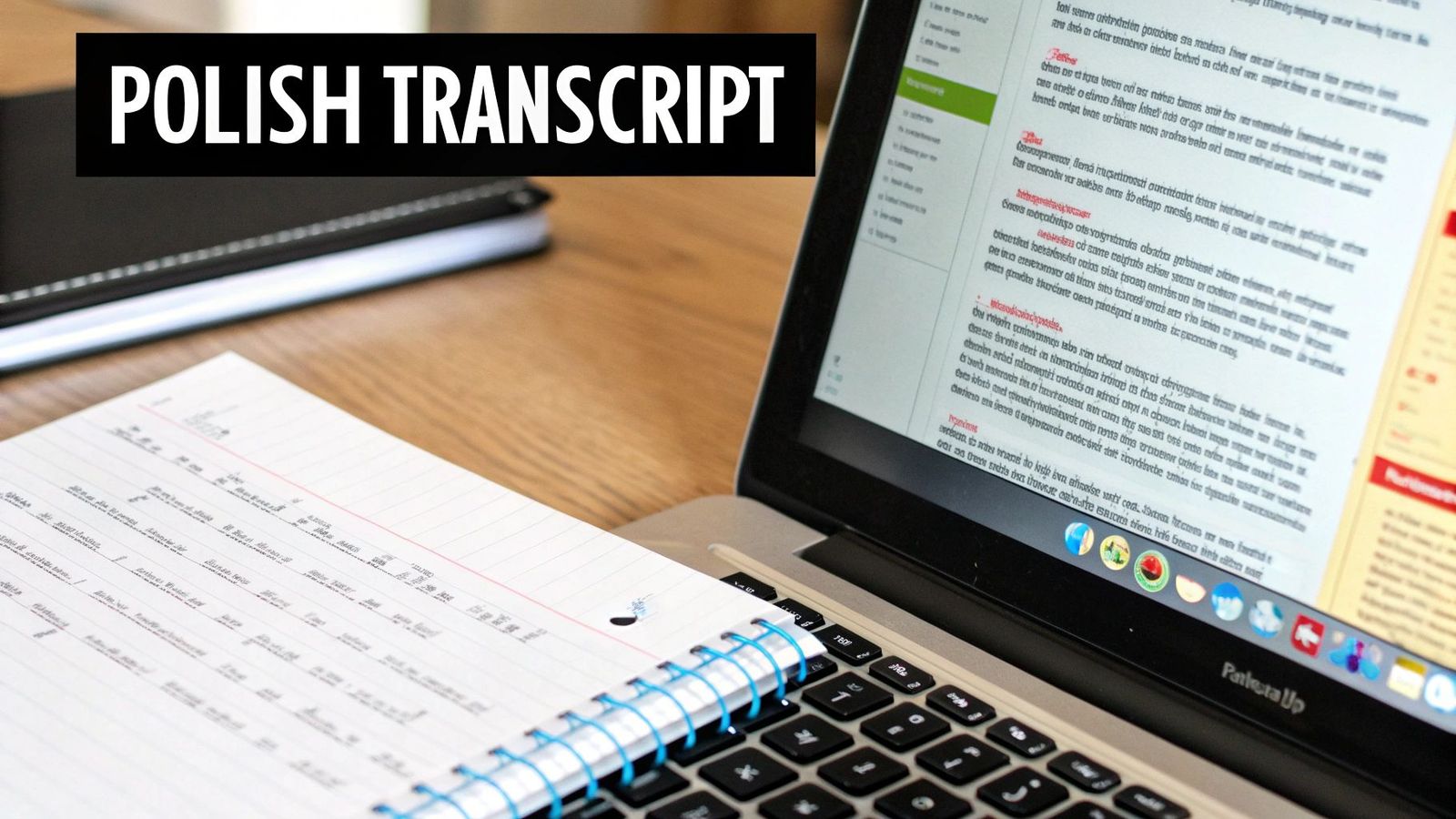
Thankfully, you don't have to do this in a separate program. Most modern transcription platforms, including WhisperAI, come with a built-in text editor. It synchronizes the audio playback with the text, highlighting words as they're spoken. This makes spotting and fixing any little mistakes incredibly fast.
This final touch-up is more important than you might think. The growth of the speech-to-text market shows a massive increase in demand for this technology. Professionals in media, healthcare, and business depend on these tools for accurate records and content. It’s a testament to just how critical a polished transcript really is.
Correcting and Formatting the Text
Your first editing pass should focus on the obvious stuff: typos or misheard words. Even the best AI can get tripped up by unusual names, industry-specific jargon, or a speaker who mumbles. With the integrated editor, you can just click on an incorrect word and type the correction without ever losing your place in the audio.
Next, turn your attention to punctuation. The AI does a decent job of adding commas and periods, but it can't always grasp the speaker's true intent or tone. This is your chance to break up a long, rambling sentence into two, or add a question mark where the AI missed a rising inflection in the speaker's voice.
To really elevate the final text, it helps to understand what an AI text humanizer aims to do. Having that mindset helps you manually add the natural, human flow that makes the transcript easy to read.
A great transcript isn't just about what was said; it's about making the text easy for someone to read and understand later. Proper formatting is key.
Identifying and Labeling Speakers
If your recording involves more than one person—like an interview, a team meeting, or a podcast—speaker labels are non-negotiable. Without them, you just have a confusing wall of text.
Most advanced tools are smart enough to detect when a different person starts talking and will assign a generic label like "Speaker 1" or "Speaker 2." Your job is to go through and give them proper names.
- For a podcast interview: You'd simply change "Speaker 1" to "Host" and "Speaker 2" to your guest's name.
- For a team meeting: You would label each person by name, like "Sarah," "Michael," and "Jenna."
This small change adds a massive amount of value, instantly making the transcript useful for meeting minutes, pulling quotes for an article, or even for legal records.
Exporting Your Polished Transcript
Once you're satisfied with your edits, it's time to export the file. The right format depends entirely on what you plan to do with the transcript, and any good service will offer a few choices.
- DOCX (Microsoft Word): This is your best bet for formal reports, blog posts, or any document you plan to format and edit further.
- TXT (Plain Text): A simple, no-frills option. It's lightweight and perfect for quickly pasting into an email or importing into another piece of software.
- SRT (SubRip Subtitle): This one is specifically for video. The file includes precise timestamps, allowing you to easily add captions to videos on YouTube or other platforms for better accessibility and engagement.
Choosing the right format from the get-go ensures your converted MP3 file is immediately ready for whatever you need it for, whether that's documentation, content creation, or making your media more accessible.
Getting the Best Transcription Accuracy
Let's be honest: getting a perfect transcript when you convert MP3 to text isn't magic. It all comes down to one simple, unavoidable rule: the quality of your text is a direct reflection of the quality of your audio. A clean, crisp MP3 file is your ticket to a fantastic transcript.
This is a lesson you learn quickly in this field. Spending just a few minutes upfront to make sure your audio is solid will save you a ton of time editing on the back end. Think of it like a chef prepping ingredients—the better the raw materials, the easier it is to get a great result.
Prioritize Clear Source Audio
Before you hit that "upload" button, give your MP3 a quick listen. The biggest culprits that ruin AI transcriptions are background noise, speakers mumbling from across the room, and people talking over each other.
Modern AI is impressive, but it’s not a mind reader. It works best when it has a clear audio signal to work with. Here are a few dead-simple tricks that can drastically boost your audio quality right from the start:
- Use a Decent Microphone: I know the built-in mic on your laptop is easy, but it captures everything—keyboard taps, fan hum, room echo. Even an inexpensive external USB microphone or a clip-on lavalier mic will make a night-and-day difference.
- Find a Quiet Space: Record in a room with soft surfaces. Carpets, curtains, and even a closet full of clothes can absorb echo. Steer clear of rooms with noisy air conditioners, street traffic, or other ambient sounds.
- Mind Your Distance: Try to keep the speaker at a consistent, close distance to the mic. When audio levels jump up and down, the AI struggles to keep up, often leading to dropped words.
Key Takeaway: Better audio means a better transcript. This isn't just a friendly tip—it's the golden rule of transcription. Every ounce of effort you put into getting a clean recording pays off tenfold in accuracy.
Handling Challenging Audio and Jargon
Of course, perfect recording conditions aren't always in the cards. You might be stuck with an MP3 that has thick accents, overlapping speakers, or a ton of industry-specific terms. This is where a truly powerful AI tool earns its keep.
Today's AI models have been trained on an incredible diversity of speech, so they can handle different accents surprisingly well. But when it comes to highly specialized jargon—think medical, legal, or engineering terms—you can give the AI a helpful nudge. For a deeper dive into what makes or breaks a transcript, you can explore the nuances of AI transcription accuracy.
To help the AI along, look for a tool that offers a custom dictionary feature. By pre-loading a list of specific terms, names, or acronyms, you're essentially teaching the model your unique language. This simple step can prevent the AI from turning "aneurysm" into "any-reason," giving you a transcript that's not just accurate, but genuinely useful.
Here's a quick rundown of the most important factors for getting a high-quality transcript every time.
Key Factors for High-Accuracy Transcription
| Factor | Why It Matters | Quick Tip |
|---|---|---|
| Audio Clarity | Background noise and echo confuse the AI, leading to errors and missed words. | Record in a quiet, carpeted room. Avoid cafes or open-plan offices. |
| Speaker Proximity | If a speaker is too far from the mic, their voice will be faint and hard to decipher. | Use an external microphone and keep it 6-12 inches from the speaker's mouth. |
| Cross-talk | When multiple people speak at once, the AI struggles to separate the voices. | Encourage speakers to take turns. If that's not possible, use multi-channel recording. |
| Accents & Jargon | Strong accents or niche terminology can be misinterpreted by standard AI models. | Choose an AI model trained on diverse datasets and use custom dictionaries for jargon. |
Paying attention to these details from the start is the surest way to get a transcript you can actually rely on, minimizing the need for heavy-handed edits later.
What About Keeping Your Audio and Transcripts Secure?
When you’re turning an MP3 into text, it’s rarely just a bunch of random words. You could be dealing with a confidential client interview, a sensitive medical dictation, or a private strategy meeting. For anyone in the legal, healthcare, or corporate world, keeping that audio file locked down is everything.
That’s why security isn't just a nice-to-have feature; it’s the first thing you should look for in a transcription tool.
A great tool needs to be more than just accurate—it has to be a vault for your data. You need assurance that your files are protected from the second you hit "upload" to the moment you download the finished transcript.
The Security Features That Actually Matter
You’ll see a lot of technical jargon thrown around, like "256-bit encryption" and "SOC 2 compliance." What do these really mean for your files?
Think of 256-bit encryption as the digital equivalent of a bank vault. It's an incredibly strong lock on your files, both as they travel across the internet and while they’re sitting on a server. This is the same level of security that banks and governments rely on.
SOC 2 compliance is a different beast. It's basically a seal of approval from an independent auditor confirming a company has the right systems in place to keep your data secure and private. If you're handling sensitive business information, this is non-negotiable. It proves the service doesn't just talk about security—it lives and breathes it.
Security isn't just another item on a feature list. It's the foundation of trust. Your peace of mind comes from knowing that confidential conversations stay that way, from the MP3 file to the final document.
Privacy Rules and Smart Habits
Beyond the platform's security, you also have to think about data privacy laws like GDPR. If you’re working with audio that involves anyone from the European Union, using a GDPR-compliant service isn't just a good idea; it's the law. It’s all about making sure personal data is handled with care and respect.
Here are a few simple habits to keep your own workflow secure:
- Create strong passwords. It's basic, but it's your first line of defense. Use a unique, complex password for your transcription service account.
- Limit access. Don't share transcripts with anyone who doesn't absolutely need to see them. Keep your circle of trust small.
- Delete old files securely. Once a project is done, don’t just let the audio and transcripts sit there. Permanently delete them from the platform and from your own computer.
When you pick a platform that was built with security at its core, you can convert mp3 to text without a second thought about your data's safety. To see how seriously we take this, you can learn more about WhisperAI's commitment to protecting your data on our security page.
Common Questions About Converting MP3 to Text
Even with a solid guide, you're bound to have a few questions when you start using AI to convert mp3 to text. Let's tackle some of the most common ones I hear from people to clear up any confusion.
How Long Does Transcription Usually Take?
This is probably the first thing everyone wants to know. The answer is simple: it’s incredibly fast. Most modern AI platforms can process an audio file in just a fraction of its actual runtime.
As a general benchmark, a one-hour MP3 file often gets transcribed in just a few minutes. The exact time might fluctuate a bit depending on your file size or how busy the service's servers are at that moment, but it’s a world away from the hours it would take to do the same job by hand.
Can the AI Handle Different Languages and Accents?
Absolutely. This is where today's AI really shows its strength. The transcription models used by top services have been trained on massive amounts of data from all over the world.
This means you can throw just about anything at them, including audio with:
- Multiple Languages: Most tools handle dozens of languages, often 50 or more.
- Regional Accents: Whether it's a thick Scottish brogue or a Southern American drawl, the AI is surprisingly good at figuring it out.
- Non-Native Speakers: It can also accurately process English spoken by people with different first languages.
While a very heavy accent or an obscure dialect might still cause a few hiccups, the overall performance is impressive and getting better all the time.
The real power of today's AI is its ability to understand the diverse ways people actually speak. It’s no longer limited to a single, standardized version of a language.
What If My Audio Quality Isn't Great?
I've already mentioned how important clean audio is, but let's be real—sometimes you're stuck with a less-than-perfect recording. A phone call with spotty reception or a file from a noisy conference room is just a part of life.
When your audio quality is poor, you can expect the accuracy to take a hit, but it’s rarely a total loss. The AI will do its best to pick out the dialogue and filter out the background chatter.
The main difference is you’ll need to budget more time for editing and clean-up. Listening back and correcting the AI's mistakes is key. But even with a rough recording, getting that first draft from an AI is still a massive time-saver compared to starting from zero. It gives you a workable foundation, turning a painful task into a manageable one.
Ready to turn your audio into accurate, searchable text in minutes? WhisperAI offers business-grade transcription with exceptional accuracy and security. Try our powerful AI transcription tool today and see the difference for yourself.