Your Practical Guide to Transcribing Audio to Text Online for Free
Discover how to transcribe audio to text online free with our guide. We cover the best tools, practical workflows, and tips for fast, accurate results.
tl;dr: Yes, you can transcribe audio to text online for free, but the best method depends on your needs. For quick, non-sensitive files, use browser-based tools. For longer recordings where quality is key, use YouTube's private video auto-captioning trick. For confidential audio, use local, open-source software to keep your data private.
The short answer? Yes, you can absolutely transcribe audio to text online for free. The real question, though, is which free method is right for you. Your best bet hinges on what you value most for this specific task: lightning-fast speed, pinpoint accuracy, or iron-clad privacy.
Let’s walk through the best no-cost options to turn your audio recordings into clean, editable text without spending a dime.
Why Free Transcription Is Finally a Reality
Not too long ago, getting a transcript meant either slogging through hours of manual typing or shelling out cash for a professional service. That's all changed. Turning your meetings, lectures, or interviews into text is now surprisingly simple, thanks to massive leaps in AI and speech recognition.
The rise of AI-powered transcription has made this technology accessible to everyone. Some free platforms now serve over 6 million users, churning through MP3 and WAV files and hitting up to 96% accuracy. This isn't just a fancy tool for big corporations anymore; it’s a practical, everyday solution for students, creators, and professionals.
Finding Your Best Free Transcription Path
Before you jump in, take a second to think about what you really need for this specific project. Are you on a tight deadline? Is near-perfect accuracy a must-have? Or is the audio confidential, meaning it absolutely cannot leave your computer?
This flowchart will help you pick a lane based on your top priority.
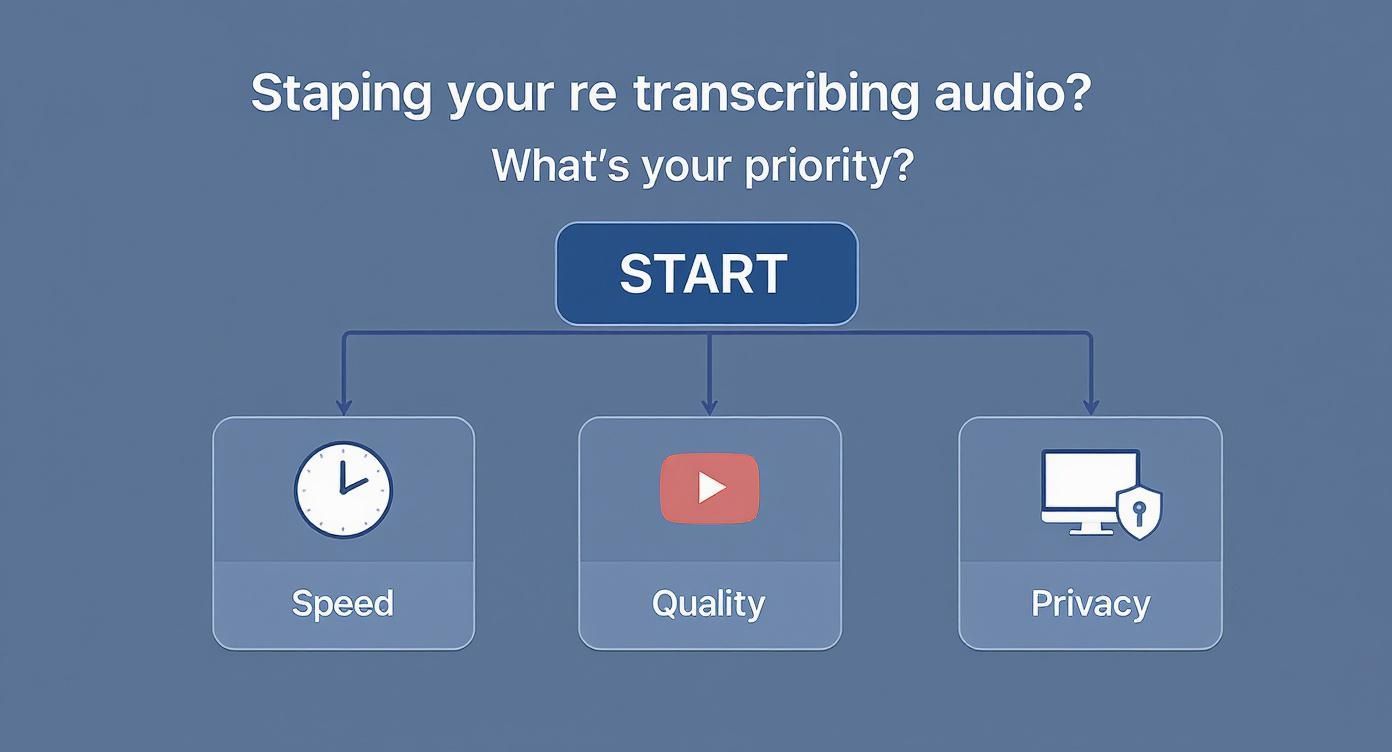
As you can see, there are three main paths: browser tools for speed, YouTube for quality, and local software when privacy is everything.
Here's what that looks like in practice:
- Browser-Based AI Tools: These are your go-to for quick, one-off jobs. Just drag, drop, and get a transcript back in minutes. They’re incredibly easy, but you'll need to watch out for limits on file size or length.
- YouTube's Auto-Captioning: This is a fantastic—and slightly sneaky—hack for longer recordings. By uploading your audio as a private video, you can piggyback on YouTube's powerful (and free) transcription engine. The accuracy is often surprisingly good.
- Local Open-Source Software: If you're working with sensitive information—think legal, medical, or private client meetings—this is the only way to go. Running the software on your own machine means your data never touches the internet.
Key Takeaway: The "best" free transcription service isn't a one-size-fits-all solution. It's a trade-off. You need to decide what matters most for each file you convert: speed, accuracy, or security.
Top Free Audio Transcription Methods at a Glance
To make things even clearer, here's a quick comparison of the most popular and effective free methods. This should help you pick the right tool for the job.
| Method | Best For | Ease of Use | Typical Accuracy | Privacy Level |
|---|---|---|---|---|
| Browser-Based Tools | Quick, short files; non-sensitive audio | Very Easy | Good (85-95%) | Low |
| YouTube Auto-Captions | Long recordings; good quality audio | Easy | High (90-96%) | Medium |
| Local Open-Source | Sensitive data; complete control | Difficult | Very High | Maximum |
Ultimately, the right tool is the one that fits your workflow and privacy requirements. Each of these methods can deliver a solid transcript without costing you anything.
If you're looking to compare specific tools, this list of the best free transcription software options is a great place to start. And for a broader look at different applications, check out our guide on the best AI transcription apps.
Using Browser-Based Tools for Instant Transcription
The fastest way to get a transcript without downloading a single thing is to use a tool that runs right in your web browser. Just drag, drop, and you're off.
Let's say you just finished recording a 30-minute podcast interview. You need the text for show notes, and you need it fast. You don't want to install software or mess with complex settings. This is exactly where a browser-based transcription tool shines.
These online tools are all about convenience. The entire process—from uploading your file to getting the text back—happens on a single webpage. It’s the most direct path to transcribe audio to text online free, with no technical setup required.
Prepping Your Audio for Best Results
Before you upload anything, taking a few minutes to clean up your audio file will make a world of difference. An AI is only as good as the audio it's given, so a clean recording is your key to an accurate transcript.
Here’s a quick pre-flight checklist:
- Kill the Noise: Got a faint background hum or air conditioner buzz? A free editor like Audacity has a simple noise reduction filter that works wonders. This single step can dramatically boost the AI's accuracy.
- Check the Format: Most online tools prefer standard formats like MP3 or WAV. If your audio is in a less common format, convert it first. A high-quality MP3 (192kbps or higher) is a great sweet spot between file size and clarity.
- Trim the Fat: Snip out the dead air at the beginning or the off-topic chatter at the end. A tighter file means faster processing and a cleaner, more focused transcript.
Once your audio is prepped and ready, you just drag the file into the upload box and let the tool get to work.
What to Expect from the Raw Transcript
After a few minutes, you’ll get the raw text back. It's crucial to have realistic expectations here. For clear audio, you can expect the first draft to be around 85-95% accurate. That's a fantastic starting point, but it's not a finished product.
You'll almost always spot a few common issues:
- Funky Punctuation: The AI often misses commas or puts periods in strange places. Full sentences might get mashed together.
- Speaker Mix-Ups: Even if the tool tries to label speakers (e.g., Speaker 1, Speaker 2), it can get confused, especially when voices overlap.
- Mangled Names & Jargon: This is the big one. Proper nouns, company names, and industry-specific terms are frequently misspelled.
My Two Cents: I always think of the first AI transcript as a rough draft from a very fast but slightly distracted assistant. It gets all the core information down, but it needs a human eye to catch the nuance, fix the errors, and make it truly readable. The AI does the grunt work; you provide the polish.
The goal is to let the browser tool handle the heavy lifting. Then, you can step in to apply the final, crucial edits. For a more detailed look at the technology behind this, our guide on AI audio transcription covers more advanced techniques.
Sometimes, the best tools for the job are the ones you already have. Instead of hunting for a new app, you can get surprisingly good free transcripts using services you probably use every day. Two of the most effective are right under your nose: YouTube and Google Docs.
Clever Transcription Workflows with YouTube and Google Docs
This approach is all about being resourceful. For pre-recorded audio, especially longer files like lectures or hour-long interviews, YouTube offers an impressively accurate, no-cost solution. The idea is to tap into YouTube's powerful auto-captioning engine, which is genuinely one of the best around.
The YouTube Private Video Method
You don’t need to be a YouTuber to make this work—just a Google account. The trick is to package your audio file (like an MP3 or WAV) into a basic video. All you have to do is pair the audio with a static image using any simple video editor, even free ones.
Once you have that video file, the process is straightforward:
- Upload It: Head over to your YouTube Studio and upload the new video.
- Set to Private: This is the most crucial step. During the upload process, set the video’s visibility to "Private." This ensures no one but you can ever see it.
- Be Patient: Let YouTube do its thing. As it processes the video, its AI is working in the background to generate the transcript. This might take a few minutes.
- Grab Your Text: Once it's ready, click into the video's details and find the "Subtitles" or "Captions" section. You'll see the auto-generated transcript there. You can open it, remove the timestamps with a click, and then copy the entire text.
Plenty of great tutorials can show you how to transcribe YouTube videos in minutes. If you're working with video files to begin with, our comprehensive video transcription guide offers even more tips.
Real-Time Transcription with Google Docs
But what if you need to transcribe something happening right now? For live meetings, brainstorming sessions, or just getting your own thoughts down, the Voice Typing feature in Google Docs is a hidden gem. While designed for dictation, it's a fantastic live transcription tool.
Getting started is easy. Just open a new Google Doc and navigate to Tools > Voice typing. A little microphone icon will pop up.
Pro Tip: Your laptop's built-in mic will work, but for a huge jump in accuracy, plug in an external USB microphone. Position it near the audio source—whether that's you or a speaker—to get crystal-clear sound without all the room noise. It's a simple change that makes a world of difference.
This method is perfect for capturing your own ideas or a single speaker in a relatively quiet environment. It can get confused by multiple people talking over each other, but for a one-on-one call or a presentation, it’s an incredibly efficient way to create a live draft without any extra software. It turns a simple word processor into a powerful, free transcription machine.
Let's Talk About Privacy When Transcribing Online
Free and convenient are fantastic, but it’s worth asking: what actually happens to your audio file when you upload it? When you transcribe audio to text online free, you're almost always sending your data to someone else's server. If that file is a confidential interview or a sensitive business meeting, you absolutely need to know the privacy risks.
Most free online tools are cloud-based. This means your file travels from your computer, gets processed on their systems, and then the finished text is sent back. While reputable services have privacy policies, the fundamental issue is that you lose direct control over your data the second you click "upload."
Cloud vs. Local: Where Your Data Lives
The biggest privacy difference comes down to where the transcription work is done. Cloud services are super convenient but bring another company into the mix. Local processing, on the other hand, keeps everything on your own machine.
- Cloud Processing: Your audio gets sent across the internet. The provider will likely store your file, at least temporarily, and their privacy policy is the only thing governing how it's handled.
- Local Processing: Nothing ever leaves your computer. This approach, typically done with open-source software like a local Whisper setup, gives you maximum privacy.
This isn't a small-time concern. The online transcription market is exploding and expected to nearly double to USD 27.4 billion by 2027. That’s a staggering amount of audio data flowing through third-party services, so it pays to be careful.
A Quick Checklist Before You Upload
Before you drop a file into any free online tool, run through this quick mental checklist. It takes less than a minute and could save you from a major privacy headache.
- Can you find a clear privacy policy? If it’s buried, confusing, or non-existent, that’s a huge red flag. Walk away.
- Do you have to create an account? Services that let you transcribe without signing up often provide better anonymity.
- What's their data retention policy? Look for clear language saying your files are deleted right after processing. Vague promises aren't good enough.
The Golden Rule of Transcription Privacy: If the audio contains anything you wouldn't feel comfortable emailing to a total stranger, don't upload it to a free, cloud-based transcription service.
For anyone handling client data or sensitive internal conversations, this is non-negotiable. It’s worth taking the time to understand a platform's security protocols. Enterprise-grade services are built for this, as you can see from documentation like WhisperAI’s privacy and security measures.
Ultimately, when confidentiality is paramount, nothing beats running the transcription yourself, locally on your own computer.
Knowing When to Upgrade to a Paid Service
Free transcription tools are fantastic, I use them all the time for quick jobs. But let's be honest, they have a ceiling. The real question you have to ask yourself is this: at what point does the time I spend fixing a free transcript cost more than just paying for a pro service? Figuring that out is the key to avoiding a lot of wasted effort.

That initial thrill of getting a transcript for free disappears pretty fast when you're on your third proofread, still correcting names, industry jargon, and basic punctuation. All that manual cleanup is a hidden cost, and believe me, it adds up.
Clear Signs It’s Time to Upgrade
If any of these situations sound familiar, it's a good sign your workload has simply outgrown what the free options can handle. The hours you'll get back will almost certainly be worth more than the subscription fee.
Here are a few common scenarios where paying for transcription just makes sense:
- You're constantly transcribing long files. If you’re dealing with audio over 30 minutes on a regular basis—think podcasts, hour-long webinars, or deep-dive interviews—the editing time on a free transcript can become a serious bottleneck in your workflow.
- Accuracy is absolutely critical. For a video creator who needs flawless captions, a paralegal who needs certified court transcripts, or a researcher quoting a primary source, 99%+ accuracy isn't a "nice-to-have." It's the entire point.
- Your audio is a mess. Let's face it, not all recordings are pristine. Free tools often fall apart when faced with thick accents, multiple people talking over each other, or distracting background noise. Paid services have much more powerful AI models trained to cut through that chaos.
The Value Proposition: A paid service isn't just about a text file. You're buying back your time. You're paying for guaranteed accuracy, advanced features like automatic speaker labels, and the confidence that comes with better security and actual customer support if something goes wrong.
What You Really Get with a Premium Service
When you upgrade, you're not just getting a slightly better free tool. You're investing in a professional workflow designed to make you more efficient and deliver a final product that's ready to go.
The demand for this level of quality is massive. The U.S. transcription market alone shot past USD 30 billion in 2024, and it's still climbing. That growth is fueled by professionals who know that while automation is great, you can't beat human-level accuracy for content that truly matters. You can dig into the numbers in this market analysis of transcription services.
A professional-grade platform like WhisperAI gives you things the free tools just can't match:
- Enterprise-Grade Security: Your confidential client interviews or pre-release content are protected with serious encryption and privacy standards.
- Advanced AI Features: You get reliable speaker labeling, smart punctuation, and models that can actually handle complex, technical language.
- Seriously Fast Turnaround: Get a highly accurate transcript back in minutes, not the hours it would take you to clean up a free one.
Ultimately, the decision to upgrade is a practical one. The moment the time you spend editing starts getting in the way of your actual job, it’s time to hand the transcription work over to a tool built for it.
Common Questions About Free Audio Transcription
Even the best free tools have their quirks. If you're new to transcribing audio online, you're bound to hit a few snags. Let's walk through some of the most common questions people ask—the practical hurdles that can be frustrating but usually have simple solutions.
Getting a good result really comes down to two things: the quality of your source file and knowing the limits of the free tool you’ve chosen.
How Can I Improve Transcription Accuracy?
The single biggest factor here is your audio quality. It’s the old "garbage in, garbage out" principle. Before you even think about uploading your file, focus on getting the cleanest recording you can. That means finding a quiet space and using a decent microphone if possible.
A few simple tweaks can make a massive difference:
- Kill Background Noise: Grab a free tool like Audacity and run its noise reduction filter. This is a game-changer for getting rid of humming, hissing, or fan sounds that trip up the AI.
- Speak Clearly: If you have any control over the recording, encourage speakers to talk one at a time and enunciate. AI really struggles to untangle overlapping voices.
- Proofread with Audio: This is the best editing trick in the book. Play the audio back while you read through the generated transcript. Your ears will catch what your eyes miss, especially with names, jargon, or mumbled words.
Key Insight: Think of a free AI transcript as a high-speed rough draft. It’ll do 80-90% of the heavy lifting, but it still needs a human to do the final polish and fix those contextual errors only a person can spot.
For a deeper dive into what drives these results, our guide on understanding AI transcription accuracy breaks it all down.
Are There File Size or Length Limits?
Yes, and this is where most people get tripped up. Nearly every free service has limits to keep server costs down. You might get capped at 10 minutes per file or a total of 30 minutes for the entire day.
File size limits are also common, usually somewhere between 25MB and 100MB. Always check the service's FAQ or pricing page before you start. If you’re working with a long recording, like an hour-long lecture, your best option is to either split the audio into smaller chunks or use a more forgiving method like the YouTube captioning trick.
What Is the Best Audio Format to Use?
You're looking for the sweet spot between quality and file size. A WAV file gives you uncompressed, top-tier quality, but the files can be absolutely massive.
For most online tools, a high-quality MP3 (encoded at 192kbps or higher) is the perfect compromise. It keeps the audio crystal clear while making the file size manageable. Most platforms are built to handle MP3s well, but other formats like M4A and FLAC are also excellent choices. The main thing to avoid is highly compressed audio, which can sound muddy and wreck your transcript's quality.
When free tools can't keep up with your volume or accuracy needs, it's time for a professional solution. WhisperAI delivers enterprise-grade transcription with the speed and security your work demands. Transform your audio into accurate text in minutes.