How to Add Captions to Videos: A Complete Guide for 2024
Discover how to add captions to videos to boost engagement and accessibility. Our guide covers AI tools, editing SRT files, and platform-specific tips.
tl;dr: Use an AI transcription service like WhisperAI to automatically generate a caption file (an SRT or VTT). After a quick polish, you can upload this file directly to platforms like YouTube, Vimeo, and Facebook. This small step makes your videos more accessible, boosts engagement, and improves your video's SEO.
Let's get right to it. The quickest, most painless way to get captions on your videos is to use an AI transcription tool. It will automatically create a caption file (like an SRT), which you can then pop right into your video platform of choice. It's really that simple.
But why should you even bother? Let's break down why this small step is actually one of the smartest moves you can make for your content.
Why Video Captions Are Your Secret Weapon for Engagement

It’s easy to dismiss captions as just an accessibility feature. And while they are absolutely essential for viewers who are deaf or hard of hearing, their impact goes way, way beyond that. Captions have become a powerful tool for improving video performance for everyone.
Just think about how you scroll through social media. You’re often in public—on a train, in a waiting room, or even just trying to be quiet at your desk. Like most of us, you're probably watching videos with the sound off. Without captions, your message is completely lost.
Maximize Your Reach and Watch Time
Captions make your content understandable the moment it appears on screen, no matter where someone is watching. That split-second clarity is what stops the scroll and hooks a viewer.
The numbers don't lie. Research shows that captions can increase viewer retention by up to 29%. That means people stick around longer, which is a massive win whether you're a professional sharing a meeting summary or a creator posting your latest video.
Beyond just keeping people watching, captions also help them understand. By providing both audio and visual cues, you reinforce your message. This dual-sensory experience makes complex information much easier to follow and remember.
Boost Your Video SEO
Here’s a benefit that most people miss: captions are an absolute goldmine for SEO. Search engines like Google can’t "watch" your video to figure out what it's about, but they are incredibly good at reading text.
When you upload a caption file (an SRT or VTT file), you're giving search engines a full, word-for-word transcript of everything said in your video.
This transcript is packed with keywords and phrases that tell Google exactly what your content covers. The result? Your video gets indexed more accurately and starts showing up in relevant search results, driving organic traffic your way. It’s a straightforward way to improve discoverability without needing a complicated SEO strategy.
Key Takeaway: Adding captions isn't just a box to check for accessibility. It's a fundamental strategy for grabbing attention, keeping viewers engaged, and dramatically improving your video's search ranking.
This simple process gives your content a serious edge. For a deeper look at how this works, check out our guide on transcription for content creators. You can even see platform-specific data, like how captions improve Facebook video engagement. Honestly, the return on the small amount of time it takes to add captions is huge.
Generate Accurate Captions in Minutes with AI
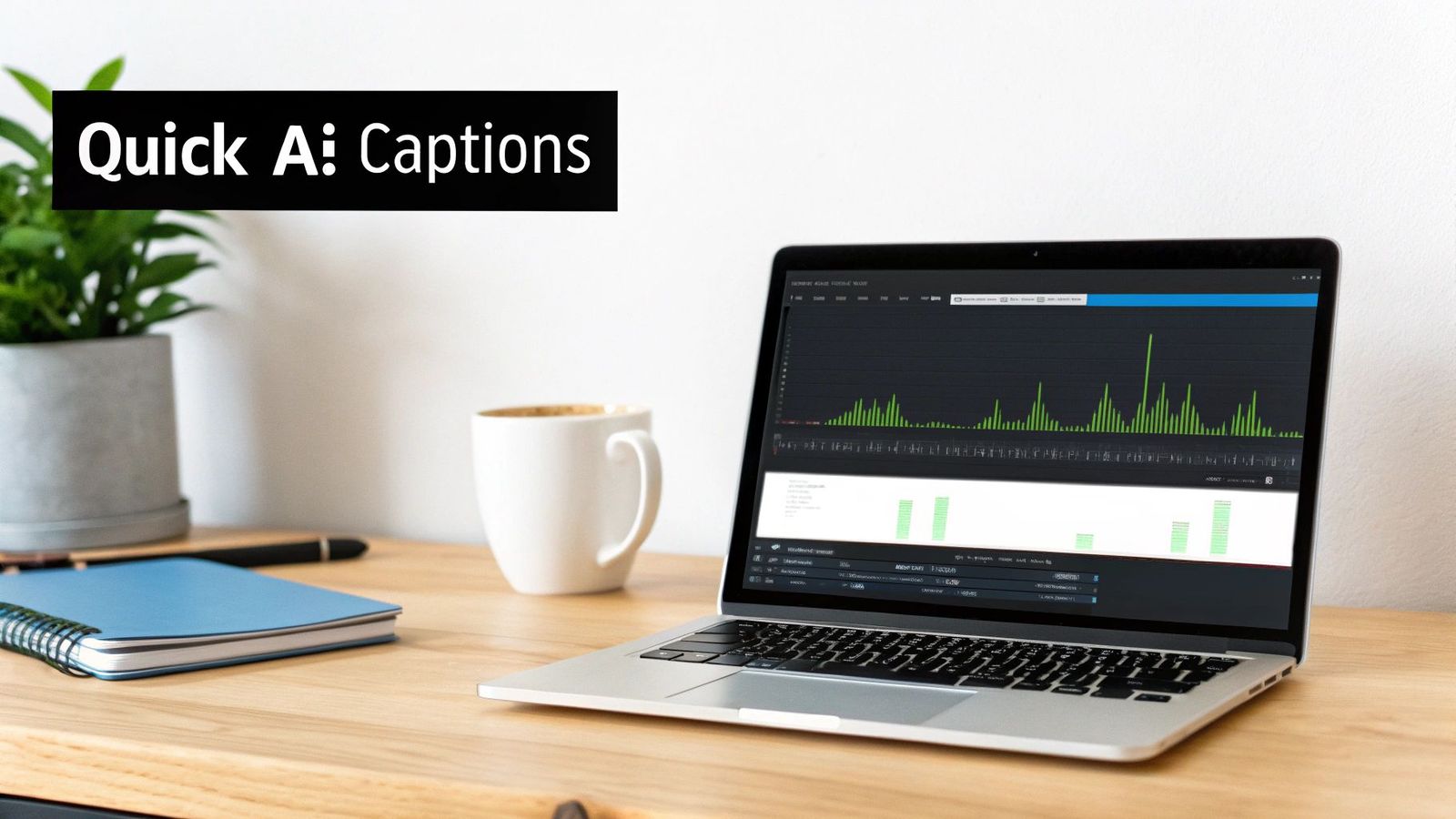
Let’s be honest, nobody enjoys manually transcribing a video. It's a tedious cycle of listening, pausing, typing, and rewinding that can swallow an entire afternoon. Fortunately, that whole process is now obsolete.
AI-powered transcription has completely changed how we create captions. Instead of slogging through it yourself for hours, you can get a remarkably accurate, time-coded transcript in just a few minutes. If you're wondering how to add captions to your videos without the headache, this is your answer.
Why AI Transcription Is the Way to Go
The concept is simple: you give a service your video file, and its AI model "listens" to the audio, turning all the spoken words into text. But modern AI tools go far beyond basic dictation.
Today’s advanced models are smart enough to distinguish between different speakers, understand thick accents, and even recognize niche terminology. This is what makes the difference between a messy, error-riddled text file and a clean, ready-to-use caption file.
The Professional's Edge: For anyone in business, academia, or content creation, the time saved is a game-changer. An hour-long lecture that might take 4-5 hours to transcribe by hand can be finished by an AI in less than 10 minutes.
This efficiency frees you up to focus on creating great content, not getting stuck in the weeds of administrative tasks.
A Practical Look at Using an AI Tool
Getting started with an AI transcription tool is surprisingly easy. Most are designed to be fast and intuitive.
The process usually breaks down into a few simple steps:
- Upload Your Video File: Most platforms let you just drag and drop your file. You won't need to worry about converting it to a specific format first.
- Let the AI Do Its Thing: Once your file is uploaded, the AI gets to work analyzing the audio, identifying who is speaking, and generating the full transcript with timestamps.
- Review and Export: You’ll get a notification when it's ready. All that's left is to give it a quick scan for any minor edits and then export your caption file.
This simple workflow removes all the technical hurdles, making captioning accessible even if you’ve never done it before.
Tackling Real-World Audio Challenges
Perfect, studio-quality audio is rare. So, what happens when you have background noise, people talking over each other, or specialized vocabulary? This is where a high-quality AI model really proves its worth.
- Multiple Speakers: A good AI tool will automatically detect and label different speakers (e.g., "Speaker 1," "Speaker 2"), which saves a ton of time trying to figure out who said what.
- Technical Jargon: Models trained on huge datasets can pick up on complex terms from fields like medicine, finance, or engineering, keeping your captions accurate.
- Accents and Pacing: Whether someone speaks quickly, has a strong regional accent, or tends to mumble, the AI can still parse what’s being said with impressive accuracy.
Even with less-than-ideal audio, the results are often over 95% accurate. This means you're starting with a nearly perfect transcript that just needs a quick polish. If you're exploring your options, our guide on the best AI transcription apps breaks down the top tools to help you find the right fit.
Ultimately, using AI to generate captions isn't just about saving time—it’s about adopting a smarter workflow. You get professional-grade results that boost engagement and accessibility, all without the classic bottleneck of manual transcription.
Polishing and Exporting Your Caption File
An AI transcript gets you 95% of the way there, which is an incredible head start. But that final 5%? That’s where the human touch comes in. This is the crucial review stage where you transform a good-enough AI output into a polished, professional asset that makes your video shine. It’s faster than you think and makes a world of difference for your viewers.
The editing process isn't about starting from scratch. Think of it more like a quick scan-and-fix mission. Your goal is to catch the subtle errors that even the best AI can miss, making sure your captions aren't just accurate, but genuinely readable.
Fine-Tuning Your AI-Generated Transcript
Most modern transcription tools, including WhisperAI, give you a simple editor right in your browser. You can play the video and watch as the corresponding text highlights in real-time. This setup makes the review process incredibly intuitive.
Here are the key things I always look for during my final polish:
- Punctuation and Pacing: AI is pretty solid with grammar, but it can create long, rambling sentences. I often break these up into two shorter ones or add a comma to create a natural pause. This helps the captions match the speaker's actual cadence.
- Speaker Names and Jargon: The AI will almost certainly stumble on unique names, technical terms, or company-specific jargon. Correcting "Acme Corp" from "acme corp" or "FinTech" from "fintech" is a small fix that adds a ton of professionalism.
- Homonyms and Context: This is a classic AI mistake. It hears words perfectly but can't always grasp the context. A quick read-through will instantly catch mix-ups like "their," "there," and "they're."
This human review is what separates a truly professional video from an amateur one. It’s your chance to ensure your message lands exactly as you intended.
Demystifying Caption File Formats: SRT vs. VTT
Once your transcript is perfect, it's time to export. You'll almost always see two main options: SRT and VTT. They look similar on the surface, but they have some important differences.
SRT (.srt) is the universal standard. It’s a plain text file that contains three simple things: a number for each caption line, the start and end timestamps, and the caption text itself. Its biggest strength is its universal compatibility. From to Vimeo to your company’s internal training platform, an SRT file will just work.
Pro Tip: When in doubt, always export as SRT. Its reliability and widespread support make it the safest bet for pretty much any project you can think of.
VTT (.vtt) is the more modern cousin of SRT. It does everything SRT does but adds support for text formatting like bolding, italics, and even text positioning and colors. This is great if you want to emphasize a specific word or style your captions to match your brand. The catch? Not all video players fully support these extra styling features.
Exporting Your Polished Caption File
Exporting is the final, satisfying click. After you've made your edits, just look for the "Export" button in the editor. You'll be asked to choose a format, and now you know exactly which one to pick for your project.
Choose SRT for maximum compatibility or VTT if you need styling and you know your platform supports it. The file downloads right to your computer, ready to be uploaded with your video. For a deeper dive into this, you can learn more about how to get the perfect SRT export.
And that’s all there is to it. You’ve taken a raw transcript, polished it to perfection, and now you have a professional-grade caption file ready to go.
Alright, you've done the heavy lifting. Your transcript is polished, and you’ve got a clean SRT or VTT file in hand. Now for the fun part: getting those captions out into the world.
Let's be honest, every platform has its own little quirks when it comes to captions. But once you get the hang of it, the process is pretty straightforward. Most of the time, you're just looking for a "captions" or "subtitles" section in the video settings and uploading your file.
This is the final stretch—polishing, formatting, and exporting—which sets you up for a smooth upload no matter where your video is headed.
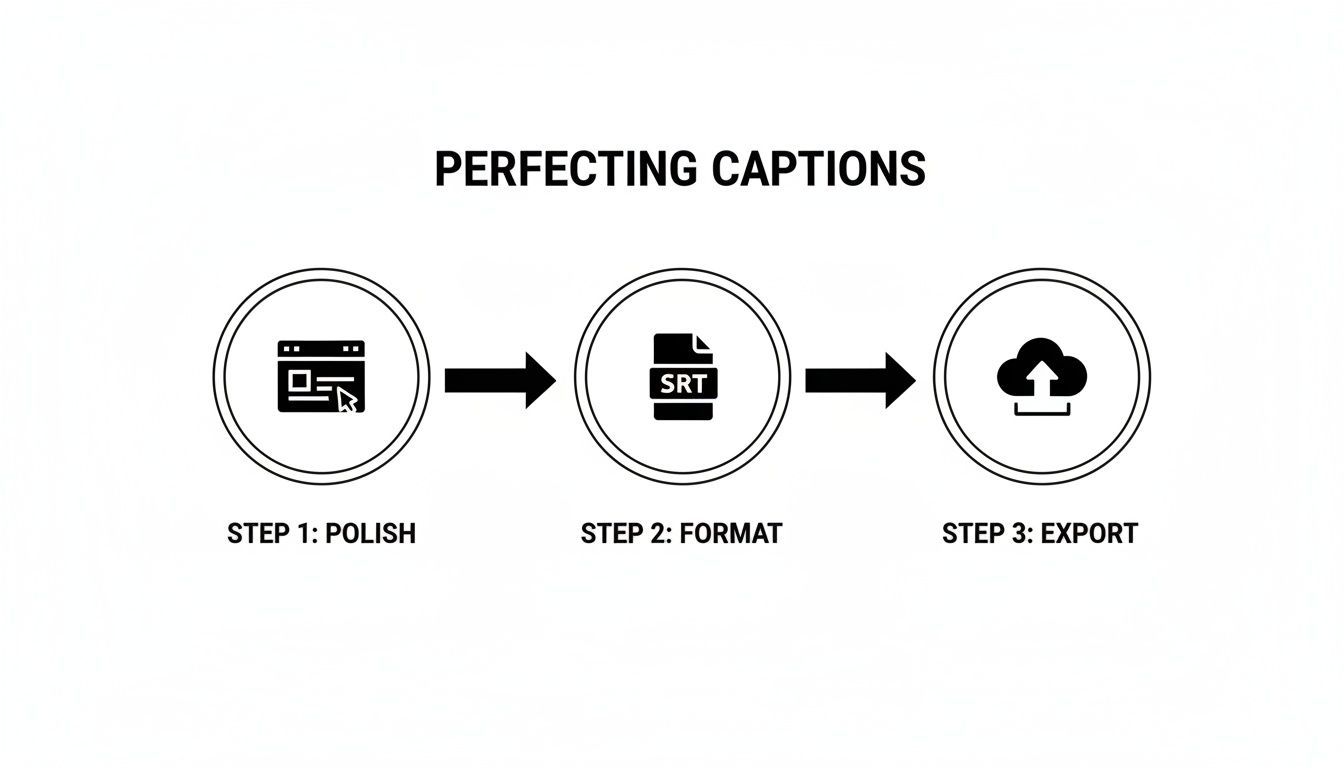
With a perfect file ready to go, you're prepared for any platform's requirements.
Closed Captions vs. Burned-In Captions
Before we dive into the "how-to," we need to talk about the two main ways captions show up on screen: closed captions (CC) and what we call open or burned-in captions.
- Closed Captions are the interactive kind. Your viewers can toggle them on or off. This is the gold standard on platforms like and Vimeo, giving people control over their experience.
- Open Captions are part of the video itself—they're permanently "burned" into the frames. They're always visible and can't be turned off. This is the go-to for platforms like Instagram and TikTok, where videos often autoplay on mute.
A Quick Tip From Experience: If a platform gives you the choice, always go with closed captions. It’s just better for the user. Only use burned-in captions when you have no other option, or when you know for a fact your audience is watching with the sound off.
Adding Captions on YouTube and Vimeo
YouTube and Vimeo are the giants of long-form video, and thankfully, both make captioning a breeze.
On YouTube, once your video is uploaded, head over to the "Subtitles" tab in the YouTube Studio. Here, you can upload your SRT or VTT file. YouTube is smart enough to sync it perfectly with your video's audio, and you can even make small text edits right there on the platform if you catch a last-minute typo.
The process for Vimeo is just as simple. Go into your video’s settings, click on "Distribution," and then find the "Subtitles" tab. You just upload your file, pick the language, and toggle it on. Vimeo even throws in some extra styling options if you want to get creative with how your captions look.
Captioning Your Videos for Social Media
Social media is a totally different ballgame, built for silent scrolling.
Platforms like LinkedIn, Facebook, and X (formerly Twitter) all play nice with SRT files for native video uploads. When you're uploading, just look for an "Edit" or "Captions" button. This lets you add those crucial closed captions. And trust me, you need them—a whopping 85% of Facebook videos are watched without sound.
Instagram is the odd one out. For Reels and feed videos, you’ll have to burn the captions directly into the video file before you upload. You can do this in your video editing software, of course. While Instagram does offer an auto-captioning sticker, uploading a video with your own professionally crafted captions gives you way more control over accuracy and timing.
Let's break down the options you have across the major players.
Platform Captioning Options at a Glance
Here’s a side-by-side look at how top platforms handle caption files and the choices you have as a creator.
| Platform | Supported File Types | Caption Style | Key Feature |
|---|---|---|---|
| YouTube | SRT, VTT, and others | Closed Captions | Offers in-platform editing and auto-syncing. |
| Vimeo | SRT, VTT, DFXP, SCC | Closed Captions | Provides customization options for caption appearance. |
| SRT | Closed Captions | Crucial for silent-play on the news feed. | |
| SRT | Closed Captions | Simple upload process for professional audiences. | |
| None (upload only) | Open (Burned-in) | Captions must be part of the video file itself. | |
| X (Twitter) | SRT | Closed Captions | Supports captions on native video uploads. |
As you can see, most platforms have embraced the SRT standard, but knowing when you need to burn them in is key.
Ultimately, taking those extra few minutes to get your captions uploaded is what makes all the prep work worth it. You're making sure your message lands with everyone, whether they're watching with headphones on or scrolling silently on a busy train. This is how you boost both accessibility and engagement.
Pro Tips for a Polished Viewing Experience
You've got the basics down for adding captions, which is a huge step. But if you want your videos to look truly professional and be genuinely inclusive, we need to go beyond just getting the words on the screen.
Let's dive into the details that separate decent captions from truly great ones. These are the touches that elevate the entire viewing experience, making your content not just accessible, but a pleasure to watch.
Style Your Captions for Readability
Ever squinted at white text layered over a bright, shifting background? It’s not a great experience. While default caption styles are often functional, a little customization can make a massive difference in legibility.
The goal is simple: readability above all else. Your captions should feel like a seamless part of the video, not a clunky afterthought.
Here’s what to focus on:
- Font Choice: Keep it clean and simple. A sans-serif font like Arial, Helvetica, or Open Sans is your best bet for clarity on screens of any size.
- Color and Contrast: The go-to standard for a reason is white text with a subtle drop shadow or, even better, a semi-transparent black background. This simple trick ensures your text is readable against any scene, from a dark studio to a bright, sunny landscape.
- Positioning: Bottom-center is the default for a reason—it usually works. But be mindful of your video's content. If you have important graphics or lower-thirds at the bottom of the screen, don't be afraid to shift your captions to the top to avoid covering them up.
Describe More Than Just Dialogue
True accessibility means capturing the entire audio landscape, not just the spoken words. Think about it: if a character laughs off-screen or a sudden phone ring signals a plot twist, viewers who are deaf or hard of hearing miss that crucial context.
This is where describing key non-speech sounds comes in.
By adding simple cues like [applause], [doorbell rings], or [upbeat music], you paint a complete picture for everyone. This is a core principle of the Web Content Accessibility Guidelines (WCAG) and makes your content truly equitable.
You don't need to describe every single rustle or footstep. Just focus on the sounds that add meaning, set the tone, or are vital for understanding the narrative.
Nail the Synchronization
There’s almost nothing more distracting than captions that show up too early or lag behind the speaker. Perfect timing is non-negotiable for a professional feel. The text should appear the moment the words are spoken and vanish as soon as the speaker is done.
Modern AI transcription tools are incredibly good at this, generating caption files with precise timestamps. Still, you should always do a final quality check. Play the video and read along with the captions. If a line feels even a fraction of a second off, a quick tweak to its timestamp can make all the difference.
Once your captions are perfect, make sure your video file is also ready for the web. A great next step is to learn how to optimize video for web playback.
Go Global with Translated Captions
Want to connect with people beyond your home country? Translating your captions is one of the most powerful ways to grow your audience. Once you have a polished English SRT file, using it as a source for other languages becomes much easier.
This single step can open your content to entirely new markets, making your message more influential on an international scale. The demand is huge and growing—the captioning and subtitling market hit about $5.7 billion in 2023 and is expected to reach $11.5 billion by 2032. This surge is all about the global need for accessible, localized content.
Putting these tips into practice means you're not just tacking text onto a video. You're thoughtfully designing a better, more inclusive experience for every single viewer.
Got Questions About Video Captions?
You've got the basics down, but as with anything, getting into the nitty-gritty of video captions brings up some practical questions. It happens to everyone. Let's walk through some of the most common ones I hear so you can get back to creating with confidence.
What’s the Real Difference Between Captions and Subtitles?
This one comes up all the time, and it’s a crucial distinction. They might look the same on screen, but they’re built for completely different audiences.
Think of it this way: Captions are made for people who can't hear the audio. They don't just include the dialogue; they also describe important sounds that set the scene, like [tense music playing] or [phone ringing]. The goal is to give a deaf or hard-of-hearing viewer the full story.
Subtitles, on the other hand, assume the viewer can hear just fine but doesn't understand the language being spoken. They're simply a translation of the dialogue. For making your videos truly accessible, captions are always the way to go.
Should I Bother Editing AI-Generated Captions?
Yes, you absolutely should. A powerful tool like the AI transcription from WhisperAI can get you remarkably close to perfect, but no machine is infallible. I like to think of the AI's output as a fantastic first draft that does about 95% of the heavy lifting in just a few minutes.
That last 5% is where you come in. A quick human review is what separates good captions from great ones. This is your chance to:
- Fix the spelling of company names, people's names, or niche jargon.
- Tweak the punctuation to better match the speaker's cadence.
- Catch any weird contextual errors the AI might have misunderstood.
This simple once-over is a small time investment that pays off big in professionalism and viewer trust.
SRT vs. VTT: Which Caption Format Should I Use?
You're going to see two formats pop up constantly: SRT (.srt) and VTT (.vtt). Honestly, for most creators, the choice is pretty straightforward.
My advice? Stick with SRT. It's the undisputed champion of compatibility. If you need a single file that you know will work on , Vimeo, LinkedIn, and pretty much everywhere else, SRT is your safest bet. It’s the industry standard for a reason.
VTT is a newer format with some cool perks, like the ability to add text styling (colors, bolding) and control caption placement. But here’s the catch: not all platforms and video players support those fancy features. Unless you have a specific design need and you’ve confirmed your platform can handle it, SRT is the reliable workhorse you can count on.
Do Captions Actually Help with SEO?
They absolutely do. This is probably the most underrated benefit of adding captions to your videos. Search engines like Google are incredible at reading text, but they can't actually watch your video to figure out what it's about.
When you upload a caption file, you're essentially handing the search engine a perfectly detailed, keyword-rich transcript.
This text file tells Google everything it needs to know to index your video properly and start ranking it for all the relevant search terms you talk about. The end result is more organic traffic and better discovery for your content. It’s a simple text file that punches way above its weight in SEO value.
Ready to get perfectly accurate captions for your videos? WhisperAI can generate a professional-grade transcript and SRT file in minutes. See how fast and precise it is for yourself at https://whisperai.com.