A Guide to Using a Video to Text Converter
Discover how to use a video to text converter to improve SEO and content strategy. This guide covers the full workflow from prep to repurposing.
tl;dr: A video to text converter is an AI-powered tool that automatically transcribes the spoken words in your video. This is essential for boosting SEO, improving accessibility for viewers, and making it incredibly easy to repurpose one video into multiple content formats like blog posts, social media updates, and email newsletters.
At its core, a video to text converter is a tool—usually powered by AI—that listens to the spoken words in your video and automatically writes them down into a text document. This simple process is the key to unlocking the full potential of your video content, making every word searchable, accessible, and ready to be repurposed.
Why You Need a Video to Text Converter
In a world obsessed with visual media, focusing on plain text might feel like a step backward. But it’s not. Turning your video's audio into a written transcript is one of the smartest things you can do to get more mileage out of your content. This isn't just about having a script; it's about turning a single video into a versatile asset that can fuel your entire content strategy.
For content creators, that transcript can instantly become the backbone of a new blog post, a series of social media updates, or an email newsletter. In a business setting, transcribing meetings and webinars gives you a searchable archive, making it way easier to find key decisions and share knowledge across teams.
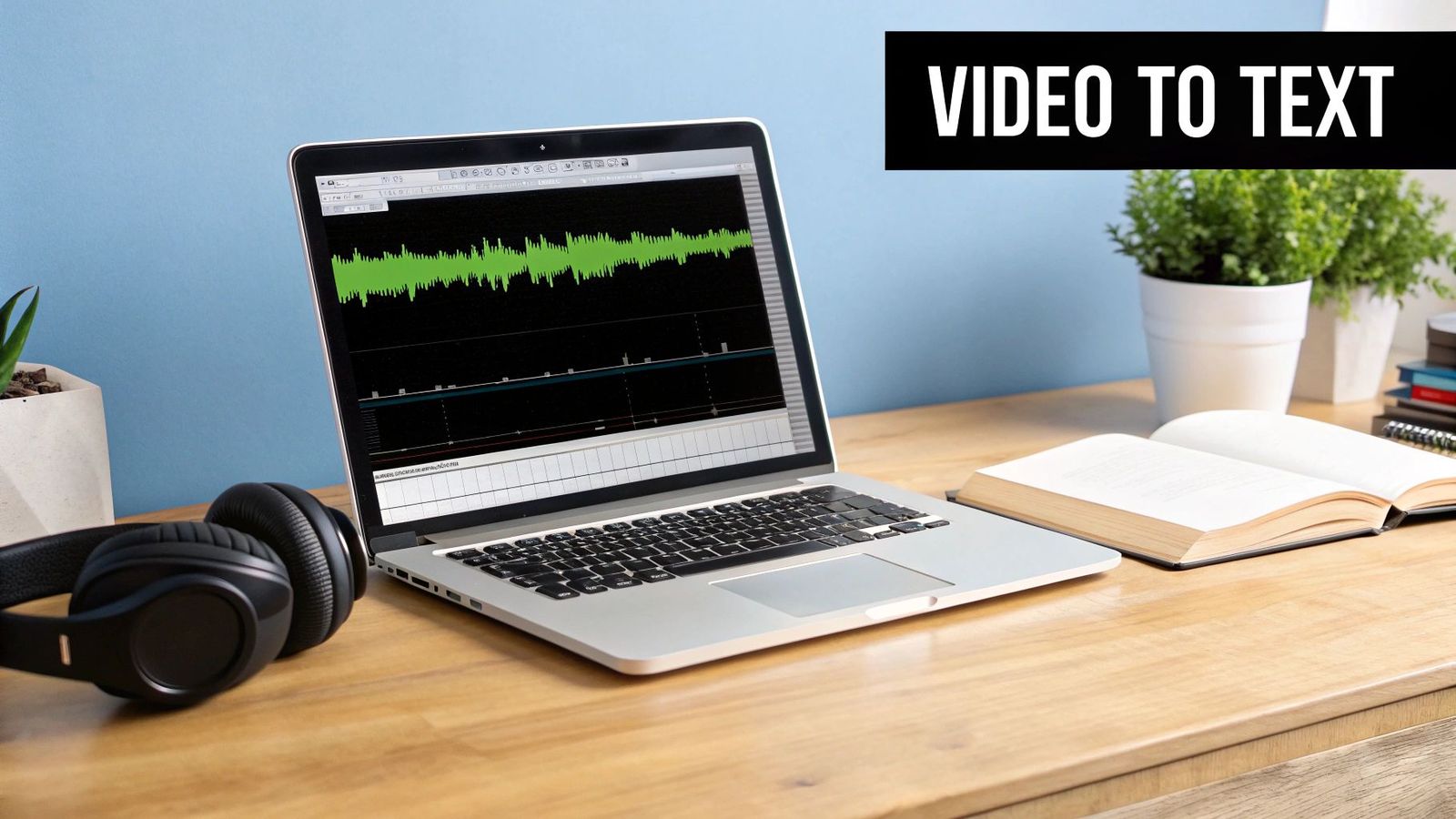
This isn’t just a nice-to-have anymore; it's becoming essential. With video projected to make up over 80% of all internet traffic by 2025, the need for automated tools that can handle transcription at scale is exploding.
Having a text version of your video opens up a surprising number of doors. Here’s a quick look at the main advantages.
Key Benefits of Video to Text Conversion
| Benefit | Impact on Your Content Strategy |
|---|---|
| Search Engine Optimization (SEO) | Makes your video content fully indexable by search engines, helping you rank for relevant keywords. |
| Improved Accessibility | Opens up your content to people who are deaf or hard of hearing and those who watch videos on mute. |
| Effortless Content Repurposing | Provides the raw material for blogs, social posts, quotes, and articles without re-watching hours of footage. |
| Higher Viewer Engagement | Captions keep viewers engaged, even with the sound off, leading to longer watch times and better retention. |
These benefits work together to make your content more discoverable, inclusive, and effective.
Unlocking Key Advantages
When you start using a video to text converter in your workflow, you’ll notice a few powerful changes right away.
- Boost Your SEO Performance: Search engines can't watch a video, but they can definitely read text. A full transcript feeds them keyword-rich content to index, giving your video a much better shot at showing up in search results.
- Improve Accessibility: Transcripts and captions are crucial for making your content available to people who are deaf or hard of hearing. They also serve the huge audience that simply prefers to watch content without sound.
- Streamline Content Repurposing: A transcript is your best friend for creating new content. You can quickly pull out powerful quotes for social media, structure a detailed article, or build training materials. If you’re pulling from online platforms, knowing how to get a transcript from a YouTube video is a massive time-saver.
- Enhance User Engagement: Think about how often you scroll through social media with your phone on silent. Captions, which are generated directly from a transcript, ensure your message still lands, which can dramatically improve watch time.
The core idea is simple: don't let the valuable information in your videos stay locked away. A transcript makes every spoken word a searchable, shareable, and actionable piece of data.
Ultimately, using a video to text converter isn't just a technical task—it’s a strategic decision to make your content work harder and smarter for you. To see how this fits into a bigger picture, take a look at our other guides available at https://whisperai.com/guides.
Preparing Your Video for Flawless Transcription
tl;dr: The secret to a great transcript isn't just the AI; it's the audio you feed it. Clean, clear audio with consistent volume is the single most important factor for accuracy. A little prep work here saves you hours of editing later.
Let's be honest: the secret to a great transcript isn't just the AI, it's the audio you feed it. Think of it this way—if you give a world-class chef spoiled ingredients, you can't expect a Michelin-star meal. The same principle, "garbage in, garbage out," applies directly to video-to-text conversion.
A noisy, muddled video file will always give you a messy transcript, leaving you to clean up the mess with hours of painful manual edits. A little prep work upfront, however, can make a world of difference. We're not talking about becoming a professional video editor, just a few simple checks to give the AI the best possible source material.
Start with the Source: Audio Quality is Everything
This is the single most important factor. Full stop. The most sophisticated AI on the planet will stumble if it has to guess what's being said under a layer of coffee shop chatter, wind, or awful room echo.
Before you even think about hitting record, take 30 seconds to assess your surroundings. You'd be amazed at what a difference these small adjustments make:
- Get Closer to the Mic: This is non-negotiable. The closer a speaker is to the microphone, the stronger their voice is compared to everything else. It's a simple signal-to-noise ratio game you want to win.
- Pick a Quiet Space: Big, empty rooms with hard surfaces are an echo chamber. Recording in a room with carpets, curtains, or even a few pillows can absorb sound and clean up your audio immensely.
- Kill Ambient Noise: That buzzing fan, the humming air conditioner, the pinging notifications on your phone—turn them all off. What seems like a minor background hum to you can be a major distraction for the AI.
While today's tools are pretty good at filtering some noise, nothing beats a clean recording from the start. For a deeper dive, our guide on using an audio to text converter has even more tips focused specifically on sound quality.
Normalize Your Volume and Get the Format Right
Ever watched a video where you have to crank up the volume for one speaker, only to have the next one blast your eardrums out? An AI finds that just as jarring as you do. Wildly inconsistent volume levels are a recipe for dropped words and phrases because the software might not even register the quieter parts as speech.
The fix is simple. Nearly all basic video editors have a feature called "normalize audio." With one click, it automatically adjusts the entire audio track to a consistent, standard level. This ensures every speaker is heard clearly, giving the AI a balanced file to work with.
Pro Tip: Don't just trust your ears. Look at the visual audio waveform in your editing software. If you see massive peaks and valleys, your audio is all over the place. Normalizing it before transcription will save you a massive headache.
And while most converters are flexible with formats like MP4 or MOV, it's the quality of the audio inside that video file that matters. A higher-quality audio track simply gives the AI more data to analyze, leading to a much more precise transcript.
Handling Multiple Speakers and Accents
When you've got an interview, a panel discussion, or just a lively conversation, a few extra steps can dramatically improve your transcript's accuracy. The AI's biggest challenge here is telling one voice from another, especially when people talk over each other.
- Encourage Clean Breaks: If you have any control over the recording, ask speakers to pause before someone else jumps in. Those clean breaks make it far easier for the AI to assign the right text to the right person.
- Use Separate Mics (The Gold Standard): If you can, record each speaker on a separate audio channel. This is the absolute best way to get perfect voice separation, though it's not always practical.
- Acknowledge Accents: Modern AI is remarkably good with a huge range of accents. However, for particularly strong or less common accents, simply encouraging speakers to articulate clearly can give the AI the little boost it needs.
Taking these steps transforms your video to text converter from a pretty good tool into an incredibly powerful one. You’ll spend less time editing and more time putting your accurate transcript to work.
Mastering the Conversion Workflow
tl;dr: Converting video to text is about more than just hitting "upload." The real magic happens when you master the workflow—choosing the right language, managing speaker labels, and tailoring settings to your specific content. Getting this right from the start saves a massive amount of editing time and makes your final transcript far more accurate.
Alright, your video is prepped and ready to go. Now we're at the heart of the process, turning that raw video file into an editable, usable text document. Modern video to text converter tools are built to be intuitive, but knowing which buttons to push and why makes all the difference between a rough first draft and a nearly perfect one.
It all starts with getting your video into the system. You've generally got two options: upload a file straight from your computer or, for things like live webinars, connect a live audio feed for real-time transcription.
This first move sets the stage for everything else. Here's a quick visual of what to keep in mind at this point.
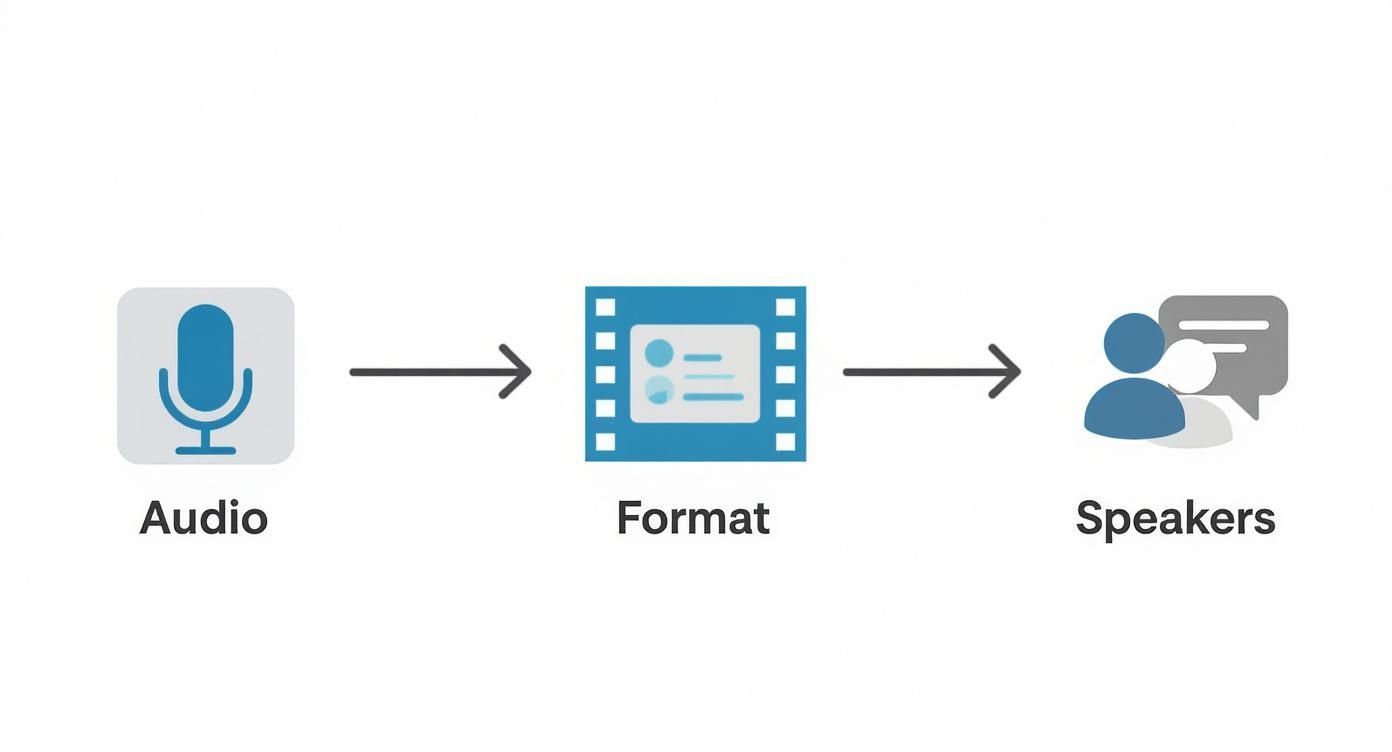
As you can see, top-tier results depend on having solid audio quality, the right file format, and a clear idea of how many speakers you're dealing with before you even start.
Setting the Stage for Accuracy
Once your file is uploaded, you'll see a few critical settings. I know it's tempting to just hit "Transcribe" and cross your fingers, but spending ten seconds here will save you ten minutes of painful editing later. The most important toggle? Specifying the source language.
While many advanced tools can automatically detect the language, it’s always a best practice to select it manually. If you can, get even more specific with the dialect (e.g., U.S. English vs. U.K. English). This gives the AI a massive head start, priming it to recognize the right slang, accents, and phrasing.
Think of it like briefing a human translator. If they know the speaker is from Australia, they’ll be listening for "g'day" instead of getting confused. For a deeper dive into how AI handles these nuances, check out our complete guide on AI audio transcription.
Taming the Chaos: Managing Multiple Voices
What if your video isn’t just one person talking? For interviews, podcasts, or panel discussions, you have to know who said what. This is where speaker labeling (sometimes called diarization) is a lifesaver.
Most professional converters offer automatic speaker identification. The AI analyzes the unique vocal fingerprint of each person and assigns them a label like "Speaker 1" or "Speaker 2." This instantly turns a messy conversation into a structured, readable transcript.
A transcript without speaker labels is just a wall of text. It loses all conversational context, making it nearly impossible to follow who is responding to whom. Automatic labeling is the feature that turns a chaotic conversation into an organized script.
Later, during editing, you can easily swap out those generic labels for actual names. Trust me, this is way faster than trying to figure it all out from scratch.
Real-World Scenarios and Settings
The best settings aren't one-size-fits-all—they change depending on your content. Let's walk through a couple of common examples.
- Scenario 1: The Single-Speaker Tutorial
For a straightforward how-to video, your job is easy. You can usually just turn off speaker labeling since there's only one voice. Your main focus should be locking in the precise language and dialect. This helps the AI nail any technical jargon you might use. - Scenario 2: The Multi-Person Podcast
For a dynamic chat with two or more people, your priorities flip. Here, enabling automatic speaker labeling is non-negotiable. The AI will do the heavy lifting of separating the voices, which is absolutely critical for creating a transcript that’s easy to read and repurpose.
The demand for these features is skyrocketing, partly driven by accessibility needs. In the U.S. alone, ADA compliance has pushed more organizations to adopt automated transcription, which can hit 90%+ accuracy when the audio is clear.
Ultimately, mastering this workflow means thinking like an editor before the AI even gets started. By giving the system clear instructions with these initial settings, you guide it toward a much cleaner first draft, making the whole process faster and less of a headache.
Editing and Refining Your Transcript
tl;dr: Even the best AI transcript is a first draft, not a final product. The real magic happens when you step in to edit. Cleaning up errors, fixing punctuation, and formatting the text for readability is what turns a good transcript into a perfect one. The fastest way? Use an in-app editor that syncs text with video playback to fix mistakes with jargon, names, and homophones in seconds.
So, you've got your automated transcript, and it looks pretty good. It's tempting to just hit "export" and move on, but hold on—this is where you can add some serious value. No AI is flawless, and treating the initial output from a video to text converter as the finished article is a huge missed opportunity. A little bit of human review can transform a functional-but-flawed text into a polished, professional document.
Think of the AI as an incredibly fast assistant who's a bit naive. It did 90% of the heavy lifting by getting all the words down, but it needs your expertise to catch the nuance and context it missed. This is the crucial step where you correct those subtle errors and make sure the final text actually reflects the original conversation.
Most modern transcription platforms come with an in-browser editor, and this tool will quickly become your best friend. These editors sync the text directly with your video's playback. When you click on a word in the transcript, the video instantly jumps to that exact moment. It makes hunting down and fixing mistakes incredibly fast and intuitive.
Correcting Common AI Slip-Ups
AI transcription is a powerful tool, but it has a few predictable blind spots. As you review your transcript, you’ll probably notice a few common types of errors popping up. Knowing what to look for makes the whole editing process go much faster.
Your main targets for correction will be:
- Industry Jargon and Acronyms: An AI trained on general language often stumbles over specialized terms. It might hear "CRM" and write "see RM," for example. It's up to you to correct these industry-specific words.
- Proper Nouns: Names of people, companies, and products are a classic challenge. "WhisperAI" could easily become "Whisper A.I." or even "whisper and I." A quick scan for these proper nouns is absolutely essential.
- Homophones and Similar-Sounding Words: This is a classic AI mistake. Words like "there," "their," and "they're" or "to," "too," and "two" can easily get swapped. The AI just hears the sounds, so it's your job to apply the right grammatical context.
These are usually quick fixes, but they make a massive difference in how professional the final document feels. The goal isn't just word-for-word accuracy; it's creating a text that's clear and makes sense on its own.
Polishing for Readability and Tone
Once you've corrected the individual words, the next step is to work on the flow and formatting. A raw transcript often looks like a dense wall of text, which is tough for anyone to read. Your job is to break it up and add the punctuation needed to capture the speaker's original pace and intent.
This is where you add the human touch that AI just can't replicate yet.
A perfectly accurate transcript that's unreadable is almost as useless as an inaccurate one. The final editing phase is about structuring the text to serve its new purpose, whether that's a blog post, subtitles, or internal documentation.
Start by adding paragraph breaks. A good rule of thumb is to create a new paragraph whenever the speaker shifts topics or pauses for emphasis. This adds some much-needed white space and makes the text far less intimidating to read.
Next, turn your attention to punctuation. AI is getting better at adding basic commas and periods, but it often misses the mark on anything more nuanced. You can add question marks to reflect an inquisitive tone or use em dashes to show an abrupt change in thought. For a complete overview of how transcripts become captions, you can explore our detailed guide on video transcription for subtitles.
This final polish helps preserve the tone of the original speech. Was the speaker excited? Thoughtful? A few well-placed punctuation marks can convey that emotion in the text, making the transcript not just accurate, but genuinely engaging.
Putting Your New Text Content to Work
tl;dr: Your transcript is way more than just a script—it's a content goldmine. Export it in the right format (like SRT for captions or DOCX for articles), then slice and dice it. A single video can fuel a detailed blog post, a week's worth of social media content, and the key points for your next email newsletter, massively boosting the ROI on your original video.
Once you’ve polished your transcript, the real fun begins. You've successfully used a video to text converter to unlock every spoken word. Now, it’s time to put that text to work and make your content go further than you ever thought possible.
This isn’t just about having a clean script on hand. It's about taking that raw material and transforming it into a dozen different assets that can fuel your entire content strategy. First things first: you need to export it in the right format for the job.
Choose the Right Export Format
Most professional transcription tools give you a handful of export options, and each one is designed for a specific purpose. Picking the right one from the start saves you a ton of tedious reformatting headaches down the road.
Here’s a quick rundown of the most common formats and when you should use them.
Common Export Formats and Their Best Uses
Choosing the right file type is the first step in making your transcript work for you. This table breaks down the essentials so you can grab the perfect format for your project every time.
| File Format | Primary Use Case | Key Features |
|---|---|---|
| SRT (.srt) | Video Captions & Subtitles | The universal standard. Includes precise timestamps that sync text perfectly with video playback on platforms like YouTube and Facebook. |
| DOCX (.docx) | Blog Posts & Articles | A fully editable document, perfect for turning your transcript into a long-form article, report, or white paper. |
| TXT (.txt) | Raw Text & Data Analysis | Just the words, no fluff. A plain text file ideal for feeding into other software or for simple, clean archival. |
| PDF (.pdf) | Sharing & Archiving | A non-editable format that's great for sharing a final, read-only version of your transcript with colleagues or clients. |
As you can see, grabbing an SRT file is non-negotiable if you're adding captions to your video—a crucial move for both accessibility and engagement. If you want to see the hard data on why this matters so much, check out this breakdown of how captions improve Facebook video engagement.
The Power of Content Repurposing
Exporting your text is just the beginning. The real magic happens when you start repurposing that transcript to multiply your content output without having to record a single new video. Suddenly, a one-hour webinar can become a content engine that runs for an entire month.
Don't think of your transcript as the end product. Think of it as the raw ingredient for a dozen other pieces of content. This is how you maximize the return on every minute you spend creating video.
This strategy is a game-changer for businesses and creators trying to build authority and reach a wider audience. If you're hungry for more ideas, our guide for https://whisperai.com/content-creators dives even deeper into getting the most out of your material.
A Practical Framework for Repurposing
So, how do you actually turn one transcript into a bunch of different assets? Here’s a simple, actionable framework you can use right away:
- Create a Pillar Blog Post: Your full transcript is the foundation. Clean it up for readability, add headings for the key topics you discussed, and embed the video right at the top. Boom—you have a rich, SEO-friendly article that search engines can easily index.
- Extract Social Media Snippets: Scan through the transcript and pull out compelling quotes, surprising stats, or actionable tips. Each of these can become its own post for X, LinkedIn, or Instagram. You can easily get 5-10 micro-posts from a single transcript.
- Build an Email Newsletter: Summarize the three biggest takeaways from your video. Use the transcript to pull direct quotes that back up each point, then pop it into an email to your list with a link to the full video and blog post.
- Design Presentation Slides: Identify the core arguments or steps from your video. Each key point can become a slide in a deck, using powerful quotes from the transcript as supporting text.
When you follow this model, you make every single video work harder for you. You’re not just creating a video; you’re creating a central hub of content that can be adapted for any channel you're on.
How Accurate Are These Converters?
This is the big one, and the answer is refreshingly honest: it all comes down to your audio quality.
If you have a clean recording with a single speaker and minimal accent, you can realistically expect 90-95% accuracy from top-tier AI converters. That's an incredible head start. But as soon as things get messy—think heavy background noise, people talking over each other, thick accents, or niche jargon—the accuracy will naturally dip.
It's best to view the AI as a hyper-efficient assistant. It produces a solid first draft in minutes, and then a human can swoop in for the final polish.
Can I Convert Videos with Multiple Speakers?
Absolutely. This isn't just a niche feature; it's a standard for any professional-grade tool. The tech behind it is called speaker diarization, which is just a technical term for the AI’s ability to tell different voices apart.
When you get your transcript back, you'll see labels like "Speaker 1" and "Speaker 2." From there, you just pop into the editor and replace those generic tags with the actual names. For the cleanest results, make sure each person's voice is recorded clearly so the AI has no trouble distinguishing them.
Pro Tip: Even the best diarization can get confused when people talk over each other. That brief moment of overlap can create a jumbled sentence. These are the exact spots to look for during your manual review.
What Is the Best Video File Format for Transcription?
Here's a little secret: the AI doesn't actually care about your video. It only pays attention to the audio track inside the video file. So while converters accept common formats like MP4 and MOV, the real key is the quality of the sound.
The gold standard for audio quality is an uncompressed format like WAV, but those files are often massive. A much more practical choice for most people is a high-bitrate MP3 or AAC track bundled within your MP4 file. This gives you a great balance between a manageable file size and the crisp, clear audio the AI needs to do its best work.
The main takeaway? Avoid heavily compressed audio that sounds fuzzy or distorted.
How Do Transcripts Help with SEO?
Transcripts are an absolute goldmine for SEO. Search engines like Google are brilliant at reading text, but they can't "watch" a video to understand what it’s about. A transcript bridges that gap.
Here’s exactly how it boosts your visibility:
- Makes Your Content Indexable: When you post the full transcript on your video's page, you're giving search engines thousands of relevant, keyword-rich words to crawl. This helps your page show up for all the specific questions and long-tail phrases you discussed.
- Fuels Content Repurposing: A transcript is basically a pre-written blog post. You can easily structure it with H2 and H3 headings based on the video's main topics, creating another powerful asset that draws in organic traffic.
- Drives Viewer Engagement: Your transcript is the source for creating accurate captions (SRT files). Captions are proven to keep viewers watching longer, especially when they have the sound off. Higher engagement is a strong signal to platforms like YouTube that your content is valuable, which can lead to better rankings.
In short, a transcript makes the spoken content inside your video visible to the entire digital world, unlocking its massive SEO potential.
Ready to turn your videos into accurate, searchable text in minutes? With WhisperAI, you get business-grade transcription powered by cutting-edge AI. Handle over 100 languages, complex terminology, and multiple speakers with ease, all within a secure, easy-to-use platform. Try it now and see how much time you can save. Learn more at https://whisperai.com.