How to Transcribe a Zoom Meeting When Zoom Won't Do It
Learn how to transcribe Zoom meetings live or from recordings, find missing transcripts, and use dedicated transcription tools when Zoom’s native options fall short.
Zoom meetings can be transcribed live, after the meeting, or from a recording. Which option you have depends on which features were enabled, whether you’re the host, and where the recording was saved.
This guide explains each method, where Zoom saves the transcript, how to transcribe Zoom meetings you don’t host, and what to do when Zoom doesn’t generate one.
TL;DR
- Need a transcript during the call: Use More → Transcript if Meeting transcript is enabled.
- Have a recording: Check Zoom Cloud first; otherwise upload the MP4/M4A to a transcription tool.
- Not the host: Request transcription; the host decides whether it starts.
- No transcript: Check captions, permissions, settings, and processing status.
- Need more control: Use dedicated transcription software for speakers, terminology, or exports.
Does Zoom have a transcription feature?
Yes, but Zoom has three separate transcription-related features, and they work differently.
| Overview | Live captions | Meeting transcript | Cloud recording audio transcript |
|---|---|---|---|
| Job | Read the call as it happens | Keep the text, no recording needed | Text attached to a cloud recording |
| When it runs | During the meeting | During the meeting, started from More → Transcript | After the meeting, only if you recorded to the cloud with Create audio transcript ticked |
| What you keep | Nothing | A .TXT file, saved from the transcript panel | A separate VTT file next to the recording |
These features are controlled by the host's Zoom account or an administrator's settings. If you're not the host, what you can start, save, or access depends on those permissions.
Until May 2026, Zoom had a shortcut for turning captions into a saved transcript. Zoom removed the Full transcript and Save captions options. Captions now let you scroll back roughly three minutes during the call but can't be saved afterward.
So any tutorial telling you to click View Full Transcript is showing the old Zoom interface.
How to turn on Zoom transcription before a meeting
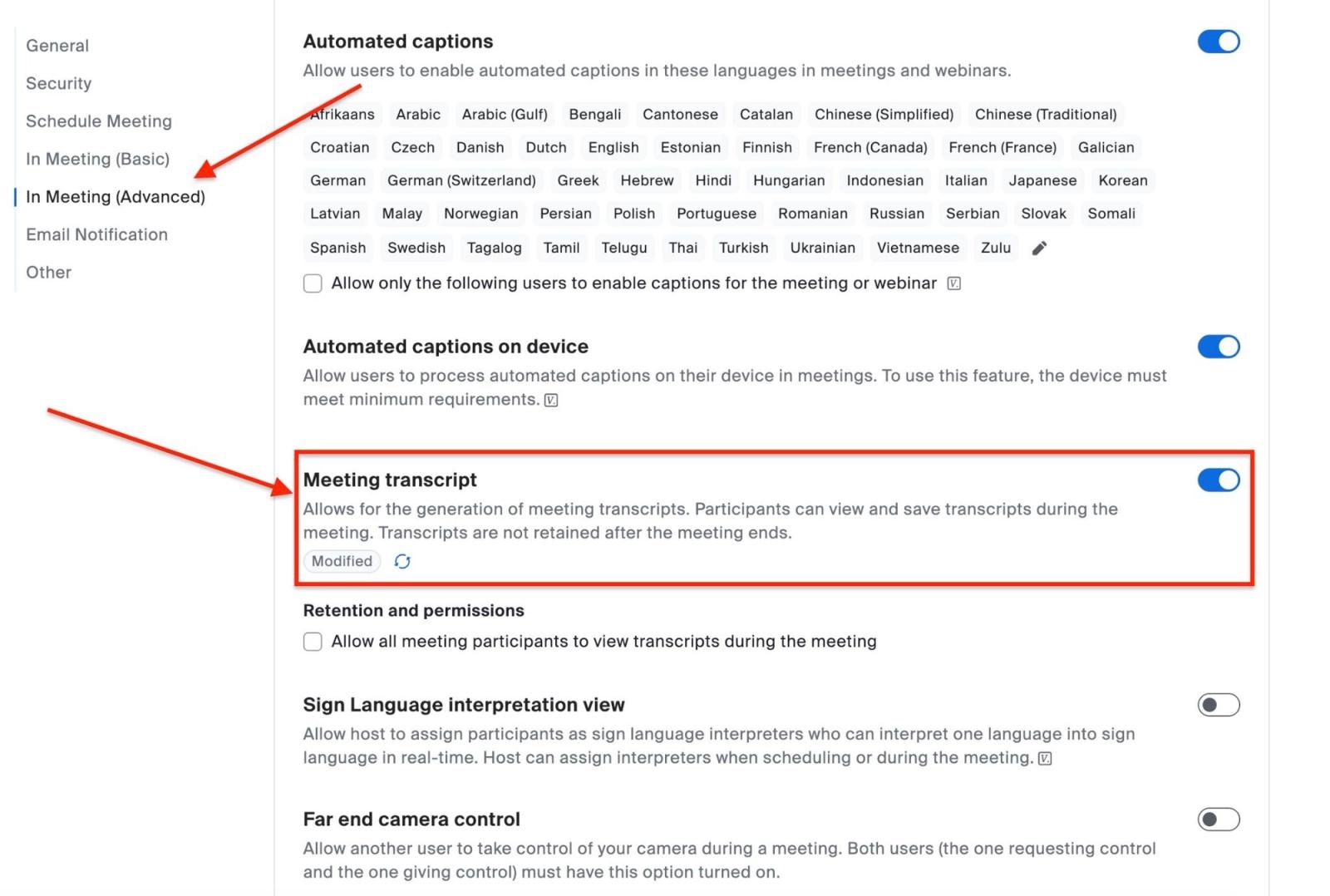
If you are the host, you first need to enable Meeting transcript in the Zoom web portal. Until you do, the Transcript option won't appear in your meetings.
- Sign in to the Zoom web portal and open Settings.
- Under Meeting → In Meeting (Advanced), turn on Meeting transcript.
- If the setting is grayed out, your Zoom admin has locked it, so you can't change it yourself.
- In the meeting, open More → Transcript to start transcription.
- To stop transcription, hover over the Transcript icon in the top-right corner and select Stop transcription. You can select Delete transcript first if you don't want to retain it.
The Automatically generate transcripts for setting lets you choose whether Zoom creates transcripts for all meetings or only meetings with an AI Companion meeting summary. If it's off, someone must start transcription manually during each meeting.
Can everyone see the transcript in Zoom? Not necessarily. Who can access the transcript depends on your account's permissions. Administrators can control who can view the Meeting transcript during the call, who can save it, and how long it is retained. Cloud-recording transcripts have separate sharing controls: when a host shares the recording, they can choose whether viewers can also see the transcript.
Recording and transcription are separate from each other. Starting a recording notifies participants, while transcript access is controlled separately.
Where to find your Zoom transcript after the meeting
If you're wondering, “Where is my Zoom transcription?”, the answer depends on which Zoom transcription feature you used.
- Meeting transcript: During the meeting, open More → Transcript. If saving is allowed, click Save transcript to download a
.TXTfile. Retained transcripts can also appear under Recordings & Transcripts → Transcripts. - Cloud recording audio transcript: Go to Recordings & Transcripts → Cloud recordings, open the meeting, and look for the
.VTTtranscript alongside the recording files. The transcript may appear after the recording because Zoom processes it separately.
Why Zoom didn't create a transcript
If you've checked the usual places and still can't find a transcript, there are a few common reasons why Zoom didn't transcribe your meeting.
- Only captions were used. Captions can no longer be saved as a standalone transcript.
- Meeting transcript wasn't enabled or started. The feature must be available and running while the meeting takes place.
- The recording was saved locally. Zoom's cloud audio transcription applies to eligible cloud recordings, not local recordings.
- You don't have permission. The host or administrator may control who can start, view, save, or retain transcripts.
- The transcript is still processing. A cloud recording can appear before its
.VTTtranscript is ready. - The language isn't supported. Supported languages vary by transcription feature.
Can I get a transcript of a Zoom meeting without recording?
Yes. Zoom’s Meeting transcript feature can transcribe a meeting without starting a recording. During the meeting, the transcript appears in the Transcript panel, where you can click Save transcript to download a .TXT copy.
When transcription is stopped, the host can choose to delete the transcript. Whether the transcript remains accessible after the meeting depends on the account's transcript settings, including post-meeting access permissions and retention/deletion settings.
If no Meeting transcript was generated or retained, and there is no separate recording-based transcript, Zoom generally cannot provide a transcript afterward because there is no transcript asset to retrieve. Recording-based audio transcription is a separate feature that requires a cloud recording.
How to get a Zoom transcript when you're not the host
Zoom will not let a participant silently override the host. That is by design.
During the meeting:
- Click More → Transcript.
- Click Request transcription.
- The host sees a prompt and can Start or Decline.
Captions work the same way when the host has restricted them. Respect the boundary. Recording or transcribing someone else’s meeting without consent carries legal and organizational rules; those rules are not optional just because the technology is convenient.
If the host shares the recording with you afterward, you don't need them to generate the transcript for you. Anyone with a copy of the recording can use the after-the-meeting route below.
Already have the Zoom recording? Here's how to transcribe it
If the meeting is already over and all you have is an MP4 or M4A file, Zoom's native transcription options become much less useful. Zoom's documented audio-transcription workflow is tied to recordings made to Zoom Cloud, and Zoom explicitly says computer recordings do not support audio transcription.
First check whether Zoom already created a transcript:
- Open Recordings & Transcripts.
- Open Cloud recordings.
- Find the meeting.
- Look for an Audio transcript file or open the recording and check the transcript panel.
If the transcript exists, use it. There is no reason to process the same meeting twice.
If all you have is the actual recording file, use an upload-based audio-to-text workflow instead. Download the MP4 or M4A from Zoom, or use the computer recording you already have, then upload that file to AI transcription software instead.
With WhisperAI, the useful part isn't that it accepts a Zoom file. The useful part is what you can tell the transcriber before it runs: add names, acronyms, product terminology, numbers, or instructions so the transcript is working with context the audio itself can't provide.
WhisperAI accepts files up to 5 GB and exports PDF, DOCX, TXT, SRT, and VTT depending on the workflow.
For a meeting with six people discussing “ARR,” “SOC 2,” “Ivana,” “Sweta,” and “QBR,” that pre-transcription context is more useful than correcting the same four terms twenty times afterwards.
A sensible workflow is:
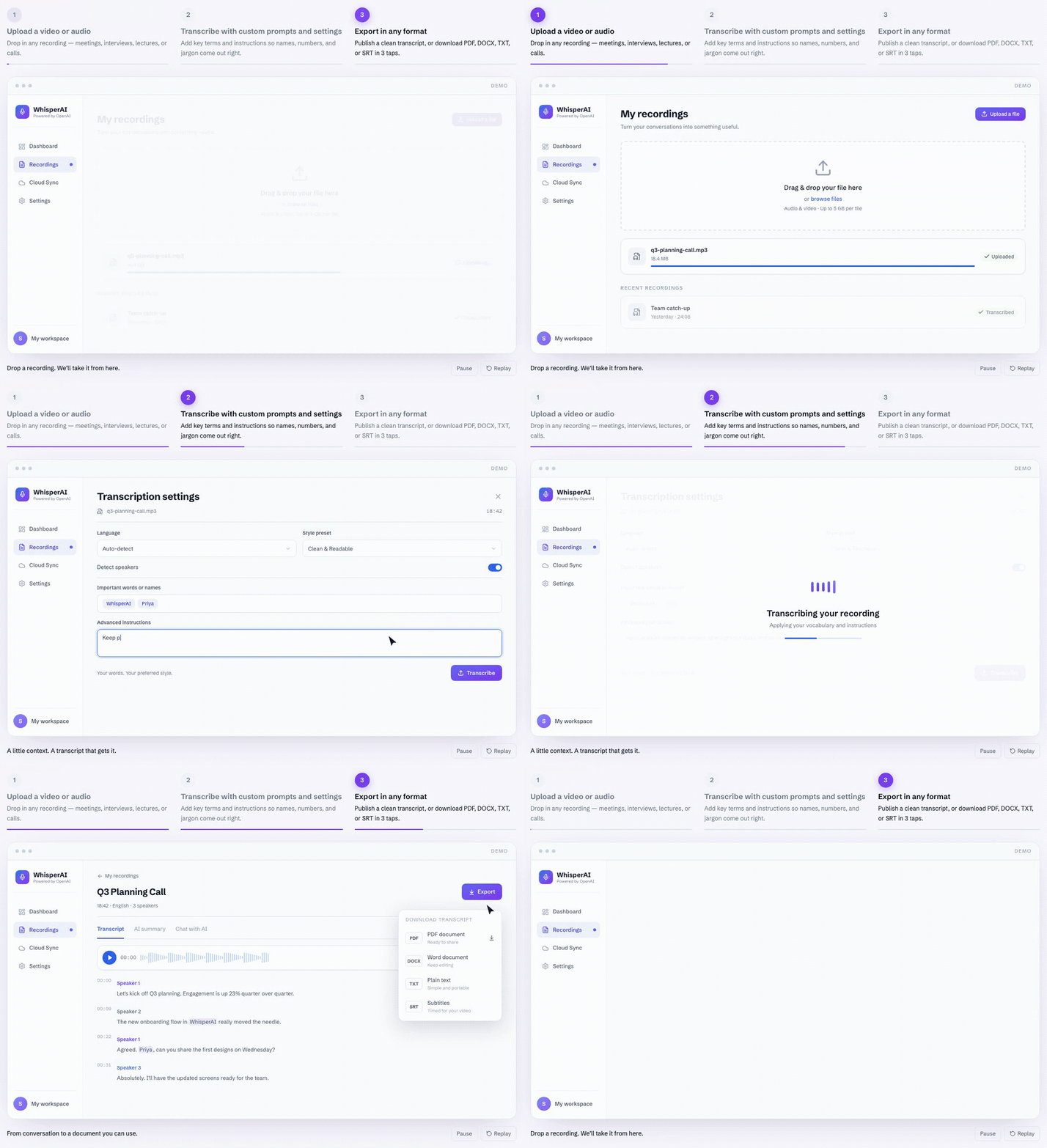
- Upload the original Zoom MP4 or M4A.
- Add participant names and specialist terms.
- Turn on speaker detection if the meeting has multiple speakers.
- Transcribe.
- Check names, numbers, decisions, and anything you plan to quote.
- Export the format your next step actually needs.
WhisperAI gives you the first five minutes free, so a short sample from the messiest part of the meeting is enough to see whether the workflow suits the recording before processing the whole thing.
Where Zoom transcription starts to fall short
The limits of Zoom's transcription aren't mostly about quality. They're about what you get.
It's a VTT transcript, not a polished document: timestamped chunks, with limited formatting. If it's going into minutes, a report, or a quote, expect to clean it up, or move it somewhere that does.
Language is set per recording. The cloud transcript defaults to English, and the newer help page lists 19 languages. An older Zoom help page (updated February 2026) still says audio transcription only supports English. If that's why you gave up on it, check again. But the setting takes one language per recording, so a meeting that switches languages midway is transcribed as though it didn't.
Retention is configurable. Admins can set transcript retention to 0 days, but Zoom says deletion can still take up to 24 hours after meeting processing.
You also can't expect Zoom to magically know every name, acronym, or product term. Custom Dictionaries can help with terminology, but they don't eliminate transcription errors.
And the biggest limitation is still the simplest: you need the right feature, plan, and recording setup in place before the meeting. Meeting transcript requires Pro, Business, or Enterprise, while cloud audio transcription requires an eligible paid account with cloud recording enabled. Zoom Basic remains free, but local recordings made on Basic don't receive Zoom's audio transcription.
So, Zoom gets the job done, but if you need more control over languages, speakers, exports, or retention, these limitations are worth knowing.
How accurate is Zoom transcription?
Zoom AI transcription can be very good on ordinary meeting audio, but there is no single accuracy percentage that describes what you'll get from your own call.
Zoom does publish a benchmark. In testing commissioned by Zoom and conducted by TestDevLab, about 7 out of every 100 words were transcribed incorrectly.
The test included meetings with 2, 4, and 16 people. However, the test was done under controlled conditions, and Zoom paid for the study. So, the 7.40% error rate is a test result; it does not mean every Zoom recording will have exactly 7.40% errors.
Zoom also says transcription can become less accurate when there is:
- Background noise
- People speaking quietly
- People talking over each other
- Unusual or technical words
- Different accents or dialects
So, Zoom transcription is useful as a first draft, but you shouldn't assume it is 100% correct.
When Zoom's transcript isn't enough
Use Zoom when the meeting already lives inside Zoom and its output is all you need. A one-hour internal standup with transcription already enabled is fine. Correct the important bits and move on.
The split changes when the recording itself is the starting point, you need to supply specialist vocabulary before transcription, you're processing a backlog of local files, or you need formats beyond TXT/VTT.
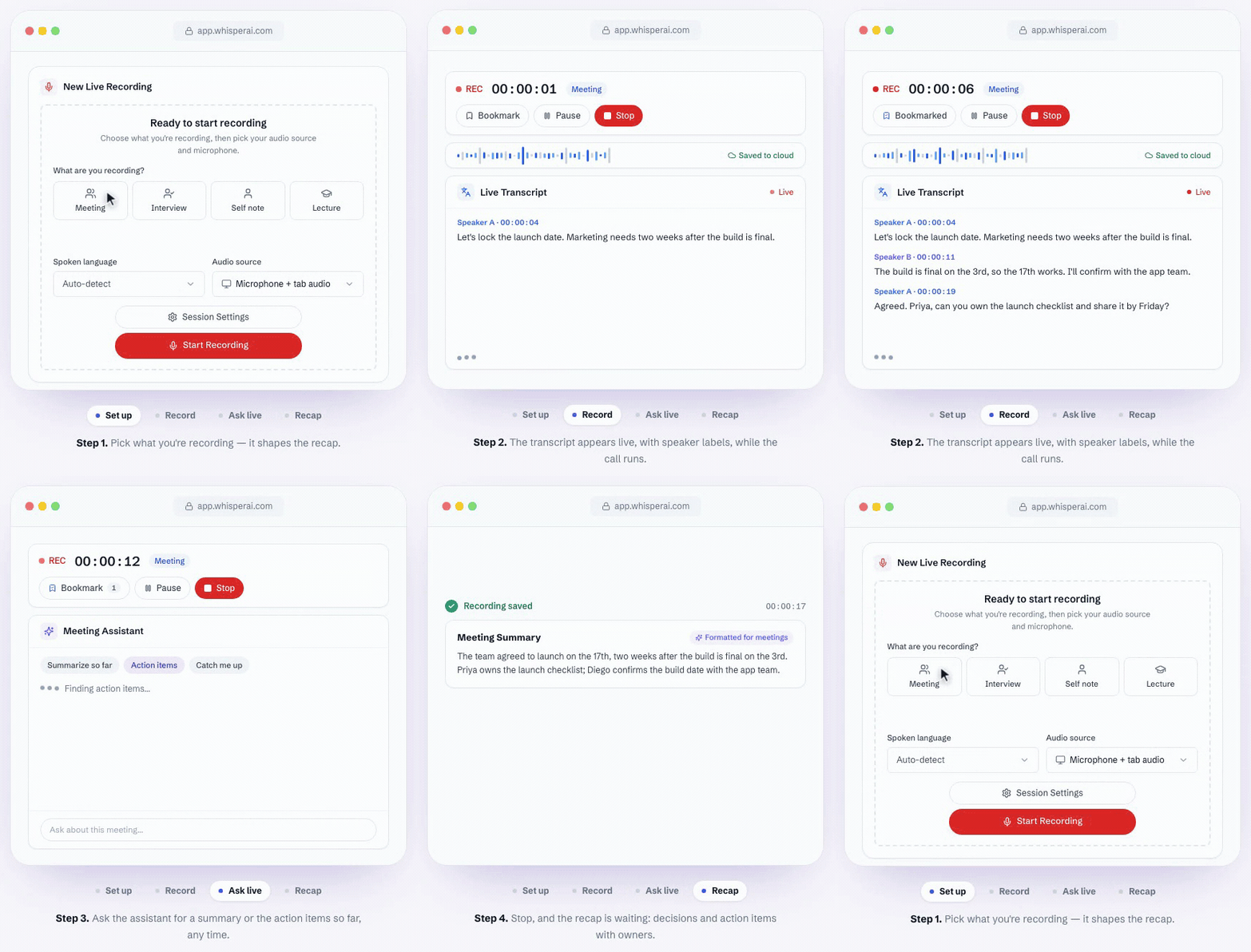
For those cases, WhisperAI lets you add that context before transcription runs. If your need starts before or during the meeting, Zoom's AI can generate summaries and action items, while WhisperAI's Meeting Assistant adds a live transcript, questions during the call, and a recap when you stop.
And if the problem is the video rather than the transcript, here's how to edit a Zoom recording.
The rule is simple: use Zoom when the meeting workflow already owns the problem. Move the file into a dedicated transcription workspace when Zoom can no longer finish the job.
Frequently asked questions
Can you transcribe on Zoom?
Yes. Zoom can transcribe meetings using live automated captions, Meeting transcripts, and audio transcripts from eligible cloud recordings. These features serve different purposes. Live captions display spoken dialogue during the meeting, while Meeting transcripts preserve the conversation as text for later access. Audio transcripts are generated from eligible cloud recordings after the meeting.
Is Zoom Transcribe free?
A saved native Zoom transcript generally requires a paid plan. Meeting transcript requires Pro, Business, or Enterprise, and cloud audio transcription requires an eligible paid account with cloud recording enabled. Zoom Basic is free, but a computer recording does not include Zoom audio transcription.
How do I use Zoom to get a transcript?
Enable Meeting transcript under Settings → Meeting → In Meeting (Advanced). During the call, click More → Transcript. If you use cloud recording instead, enable Create audio transcript in the recording settings before recording to Zoom Cloud.
Can ChatGPT transcribe an audio recording?
ChatGPT has a dedicated Record mode that can capture and transcribe meetings and voice notes. As of September 2026, Record is available on the macOS desktop app for Plus, Pro, Business, Enterprise, and Edu workspaces.
For an existing Zoom archive, though, a dedicated upload-based transcription workspace is usually the cleaner workflow because the recording file, not a live ChatGPT session, is already your starting point.
Does Zoom recording automatically transcribe?
Not every recording. Zoom's audio transcription applies to cloud recordings when the audio transcription setting is enabled. Computer recordings saved locally do not support Zoom audio transcription.
Why does my Zoom not have a transcript?
Your Zoom meeting may not have a transcript because transcription wasn’t enabled, only live captions were used, or your recording/settings don’t support transcription. For cloud recordings, the transcript may also still be processing.
How do I enable transcript in Zoom?
To enable Zoom Meeting transcript, open the Zoom web portal and go to Settings → Meeting → In Meeting (Advanced) → Meeting transcript. During a meeting, select More → Transcript to access the transcript option. If the setting is locked, an account administrator must enable it.
How do I turn off transcription in Zoom?
As the host, hover over the Transcript icon and select Stop transcription to turn off the meeting transcript. You can also choose to delete the transcript when stopping it. Participants can request that the host stop transcription, while the host can disable captions for everyone through the caption controls.
WhisperAI Team
Product