How to Transcribe MP3 to Text Accurately with AI
Learn how to transcribe MP3 to text with AI. This guide covers audio prep, using WhisperAI, post-editing, and ensuring privacy for fast, accurate transcripts.
You know the drill. You've got an MP3 file sitting in your downloads folder. It's loaded with something important: a client interview, a research call, a team meeting, a lecture, a deposition, or a podcast episode. The problem? Audio is a pain to search, quote, or turn into anything useful until it's transcribed into text.
TL;DR: To transcribe MP3 to text effectively, the quality of the audio matters as much as the AI tool. Clean the audio first, set the right language and speaker settings, review strategically, and prioritize privacy from the start. Modern AI transcription is practical on a global scale, but a disciplined process beats any single upload button.
Table of Contents
- Why Modern AI Is Your Best Transcription Tool
- Preparing Your Audio for Flawless Transcription
- A Step-by-Step Guide to AI Transcription
- How to Review and Polish Your Transcript
- Managing Privacy Security and Export Formats
- Advanced Workflows for Teams and Bulk Projects
Why Modern AI Is Your Best Transcription Tool
Manual transcription used to be the roadblock. Even the best interviewer or researcher could record great audio but still waste hours turning it into text. That changed when speech recognition went from niche to mainstream software.
The real shift happened in 2011 when Google launched voice search on Android. It used the same automatic speech recognition technology that powers today's transcription tools. By 2016, Google's error rate dropped from 23% to about 8%, making machine-generated text a practical, everyday tool, as noted on AWS Transcribe.
What changed in practice
It wasn't just about accuracy. Usability took the spotlight.
Older systems struggled with natural speech, accents, interruptions, and the flow of conversation. Newer systems handle real-world audio better, integrating transcription into workflows in media, operations, education, and research.
Practical rule: AI transcription works best when it's treated like a strong first draft generator, not an infallible court reporter.
This distinction is crucial. Professionals don't chase perfect automation. They need a quick transcript that captures the conversation's structure and provides a solid editing base.
Why this matters outside media
Transcription's value grew once teams linked text to broader workflows. In healthcare and research, transcription isn't just about readability. It feeds into coding, records, and analysis. For those dealing with structured clinical data, integrating NLP with OMOP models shows how speech-derived text fits into larger workflows. Check out this integration guide.
For daily production, it's straightforward: upload the file, get a draft, fix the weak spots, and move on. Tools like AI transcription software fit this reality. They speed up the slowest part of the job without replacing human judgment.
Preparing Your Audio for Flawless Transcription
Most transcript issues start before you upload. If the MP3 is noisy, uneven, clipped, or full of overlapping voices, the transcript will mirror those problems. Savvy editors spend a few minutes improving the recording first, saving time in the long run.
A clean file doesn't mean studio quality. It means the main speaker is clear, audio levels are consistent, and the software isn't guessing through constant noise.
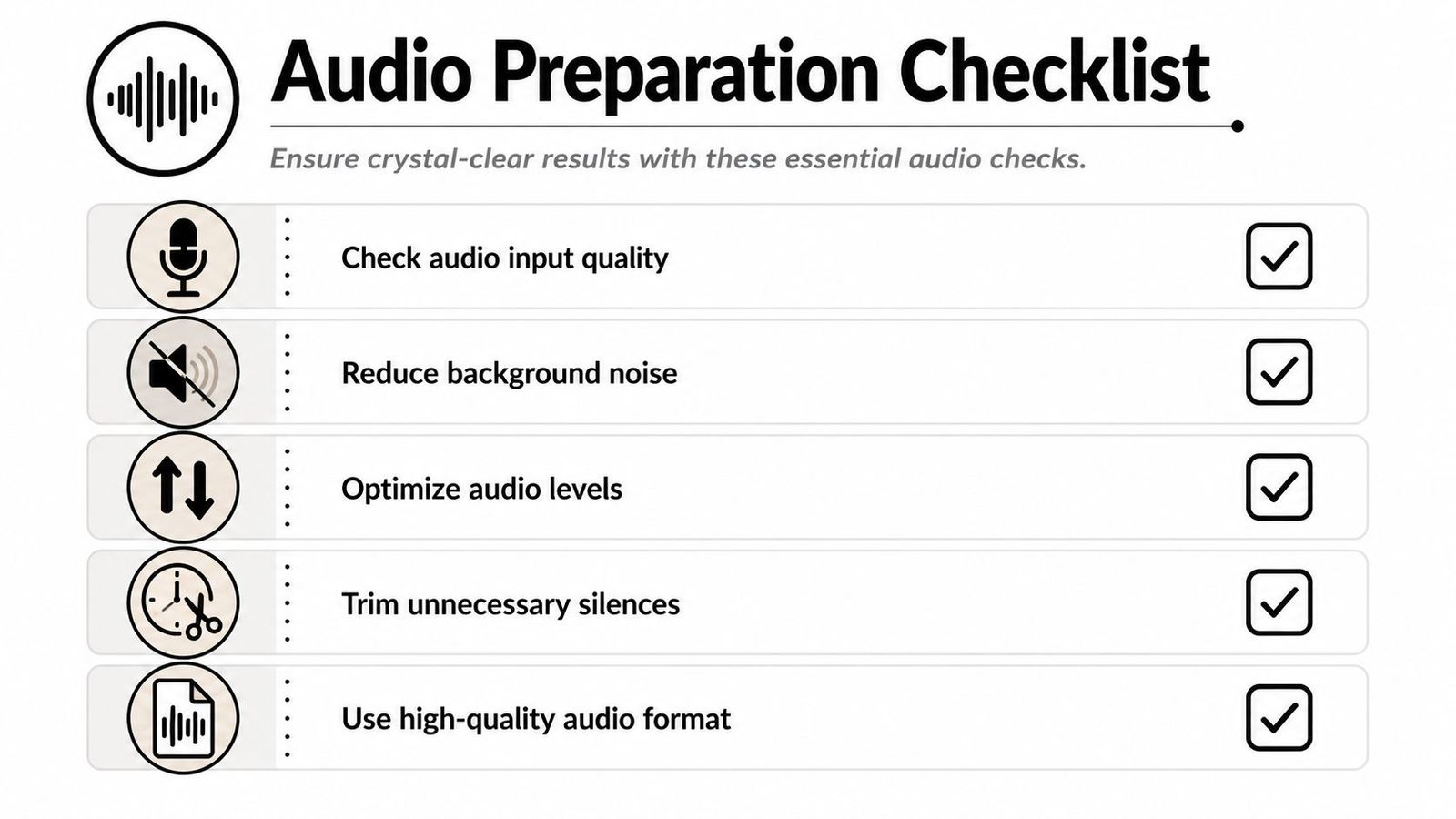
The pre-upload checklist
Before transcribing MP3 to text, make sure you:
- Confirm the file plays cleanly: Check the start, middle, and end. Corrupted uploads and partial exports waste more time than you'd think.
- Listen for constant background noise: HVAC hum, traffic, room echo, and laptop fan noise won't always ruin a transcript, but they add to cleanup work.
- Check if one speaker is much quieter than another: Big volume differences often lead to dropped words or mixed-up speaker turns.
- Trim dead air at the beginning and end: Long silences don't help recognition and make reviewing more tedious.
- Decide if the MP3 itself is the problem: If there's a WAV version, it might be a better master file. Take a look at this MP3 vs WAV guide before big projects.
Small edits that make a real difference
Free tools like Audacity usually do the job. Noise reduction can cut a steady hum. Normalization balances speaker volume. Simple cuts remove false starts, chatter, or long pauses that shouldn't be in the final transcript.
Clean audio beats clever prompting almost every time.
This is especially true for interviews and meetings. AI can do a lot, but it can't fully separate overlapping speech or pull words out from loud background noise.
The review mindset starts here
A practical transcription workflow starts with an initial listen, then working in short segments, and a second pass for accuracy. SpeakWrite's guidance advises listening to the recording first, transcribing in short segments, and replaying for an accuracy check and proofread. Techniques like slowing playback, using noise-canceling headphones, and cleaning background noise before the second pass are key, as detailed in their transcription workflow guide.
This advice holds because it aligns with real editing practices. Better inputs reduce guesswork, leading to fewer corrections.
A Step-by-Step Guide to AI Transcription
Once your audio is in good shape, uploading is easy. What separates a usable transcript from a frustrating one is the setup. Most "AI mistakes" come from bad file prep, wrong language settings, or skipping speaker labeling.
Modern platforms now work on a global scale. ElevenLabs says its MP3-to-text tool supports 99 languages, while other tools handle 150+ languages and 45+ audio formats. This shows how transcription has moved beyond basic dictation into mainstream business workflow, according to ElevenLabs MP3 to text.
A working interface matters because it turns those capabilities into a repeatable process.
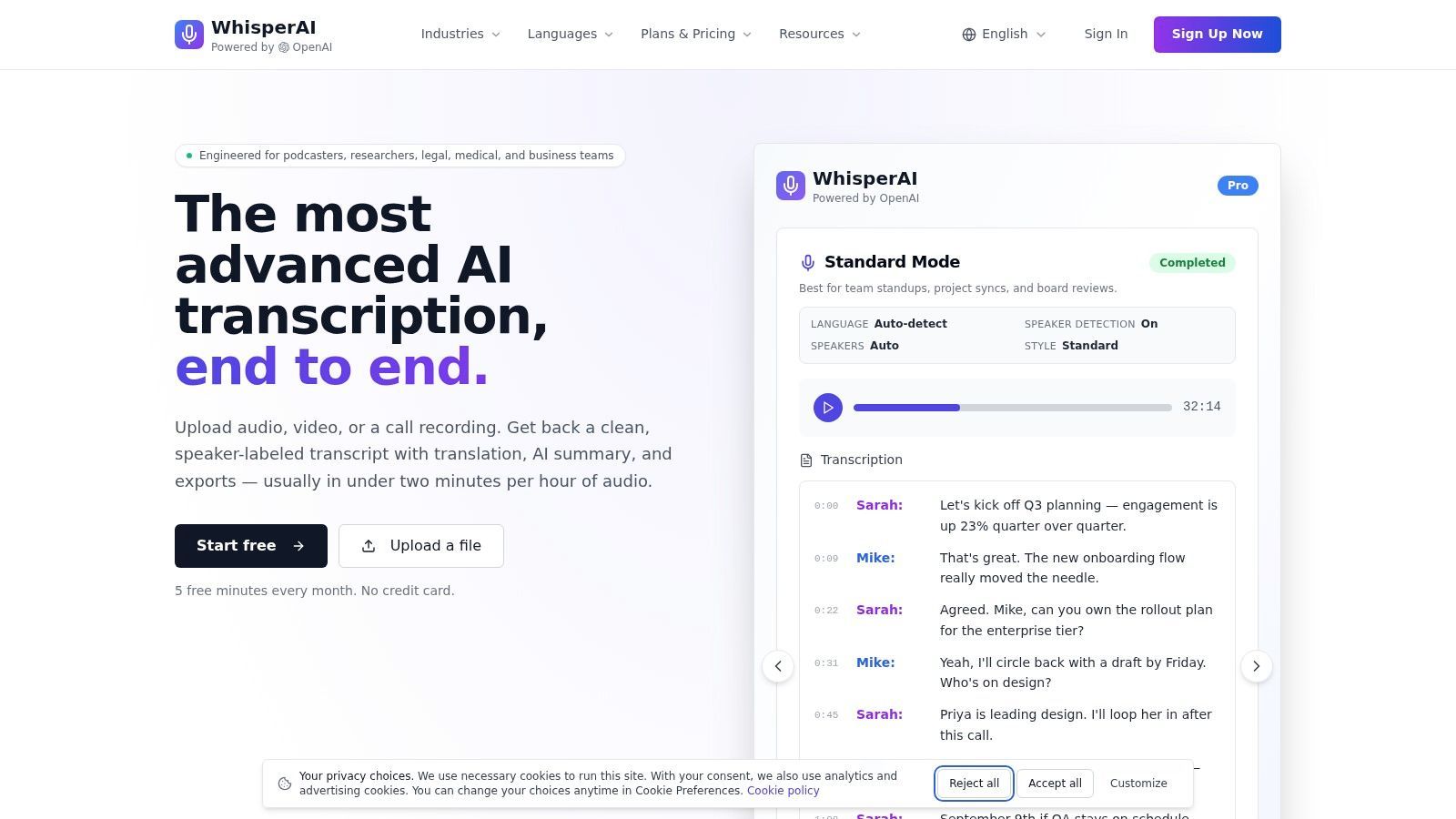
The core setup choices
When uploading an MP3, these decisions are key:
- Set the language if known
Auto-detection helps, but manually setting the language usually reduces ambiguity, especially with accents, code-switching, or industry-specific terms. - Turn on speaker labeling for conversations
If it's an interview, meeting, or panel, diarization is crucial. Without it, you'll get a block of text that someone has to untangle. - Keep expectations tied to the source audio
If the recording has crosstalk, muffled voices, or a bad phone line, expect to need more human review.
What the tool is actually doing
Behind the scenes, the system matches acoustic patterns to language, segments speech, and tries to keep speaker turns and punctuation readable. It's not "understanding" the meeting like a project manager does. It's converting speech into structured text for human verification.
That's why technical names, product terms, and unusual proper nouns still need attention. AI often nails the conversation but stumbles on the specialized stuff.
A practical upload workflow
A straightforward process usually looks like this:
| Stage | What to do | Why it matters |
|---|---|---|
| File upload | Add the MP3 and confirm it's the right version | Teams often upload rough cuts by mistake |
| Language selection | Choose the spoken language when possible | Reduces ambiguity in multilingual or accented audio |
| Speaker detection | Enable it for more than one voice | Makes interviews and meetings readable |
| Processing | Let the model generate the draft | The system handles the bulk conversion work |
| Editor handoff | Move into review immediately | Fresh context speeds corrections |
For teams that also publish video, transcript handling often overlaps with caption production. This overview of AI workflows for YouTube video captions is useful because it shows how transcript decisions affect subtitle-ready output later.
For users who want a more technical look at model-based transcription workflows, OpenAI Whisper API guidance helps clarify what these tools are doing under the hood and where configuration choices matter.
How to Review and Polish Your Transcript
A raw transcript is rarely the final asset. It's the editable draft. The fastest reviewers don't read every line with the same intensity. They target typical problem areas: speaker swaps, proper nouns, acronyms, numbers, and fast, overlapping speech.
The first pass should focus on structure, not perfection. Are speaker turns correct? Are paragraphs split sensibly? Can someone else read it without getting lost?
What to fix first
This order keeps review efficient:
- Speaker identity: Replace generic labels with actual names or roles if sharing the transcript.
- Critical terms: Product names, medical terms, legal references, and technical jargon come next.
- Punctuation and paragraphing: Good punctuation quickly improves readability, even if the words are mostly right.
- Unclear audio markers: Tag anything inaudible or uncertain instead of guessing.
Slow playback during review catches more errors than reading silently ever will.
This matters because the eye often misses plausible mistakes. The ear doesn't. If a platform supports synchronized playback and click-to-jump transcript editing, use it aggressively.
Use a second pass, but make it selective
The recommended workflow by transcription pros is simple: listen through first, work in short segments, then replay for final proofreading. Noise-canceling headphones help on the check pass because they reveal low-volume words and soft consonants often missed on speakers.
There's a judgment call here. Not every transcript needs the same polish. An internal meeting summary can handle more roughness than a legal interview, research transcript, or publication-ready article.
Common edits that save embarrassment
A few mistakes keep popping up in AI transcripts:
- Homophones in context: Words that sound right but mean the wrong thing.
- Named entities: People, companies, streets, branded tools.
- Merged speaker turns: Common in fast discussions.
- Run-on paragraphs: Technically accurate, but hard to use.
A transcript becomes professional when someone corrects the parts the model can't confidently infer from sound alone.
Managing Privacy Security and Export Formats
Accuracy grabs attention, but privacy determines if many teams can use the tool at all. That's often overlooked.
For solo creators with public audio, the risk might be manageable. But for legal, healthcare, compliance, HR, or customer research teams, the audio might contain confidential material. In those cases, the key question often isn't "Which tool is most accurate?" but "Can the file be uploaded under our data-governance rules?"
Happy Scribe's MP3-to-text page highlights this blind spot directly. Many transcription pages focus on speed and format support, but fewer explain retention, deletion, or what happens to uploaded audio afterward. That's why Happy Scribe's discussion is a useful reminder that privacy can block adoption even when transcript quality is strong.
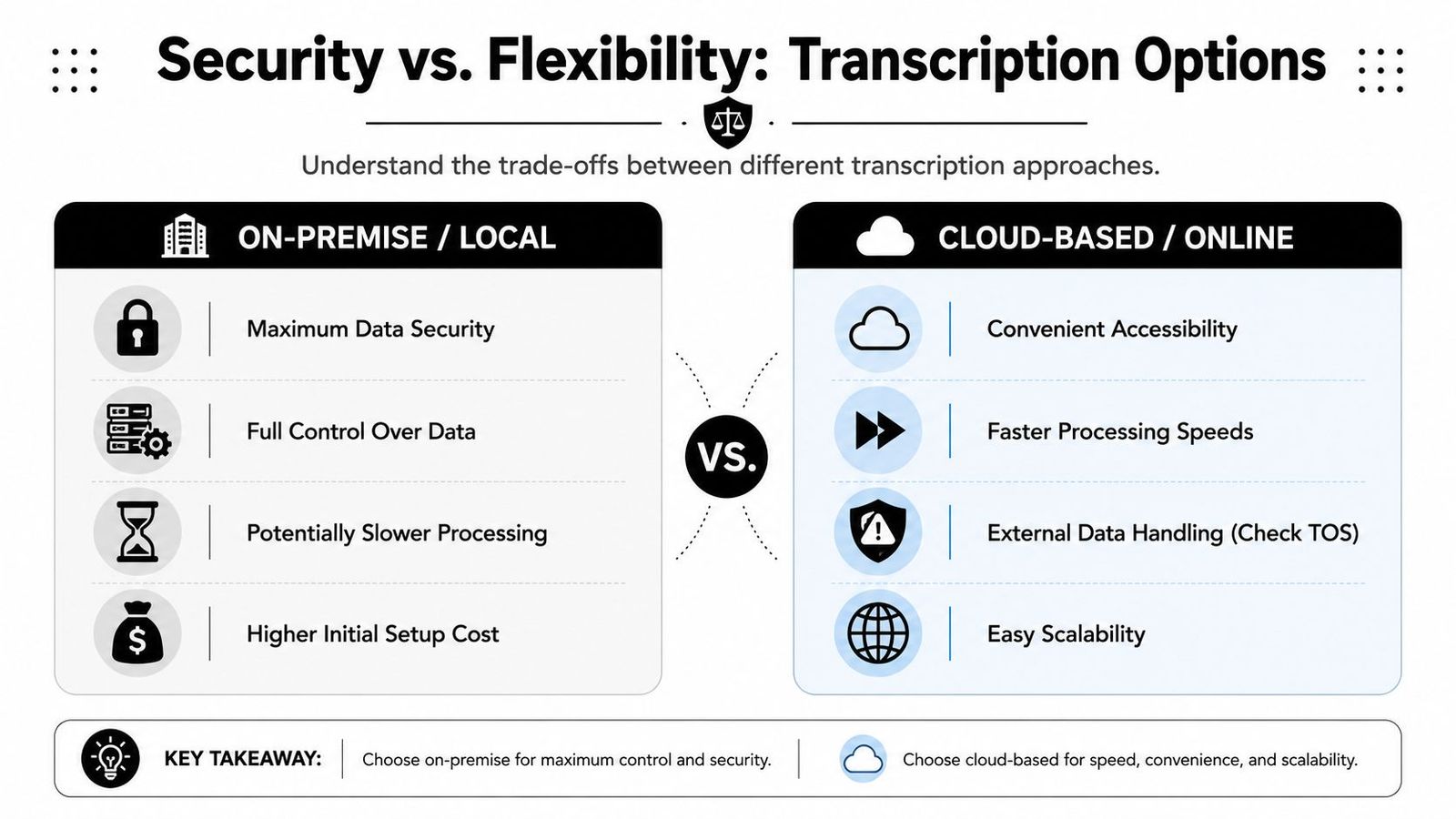
What to check before upload
A serious buyer should review these points:
- Retention policy: How long does the vendor keep audio and transcripts?
- Deletion controls: Can files be permanently removed?
- Access model: Who inside the organization can view, export, or share transcripts?
- Processing location: This is crucial for cross-border or regulated workflows.
- Terms clarity: If the policy is vague, it's a warning sign.
If the audio contains sensitive interviews, customer calls, or medical discussions, convenience can't be the only factor.
Picking the right export format
Once the transcript is approved, choosing the right export format is a workflow decision.
| Format | Best use | What it solves |
|---|---|---|
| TXT | Plain text archives, notes, ingestion into other systems | Minimal formatting, broad compatibility |
| DOCX | Reports, scripts, meeting notes, article drafting | Easier editing and collaboration |
| SRT | Video captions and subtitles | Time-based caption delivery |
Teams often overthink this. The right format is usually clear once you know the destination. If heavy editing is needed, use DOCX. If the text goes into a system pipeline, TXT often wins. If you need subtitles on video, go with SRT.
Advanced Workflows for Teams and Bulk Projects
One MP3 file is simple. Fifty interviews, a weekly meeting archive, or a backlog of lectures requires process discipline. That means naming conventions, shared folders, consistent settings, and a review standard that doesn't force line-by-line editing for every file.
The first mistake when scaling is letting every team member invent a different workflow. The second is reviewing every transcript equally, even when the project doesn't need it.
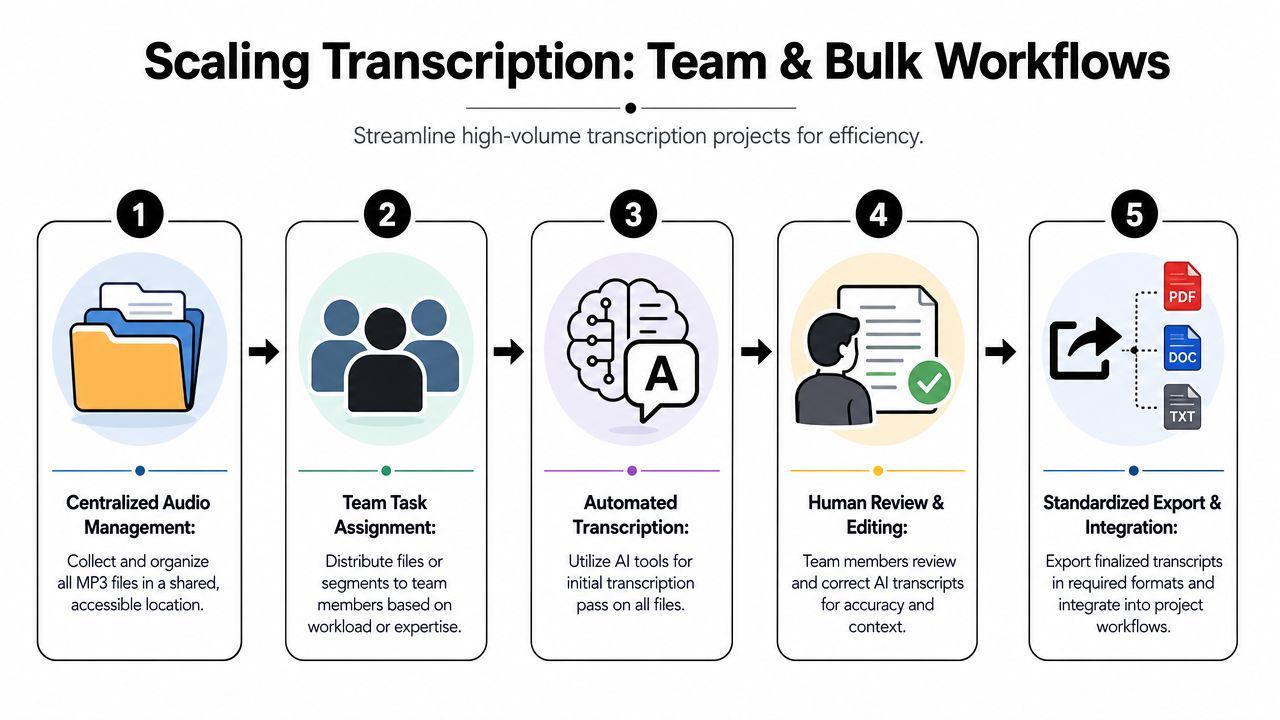
What scaled teams standardize
Teams that transcribe MP3 to text repeatedly usually nail down a few basics:
- File naming rules: Date, project, speaker, and version should be clear.
- Shared glossary handling: Acronyms, product names, and recurring entities need a reference list.
- Review thresholds: Not every transcript deserves full editorial polish.
- Export conventions: Final files should be in predictable formats and folders.
Smarter quality control
For long or mixed-quality files, experts recommend sampling 3–5 random 2-minute segments instead of reviewing every line. If those samples show strong accuracy, keep the review light. If sample accuracy is around 85–90%, that signals a need for a deeper review of the whole file, according to Brass Transcripts guidance.
That approach scales because it matches real-world team operations. The goal isn't perfection but reliable quality with a manageable review burden.
A platform like WhisperAI can fit this kind of operation when teams need file upload, transcript editing, export handling, and speech-to-text support for MP3 within one workflow.
As transcript volume grows, so does the value of a reliable workflow. Teams needing fast turnaround, editable outputs, and real-world audio support can start with WhisperAI - #1 AI Transcription and develop a process that covers upload, review, export, and team handoff without making transcription a bottleneck.