Best Voice to Text Software for Mac: A 2026 Guide
Find the best voice to text software for Mac. Our 2026 guide covers accuracy, offline use, security, and top tools like WhisperAI for pro workflows.
Mac users often find dictation works fine for jotting quick notes or replies. But when you need to transcribe meetings, interviews, or lectures, the limits of basic speech input become painfully obvious.
TL;DR: Apple's built-in Dictation is handy for basic input on Mac. It supports dictation of any length and stops only after 30 seconds of no speech, according to Apple Support's Dictation guide. But for long recordings, multiple speakers, and technical language, dedicated voice to text software for Mac is a smarter choice. The right tool depends on your workflow: live dictation vs file transcription, cloud vs on-device processing, and whether you need searchable, editable, and shareable transcripts that are secure for confidential work. Choosing well means transcription becomes part of the work, not a separate hassle.
Table of Contents
- Tired of Typing Everything You Hear
- Beyond Basic Dictation on Your Mac
- How to Choose the Right Transcription Software
- Transforming Workflows with Voice to Text
- A Professional Workflow with WhisperAI for Mac
- The Future of Your Productivity on Mac
Tired of Typing Everything You Hear
The breaking point comes when you finish three customer calls and still need to pull action items from recordings. Or when hours of seminar audio sit untouched. A podcast editor needs a transcript to cut clips. Someone on a Mac opens Notes, starts typing, and realizes the real job isn't writing. It's turning speech into something usable.
That's the importance of voice to text software for Mac. It's not just about ditching the keyboard. It's about cutting the delay between hearing something and using it.
For simple tasks, any tool that turns speech into text seems helpful. But for professional work, the differences are stark. Some tools excel at live dictation. Others handle recordings, speaker changes, cleanup, timestamps, summaries, or export formats for publishing and compliance.
Practical rule: If the audio needs to be searched, edited, shared, approved, or stored, basic dictation usually isn't enough.
This distinction matters because many buyers think tools solve the same problem. They don't. Apple Dictation helps with input. Transcription platforms help with workflow. A note-taker, a lawyer, a producer, and an operations team might all want "voice to text," but they often need it for completely different reasons.
A good setup on Mac should match the work in front of it:
- Quick composition: emails, notes, messages, and short drafts.
- Recorded content: meetings, interviews, lectures, and calls.
- Structured output: subtitles, searchable archives, summaries, and handoff documents.
- Sensitive material: legal, healthcare, internal operations, and client conversations.
The shift from built-in dictation to AI transcription usually happens when cleanup takes longer than capture. That's when software starts to impact the quality of your workday, not just typing speed.
Beyond Basic Dictation on Your Mac
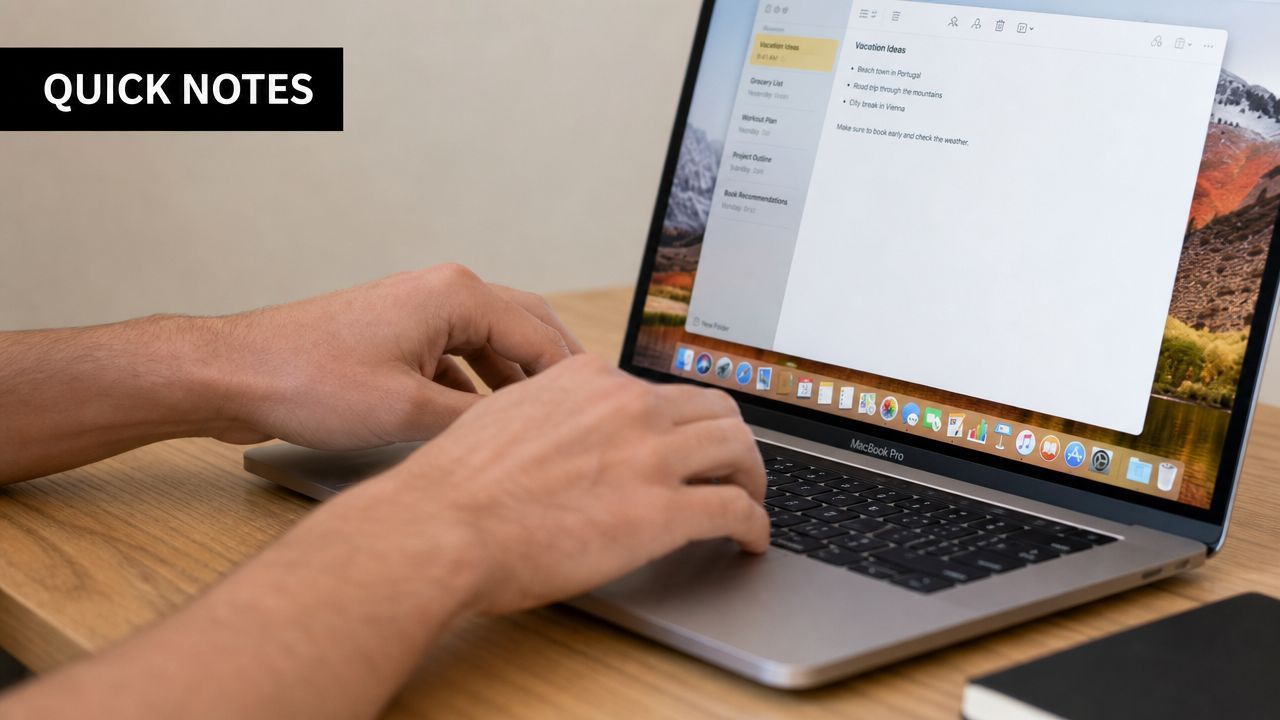
Apple deserves credit for integrating speech as a native Mac input, not a gimmick. According to Apple's Dictation documentation for macOS, you can start Dictation with the Microphone key, Option-Z, or the Edit menu. Apple says Dictation supports any length without a timeout, stopping only after 30 seconds of no speech.
This makes it very useful. For short writing bursts, built-in Dictation is ready to go, needs minimal setup, and works across apps.
Where the free option still works
Apple Dictation shines when you're speaking directly into a text field and the output needs little post-processing. It's great for:
- Replying quickly: short emails, chat messages, and rough notes.
- Capturing ideas: outline fragments, reminders, and first-draft sentences.
- Reducing keyboard load: especially for those who prefer speaking over typing.
This isn't trivial. For many Mac users, it's the easiest way to test if voice input fits into their daily routine.
Where professional work outgrows it
The limits appear when dictation becomes part of production work. A Mac-focused review of dictation tools mentions Apple's built-in dictation used to stop after 60 seconds and struggled with complex text. It states modern tools can convert speech to text at about 150 words per minute, compared to roughly 40 words per minute for typing, or about 4× faster.
But speed isn't everything. The bigger issue is what you can do once the words appear on screen.
| Workflow need | Built-in Dictation | Dedicated transcription tools |
|---|---|---|
| Live note entry | Strong | Strong |
| Long recordings | Limited | Better suited |
| Multiple speakers | Limited | Commonly supported |
| Subtitle export | Limited | Often available |
| Searchable transcript archive | Limited | Commonly available |
| Post-processing and organization | Minimal | Usually broader |
A free tool can capture words. A professional tool helps you use them.
Modern Mac workflows extend beyond direct dictation. People aren't just talking into Pages or Notes. They're uploading interviews, transcribing meetings, creating captions, or turning recorded audio into something a team can review. That's a different class of software.
The takeaway is clear. Apple Dictation is a good default. But when work involves files, collaboration, and more than solo note-taking, dedicated voice to text software on Mac is worth it.
How to Choose the Right Transcription Software
Choosing transcription software gets easier when you focus on what needs to happen after audio becomes text instead of the feature list.
Start with the job, not the feature list
A student recording lectures needs something different than a team lead handling client meetings. A video editor needs captions and export options. A clinic prioritizes privacy and retention. The software may look similar, but buying criteria change fast.
Sort options by use case:
- For live voice entry: focus on speed, shortcut access, and smooth text insertion into apps.
- For recorded audio: prioritize upload flow, transcript editing, timestamps, and search.
- For team workflows: check collaboration, approval, and export formats.
- For technical or multilingual work: pay attention to language support and handling of terms, accents, and messy audio.
One comparison point matters. A 2025 Mac review notes a Chrome-based tool claims 99%+ accuracy in over 50 languages, showing how the Mac transcription market has grown beyond Apple's built-in features, as covered in Willow Voice's review of Mac dictation software.
Privacy changes the buying decision
Generic guides often miss this point. Security isn't a side concern. For many pros, it's the first filter.
Some newer Mac tools use on-device recognition instead of cloud processing. VoiceInk requires Apple Silicon and macOS 14.4 or later, uses local AI models, offers near-instant transcription, and claims about 99% accuracy. The trade-off is clear. On-device processing reduces upload latency and boosts privacy, but it ties the experience to newer hardware with the right specs.
Buying lens: If the transcript contains client data, patient info, legal discussion, or internal strategy, data handling matters as much as transcription quality.
For some, this means local-first tools. For others, it's a cloud platform with strong controls, organization, and a fitting workflow. There's no universal answer.
Readers comparing categories might find this roundup of voice to text software options useful as it frames the choice by workflow, not just app names.
A practical checklist for evaluation
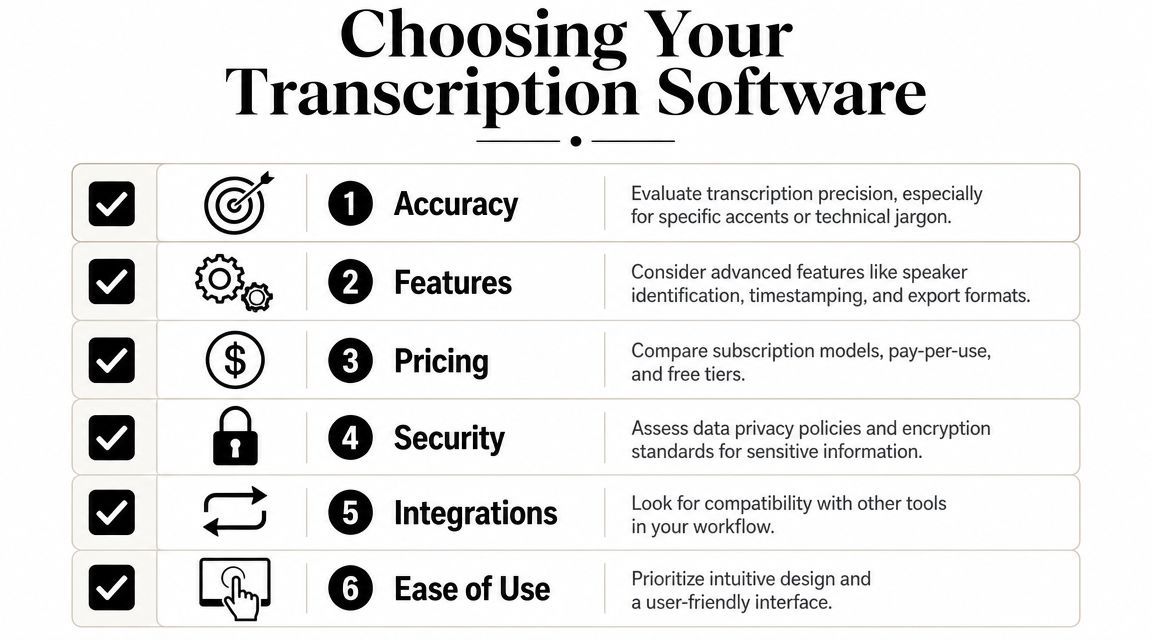
Most buyers can narrow the field quickly with six questions:
- What kind of audio is this? Clean solo dictation is easy. Meetings, interviews, and field recordings are harder.
- Does the transcript need structure? Speaker labels, timestamps, summaries, and topic grouping save cleanup time.
- Where does the audio go? Some teams won't accept cloud upload for confidential material.
- What has to come out at the end? Text is one thing. SRT, DOCX, PDF, and searchable archives are another.
- Will anyone else touch this transcript? If yes, editing and sharing matter more.
- How much friction can the workflow tolerate? The best tool is the one people will use under deadline.
A free tool often wins on convenience. A professional tool wins when transcription is no longer the end of the task.
Transforming Workflows with Voice to Text
Transcription software shows its value when it changes what happens next, not just how text is created.
For meetings and operations teams
A meeting transcript is useful. A searchable record with speaker changes, decisions, and follow-up tasks is better. Operations teams need to move from conversation to action quickly, especially when multiple people need the same record.
This is crucial when transcripts are part of a review chain. Teams publishing clips, recaps, or updates often need a formal approval step after transcription and editing. A guide to content approval for social media helps connect transcript-based content with a publishing workflow.
For teams handling recurring calls, AI meeting transcription changes note-taking. Instead of one person documenting everything, the team stays engaged and reviews the transcript later. This overview of AI meeting transcription workflows shows how this process fits modern meeting operations.
For creators and researchers
Podcasters, video producers, journalists, and academic researchers face a different challenge. They need material they can cut, quote, tag, search, and reuse.
Key features for this group include:
- Speaker separation: crucial for interviews and panel discussions.
- Timestamped transcripts: aids in clip selection and citation.
- Subtitle-ready export: essential for video teams.
- Search across transcripts: useful when a quote is buried in a long archive.
A researcher going through recorded interviews may focus less on live dictation and more on whether the transcript can be reviewed efficiently. A creator might care more about how quickly software turns spoken material into a script, caption file, or outline.
Transcription earns its keep when it removes a second pass through the audio.
For legal, healthcare, and regulated work
Here, trade-offs are serious. Accuracy still matters, but privacy, offline capability, and retention policy are just as important.
Some Mac tools now highlight on-device processing and no audio uploads. The listing for Voice Type local dictation on the App Store underscores the importance of offline transcription, on-device audio handling, and custom vocabulary, especially for professionals handling sensitive recordings. Better microphones and quieter environments still improve results.
The key upgrade isn't just better recognition, but a setup that matches the work's risk level.
A Professional Workflow with WhisperAI for Mac
A web-based transcription platform is ideal on Mac because it doesn't replace the OS's input tools. It handles a different job. Instead of turning speech into text in a live text field, it converts audio and video into working documents.
From upload to working transcript
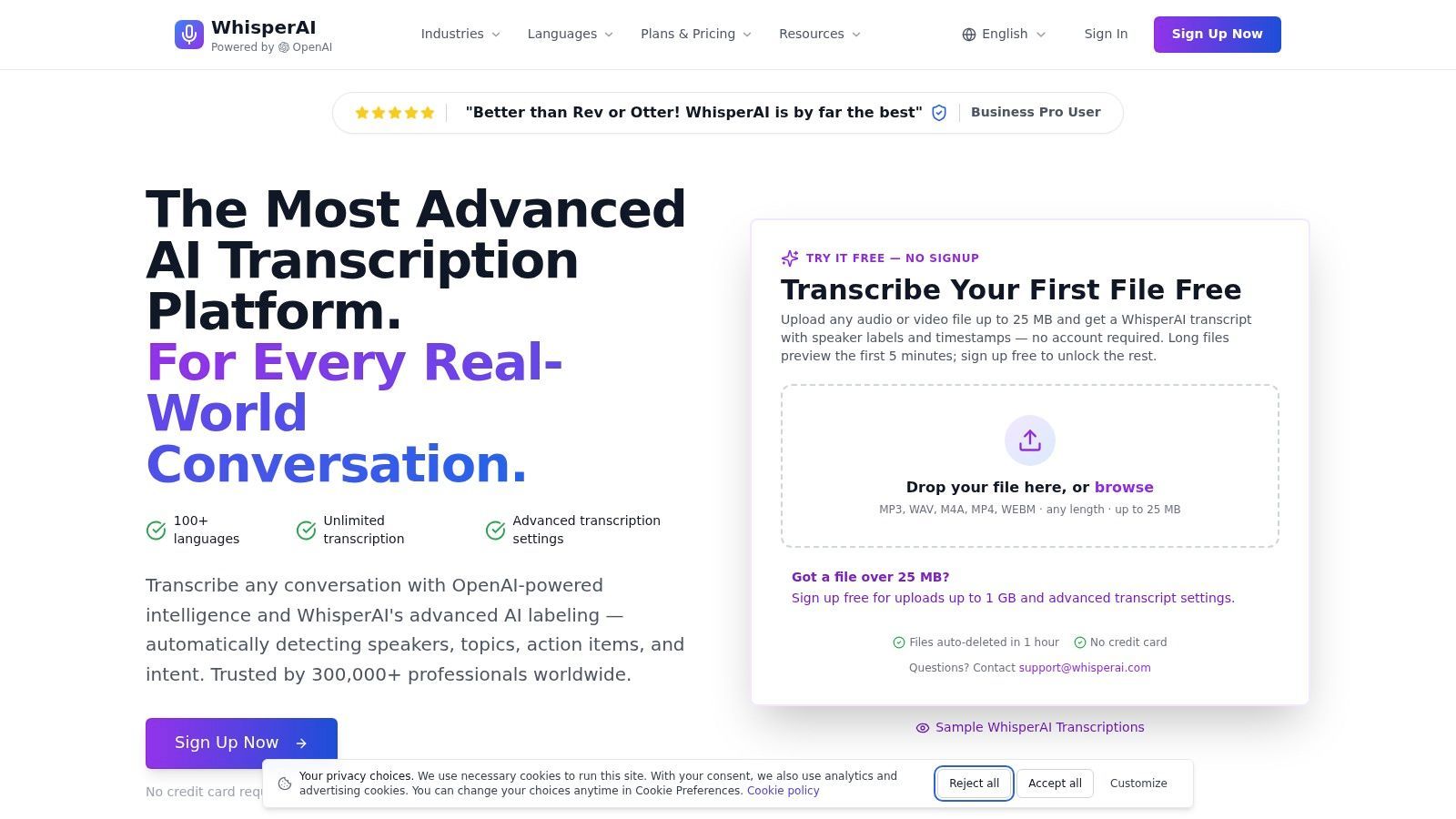
A practical workflow starts with the file. Upload audio or video from the Mac, or record directly in the browser, then wait for the transcript. The result is something you can edit, search, and export.
One example is WhisperAI's AI transcription platform. It supports over 100 languages and handles accents, technical terms, and background noise. It combines Whisper model transcription with AI features like speaker labeling and topic detection.
That combination matters because raw transcription is just the start. A useful Mac workflow often needs:
- Speaker-aware output for interviews and meetings
- Topic grouping for long conversations
- Editing tools to clean the transcript without starting over
- Export options that fit the next step in the process
What matters in daily use
The best transcription tools on Mac minimize friction once the transcript is ready. Text should be easy to review, correct, and move into the next app without extensive cleanup.
For some, the biggest win is subtitles. For others, it's the ability to search a transcript archive instead of replaying recordings. Teams evaluating tools should compare browser-based transcription with app-style dictation tools like the Whisper Flow app.
A professional-grade setup is more about document processing than dictation. Audio goes in. Usable material comes out. That's what many Mac users want when they look for voice to text software.
The Future of Your Productivity on Mac
The best voice to text software for Mac isn't about how many features it has. It's about matching the work. Built-in Dictation is great for short input. Dedicated transcription software makes sense when audio is part of a broader process involving editing, collaboration, approvals, subtitles, compliance, or archive search.
That's why the upgrade decision is about reducing friction, not chasing novelty. If you're replaying meetings, hand-typing notes, or digging through recordings for quotes, the workflow is wasting time where software can help.
The real change is mental, not technical. Speech stops being something to "deal with" later and becomes structured material from the start. On a Mac, that means faster drafting, cleaner documentation, easier publishing, and less repetitive transcription work.
Choosing wisely now avoids the mistake of buying for a demo instead of the actual job. Some need local processing on Apple Silicon. Others need multilingual cloud transcription, speaker detection, and export flexibility. The right answer depends on where the transcript is going, not just where it started.
The next step is simple: test a tool against a real recording, not a perfect sample. A one-minute memo won't show you much. A messy meeting, interview, or lecture will.
If you want to move beyond basic dictation into a workflow that handles real conversations, file uploads, speaker labeling, and multilingual transcription on Mac, WhisperAI - #1 AI Transcription is worth testing with a real-world recording.