How to Transcribe a YouTube Video (The Complete Guide)
Find, copy, download, or recreate a YouTube transcript depending on what the video provides and how accurate you need the final text to be.
Most YouTube videos already have a transcript sitting inside them, and finding that is faster than using another tool. If the transcript is missing or not accurate enough, the next option is to convert the video's audio to text with a transcription tool.
The part nobody quite explains is that YouTube draws a firm line between what you're allowed to see and what you're allowed to take, and that line moves depending on whether you're on desktop or mobile, whether you own the video, and which AI tool you hand it to next.
This guide covers where that line actually sits, and what to do on either side of it.
TL;DR
- Start with YouTube’s transcript if it exists. It is the quickest path for simple use.
- Decide whether you need text to read, copy, or actually download. Those are different workflows.
- If YouTube has no transcript, use a tool that transcribes the audio itself, not one that only pulls captions.
- Treat YouTube’s transcript as a draft when wording matters. Errors carry over wherever that caption track is reused.
- Use fresh AI transcription when you need cleaner terminology, speaker labels, or export-ready output.
How do you find the transcript on a YouTube video?
If a video has captions, YouTube can provide a transcript. The two aren't separate things. What YouTube calls a transcript is just the caption track, laid out as scrollable, clickable text instead of white letters over the video.
Expand the description under the video and look for Show transcript. If it's there, you're one click from the full text. If it isn't, the video has no caption track for YouTube to read from, and no amount of reloading changes that (a few false positives are worth ruling out first, covered below).
How to see the transcript on YouTube on desktop

Step 1: Click “...more” below the video to expand the description
Step 2: Select “Show transcript”. A panel opens on the right and scrolls in sync with playback. You can click any line to jump the video there.
There's no Select all button inside that panel. For a five-minute clip, that's not a big deal. For a two-hour interview, though, it means dragging your cursor through the entire thing by hand, because YouTube's transcript view was built for following along, not for extracting the text.
That difference matters more than it sounds like it should. It's why so many "quick" transcript jobs end up taking twenty minutes instead of two.
How to open the transcript on YouTube on mobile

Step 1: Open the video in the YouTube app.
Step 2: Tap the title or the small down arrow to expand the description.
Step 3: Scroll and tap Show transcript.
It opens below the video and highlights the current line as playback moves, on both iOS and Android.
What the app won't let you do is select or copy that text. You can read it, but not pull it out. If you actually need the words in a document, open the video in your phone's browser instead of the app, switch to Desktop site, and use the same
...more → Show transcript
Long-press selection works there in a way it simply doesn't inside the native app.
How do you get a transcript from a YouTube video?
This is where "get the transcript" and "download YouTube transcript" quietly stop meaning the same thing, and it trips people up constantly. As a viewer, YouTube gives you a panel to read and copy from, not a download button. There is no native Export as TXT or Save as SRT option anywhere on the watch page for a video you don't own.
If you are the creator, the door opens.

Go to YouTube Studio → Subtitles → select the video → open the language track → choose Download.
That's the only route to an actual caption file straight from YouTube, and it only works on your own uploads.
Which transcript format should you download: TXT, SRT or VTT?
| Format | Best for | When to choose it |
|---|---|---|
| Plain text / TXT | Reading, notes, pasting | You only need the words |
| SRT | Timed captions that re-upload cleanly | You want to put captions back on YouTube or another player |
| VTT | Web players and accessibility tools | Same job as SRT, slightly more flexible |
For viewers, the process is a little different. While you can’t download the caption file directly, you can still work with the transcript as plain text.
How to copy a YouTube transcript as plain text
If you’re on desktop, open the transcript and select the text manually. Depending on the video, YouTube may show a timestamp toggle or may not. If available, turn timestamps off to remove timestamps from a YouTube transcript before copying.
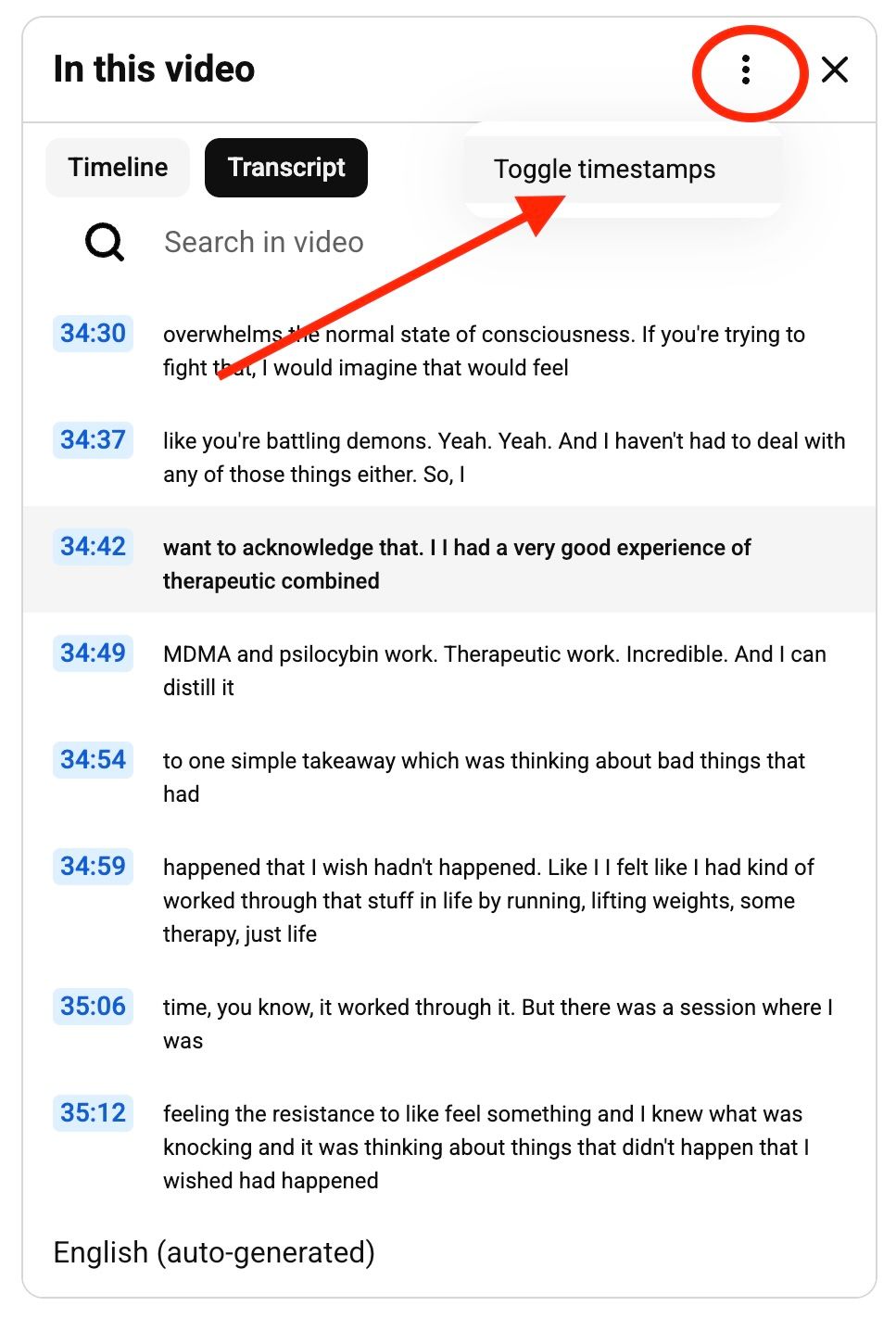
The copied transcript will usually have line breaks after short phrases, so a quick cleanup in any text editor may be needed.
On mobile, YouTube’s transcript panel is effectively read-only for full extraction, which is why third-party tools or desktop mode are often recommended.
Why isn't the transcript showing on a YouTube video?
If Show transcript isn't appearing where it normally does, the problem usually comes down to captions, processing, or the way YouTube is loading the page.
The quickest way to narrow it down is to check whether the video's CC option is available.
- No CC: YouTube doesn't have captions available for the video yet. This can happen because automatic captions are still processing, the video's language isn't supported, the audio is difficult to recognize, or other caption-generation issues prevent YouTube from creating them.
- CC works, but Show transcript is missing: captions are available, so the problem is more likely related to how YouTube is displaying or loading the transcript rather than caption generation itself. YouTube's own troubleshooting steps include refreshing the page, checking your browser, and disabling extensions or ad blockers.
If it's a new upload, give YouTube some time to finish processing the audio. YouTube says automatic captions may not be ready immediately after upload, and processing time depends on the complexity of the audio.
If the transcript still doesn't appear, try opening the video in a different browser or an Incognito window with extensions disabled. If that doesn't solve it, you can use a separate transcription tool to turn the video's audio into text instead.
What if YouTube never creates a transcript?
If a YouTube video has no usable transcript or captions, you have two main options: find a tool that can transcribe the video's audio itself, or create the transcript from the audio using a transcription service.
The key distinction is that many “YouTube transcript” tools and browser extensions only retrieve captions that already exist on YouTube. If there is no caption track, those tools won't solve the problem.
A practical approach is:
- Try a transcription tool that accepts the YouTube URL directly. Some services can fetch the video's audio and generate a new transcript from it.
- If the tool doesn't accept YouTube links, download the video or audio and upload the file instead. The service can then transcribe the speech from the audio.
- Review the result. AI-generated transcripts can get names, technical terms, punctuation, and unclear speech wrong.
- Use human transcription if accuracy is critical, especially for legal, academic, or professional material.
For example, Evernote's Link to Text tool says it retrieves a public YouTube video, extracts its audio, and transcribes it rather than extracting the video's existing captions. YouTube-link transcription is limited to 60 minutes and produces plain text without timestamps or speaker identification.
Other platforms work differently. Otter, for example, does not currently accept a YouTube URL directly. You have to download the video and import it, or play it while Otter records and transcribes it.
So when YouTube has no transcript, the question is simply: can a transcription tool access the video's audio and create a transcript from scratch? If yes, you can still get a transcript. If you're deciding which transcription tool to use, our guide to the best AI transcription software compares the main options.
How accurate is YouTube's automatic transcript?
YouTube doesn't give automatic captions a fixed accuracy rate. It says they can vary depending on pronunciation, accents, dialects, background noise, overlapping speakers, and other audio conditions, and recommends reviewing them rather than treating them as final.
The main things to watch for are:
| YouTube transcript issue | Why it matters |
|---|---|
| Names and acronyms | Errors repeat wherever the caption track is copied |
| No reliable speaker attribution | Hard to use for interviews and panels |
| Accents, noise, overlap | Recognition quality can fall |
| Existing caption errors | Extractors reproduce them rather than fix them |
The key point is that copying a transcript isn't the same as checking it. If YouTube misheard something, an extractor will usually copy that error too.
For casual use, this is often fine. But for exact quotes, research, or publication, always check the transcript against the audio.
How do you transcribe a YouTube video to text with AI?
When YouTube's built-in transcript is missing, inaccurate, or simply not usable for what you need, the next step is to run the recording through a fresh transcription pass.
The steps below use WhisperAI. It accepts common video formats such as MP4 and WebM directly, so you don't need to convert the video to audio first. The same workflow applies to other AI transcription tools, although file limits and settings will differ.
Step 1: Get the video or audio file
You’ll need an audio or video file to work with. If it’s your own YouTube video, you can download the file through YouTube Studio. For someone else’s video, only download or reuse the file if you have permission or another applicable legal right to do so.
If you only need the audio, see the companion guide on getting audio from a YouTube video for the cleanest extraction path. Once you've got an MP3, our guide on how to transcribe MP3 to text covers the settings that make the biggest difference to accuracy.
Step 2: Upload it
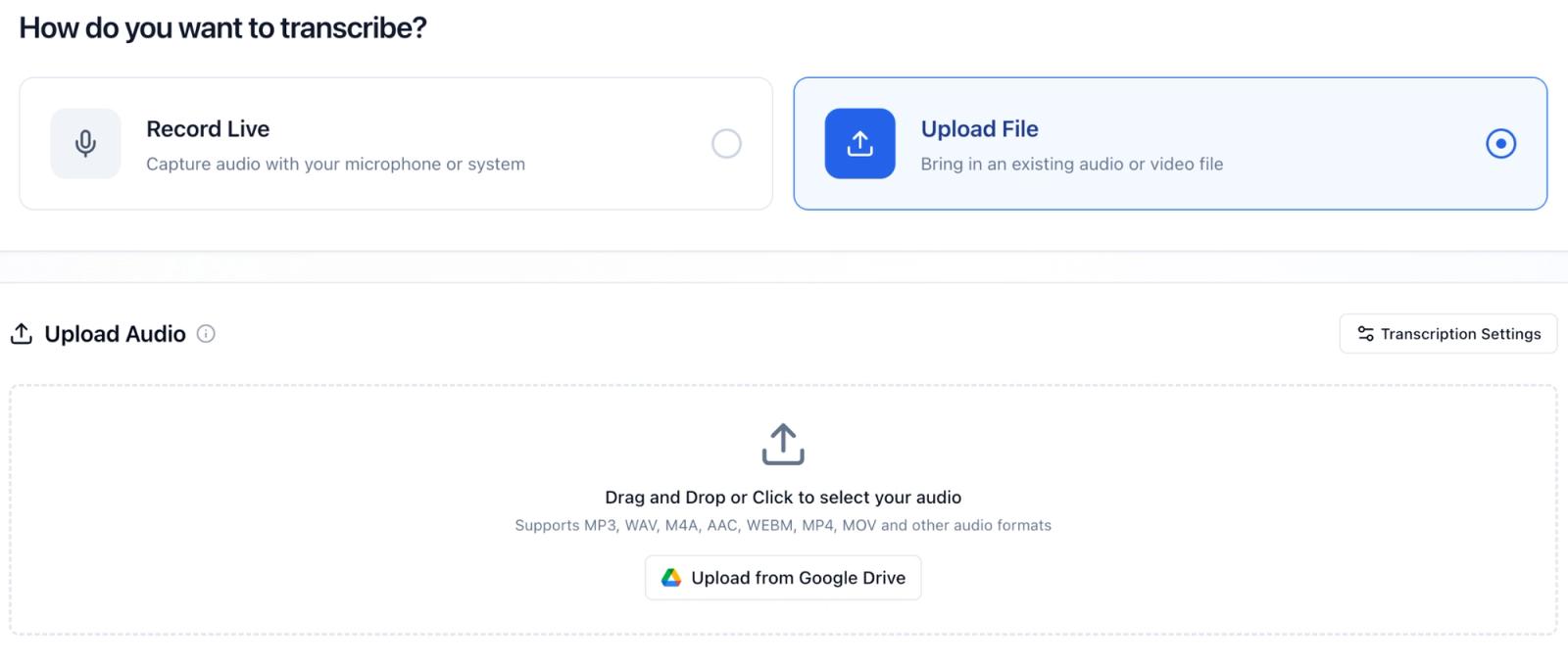
Upload the file to WhisperAI. Full product limits are up to 5 GB and 10 hours per file. The free in-browser demo is different, and caps uploads at 25 MB.
Before you start, check the settings that depend on the recording. Language can stay on Auto-detect in most cases, while speaker count can stay on Auto unless you already know how many people are talking. You can also choose a transcription style or translate the transcript if the job calls for it.
Step 3: Add words the AI might get wrong
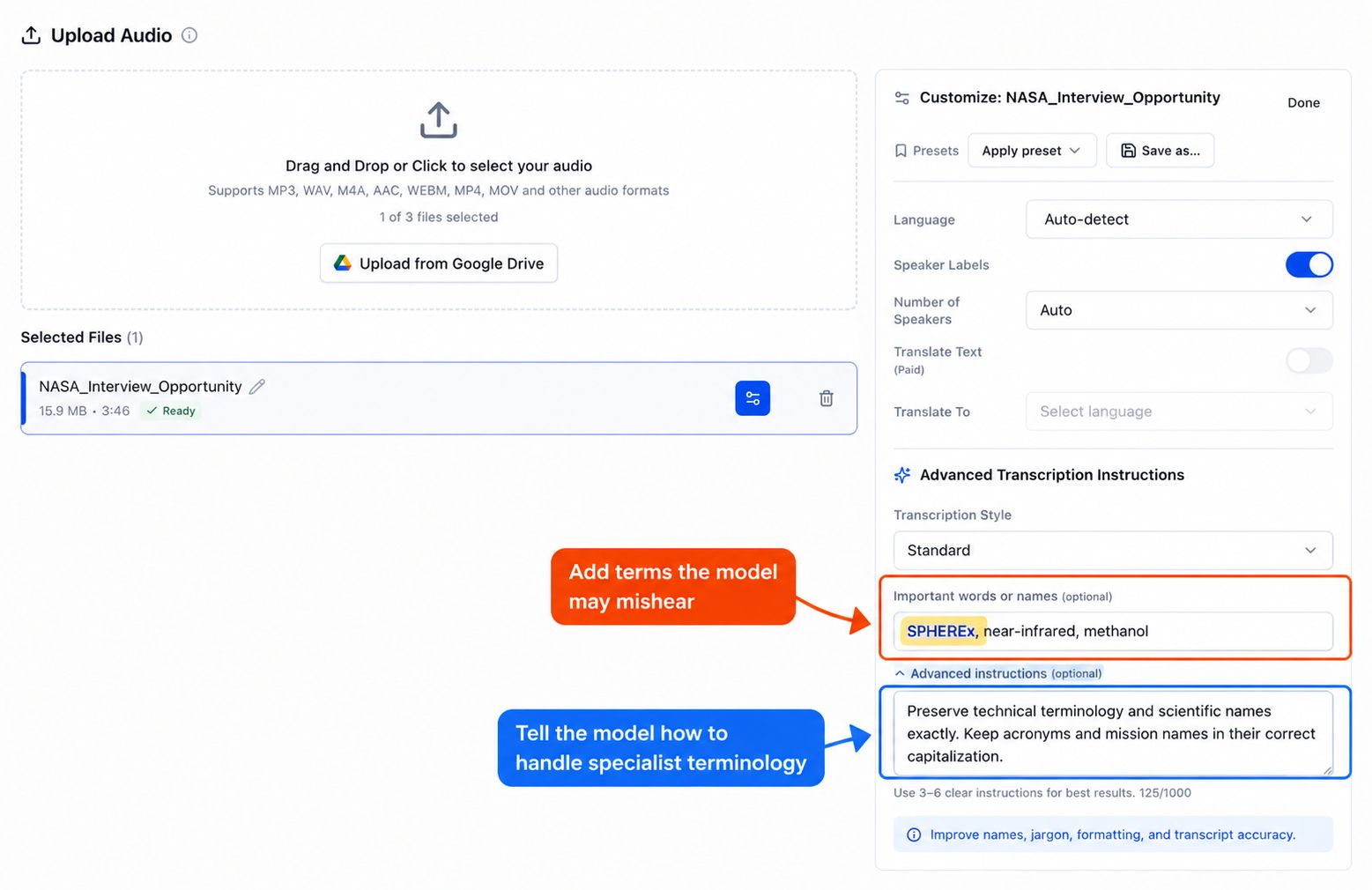
Before transcription, add any names, acronyms, or technical terms the model may struggle to infer from the audio alone. WhisperAI's Important words or names field accepts up to 100 custom terms per file.
This matters because a caption extractor can only give you the caption track it receives. Re-transcription gets another attempt at the audio, this time with context YouTube didn't have.
For a casual video, that may save one correction. For interviews, technical lectures, medical recordings, or product demos full of specialist terms, it can save you from fixing the same mistake throughout the transcript.
Step 4: Tell it who’s speaking
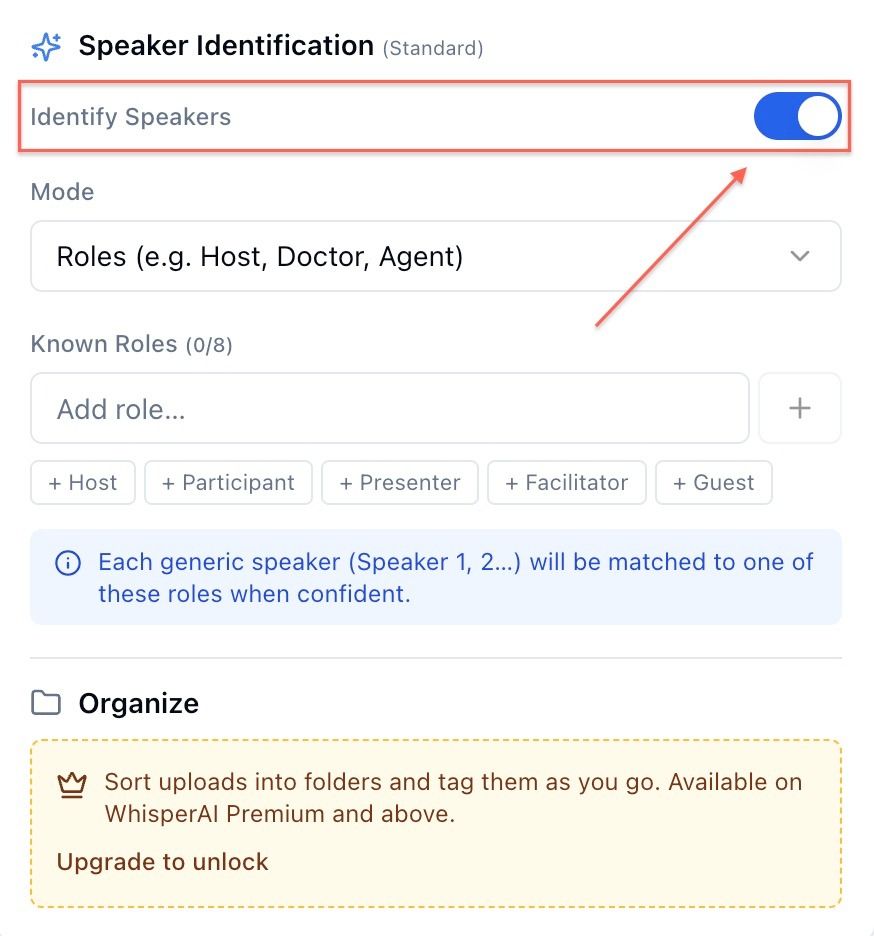
For interviews, panels, or podcasts, enable speaker identification before you transcribe. WhisperAI separates speakers automatically and can match them to roles such as Host, Participant, Presenter, or Guest.
That turns a wall of text into a conversation you can actually follow, instead of leaving you to work out who said what afterward.
Step 5: Export the transcript
Once the transcript is ready, give it a final pass in the built-in editor. You can click into the text to correct wording or formatting, with word-level timestamps helping you check a questionable phrase against the recording.
Then decide what the transcript needs to become.
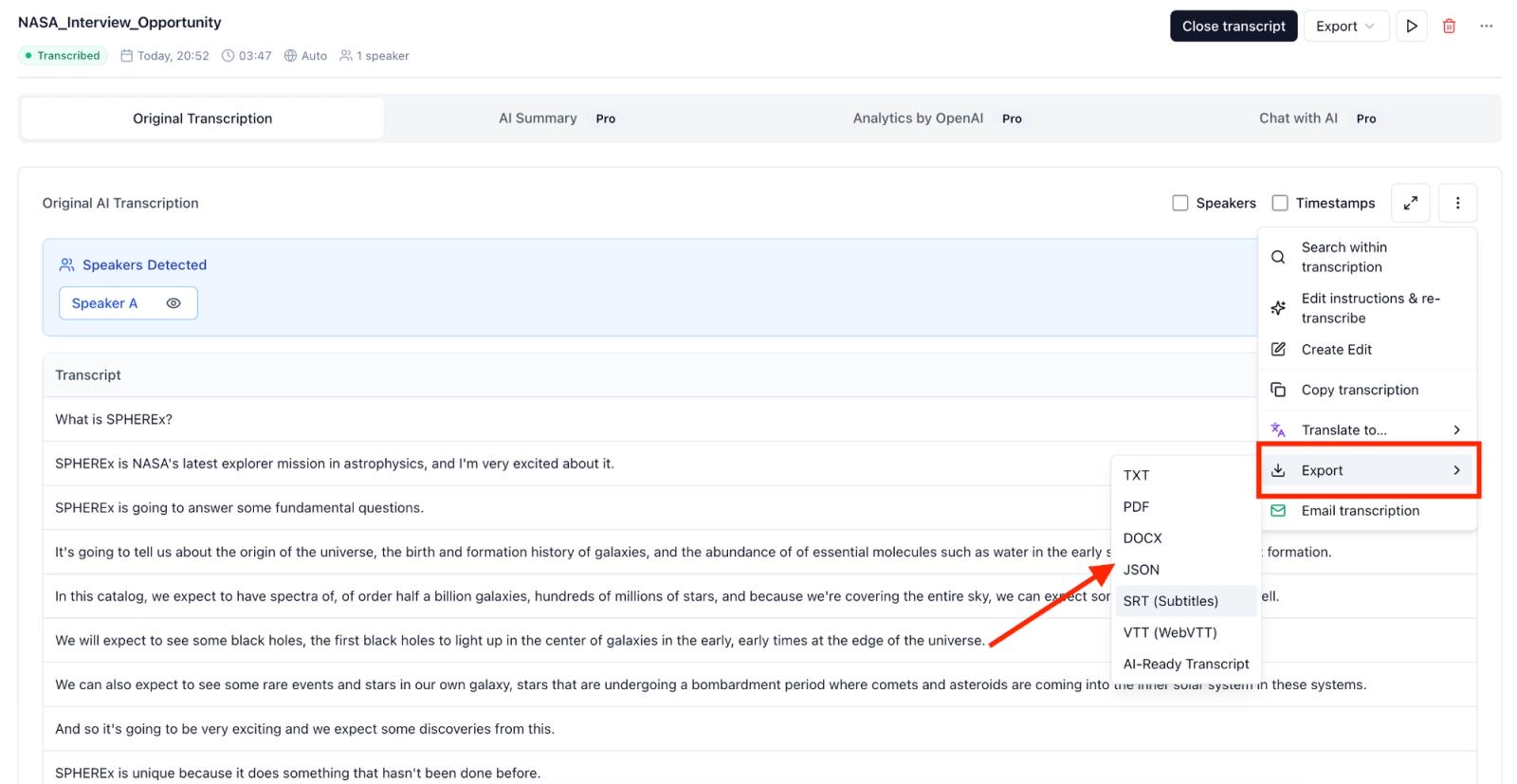
| Format | Use it for |
|---|---|
| TXT | Clean reading, notes, or pasting elsewhere |
| PDF / DOCX | Editing, sharing, or keeping a document copy |
| SRT / VTT | Timed captions and subtitles |
| JSON | Further processing or automation |
If you export as SRT or VTT, you can use the file to upload captions to YouTube Studio.
There is also an AI-Ready Transcript option for handing the finished transcript to an AI tool.
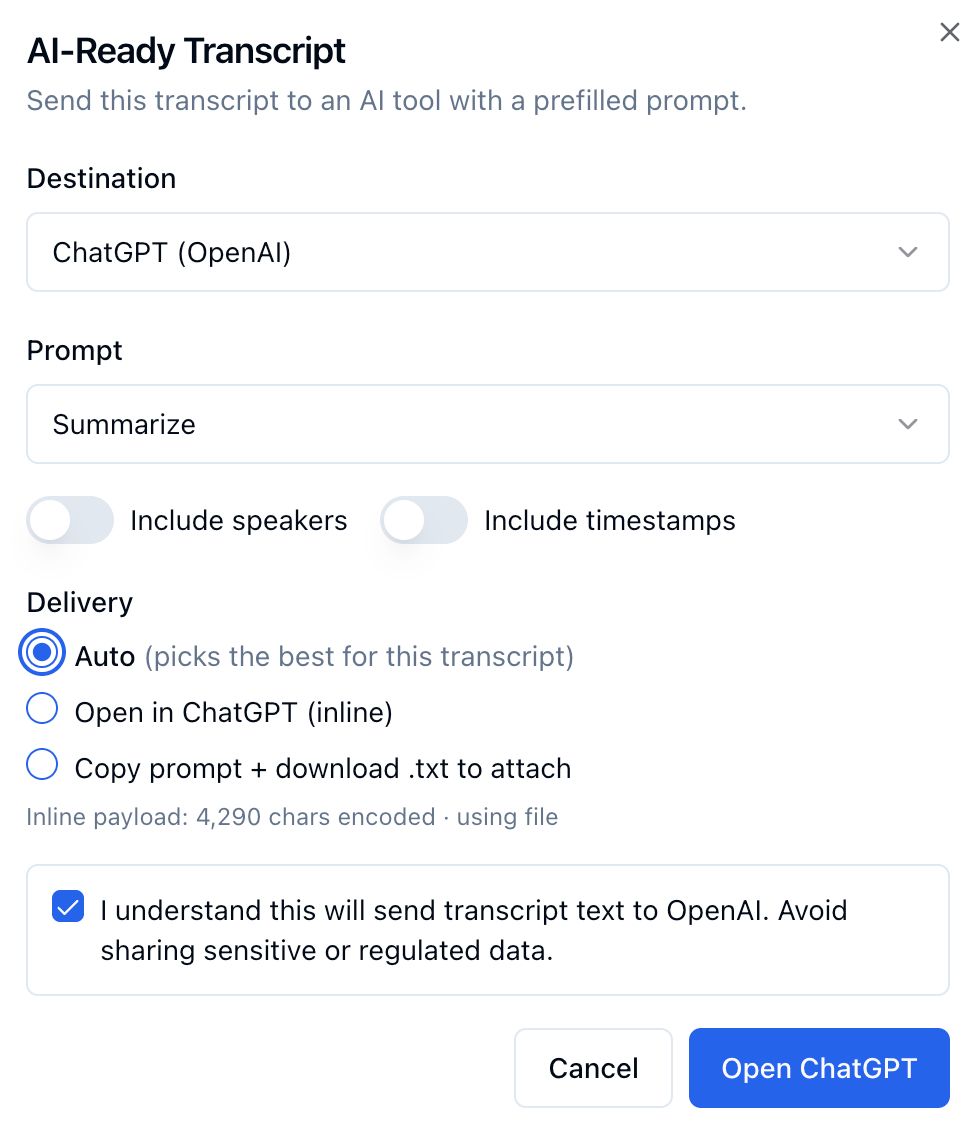
You can send it to ChatGPT/ Claude/ Gemini with a prefilled prompt, choose whether to include speakers and timestamps, and either open it inline or download the transcript as a TXT file to attach.
If you spot a recurring mistake before export, change the instructions and re-transcribe instead of carrying the error into the final file.
For a quick personal summary, the free extractors are fine. For anything you will quote, publish or file, the custom-vocabulary and speaker-label pass is the difference between a finished document and another hour of cleanup.
Can you transcribe a YouTube video for free?
Yes. If the text YouTube gives you is already good enough for the job, spending money to recreate it doesn't buy you much.
If the transcript is usable but messy, you can also paste the copied text into ChatGPT or Claude to remove awkward line breaks, organize it, or summarize it. Just remember that this is cleanup, not re-transcription. An AI writing tool cannot reliably recover words that YouTube misheard unless it also has access to the original audio.
The calculation changes when the output has a higher standard. Something you're skimming for yourself can tolerate rough edges that a client deliverable, published interview, or reusable dataset can't. Free plans and trials can cover some of that gap, but what they include varies by service.
Why should you transcribe a YouTube video?
Speech is good for listening, but awkward to work with. Once it’s transcribed, a lecture can become study notes, an interview can become source material, and a demonstration can become written instructions without repeatedly returning to the recording.
It also gives people another way to consume the material. One study found that 71% of students without hearing difficulties use captions, primarily to help them focus and retain information.
The real advantage is control. Audio and video move at the speaker’s pace, while a transcript lets you move at yours. You can find what matters, ignore what doesn’t, and take the useful parts with you.
If you're a student who'd rather capture your own classes, compare these 12 apps for recording lectures, some of which turn the recording into study notes for you.
Frequently asked questions
How do I transcribe on YouTube?
Open the description and select Show transcript if the video has captions. This pulls the existing caption track into a readable panel. If there is no caption track, or the one that exists is not accurate enough, transcribe the audio directly with a dedicated tool instead.
Is YouTube transcription free?
Viewing the built-in transcript is free whenever captions exist. What it might cost you instead is accuracy. You get the punctuation and structure the caption engine provides, no reliable speaker labels, and any words it mishears remain wrong when you copy the same caption track.
How can I transcribe YouTube audio?
Extract the audio or video file first, then run it through a transcription tool rather than relying on YouTube's own caption track. See how to get audio from a YouTube video for that extraction step.
Can ChatGPT transcribe YouTube videos?
Not from a link. Pasting a URL does not give ChatGPT access to the video's audio. ChatGPT can accept video files as attachments, including on free plans, but OpenAI says video analysis can be incomplete or inaccurate and may not cover the entire video or interpret its audio correctly. Treat it as a way to work with a short clip rather than a dedicated transcription method.
Is there an AI that can transcribe YouTube videos?
Yes. The right tool depends partly on whether you have a link or a file. Gemini has native YouTube support and can work from a pasted link. Otter requires a downloaded file, while Evernote's link-to-text tool accepts a direct YouTube link with a 60-minute limit. WhisperAI works from an uploaded file and adds controls for custom terms, speaker labels, and export formats.
How to get a transcript of an entire YouTube video?
Open the YouTube video, expand the description, and select Show transcript. This displays the full available caption transcript. If the video doesn’t have usable captions, download the video or audio and upload it to a transcription service that supports its file size and duration.
WhisperAI Team
Product