Top 10: The Best Audio Recording App for iPhone in 2026
Find the best audio recording app for iPhone in 2026. We review 10 top apps for podcasts, meetings, and interviews, from simple one-taps to pro multitrack
TL;DR: The best audio recording app for iPhone hinges on what you do after recording. For quick captures, Apple Voice Memos remains the go-to. For editing spoken-word audio, Ferrite offers the best mobile production tools. Dolby On is your friend in noisy environments. If you need searchable text and shareable notes, focus on apps with clean exports, then use WhisperAI AI Transcription. Prioritize your recording-to-transcript workflow over finding a single "best" app.
Your iPhone can already record audio just fine. The real question is whether the app you're using suits your needs. A quick thought on the go, a lengthy interview, a podcast session, and a team meeting each demand different recording capabilities.
Apple's Voice Memos has been a staple in iPhone recording since September 19, 2013. Apple promotes it as a way to turn an iPhone, iPad, or Apple Watch into a portable audio recorder for personal notes, song ideas, family moments, classroom lectures, and more, as seen in the Voice Memos App Store listing. It's the benchmark others are often compared against.
If you're also using dedicated hardware, a field recorder can outperform any phone in tough conditions. Check out this Zoom H6essential recorder review for more on that side of things.
The best audio recording app for iPhone isn't about having the nicest interface. It's about giving you audio you'll actually want to transcribe, edit, and use later.
1. Apple Voice Memos
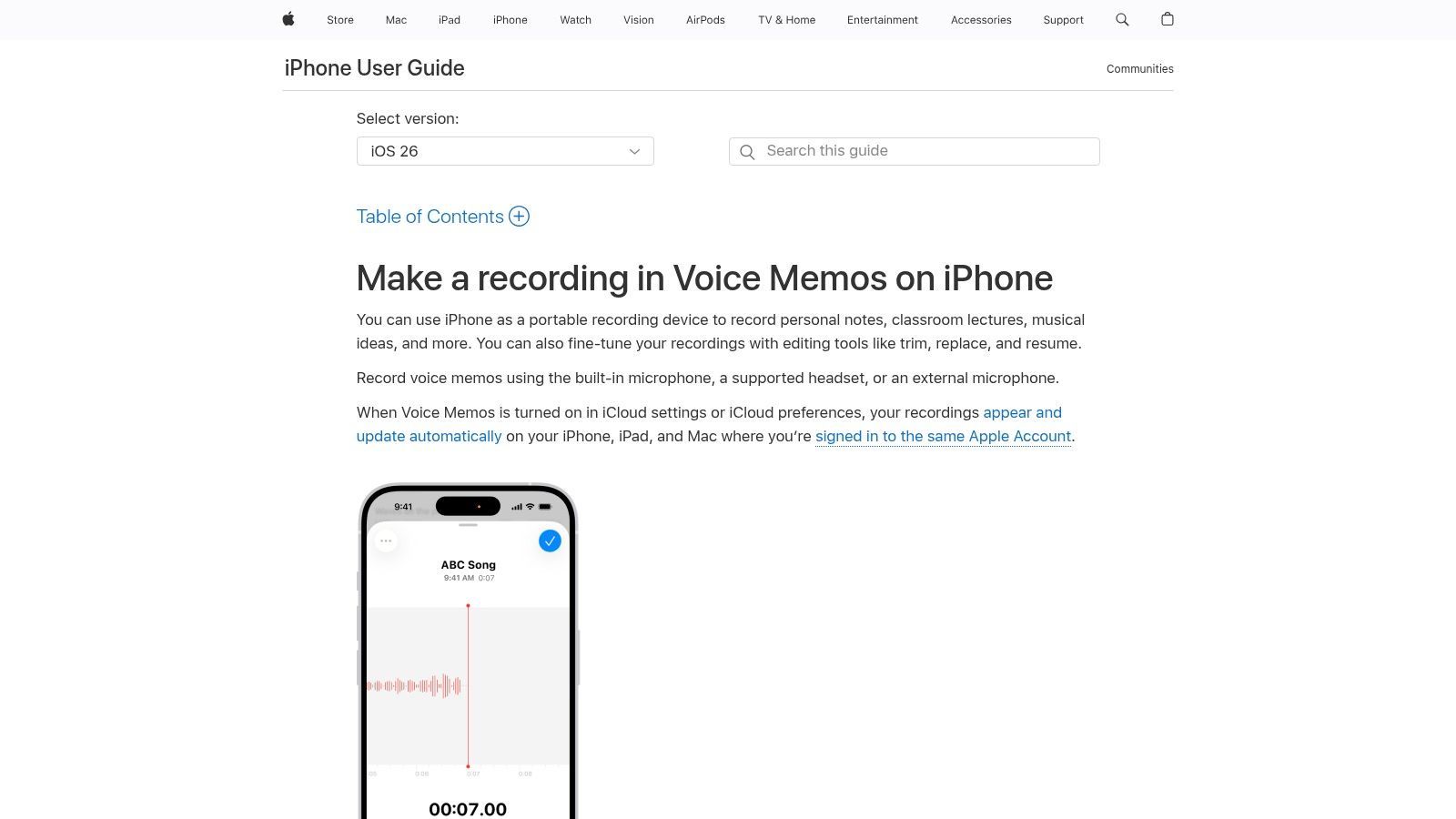
Often, Voice Memos is both the starting and finishing point for many users. It's not about being lazy; it's about accessibility. The app is pre-installed, launches quickly, and simplifies recording. Apple's iPhone Voice Memos guide covers recording, trimming, replacing sections, and sharing.
This ease is crucial in everyday use. In a meeting, when you need to capture a decision instantly, a one-tap recording is better than a more powerful app buried in a folder.
Why it still works
Voice Memos is ideal for lectures, meetings, personal notes, quick interviews, and capturing ideas. It syncs effortlessly across Apple devices, and exporting files for later processing is straightforward. If you need a clear path to text, this guide on how to transcribe Apple Voice Memos is helpful.
- Best for speed: Open it and record. That's still its biggest advantage.
- Best for Apple users: Seamless support across iPhone, iPad, Mac, and Apple Watch makes it easy to capture first and organize later.
- Best for basic cleanup: Trim and replace are enough for simple edits, but not for more complex production work.
The limitations become clear if you go beyond note-taking. Metadata is sparse, editing is basic, and it's not designed for multitrack storytelling or detailed speech cleanup. Voice Memos is a reliable capture tool but not a substitute for a full studio.
2. Ferrite Recording Studio
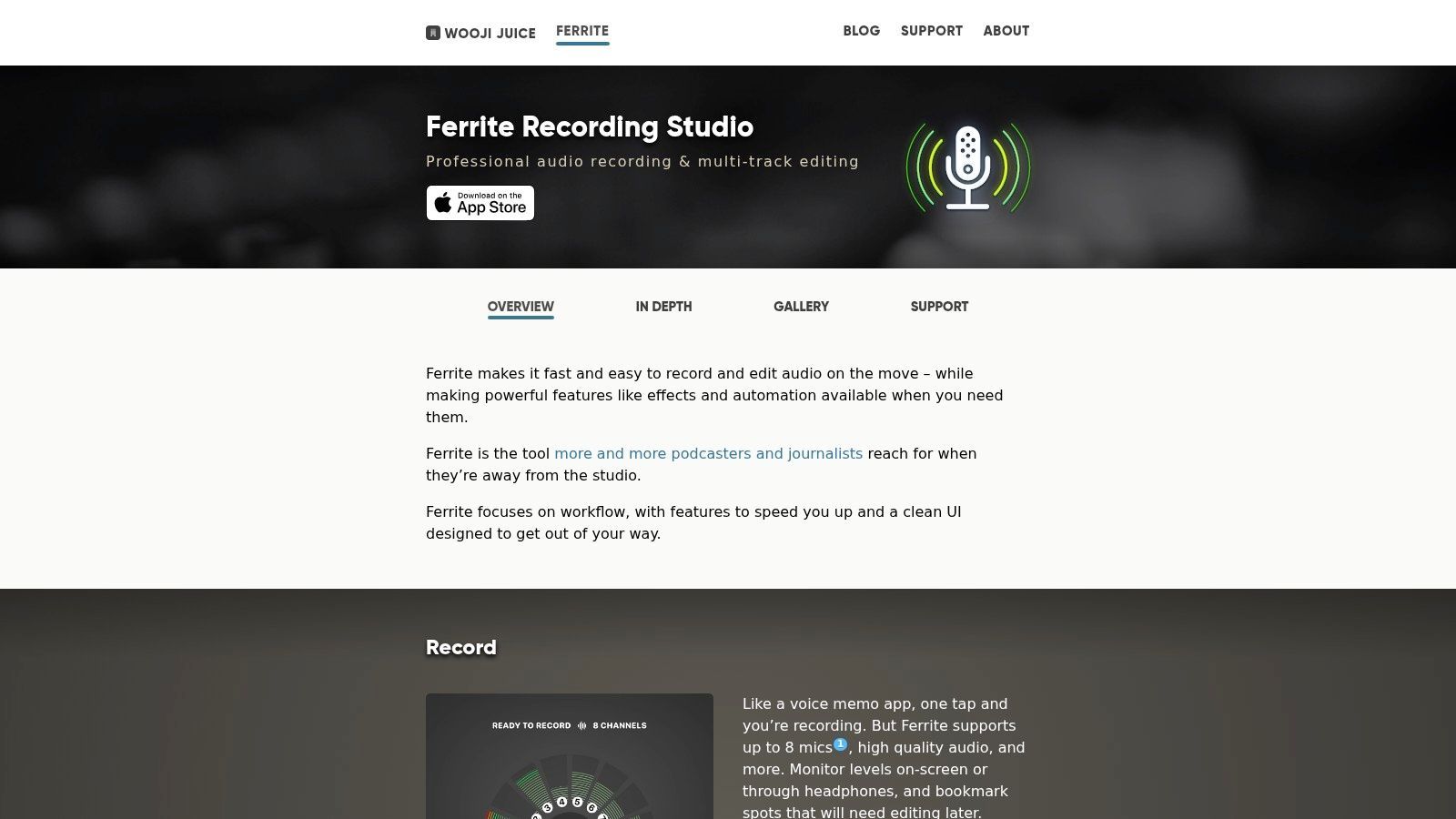
Ferrite is my go-to when the iPhone isn't just for recording but also for editing. It's a favorite among spoken-word producers, journalists, and mobile podcasters because it handles long recordings, bookmarks, and actual editorial work. Check out its features on the Ferrite Recording Studio product page.
Ferrite is designed for voice. Many audio apps technically record well, but their workflows feel like they're meant for music production. Ferrite understands that a reporter might need to mark a quote mid-interview or that a podcast editor wants quick control over voice levels, EQ, compression, and export.
Where Ferrite earns its place
For long interviews, panel discussions, or full podcast episodes on iPhone, Ferrite is one of the best options. Its multitrack editing, automation, ducking, and chapter-aware export make it highly complete for mobile work.
Field note: Ferrite is ideal when you know the recording will need editing. If you're just capturing raw audio for transcription later, it might be more app than you need.
Ferrite's weakness isn't quality, it's complexity. New users can record right away, but getting the best from Ferrite takes time. The pro features require in-app purchases, so it's best for those who will fully utilize its editing depth.
3. Backpack Studio
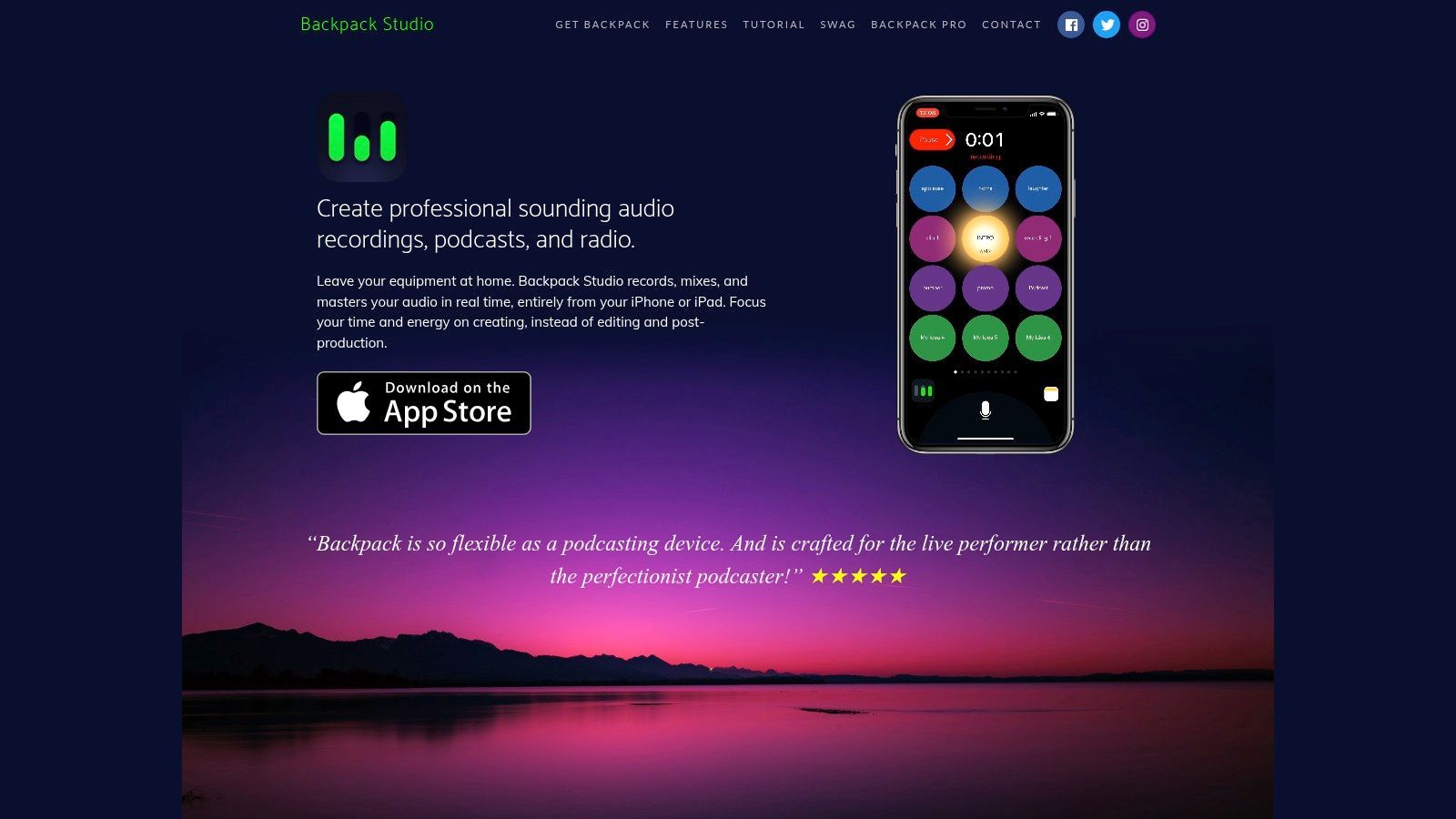
Backpack Studio takes a different approach. It's not just about being a clean recorder. It aims to help you finish faster. The app combines recording, live soundboard control, real-time processing, and publishing tools in one mobile setup, as shown on the Backpack Studio website.
It's ideal for creators who record intros, trigger music beds, mix live elements, and want a near-finished product before touching a desktop editor. If your workflow is "record once, ship quickly," Backpack Studio makes a strong case.
Best use case
Perfect for mobile podcasting, creator teams, and event coverage where live feel matters. Real-time compression, EQ, and limiting reduce the need for fixes later, and external mic support gives you more control than a basic memo app.
- Best for live-style production: Integrates intros, stingers, and effects into the recording flow.
- Best for reducing post: Real-time polish helps meet tight deadlines.
- Best for mobile publishing: It suits a creator workflow better than a note-taking one.
The downside? This style isn't universal. If you prefer to record dry audio and shape it later, the live-mix approach might feel limiting. It's also less suited for interviews where accuracy and isolation matter more than immediate packaging.
4. Dolby On
Dolby On is my go-to for those who don't want to fuss with audio engineering. You open it, record, and let Dolby's processing handle the cleanup. The Dolby On app page highlights its enhancement and easy capture approach.
It's useful in coffee shops, hallways, hotel rooms, and other imperfect locations. If your recordings often sound flat, noisy, or inconsistent, Dolby On can enhance them with minimal effort.
The trade-off with automatic polish
The benefit is clear: cleaner voice, reduced harshness, and a more polished sound immediately. This is valuable for spoken notes, social clips, rough voiceovers, or music sketches without a full setup.
But automatic processing can be a drawback. If you want untouched raw audio for later restoration or specific post-production, the app's decisions may not be ideal. Dolby On is best when convenience outweighs the need for fine control.
5. Just Press Record
Some apps excel by eliminating delays between thought and capture. Just Press Record is one of them. Its main feature is speed, as highlighted on the Open Planet Software site.
The real selling point is Apple Watch support. If your phone isn't handy or pulling it out would break the moment, recording from your wrist is invaluable. For meetings, ideas during walks, or quick verbal notes while commuting, that matters more than a feature list.
Why people stick with it
Just Press Record also shines with searchable transcripts and timestamps, which give it an edge over basic recorders when you need to find a single sentence later. It's not about editing; it's about capture and retrieval.
Fast capture beats perfect intention. If an app makes you hesitate, you'll miss ideas you never get back.
It's not a production tool and doesn't aim to be. If you need multitrack editing or detailed waveform work, look elsewhere. But if "record now, search later" is your priority, this app stays compelling.
6. AudioShare
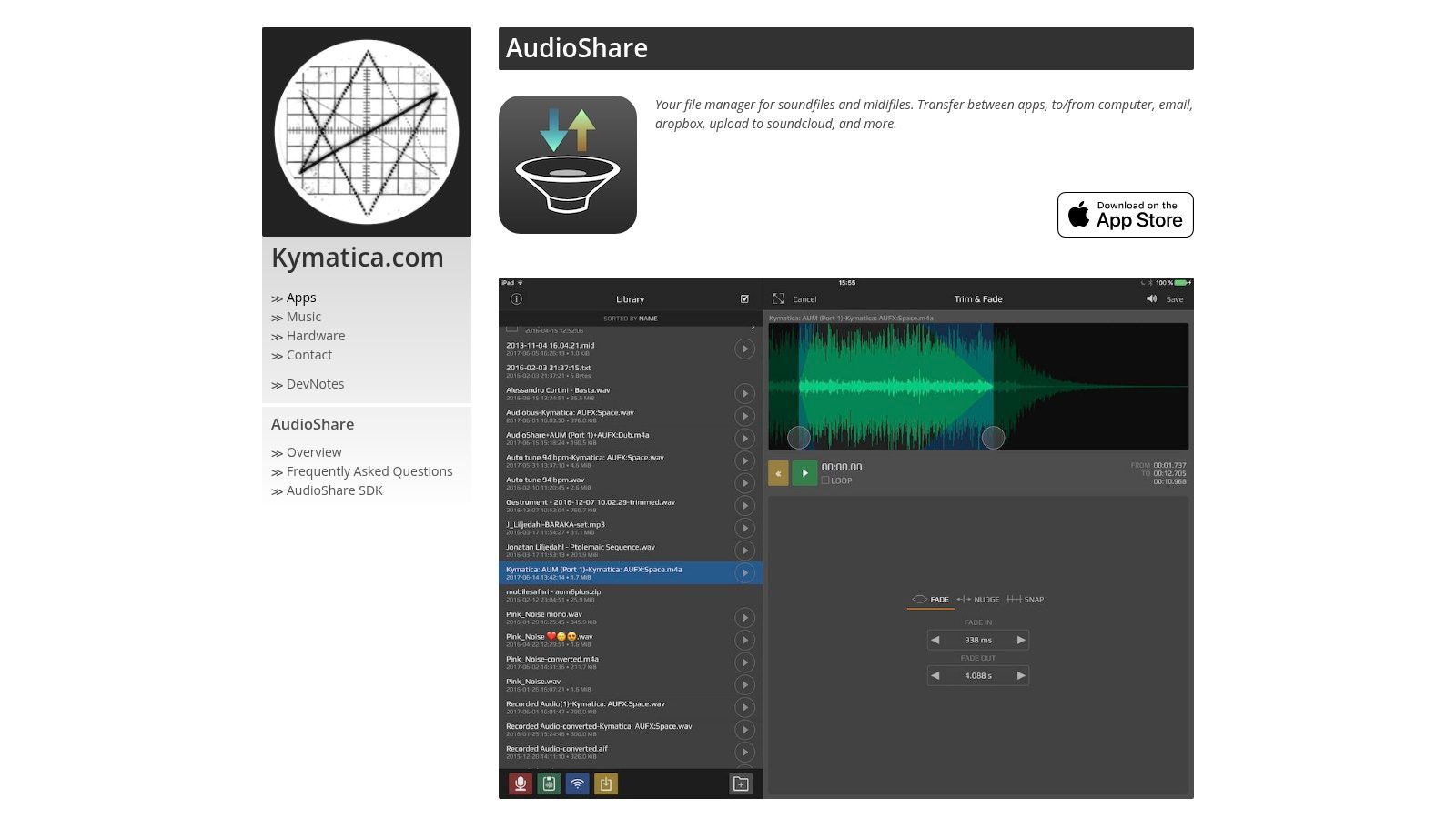
AudioShare isn't flashy, but it's incredibly useful. Producers have relied on it for years because it's like an audio utility knife for iOS. The AudioShare app page shows why. Recording, trimming, converting, normalizing, organizing, and moving files between apps are its core strengths.
If you've ever felt stuck with iPhone's file handling during an audio project, AudioShare alleviates much of that frustration. It's particularly useful when your workflow spans apps, cloud drives, and desktop systems.
Best for file-heavy workflows
AudioShare is perfect for those who record a lot, frequently move files, and value export control. It supports multiple formats and offers practical housekeeping tools without pretending to be a full DAW.
- Best for organization: It keeps your audio manageable when projects pile up.
- Best for export: Sending files to cloud storage, other apps, or a transcription workflow is straightforward.
- Best for utility: It does boring but important jobs very well.
It won't replace Ferrite or a desktop editor. The interface is more functional than polished, which is intentional. AudioShare earns its place by removing friction between recording and the next step.
7. Otter
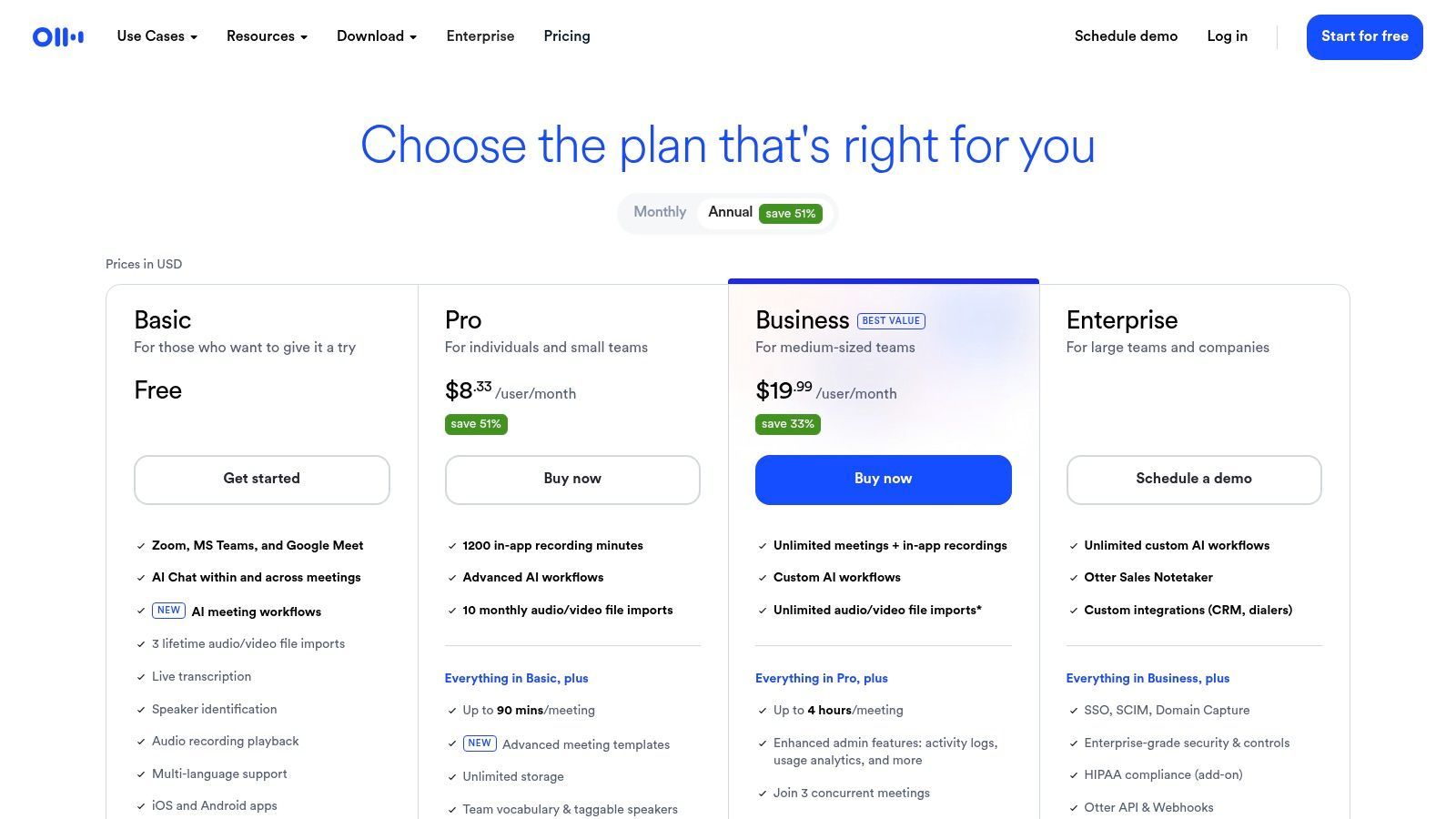
Otter is more of a note-taking and collaboration tool that also records. For teams that live in meetings, this is exactly what you need. The Otter pricing and product page outlines its transcription and collaboration features clearly.
Choosing the best audio recording app for iPhone now shifts. It's not just about microphone behavior or export format. It's about search, highlights, comments, and team access. That's a different decision altogether.
Better for notes than pure recording
Otter shines when the transcript is the main focus. Live transcription, searchable text, speaker identification, and collaborative review are invaluable in work settings where no one wants to sift through an hour of raw audio. For those comparing it to dedicated post-recording workflows, this breakdown of Otter AI transcription alternatives and trade-offs is useful.
Its limitation is that recording isn't its main strength. Editing is basic, and if raw audio quality is your top priority, you'll likely prefer a more recording-focused app. Otter excels when you need meeting memory, not production flexibility.
8. Hokusai Audio Editor
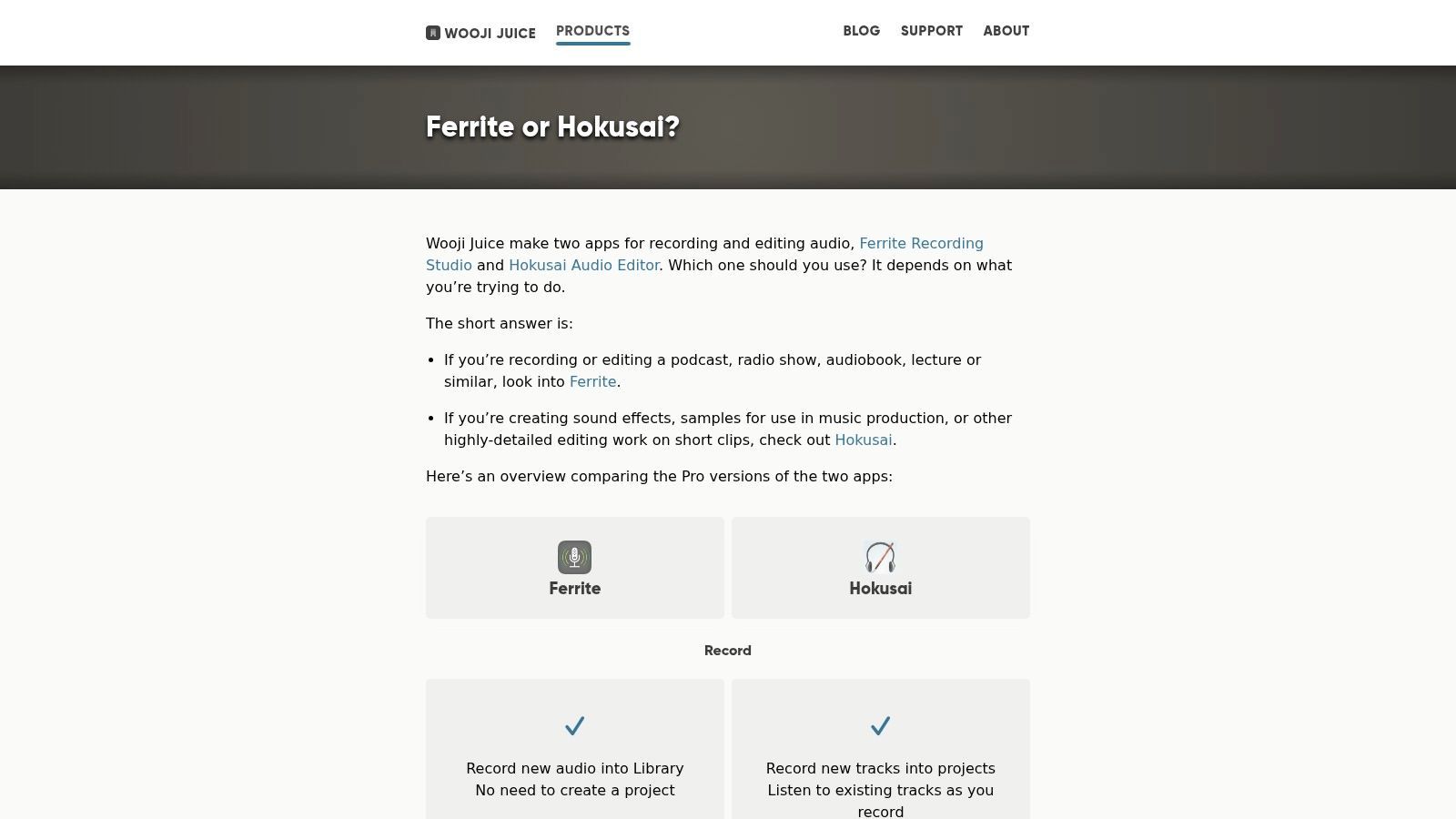
Hokusai strikes a balance. It's more capable than a memo app but lighter than a full production suite. It's great for quick edits. The Ferrite and Hokusai comparison page helps clarify its role.
I like Hokusai for short-form cleanup. If you need to cut a bad section, tighten timing, process a clip, or assemble a brief segment on your phone, it feels nimble. That's handy when you don't want to switch to a desktop just to fix one file.
Where it fits best
Think voice snippets, short promos, quick edits, narration cleanups, and compact tasks. Its time-range editing and mixdown tools handle a lot of practical jobs.
It's less convincing for long sessions. Ferrite is better for extended spoken-word projects, especially if you need more structure and endurance. Hokusai is best as a precision tool, not the center of a full podcast workflow.
9. TwistedWave for iOS
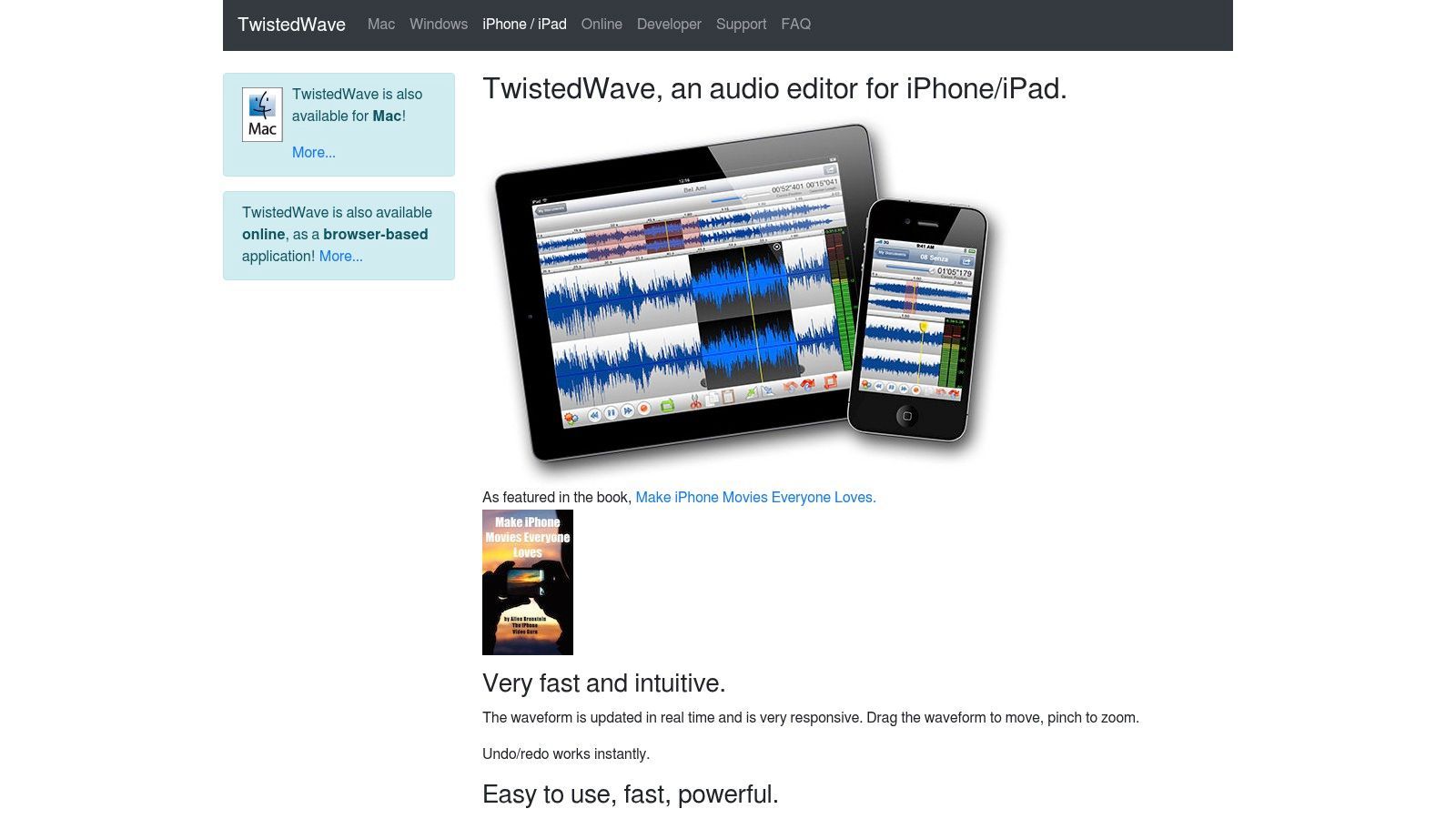
TwistedWave has a niche appeal. It offers reliable single-track recording and accurate waveform editing on iPhone. The TwistedWave for iOS page presents it as a focused editing tool, and that's exactly how it feels.
This is great for journalists, voice talent, and anyone who values clean takes over layered production. Markers, precise waveform work, and quick exports are its strengths.
What it does better than flashier apps
TwistedWave excels at delivering clean takes, easy visual editing, and reliable exports. Normalize, EQ, and compression are there, but precision is its key strength.
A lot of people don't need more features. They need fewer features that work reliably when a deadline is looming.
If you need multitrack editing on iPhone, this isn't your app. But if you record one source at a time and want precise edits, TwistedWave is a smart choice.
10. Voice Record Pro
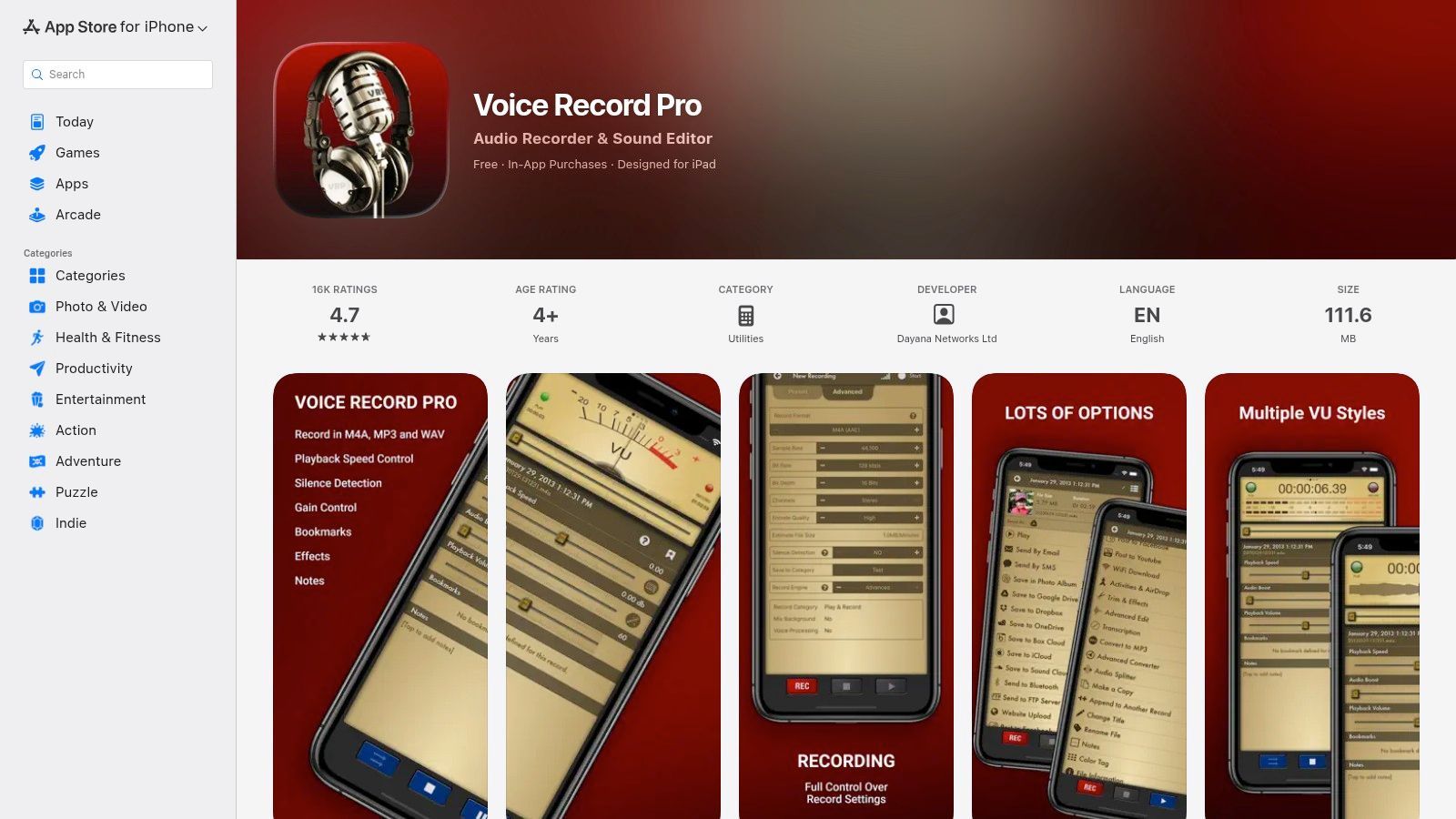
Voice Record Pro has been around long enough to gain a reputation among power users. It's often highlighted as part of the broader iPhone recorder ecosystem, not just an alternative to Apple, as noted in Rev's best iPhone voice recorder apps roundup. It's not pretty, but it's configurable.
The app offers extensive control over recording settings, formats, silence detection, bookmarks, notes, and exports. If you like tweaking sample rate, bitrate, or output format, check out the Voice Record Pro App Store page.
Best for control-first users
This app is for those who love settings menus. AAC, MP3, WAV, append and split tools, and wide export support make it practical for interviews, archives, and handoff workflows. If your next step is turning those files into text, this guide on how to transcribe recorded audio to text is the natural follow-on.
Its weakness is usability. The interface is utilitarian, and newer users might find it off-putting. But if you want control without diving into a full editor, Voice Record Pro still does a lot.
Top 10 iPhone Audio Recording Apps, Comparison
| App | ✨ Key features | ★ Quality | 👥 Best for | 💰 Price/Value | 🏆 Standout |
|---|---|---|---|---|---|
| Apple Voice Memos (built-in) | One‑tap capture, iCloud sync, trim, stereo | ★★★☆☆ Reliable, basic noise reduction | 👥 Casual users, quick meetings | 💰 Free (preinstalled) | 🏆 Seamless Apple ecosystem |
| Ferrite Recording Studio | Multitrack (32), auto‑levelling, noise reduction | ★★★★☆ Pro-grade mobile recording | 👥 Podcasters, journalists, producers | 💰 Freemium (IAP for pro) | 🏆 Broadcast features in mobile UI |
| Backpack Studio | Live soundboard, real‑time mix, AI finishing | ★★★★☆ Polished live‑mix capture | 👥 Live podcasters, creator teams | 💰 Subscription / IAP | 🏆 Record-once, finish-fast workflow |
| Dolby On | Auto processing (EQ, NR, compression), lossless export | ★★★★☆ Cleaner raw captures w/o tweaking | 👥 Non‑engineers, mobile musicians | 💰 Free | 🏆 Dolby audio processing for instant polish |
| Just Press Record | One‑tap + Apple Watch, on‑device STT, iCloud | ★★★☆☆ Extremely fast capture, basic STT | 👥 Note-takers, watch users | 💰 One‑time purchase | 🏆 Best watchOS capture + local transcripts |
| AudioShare | High‑res recording, file manager, Inter‑App export | ★★★★☆ Reliable, high‑quality file handling | 👥 Producers, multi‑app workflows | 💰 Paid one‑time | 🏆 Best-in-class iOS audio file management |
| Otter (Otter.ai) | Live transcription, speaker ID, collaboration | ★★★★☆ Strong team transcription + search | 👥 Teams, meetings, interviews | 💰 Freemium → Subscription | 🏆 Collaboration & calendar integrations |
| Hokusai Audio Editor | Multitrack timeline, effects, time‑range edits | ★★★☆☆ Lightweight, surgical editing | 👥 Hobby editors, quick clip work | 💰 Free‑to‑start (IAP) | 🏆 Fast, capable clip editing on iPhone |
| TwistedWave for iOS | Precise waveform editing, markers, effects | ★★★★☆ Accurate single‑track editing | 👥 Voice talent, journalists | 💰 Paid app | 🏆 Precise waveform tools on mobile |
| Voice Record Pro | Configurable formats, silence detect, exports | ★★★☆☆ Very configurable; utilitarian UI | 👥 Power users needing exports | 💰 Free w/ ads + IAPs | 🏆 Extremely flexible capture/export settings |
From Recording to Transcript: Your Complete Audio Workflow
You finish an interview on your iPhone, open the file later, and realize the important job has not started yet. You still need clean audio, a reliable export, an accurate transcript, and a document someone can use.
That's why the best audio recording app for iPhone depends on your workflow. If the end product is a meeting summary, article draft, research notes, or searchable archive, the recording app is only the first decision. Choose the one that gets you from capture to transcript with the least hassle.
App reviews now reflect this shift. Zapier's guide to the best iPhone voice recorder apps highlights tools that give you control over input gain, external mics, file formats, and exports. These details impact more than audio quality; they determine how much cleanup you need before transcription, especially with clipped speech, room noise, or inconsistent levels.
The same pattern shows up on the transcription side. Letterly's roundup of voice recorder apps for iPhone with transcription context points out a practical reality. Many useful recordings start in one app and get transcribed elsewhere. That's normal. A two-step setup often works better than forcing one app to handle capture, editing, transcription, and sharing.
A simple workflow usually looks like this:
- Record with the right level of control: Voice Memos is fine for quick notes and interviews in quiet rooms. Ferrite is better for spoken-word projects you might edit later. Dolby On is great for rougher environments where you want cleaner audio without manual tweaks. Voice Record Pro is handy when format and export settings matter.
- Export a file that will hold up: WAV is the safe choice for top quality. A high-quality M4A is often better if you need smaller files and fast sharing.
- Transcribe in a dedicated tool: Built-in transcription is convenient, but dedicated transcription software is easier to use when the transcript is the main deliverable.
- Clean up and distribute the final text: Once audio becomes searchable text, it's much faster to pull quotes, tag speakers, summarize meetings, or turn raw conversations into publishable notes.
WhisperAI AI Transcription fits into that second half. Upload the file from Voice Memos, Ferrite, Dolby On, or another recorder, then work from an editable transcript instead of replaying the same audio repeatedly. It's a better setup for interviews, lectures, client calls, and production notes where the final value is in the text, not just the recording.
The practical rule: Use the simplest recorder that still delivers clean audio for the job. For casual notes, extra controls slow you down. For material you plan to transcribe, publish, or archive, better capture settings save time later. Choosing your iPhone recording app this way leads to a smoother transition from raw audio to a finished document.