A Creator’s Guide to Captions on YouTube in 2026
Unlock more views and reach with our guide to captions on YouTube. Learn to create, edit, and optimize SRT files for maximum impact and SEO.
tl;dr: If you’re not using accurate, custom captions on your YouTube videos, you’re missing out on views, watch time, and a huge SEO boost. YouTube’s auto-captions are often inaccurate and hurt your channel more than they help. The best strategy is to use an AI tool like whisperai.com/ai-transcription to create a highly accurate transcript, give it a quick human proofread, and upload it as an SRT file. This simple process makes your videos accessible, helps them rank higher in search, and opens them up to a global audience.
Let's get one thing straight: if you want more views, you need to be using captions. For a long time, creators treated them as an optional accessibility feature. That mindset is now a major roadblock to growth.
Accurate captions are one of the most powerful tools in your arsenal. They boost watch time, make your videos understandable to millions more people, and give your YouTube SEO a serious kick. In a world where so many videos are watched on a phone with the sound off, captions are what grab and hold attention.
Think of them as a complete, searchable script for your video. You’re literally telling YouTube’s algorithm what your content is about, making it easier to recommend. And with modern tools like AI-powered transcription from WhisperAI, creating high-quality captions is faster and easier than you might think.
Why Captions Are a Creator’s Secret Weapon
If you’re not adding captions on YouTube, you’re leaving views on the table. It’s that simple.
So many of us watch videos in noisy places, quiet offices, or just prefer to read along while we listen. When you skip captions, you're putting up a wall between your content and a huge chunk of your potential audience who might otherwise click away.
It’s About More Than Just Accessibility
Yes, the most important reason for captions has always been making videos accessible for Deaf and hard-of-hearing viewers. That's non-negotiable.
But the story doesn't end there. The benefits now ripple out to directly affect your channel's most important metrics.
- Higher Watch Time: When someone can't turn on their audio, captions are the only thing keeping them from scrolling past. More engagement means higher watch time, which is gold to the YouTube algorithm.
- Better SEO: YouTube can’t watch your video, but it can read your caption file. This gives the algorithm a full transcript to index, helping you rank for all the specific keywords and phrases you mention.
- Deeper Understanding: For any content that's even slightly technical or educational, captions are a game-changer. Viewers absorb information much better when they can see and hear it, especially with complex terms.
- A Truly Global Audience: Captions instantly open your videos up to non-native speakers and viewers in sound-sensitive environments. Your potential audience just got a lot bigger.
A video without captions is an incomplete video. You're giving the algorithm less to work with and delivering a worse experience for a huge number of viewers.
Manual Captions vs YouTube Auto-Captions
While YouTube's auto-captions are a starting point, they often fall short. We've all seen the hilarious (and sometimes brand-damaging) mistakes they can make. To really get the benefits, you need accuracy. Here’s a quick comparison of why professional captions, whether done by a human or a top-tier AI tool like Whisper, are in a different league.
| Feature | Professional Manual/AI Captions (e.g., WhisperAI) | YouTube Auto-Captions |
|---|---|---|
| Accuracy | 95-99% accuracy, capturing nuance and technical terms. | Often 60-70% accurate, with frequent errors. |
| SEO Impact | Excellent. Provides a clean, keyword-rich transcript. | Poor. Errors can confuse the algorithm. |
| Viewer Experience | Smooth and professional. Builds trust and aids comprehension. | Distracting and confusing. Can frustrate viewers. |
| Punctuation & Grammar | Correct and natural. Follows proper grammar and punctuation. | Often missing or incorrectly applied. |
| Brand Perception | Polished and professional. Shows you care about quality. | Careless and unprofessional. Can hurt your credibility. |
| Effort | Requires an extra step (transcribe, edit, upload). | Automatic, but requires heavy editing to fix. |
The takeaway is clear: YouTube's auto-captions are better than nothing, but they can't compete with the quality and impact of a dedicated captioning process. The small amount of extra effort pays for itself many times over in viewer satisfaction and SEO.
The Numbers Don’t Lie
The boost from captions isn't just a theory—it's backed by some pretty staggering numbers.
Even years ago, YouTube’s own data showed that videos with captions got up to a 12% increase in watch time. Fast forward to today, and the opportunity is even bigger. YouTube is on track to hit 2.7 billion monthly active users by 2026. Think about that. Over 122 million people are watching every single day, consuming a mind-boggling 1 billion hours of video daily.
In massive markets like India (491 million users) and the U.S. (254 million users), a huge portion of that audience either needs or prefers captions. With about 60% of U.S. internet users on YouTube every day, making your content effortless to consume is no longer optional.
These aren't just vanity metrics; they represent real people you could be reaching. What was once a "nice-to-have" is now an essential part of a successful YouTube strategy.
How Captions Boost Your YouTube SEO
Let’s talk about something many creators overlook: how captions on YouTube can seriously boost your video’s discoverability. When you add captions, you’re not just helping people watch with the sound off. You're literally handing YouTube a word-for-word transcript of your video.
This is a huge deal for the algorithm. Search engines like Google and YouTube can't watch your video to understand what it's about. But they can absolutely read it. By indexing that transcript, your video suddenly has a chance to rank for all the long-tail keywords you naturally say, not just the ones crammed into your title and description.
Think about it. Say you’re filming a 20-minute tutorial and mention a super-specific, helpful tip somewhere in the middle. Without captions, that golden nugget is invisible to search. With an accurate caption file, though, the algorithm can connect a viewer's niche query directly to that exact moment in your video. That's how you get found.
Turning Spoken Words into Searchable Keywords
This is exactly why YouTube’s default auto-captions just don’t cut it. They’re often riddled with errors, which means you're feeding the algorithm messy, unreliable data. It's like giving someone a map where half the street names are misspelled—it’s not going to lead them to the right place.
Taking the time to create accurate captions, whether you do it by hand or use a high-quality tool, is a direct investment in your channel’s future. You're turning every word you speak into a potential doorway for a new viewer to find you.
Accurate captions transform your audio from a black box into a searchable, indexable asset. You're not just helping viewers; you're feeding the algorithm exactly what it needs to promote your content.
And the numbers back this up. We've seen that videos with captions rank higher in search, contributing to a 30% boost in organic search traffic, according to 2023 YouTube Analytics data. With a projected 2.85 billion users by 2026 and 600 million monthly visits from paid search, you can't afford to ignore this. While creators already see about 9 million organic visits monthly, captioned videos are shown in 2x more suggested feeds. You can discover more about these powerful YouTube statistics and what they mean for your strategy.
Accuracy Is the Key to Unlocking SEO Potential
The difference between junk auto-captions and a clean, professional transcript is night and day for SEO. The algorithm rewards clarity and precision, plain and simple.
Just look at this example from OpenAI's Whisper, the engine that powers many top-tier transcription tools. It shows just how well it can handle complex, technical language.
This is the kind of stuff YouTube’s native system often fumbles—technical terms, unique names, or even just fast-paced speech. When your captions are this accurate, every specialized term in your video becomes another keyword you can rank for, massively expanding your reach.
This is where a solid workflow, maybe using a tool like the one at WhisperAI for AI transcription, becomes a game-changer. By starting with a near-perfect transcript, you give the algorithm the cleanest possible data.
- Proper Nouns: It actually gets the names of people, brands, and products right.
- Technical Jargon: It correctly spells out niche terminology from your industry.
- Punctuation and Flow: It adds commas and periods, making the text readable for both people and search crawlers.
This isn’t just about avoiding a few embarrassing caption fails. It's about giving Google and YouTube a crystal-clear understanding of your content, which is what ultimately drives more of the right kind of viewers to your channel.
My Go-To WhisperAI Captioning Workflow
Alright, theory is one thing, but how does this actually work in practice? I'm going to walk you through my personal, battle-tested workflow for creating top-notch captions. This is the exact process I use to turn what used to be a tedious chore into a quick, 15-minute task that pays huge dividends in accessibility and SEO.
My method hinges on one core idea: use AI for the heavy lifting and a human (that’s me!) for the final polish. The goal is to get as close to 100% accuracy as possible without spending hours manually typing everything out.
From Raw Audio to Polished Transcript
The moment my video edit is locked, I export just the final audio track. An MP3 or WAV file is perfect.
From there, I head straight to my favorite transcription tool, WhisperAI for professional AI transcription. I've tried a lot of services, and the accuracy I get from it is just on another level, especially with industry jargon or the occasional stumble over my words. This one step completely replaces the old, painful process of manual transcription. If you're new to this, learning how to transcribe video to text is the foundational skill for a modern video workflow.
Once the audio is uploaded, the AI does its thing. In just a few minutes, I have a full, timestamped transcript. This is where the real value comes in—the quick human review.
No AI is perfect. It won't know the unique spelling of a guest's name, a niche product I'm reviewing, or an inside joke I share with my audience. So, I take about 5 to 10 minutes to scan through the text in the editor, cleaning up those little details. I'm not transcribing; I'm proofreading. It's a small time investment that prevents embarrassing errors and makes the captions truly professional.
Your captioning workflow should be about efficiency, not shortcuts. The goal is to achieve maximum accuracy with minimum effort. Combining a powerful AI for the heavy lifting with a quick human review for nuance is the most effective way to do it.
After a final once-over, I'm ready to export. But I don't just copy and paste the text.
Exporting the Broadcast-Ready SRT File
The last step before heading over to YouTube is to export the transcript as an SRT (SubRip Subtitle) file. This isn't just a plain text document. It’s a special file format that contains the caption text and the precise timecodes for when each line should appear and disappear from the screen.
Why is this little file so critical?
- Perfect Timing: The timecodes ensure your captions are perfectly synced with your speech. No more lag.
- Portability: You can upload this same SRT file to other platforms like Facebook or LinkedIn.
- Professional Standard: It's the universal format for web and broadcast video.
This SRT file is the final, polished product. It's clean, perfectly timed, and gives the YouTube algorithm exactly what it needs to understand, index, and rank my video.
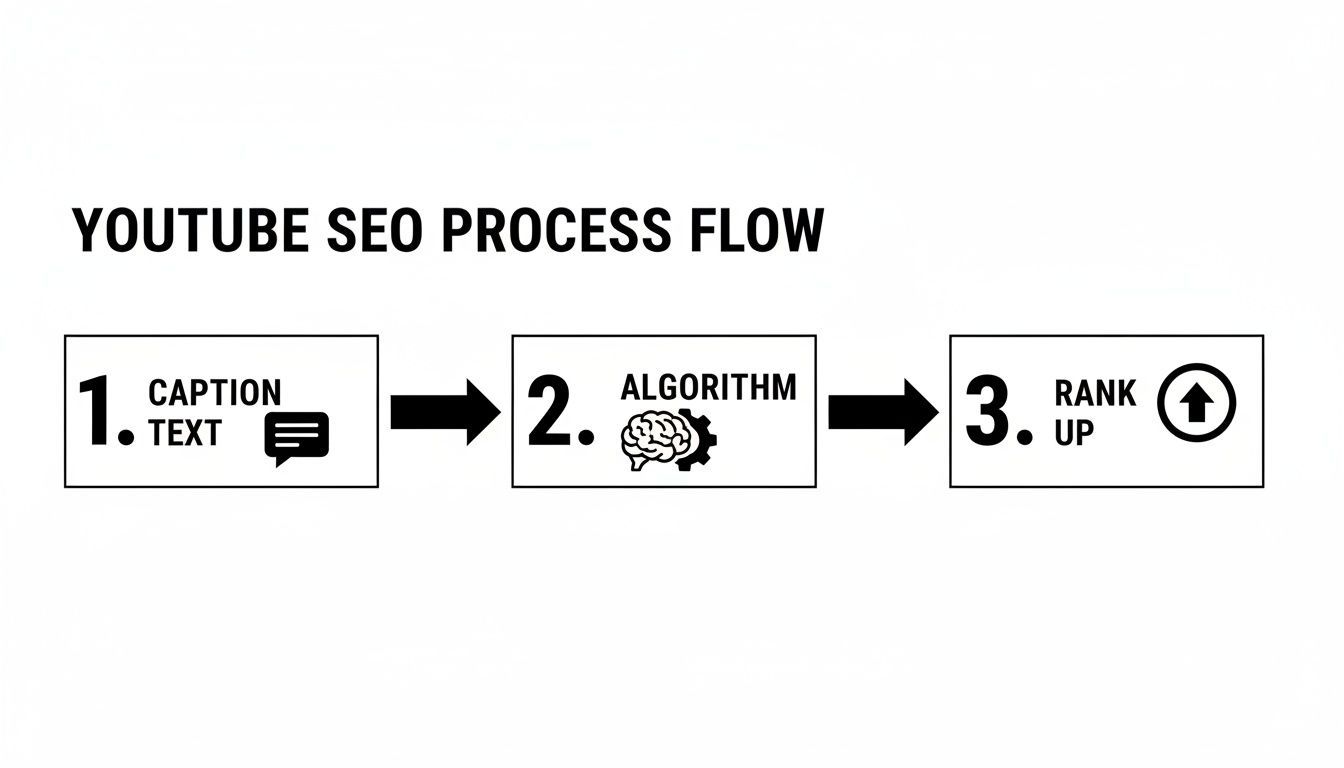
As you can see, the process is simple: feeding the algorithm high-quality data from your captions directly helps it rank your video for relevant searches.
Instead of fighting with YouTube's clunky editor, I now have a professional-grade file ready to upload in minutes. This gives me complete control and ensures my captions on YouTube are a powerful asset, not an afterthought. For a deeper dive, our guide on creating an SRT file is a great resource.
Quick Tip: Once you have your SRT file from a tool like WhisperAI, jump into YouTube Studio. Find your video, go to the 'Subtitles' tab, pick your language, and upload the file. Make sure you select 'With timing' to keep everything synced. I always give the first and last captions a quick check for sync and fix any typos before hitting publish.
Uploading and Managing Your SRT Files in YouTube Studio
Alright, you've put in the effort to create a polished, accurate SRT file. Now it's time for the final piece of the puzzle: getting those captions live on your YouTube video.
This is the part that directly impacts your audience, so it's worth getting right. The good news is that YouTube Studio makes the upload process pretty painless once you know the exact steps. Let’s get your captions from your computer onto your video.
Navigating to the Subtitles Tab
First, open up your YouTube Studio dashboard. On the left menu, click on "Content," which will bring up all your videos.
Find the video you're working on and click its thumbnail or title. This takes you to the video details page. Look to the left again for a smaller menu with options like "Details," "Analytics," and "Editor." You want to click on "Subtitles." This is your home base for everything captions-related for this video.
Pro Tip: You'll probably see YouTube's own auto-captions already sitting there. Don't worry about them. We're about to replace that rough draft with your much more accurate SRT file.
On the Subtitles page, you’ll see any existing tracks. To add yours, click the "ADD LANGUAGE" button and choose the language your video is in (for example, English (United States)).
A new row for that language will pop up. Over on the right, under the "Subtitles" column, click the blue "ADD" link.
Uploading and Syncing Your SRT File
This is where the magic happens. After you click "ADD," YouTube gives you a few choices:
- Upload file: This is the one we need.
- Auto-sync: Use this if you only have a plain text transcript and want YouTube to guess the timings. It can be hit-or-miss.
- Type manually: The incredibly slow, old-fashioned way of typing out every single caption.
Go ahead and select "Upload file."
A small window will ask if your file has timings. Since you’re using a properly formatted SRT, it absolutely does. Choose "With timing" and click "CONTINUE." Now, just find the SRT file on your computer and upload it.
YouTube will instantly process the file and drop all your timed captions right into its editor. Because you used an SRT, all the sync work is already done. Your text should line up perfectly with the audio.
Final Checks and Last-Minute Edits
Even with the best tools, I always do a quick quality check before publishing. My personal rule is to always check the very first and very last caption lines. These are the most common places for timing issues to pop up. Just play the first few seconds and the last few seconds of your video to be sure they appear and disappear right on cue.
Spotted a typo you missed earlier? No sweat. YouTube's editor is perfect for quick fixes. Just click inside any caption box on the left and start typing. Your changes are saved as you go.
When you're happy with how everything looks, just hit that big blue "PUBLISH" button in the top-right corner. And that’s it! Your accurate, SEO-friendly captions are live for everyone to see.
If you ever need a refresher on building these files from the ground up, we have a complete guide on creating an SRT file that walks you through the entire process.
Expand Your Reach with Translated Captions
Ready to take your content global? Once you have a clean, accurate SRT file in your video’s original language, you’re already most of the way there. The next step—translation—is your ticket to explosive growth.
Think about it: a single video can suddenly connect with viewers in dozens of different countries. Adding captions on YouTube doesn't mean you have to re-shoot or re-edit anything. You're just making the content you already have understandable to a whole new world of people.
Tap into Huge International Markets
This isn't just about picking up a few extra views here and there. We're talking about unlocking enormous audiences in countries where English isn't the primary language. For instance, India alone has a YouTube user base of over 491 million people. That’s a massive opportunity just waiting for you.
By offering captions in languages like Hindi, Spanish, or Portuguese, you’re doing more than just being inclusive—it’s a smart business move. You're meeting viewers on their own terms, in the language they think and feel in. This can have a huge effect on your video's reach, watch time, and engagement in those areas.
Translating your captions is like publishing your video for the first time all over again, but for a different country. It multiplies the value of the content you've already created.
A Scalable Workflow for Translation
The best part is that translating your captions doesn’t have to be a headache. You can use the same efficient workflow you already have for transcription and just add one more step.
Modern tools have made this incredibly straightforward. A platform like WhisperAI.com for transcription and translation, for example, can handle this for you. The process is simple:
- Start with your clean SRT file. You've already got a perfect caption file in English.
- Use an AI translator. Upload that SRT file, pick your target languages, and let the tool do the heavy lifting. You can translate your text into over 100 different languages with just a few clicks.
- Export the new SRTs. You'll get a new, perfectly timed SRT file for each language, ready to upload directly to YouTube.
This method is completely scalable, whether you're targeting one new language or twenty. It turns what used to be a complex and expensive task into a quick, simple process. We break down how this works in more detail in our guide on how to translate audio to text.
Captioning Best Practices for Viewer Engagement
Getting your captions on YouTube to be accurate is step one, but it’s far from the whole story. To really connect with your audience, you have to think about how those words actually look and feel on screen.
Did you know that over 70% of viewers are on mobile? Many of them are watching in places where they can't turn the sound on. This means your captions aren't just an afterthought—for a huge chunk of your audience, they are the video experience.
Formatting for Readability and Impact
I see so many creators make this mistake: they just dump a huge block of text on the screen. Long, unbroken lines are a nightmare to read on a phone. It forces people to read ahead of the speaker, which completely kills the pacing and flow of your video.
A pro tip I swear by is keeping each caption line to a maximum of 42 characters. I also make it a rule to never have more than two lines of text on the screen at any given time. This keeps the captions light and scannable, and it prevents them from covering up your face or any important visuals.
Think about the natural rhythm of how you speak. You don't talk in one long, continuous sentence, so your captions shouldn't read that way either. Break the lines at natural pauses or where you would take a breath.
For instance, don't do this:
We’re going to cover the small details that make a huge difference, like breaking lines for easy reading on mobile.
Instead, break it up to match the spoken cadence:
We’re going to cover the small details that make a huge difference...
See the difference? It just feels more conversational and is so much easier for the viewer to follow along.
Capturing More Than Just Words
Your video’s sound isn't just you talking. It’s the intro music, the sound effects, the audience's reaction—all of these things add emotion and context. If you ignore them in your captions, you're leaving a big part of the story out.
This is especially critical for viewers who are Deaf or hard of hearing. Using simple descriptors in brackets to note important sounds can completely transform their experience.
Here are a few I use all the time:
- [upbeat music]: Helps set the mood, especially during an intro.
- [phone ringing]: Explains a sudden off-screen sound or interruption.
- [audience laughing]: Lets the viewer know a joke landed well.
- [soft sigh]: Conveys a feeling that words alone can't capture.
My rule is simple: if a sound is important enough for a hearing person to notice, it's important enough to include in the captions. This one practice takes your captions from a simple transcript to a genuine viewing tool.
Of course, captions are just one piece of the puzzle. The broader skill of adding text to video is essential for any creator, covering everything from animated titles to callouts that highlight key points. When your captions and your on-screen graphics work together, you create a polished, professional experience that keeps people watching.
Your Top YouTube Caption Questions, Answered
Alright, you have the basic steps down. But as soon as you get your hands dirty, the real questions start to surface. I get these all the time from creators, so let's clear up some of the most common sticking points when it comes to YouTube captions.
What Exactly Is an SRT File? Why Not Just Type Captions in YouTube?
An SRT (or SubRip Subtitle) file is just a simple text file that holds all your caption text, but with a crucial addition: precise start and end timestamps for every single line. It's the standard format for professional subtitles.
So, why go through the trouble of making one? Why not just type directly into YouTube Studio? The answer comes down to control and efficiency.
- It’s Portable: An SRT file is a universal asset. You can upload the same file to Vimeo, Facebook, or any other platform without redoing all that timing work.
- You Can Edit Offline: This is the big one. You can use a dedicated tool to get your captions perfect before you ever open YouTube. I use the editor at WhisperAI.com for professional AI transcription to nail the accuracy first, which saves a ton of time.
- It’s Your Master Copy: Having that SRT file saved locally means you have a backup and an easy way to make updates later. No more being locked into YouTube's editor.
Think of it this way: creating the captions and uploading them are two separate jobs. Using an SRT file keeps your workflow clean, professional, and gives you a reusable file for every video.
Will YouTube's Bad Auto-Captions Actually Hurt My Channel?
The short answer is yes, they absolutely can. While having any captions is better than none, the mistakes in YouTube's auto-generated captions can do more harm than you might think.
Inaccurate captions confuse YouTube's algorithm. It can't properly understand what your video is about, which means you won't rank for the keywords you’re actually saying. Even worse, it creates a terrible experience for deaf and hard-of-hearing viewers, or anyone watching with the sound off. That frustration leads to lower watch time, and that's a signal you don't want to send.
What’s the Ideal Line Length for Captions on Mobile?
This is a detail that many creators overlook, but it massively impacts how people experience your video on their phones.
The sweet spot is somewhere between 32 and 42 characters per line. Anything longer gets difficult to read quickly. And just as important, never have more than two lines of captions on the screen at one time. This keeps the text from covering up key parts of your video. Most good captioning tools handle this automatically, but I always recommend a quick final check yourself.
Ready to turn hours of video and audio into perfectly accurate, searchable content? WhisperAI provides professional-grade transcription and translation in over 100 languages, giving you broadcast-ready SRT files in minutes. Start creating better captions today at whisperai.com/ai-transcription.