How to Transcribe MP3 to Text (And What Ruins Accuracy)
Learn how to transcribe MP3 to text, what accuracy to expect, and how to export a clean transcript as TXT, DOCX or SRT.
To transcribe an MP3 to text, upload the file to a transcription tool, generate the draft, then review and export it.
The catch is that the tool can only work with the audio inside the MP3. Clear speech may transcribe well; compression, noise, distant voices, and crosstalk can change the result significantly.
TL;DR
- Use the best-quality source file. Re-exporting an MP3 won’t restore lost audio detail.
- Set the right language, speaker detection, timestamps, and vocabulary before transcription.
- Check names, numbers, jargon, crosstalk, and speaker labels first.
- Use TXT/DOCX for transcripts and SRT/VTT for timed captions or subtitles.
- Choose a tool that fits your MP3 uploads, volume, privacy, and retention needs.
What is MP3 to text transcription?
MP3 to text transcription is the process of converting the spoken words in an MP3 audio file into written text using speech recognition software.
You upload a finished recording, and the transcription tool analyzes the audio and produces a written transcript. Depending on the tool, the output may include punctuation, paragraph breaks, timestamps, and speaker labels.
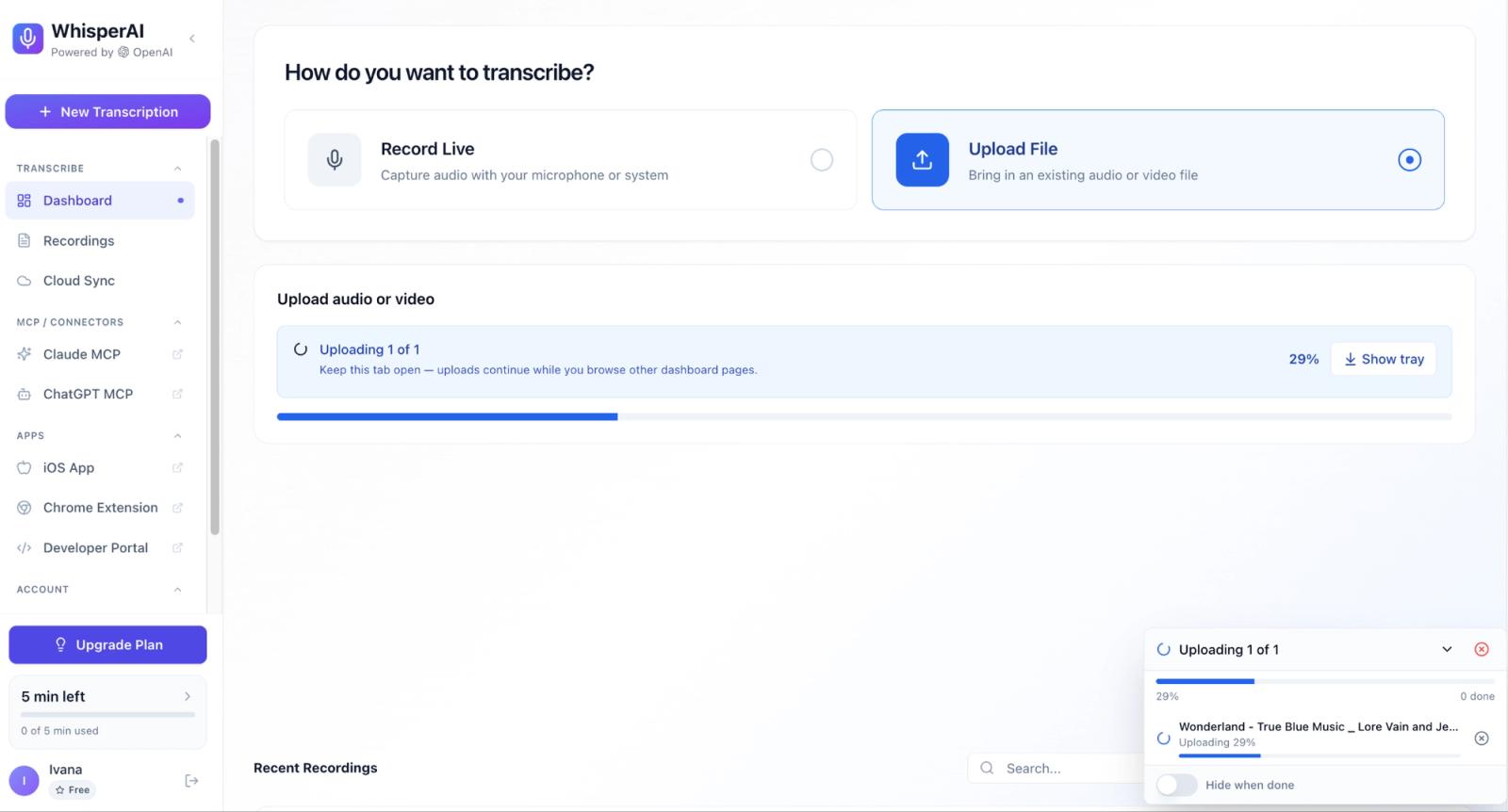
This is different from live dictation, where speech is converted to text as you speak. With transcription, the audio is already recorded, and the software analyzes the MP3 file to create the transcript.
MP3 to text transcription is especially useful when you need a searchable, editable record of recorded audio. Common use cases include transcribing interviews, meetings, podcasts, lectures, presentations, and research recordings.
Transcript vs. captions vs. subtitles
A transcript is a written record of what was said in an audio or video recording. It usually doesn't include timing information, making it useful for documents, notes, interviews, research, and content creation.
Captions are synchronized with a video's timeline and include spoken dialogue as well as relevant non-speech sounds, such as [applause] or [music].
Subtitles are also synchronized with a video, but they typically display spoken dialogue without non-speech sounds. They're often used to provide dialogue in another language.
These formats also use different file types. Transcripts are commonly saved as TXT or DOCX, while captions and subtitles typically use timed formats such as SRT or VTT.
Why the MP3 format changes your transcript quality
MP3 is a lossy format. Developed at Fraunhofer IIS in the late 1980s and standardized as MPEG-1 Audio Layer III, it shrinks files by discarding audio information a listener is less likely to notice. That matters for transcription, because speech-recognition software uses detail your ear skips over.
Bitrate tells you how much encoded data an MP3 uses per second. A 64 kbps file is generally more heavily compressed than a 320 kbps file, so it generally contains fewer audio details. But higher bitrate isn't automatically better for transcription.
A 2025 study by Selta Jaya Putra at Universitas Muhammadiyah Bengkulu, published in Jurnal Sistem Cerdas, tested Whisper large-v3 across 64–320 kbps and found that accuracy did not consistently improve with bitrate, with 128–192 kbps providing the best overall balance of accuracy, processing efficiency, and file size in that dataset. Because the study tested only five academic audio files, this shouldn't be taken to mean that 128–192 kbps is the best bitrate for every recording or transcription system.
So what bitrate is good enough? There's no universal answer. Got the original WAV or FLAC? Transcribe that one. If the MP3 is all you have, transcribe the MP3. Converting it first won't help. Converting it to WAV or re-exporting it at 320 kbps cannot restore audio information already lost during MP3 compression.
The practical rule is simple: preserve the best source you have, and don't mistake a larger re-encoded file for better audio.
You can stop guessing about your own files fairly quickly. Take the worst recording you own, the one with the bad mic and the two people talking over each other, sign up and run it through WhisperAI. Whatever comes back is your floor. Everything else you transcribe comes back better than that, and you'll know your floor by measuring it.
How to convert MP3 to text in five steps
The steps below use WhisperAI as the example. The same basic workflow applies to other MP3 transcription tools, although the available settings and export formats will differ.
Step 1: Check your MP3 before you upload
Before uploading anything, listen to a short section. Check for background noise, distant speakers, crosstalk, sudden quality changes, or heavy compression.
If you still have the original WAV, FLAC, or a less-compressed version, use that instead. Don't convert a 64 kbps MP3 to 320 kbps or change mono to stereo expecting better recognition; re-encoding can't restore audio information that has already been lost.
What should you be listening for? Names, product names, acronyms, and industry terms. Write them down as you go. That list is the single most useful thing you can bring to a transcription tool, because it fixes the errors that are hardest to catch later.
Not every tool accepts one. WhisperAI has an Important words or names field and a separate Advanced instructions box, both filled in before transcription starts. That is where you tell it “ARR” is an acronym, and that the person speaking is Priya, not Prea.
If you've written that list down, you've already done the part most people skip. It takes about fifteen seconds to paste it in, and it's the closest thing to a free accuracy upgrade in this whole process.
Step 2: Upload the file and set your transcription options
Upload the MP3 to your transcription tool and confirm that you've selected the correct file.
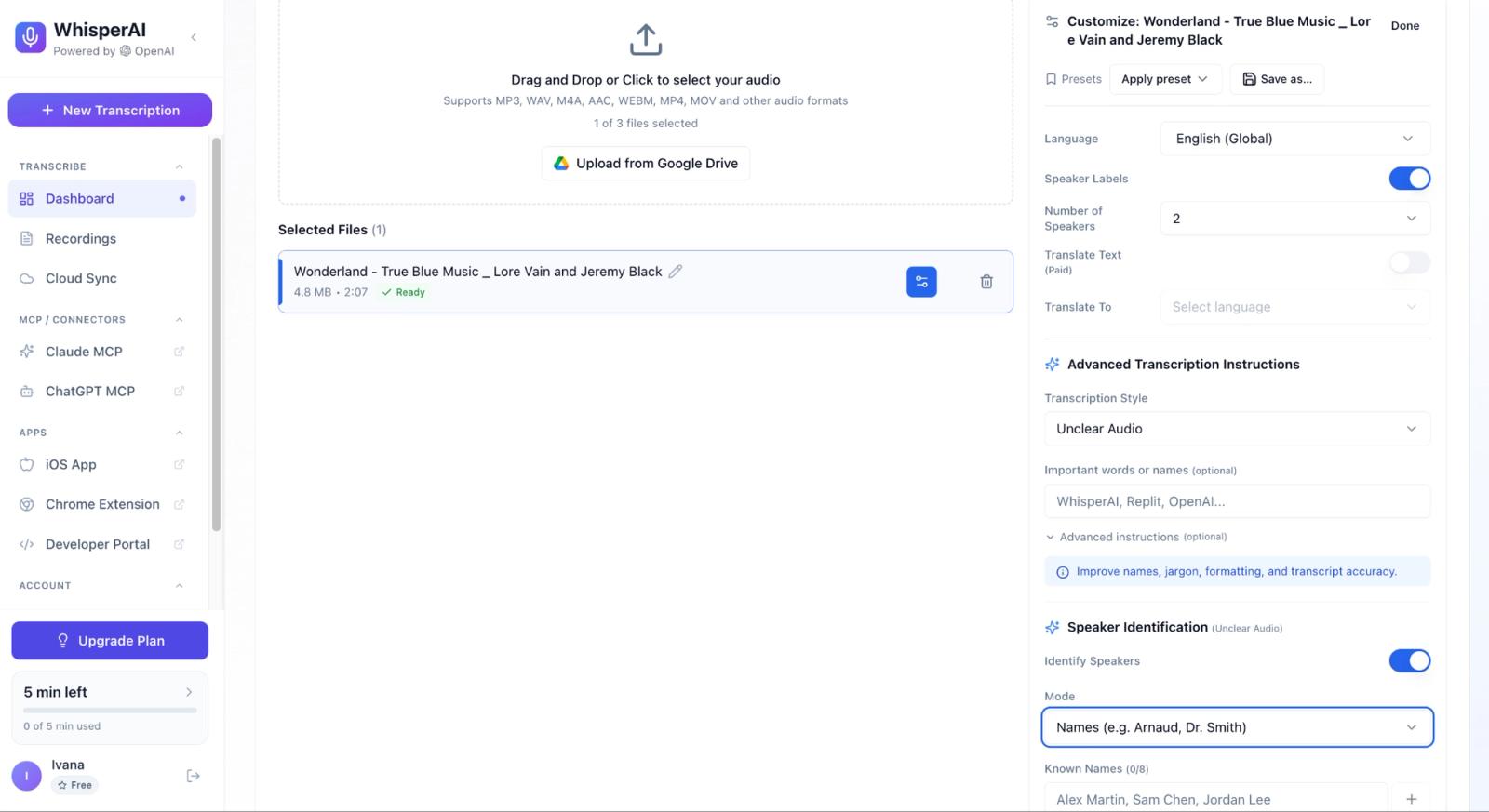
Before starting the transcription, check the available settings. The most important ones are:
- Language: Select the language spoken in the recording when the tool lets you choose it manually. This removes some ambiguity and can improve results, particularly with accents or multilingual audio. WhisperAI defaults to auto-detect and has a separate paid option to translate the finished transcript into another language.
- Speaker detection: Turn this on if more than one person is speaking, and the tool separates them into Speaker 1, Speaker 2 and so on. If you know how many people are on the recording, say so. WhisperAI takes a speaker count next to the toggle, and telling it “three” beats leaving it to guess.
- Timestamps: Some tools make this a setting, others apply it to the output by default. You want them if you need to find specific moments, verify quotes, edit video, or create captions, and they are what the SRT and VTT exports in Step 5 are built on.
- Important words or names: The setting most people skip, and the one that changes the transcript most. This is where your term list from Step 1 goes.
- Advanced instructions: Plain-English direction about the recording, such as “this is a pharmacology lecture” or “the two speakers are a lawyer and a client.”
- Transcription style: Does more than formatting. Alongside Standard and Verbatim, WhisperAI carries presets for Clean & Readable (strips filler words), Unclear Audio, Interview / Q&A, Customer Support Call, and domain settings for Technical, Legal, Medical, Financial and Bilingual recordings. Picking the one that matches your audio changes how the model resolves ambiguity, which is the difference between a transcript you tidy and one you rewrite.
In WhisperAI these sit under Transcription Settings, with the last three grouped as Advanced Transcription Instructions. If you transcribe the same kind of audio repeatedly, save the combination as a preset and apply it to the next file instead of setting it up again.
Once your settings are ready, start the transcription. The tool will process the audio and produce a first draft for you to review.
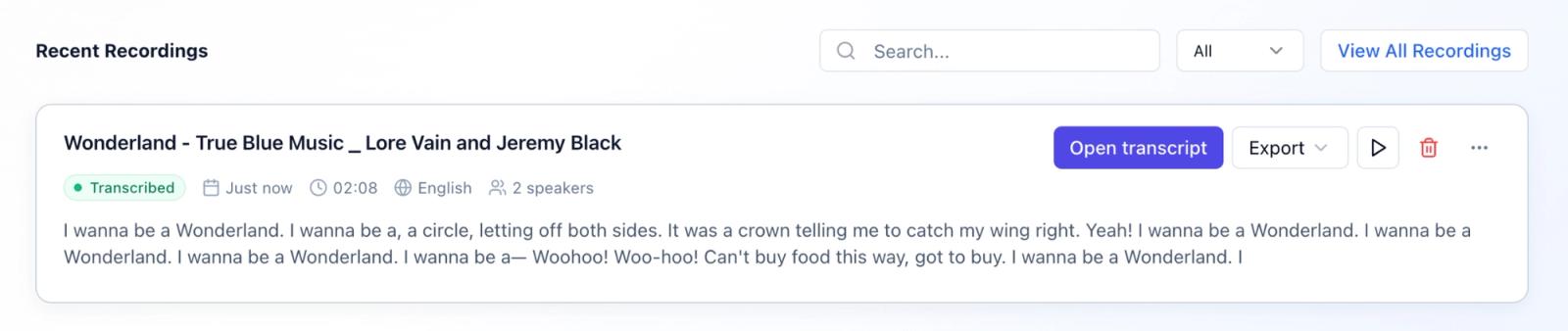
Step 3: Review the draft for the errors AI actually makes
Is the first draft ready to send? Almost never.
Instead, review the parts of the transcript where transcription models are more likely to make mistakes:
- Proper nouns: People's names, companies, products, and places. “Marin” becoming “Mary” may leave a grammatically correct sentence while changing the person being discussed.
- Acronyms and technical terms: Especially industry-specific language. A spoken “ARR” may be expanded, split into letters, or confused with a normal word.
- Numbers: Dates, prices, percentages, measurements, and figures. Check whether “fifteen” became “fifty,” and whether $1.5 million kept both the decimal and currency.
- Speaker attribution: Particularly when people interrupt each other.
- Overlapping speech: Two correct phrases can become one incorrect sentence when speakers talk at the same time.
- Accented speech: Recognition varies by language, accent, model, and recording conditions, so give unfamiliar names and short words extra attention. Don't assume the accent is the problem.
- Unclear audio: Quiet sections, background noise, or unintelligible speech.
You don't need to listen to the whole recording line by line. Start with these high-risk sections and use synchronized audio playback if your transcription tool provides it.
If the first pass comes back badly wrong on names or jargon, you don't have to fix it by hand or upload the file again. WhisperAI keeps an Edit instructions & re-transcribe option on the finished transcript, so you can add the terms you now know it missed and run it again against the same audio.
Notice that the first three items on that list are the ones you can prevent. Names, acronyms and technical terms go wrong because the model has never met them. If you gave the tool that vocabulary before it ran, as in Step 1, most of them come back correct and your review is shorter. The errors you cannot prevent are the ones the audio itself causes: crosstalk, echo, and speech too quiet to resolve.
If you can't confidently determine what someone said, mark the section unclear. Use [inaudible] or [unclear]. A guessed word reads as fact to everyone downstream.
Step 4: Label the speakers in your transcript
If your MP3 contains multiple speakers, check the automatically generated speaker labels before you export the transcript.
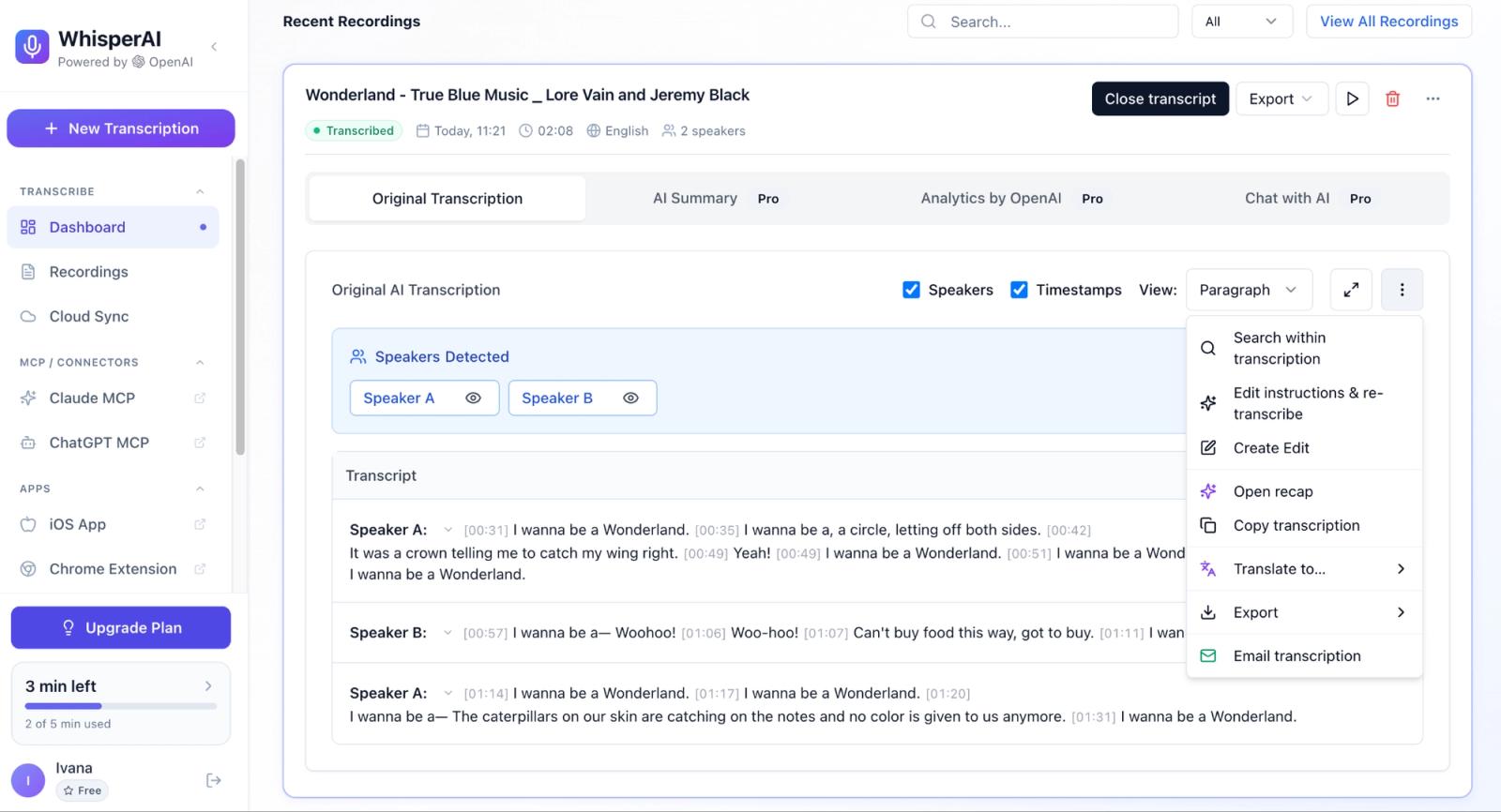
Speaker diarization is the task of working out “who spoke when.” It runs separately from recognizing the words, which is why a transcript can carry the right sentence under the wrong name.
Most tools that support speaker detection assign generic labels such as Speaker 1 and Speaker 2. Replace these with names or roles when you know who is speaking. For example, you might change Speaker 1 to Interviewer and Speaker 2 to Jane Smith.
You can skip that step when you know the participants in advance. WhisperAI has a Known Names field that takes up to eight, and it assigns those instead of generic labels while it transcribes. On a recurring meeting or a named interview, that's a minute of setup against ten minutes of relabelling.
Speaker detection isn't always perfect, especially when people interrupt each other, speak at the same time, or have similar voices. Listen to a few sections from each speaker to make sure the labels match the right person, then correct any mistakes before exporting the transcript.
Step 5: Export as TXT, DOCX, SRT or VTT
Which format do you actually need? It depends on what happens to the transcript next. Most tools offer more than you'll use. WhisperAI exports seven, and the four below cover almost every job.
| Format | What it is | When to pick it |
|---|---|---|
| TXT | Plain text, no formatting or timing | Notes, archives, or moving the transcript into another tool |
| DOCX | Editable Word document | Reports, articles, scripts, anything you'll format |
| Fixed layout, not editable | Sharing a final record that shouldn't change | |
| JSON | Structured data with timings and speaker fields | Feeding the transcript into your own software |
| SRT | Timed captions in numbered cues. No formal standard, but supported almost everywhere | Adding captions or subtitles to videos |
| VTT | Timed text format specified by the W3C for web video | Captions and subtitles for HTML5 video |
| AI-Ready Transcript | Cleaned up for pasting into an AI tool | Summarizing or querying the transcript in ChatGPT or Claude |
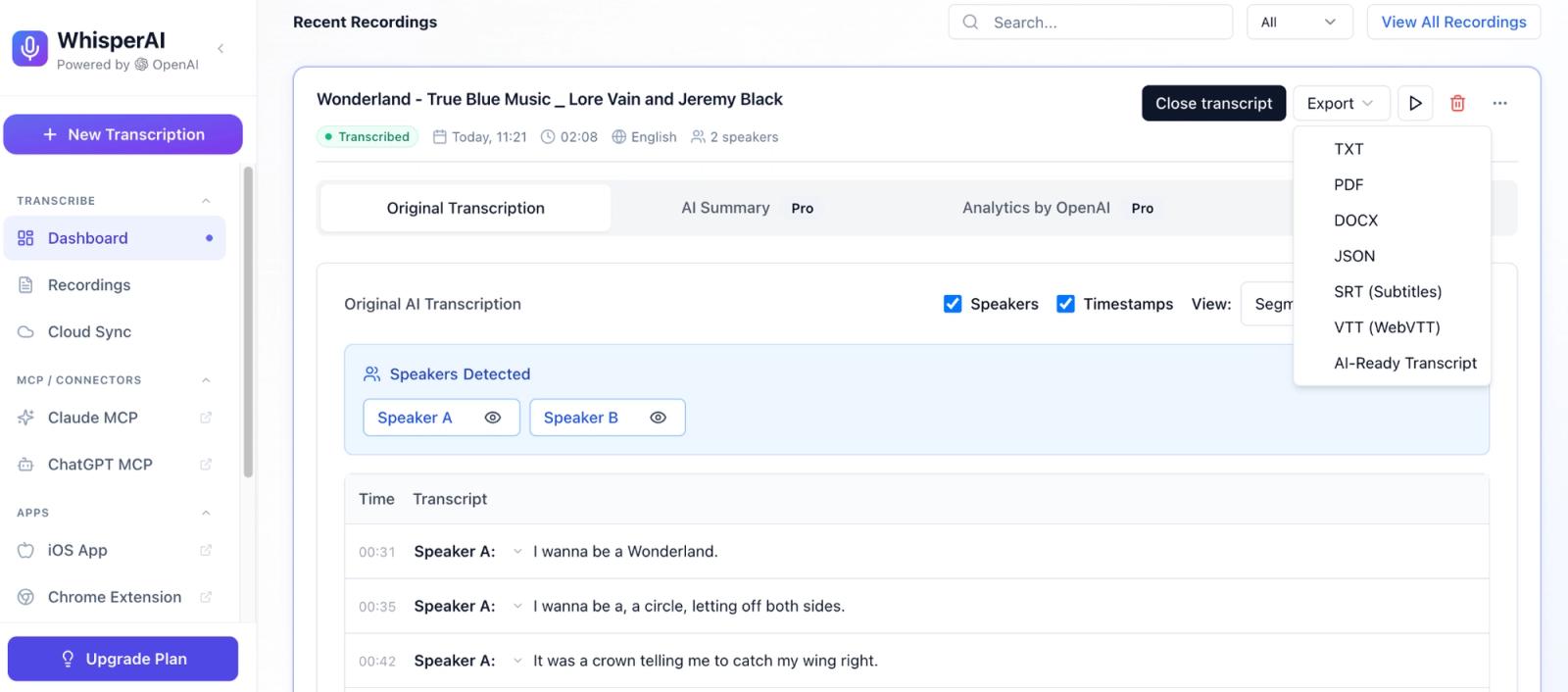
As a simple rule: when you need the written content itself, choose TXT or DOCX. When the text has to appear at specific points in a video, choose SRT or VTT. PDF and JSON are for the edge cases, a fixed record you don't want edited and a feed into your own software.
For example, use DOCX if you're turning an interview transcript into an article, TXT if you're moving the transcript into another application, and SRT or VTT if you're adding captions to a video.
How accurate is AI MP3 audio transcription?
On clear recordings, major AI transcription tools advertise roughly 95-99% accuracy. Sonix, for example, claims up to 99% on clear audio. Should you plan around 99%? No. Those are best-case brand claims, measured on the kind of audio they choose.
One benchmark shows how much recording conditions change the result. On the Open ASR Leaderboard, which scores models against the same public test sets, Whisper large-v3 made roughly 2 word-level errors per 100 reference words on clean, read speech from the LibriSpeech corpus. On multi-speaker meeting audio, that rose to about 16 per 100. Those are the figures as published in March 2026.
The benchmark reports this as word error rate, a standard measure of transcription mistakes. They are benchmark numbers on benchmark audio. Your own MP3 is a different recording.
| Recording condition | What to expect |
|---|---|
| Clean, single-speaker audio | Fewer corrections; benchmark results can be very low on clear speech |
| Multi-speaker meeting audio | More errors, especially around speaker changes and overlapping speech |
| Low bitrate | More risk of lost speech detail affecting recognition |
| Strong accents | Some words may need closer review |
| Technical vocabulary or unusual names | Specialist terms are more likely to be misheard |
| Crosstalk | Words can be missed or assigned to the wrong speaker |
| Room echo | Reverberation smears the signal and makes speech harder to separate cleanly |
The best way to judge a transcription tool is to test it on the kind of MP3s you actually have. If you transcribe interviews, test an interview. If your files contain several speakers or specialist vocabulary, test on one of those. A clean demo recording tells you nothing about your actual workload.
Which file should you test on? Your most awkward one, never your cleanest. Upload it, set the style to match what it is, paste in the names, and read the first two minutes closely. Two minutes of reading tells you more than any accuracy percentage on any pricing page, including ours.
Can you transcribe an MP3 with tools you already have?
Sometimes, and it comes down to one question: will the tool take a file you already have?
Word will. The other two are built around capturing speech as it happens, so an existing MP3 is the wrong shape for them. It's worth noticing that this is a design choice rather than a hard limit, because tools built for transcription generally do both. WhisperAI opens on the question directly, offering Record Live or Upload File as the first thing you pick, and accepts MP3, WAV, M4A, AAC, WEBM, MP4 and MOV either way, including straight from Google Drive.
Capabilities below were checked against platforms documentation in September 2026.
Can ChatGPT convert MP3 to text?
ChatGPT's Record transcribes audio as you record it and can tell speakers apart. It's macOS-only, on Plus, Pro, Business, Enterprise and Edu.
The catch is in the name. Record captures audio; it doesn't take a file you already have. If your MP3 exists, this isn't the tool for it.
How to transcribe an MP3 in Microsoft Word
Word's Transcribe feature accepts MP3, WAV, M4A, and MP4. Where it's available in your account, go to Home → Dictate → Transcribe → Upload audio. You get a timestamped transcript with separate speaker sections.
Two limits to check before you plan around it. It's documented for Windows and for the web in Edge or Chrome, with no Mac desktop version. And the allowance is 300 uploaded minutes a month on Microsoft 365, or 30,000 with a Copilot licence.
For the occasional recording that's plenty. For a steady stream of interviews it isn't, and 300 minutes goes faster than it sounds.
Can Google transcribe audio to text?
Voice Typing in Google Docs converts speech from your microphone into text: open a document, select Tools → Voice typing, and speak.
There's no documented option for uploading an existing MP3, so treat it as live dictation. The workaround you'll find online, playing the recording through speakers while Voice Typing listens, re-records your audio through a room and loses quality doing it. If you already have the file, hand the file to something that reads files.
Here’s how those options compare with a dedicated transcription service:
| Tool | Existing MP3 upload? | Current limit relevant to this job | Cost / access | Speaker labels | Output |
|---|---|---|---|---|---|
| WhisperAI | ✅ and records live | Files up to 5 GB; free tier is 5 minutes, then paid plans | Free tier, then subscription | ✅ with speaker count | TXT, DOCX, SRT, VTT |
| ChatGPT Record | ❌ | 4 hours per Record session | Plus, Pro, Business, Enterprise and Edu; currently macOS only | ✅ | Transcript and generated notes in ChatGPT |
| Microsoft Word Transcribe | ✅ | 300 uploaded min/month, or 30,000 with Copilot | Microsoft 365; Windows and web only | ✅ | Editable transcript that can be added to a Word document |
| Google Docs Voice Typing | ❌ | Not an uploaded-file workflow | Available in Google Docs where Voice Typing is enabled | ❌ | Text in the Google document |
Note: Capabilities and limits above were checked against transcription platforms documentation in September, 2026.
For one short recording, whatever you already have open is fine.
The free route stops working at a predictable point: long files, several speakers, a backlog to get through, specialist vocabulary that keeps coming back wrong, or anything with a retention policy attached. At that point you want a tool built for the job, one that takes the file directly, lets you brief it on the vocabulary first, and exports in the format you actually need.
That's the shape of WhisperAI, and you can check that on your own recording. We'd rather you tested it than took our word. The free tier runs five minutes, which is not a workday but is more than enough to see whether the names come back spelled right.
Free vs. paid MP3 transcription
Can you get by on a free plan? For occasional use, often yes. Free plans do come with limits.
Depending on the service, you may be limited by:
- Minutes per month
- File size
- File length
- Number of files
- Export formats
- Speaker detection
- Advanced editing or vocabulary features
Before paying, test the free plan with a real recording from your workflow. A free plan may be enough for one 10-minute voice memo a month, while regular transcription of hour-long interviews may require more minutes or batch uploads.
Ours is a useful example of how small a free tier can be: WhisperAI gives you 5 minutes free, which is enough to see whether the output is any good on your audio and not enough to do a day's work. Most free tiers are sized the same way, as a test drive. Read them as one.
If you transcribe regularly, compare plans on your real monthly volume instead of the headline minute count, then shortlist the best AI transcription software for your workflow.
Is it safe to upload an MP3 for transcription?
That depends entirely on the provider. How do they store your audio, how long do they keep it, and what do they do with the transcript afterwards? If your MP3 contains customer conversations, employee interviews, medical discussions, legal matters, or confidential business information, check the provider's privacy and security policies before uploading it.
Look for clear answers about:
- Data retention: How long are your audio files and transcripts stored?
- Deletion: Can you delete them?
- Access: Who can access them?
- AI training: Is your data used to train AI models?
- Data location: Where is it stored and processed?
- Compliance: Does the provider meet your organization's security and compliance requirements?
The training question is the one people skip, and the answers differ more than you would expect.
OpenAI documents that audio from ChatGPT Record is used only for transcription and deleted afterwards. The transcripts are treated differently. If you are a Free, Plus or Pro user with Improve the model for everyone switched on, OpenAI may use transcripts and canvases from Record to train its models. Content from Business, Enterprise and Edu workspaces is excluded by default. So the answer to “is my recording used for training” depends on which plan you are on and which setting is enabled, and consumer plans default to sharing.
That's a reasonable trade for a voice note. It's a different decision for a client interview.
WhisperAI publishes its own answers to the same questions. Data is encrypted in transit with TLS 1.3 and at rest with AES-256. You can delete recordings and transcripts from your account at any time. A Data Processing Agreement is available to download, and the third-party processor list is published, among others. GDPR rights including data export and deletion are implemented. TAC Security, a lab authorized by the App Defense Alliance, completed a CASA AL1 assessment of WhisperAI Cloud Sync; the report was issued in August 2026 and expires on 14 August 2027.
For work with specific compliance or retention requirements, confirm these protections match what your organization needs before you upload the file.
How to transcribe MP3 files in bulk
What changes when you have forty files instead of one? Mostly the uploading. A tool with batch uploads lets you submit them together.
For recurring transcription, an API lets another application send your audio files to the transcription service automatically, so you don't have to upload each file manually.
A simple workflow looks like this:
- Standardize file names. Use a consistent format such as 2026-03-12_client-acme_interview-04.mp3.
- Use consistent settings. Set the language, speaker detection, timestamps, and custom vocabulary consistently across the batch.
- Keep the cleanest source files. If a higher-quality version is available, use it instead of a heavily compressed MP3.
- Review difficult files first. Check recordings with multiple speakers, strong accents, background noise, or specialized terminology. Compare the transcript with the audio, correct mistakes, and mark unclear sections before reviewing clearer files.
- Use an API for recurring work. If you're transcribing the same type of audio regularly, an API or automated workflow can remove repetitive manual uploads.
You don't need to review every transcript as closely. Start with the files most likely to contain errors, then adjust your review process based on how you'll use the transcripts.
For instance, internal meeting notes may need little cleanup, while transcripts for publication or official records require a more thorough review.
Start with the file you've been putting off
Most of this guide comes down to one idea. A transcript is only as good as what the tool knew before it started, and almost nobody tells it anything.
So the next time you transcribe something, spend the sixty seconds first. Name the speakers. Paste the acronyms. Pick the style that matches the recording. Then read what comes back and notice how much less of it you have to fix.
Try it on one file and see whether it holds up. Five free minutes, no card, and if the transcript still comes back wrong you'll at least know it was the audio and not the briefing.
Frequently asked questions about transcribing MP3 to text
How can I convert an MP3 file to text?
Upload the MP3 to an AI transcription tool, select the language and speaker settings, and generate the transcript. Then review names, numbers, technical terms, speaker labels, and unclear sections before exporting the finished file.
Can ChatGPT convert MP3 to text?
Not from a file. Record transcribes what it captures live and separates speakers, but it doesn't take an MP3 you already have. There is a way around it if ChatGPT is where you want the transcript to land: WhisperAI publishes an MCP connector for ChatGPT, so the file gets transcribed properly and the text lands in your chat. Otherwise, upload it to any tool that reads files directly.
How can I transcribe an audio file to text?
The process is the same whatever the format. Most tools accept MP3, WAV, M4A and MP4, so the file type matters less than the recording quality. Set the language before you start, then spend your review time on names, numbers and any passage where two people talk at once.
How do I transcribe an MP3 in Word?
Open Word's Transcribe feature, select Upload audio, and choose your MP3. It accepts MP3, WAV, M4A and MP4, and lets you edit transcript sections and speaker labels afterwards. Note the 300-minute monthly cap on Microsoft 365, and that there's no Mac desktop version.
How to transcribe MP3 into text?
The quickest method is to upload the MP3 to an AI transcription tool, choose the correct language, generate the transcript, and review it for common errors. Clean audio usually requires less editing than recordings with noise, crosstalk, or unclear speech.
Can I convert MP3 to text for free?
Yes, but free plans have limits. They may cap the number of minutes, file size, number of files, or available features. Whether a free option is enough depends on how much audio you need to transcribe and which features you need.
What is the best tool to transcribe audio to text?
The best fit depends on the recording and the output you need: file length, number of speakers, terminology, batch volume, subtitle formats, privacy requirements, and budget all change the choice. Compare AI transcription software by use case, then test your shortlist on a recording that looks like your real work. One published accuracy number will not tell you much.
How to convert audio to a transcript?
A transcript is the plain written record, so you want a TXT or DOCX export, not a timed caption file. Run the audio through a transcription tool, correct the draft, then export. If you need the text to line up with video playback, you want captions instead, which is an SRT or VTT export.
Can Google transcribe audio to text?
Google Docs' Voice typing feature transcribes speech through your microphone. It does not provide an MP3 upload option, so it isn't designed to transcribe an existing MP3 file directly.
How to get a transcript from an MP3?
Feed the MP3 to a transcription tool and it returns a draft in minutes. The part that decides whether the transcript is usable is what you do next: check the proper nouns, check the figures, check that the speaker labels are on the right people. Then export in the format that matches the job.
WhisperAI Team
Product