Closed Captions Apple TV: Your 2026 Guide
Struggling with closed captions apple tv? Our 2026 guide helps you enable, customize, & fix captions fast. Essential tips for users and SRT creators.
You're probably here because one of two things just happened. You started a movie on Apple TV and couldn't make out half the dialogue, or you want captions on all the time and Apple buried the setting just enough to be annoying.
TL;DR: During playback, swipe down on the Siri Remote and open Subtitles, or use Siri and say “Turn on captions.” If you use captions often, the best setup is Settings > Accessibility > Accessibility Shortcut > Closed Captions, which gives you a fast triple-click toggle. You can also turn on Closed Captions + SDH system-wide, customize the look, and if you create video, prepare clean SRT files for Apple TV-compatible workflows.
Why Everyone Is Using Captions in 2026
Captions used to feel like a feature you turned on only when you had to. That's not how people watch anymore. A lot of viewers now keep captions available because modern mixes can be muddy, rooms are noisy, and late-night viewing doesn't always mix well with loud volume.
That shift shows up clearly in audience behavior. A 2024 YouGov survey found that 63% of American adults under 30 prefer watching TV with subtitles on, even in their native language, compared to 37% of adults ages 30 to 44, as summarized in Rev's closed captions statistics roundup. That gap helps explain why Apple has built so many ways to control captions quickly.
If you're still fuzzy on the difference between subtitles, CC, and SDH, this overview on subtitles and closed captions is a good companion read.
Captions on Apple TV aren't just an accessibility checkbox anymore. They're a comfort setting, a comprehension tool, and for some people, the default way to watch.
The practical takeaway is simple. Apple TV gives you three good paths: a quick in-player toggle, Siri voice control, and a much better shortcut that frequent users should set once and keep forever.
Enabling Captions Instantly on Apple TV
The fastest fix is usually right on the playback screen.
Use the playback menu
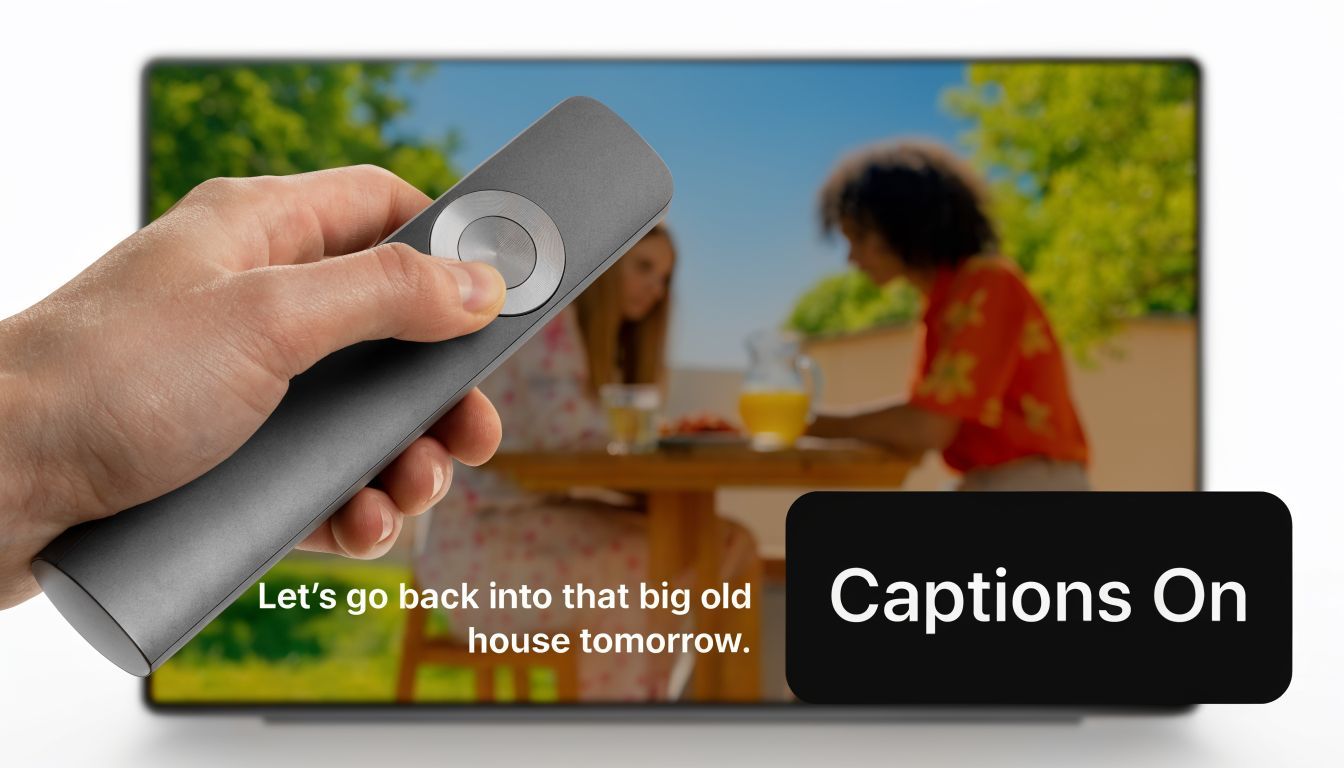
While a show or movie is playing, swipe down on the Siri Remote to open the info panel, then go to Subtitles and choose the caption track you want. On iPhone or iPad, the Apple TV app uses the speech bubble icon for the same job. On older 3rd gen Apple TV hardware, holding SELECT for a few seconds opens the captions controls.
This method works well when you only need captions now and then. It's less ideal if you toggle them often, because it takes a few steps every time.
Use Siri when your hands are full
Apple's voice commands are more capable than often acknowledged. You can say “Turn on captions”, “Turn off captions”, or even “What did they just say?” The last one is especially useful because it rewinds a short distance and brings captions in temporarily, which is perfect when one line gets swallowed by background music.
That's the easiest trick to show someone who didn't even know Apple TV had decent caption controls.
Set the triple-click shortcut
If you use closed captions apple tv settings regularly, this is the move I recommend first. According to the verified Apple TV shortcut guidance summarized from this , you can enable the shortcut in Settings > Accessibility > Accessibility Shortcut > Closed Captions. The same source says this uses a tvOS Core Animation layer with toggle latency under 100ms, and it reduces the time to enable captions by 85% compared to the swipe-down menu.
Here's the setup in plain steps:
- Open Settings
- Go to Accessibility
- Scroll to Accessibility Shortcut
- Select Closed Captions
- During playback, triple-click the Menu/Back button to toggle captions
Practical rule: If you turn captions on more than once a week, set the shortcut and stop digging through menus.
One trade-off is that some apps still handle subtitles in their own way. The system shortcut is great, but app-specific behavior can still override what you expect in a few edge cases.
Customizing Your Caption Style for Readability
Default captions are fine until they aren't. Bright scenes can wash them out. Some fonts are harder to read at a distance. And if you watch at night, harsh text can feel distracting fast.
Apple gives you more control than most streaming boxes do.
Where to change the style
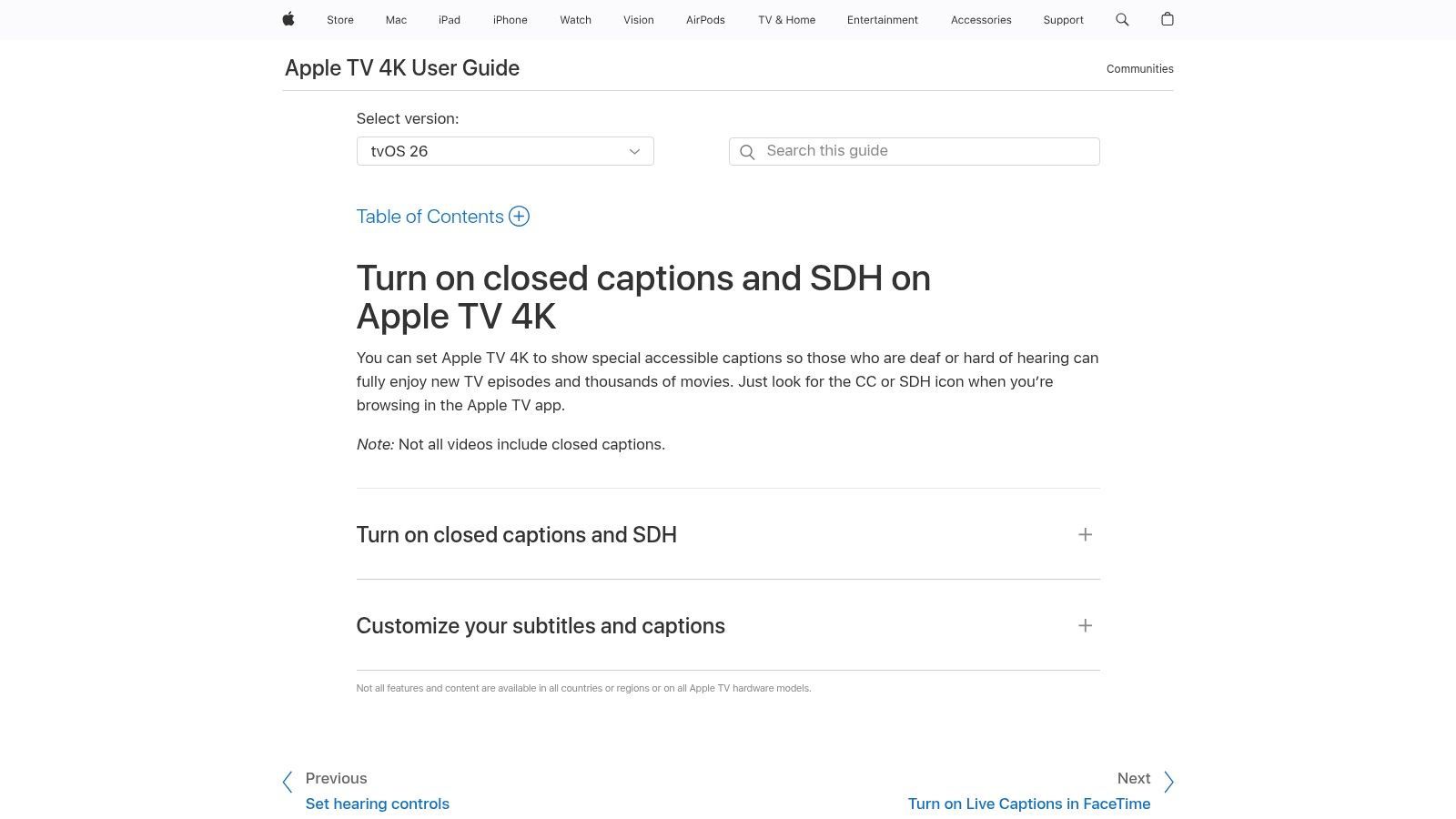
Go to Settings > Accessibility > Subtitles and Captioning. Turn on Closed Captions + SDH if you want the most complete caption track available, then open Style.
Apple's own guidance in this Apple TV captions support page notes that within the Style menu, you can create a custom profile by adjusting text size, color, font, and background opacity. The same guidance also states that most U.S. content in Apple's TV app must have captions, preferably SDH, which includes non-speech audio cues.
What settings usually work best
A few combinations tend to be easier to live with than the default:
- White text on a dark translucent background: Good all-purpose choice for movies with changing brightness.
- Larger text: Better if your TV is across the room or you're watching from bed.
- Opaque or semi-opaque background: Helps when captions sit over visually busy scenes.
- Simple bold font: Cleaner at a distance than decorative styles.
If you edit your own videos, a separate iMovie video captions guide is useful for understanding how style choices in editing tools affect readability before the file ever reaches Apple TV.
A lot of people over-focus on font and ignore background opacity. That's usually the setting that makes the biggest readability difference.
CC versus SDH
Many Apple TV users get tripped up by the distinctions. If you see English, English CC, and SDH, they are not the same thing.
| Option | Best for | What you get |
|---|---|---|
| English | Dialogue-only preference | Basic subtitles |
| English CC | Accessibility and fuller context | Spoken words plus caption formatting |
| SDH | Maximum comprehension | Dialogue, speaker IDs, and sound cues |
If you care about full context, SDH is usually the better pick. If you mainly want help catching dialogue and don't want extra sound descriptions, standard subtitle tracks can feel less busy.
For more on visual readability choices, this guide on the best font for subtitles is worth a look.
A good caption style disappears into the experience. You notice the story, not the text box.
Solving Common Caption Problems
When captions fail on Apple TV, the issue is usually one of three things. The content doesn't include the track you want, the app handles captions differently than tvOS, or the selected track isn't the one you meant to use.
If captions don't appear at all
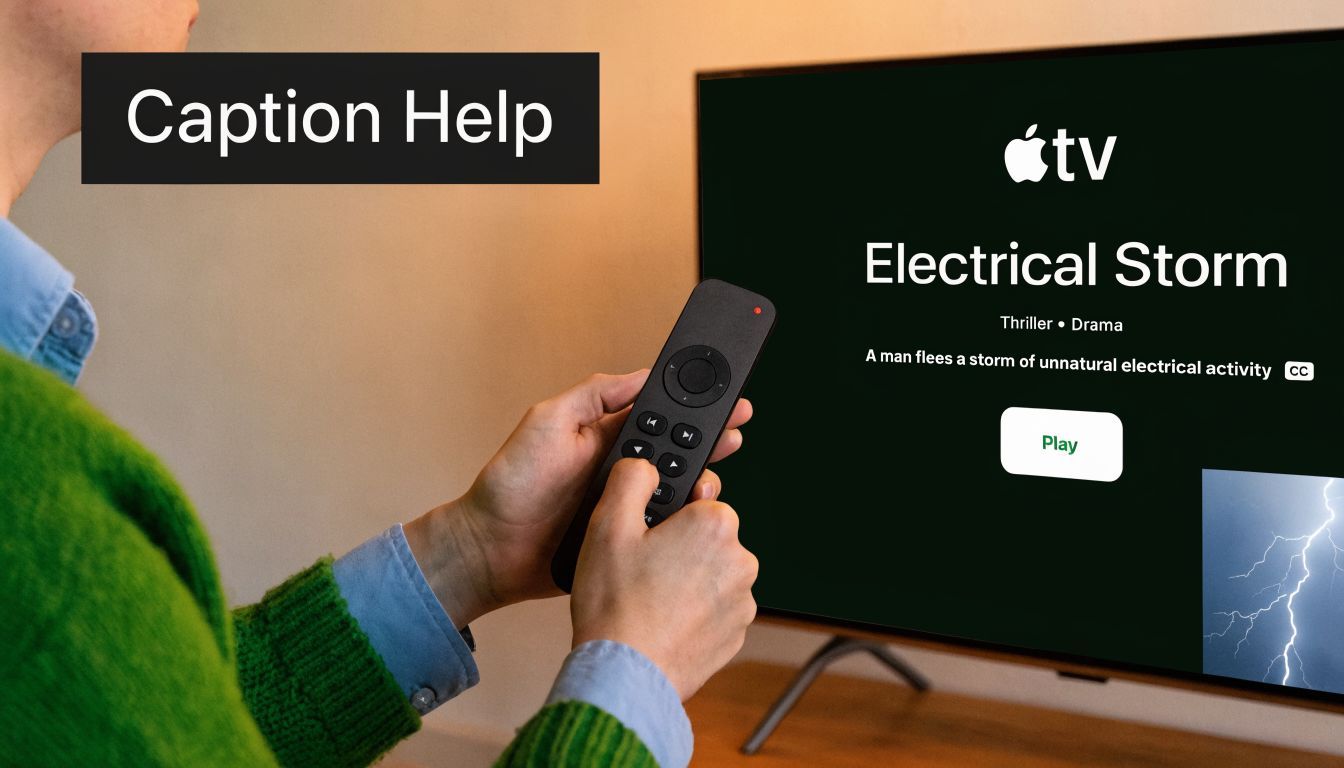
Start with the obvious check. Look for a CC or SDH indicator on the title page or in the playback menu. If the content doesn't include a caption track, Apple TV can't magically create one for standard playback.
Netflix's reported usage pattern is a reminder that this matters to a huge share of viewers. As summarized in Michael Tsai's post on Apple TV captions, Netflix says nearly half of U.S. viewing hours on its service happen with subtitles or captions on. The same verified data also notes that on Apple TV, turning on Closed Captions + SDH gives the most complete experience, including speaker IDs and sound effects, with 99% accuracy in professional contexts.
If you still don't see anything:
- Check system defaults: Go to Settings > Accessibility > Subtitles and Captioning
- Check the app itself: Some live TV and streaming apps use their own caption settings
- Try another title: This quickly tells you whether the problem is app-wide or title-specific
If captions are out of sync
This one is annoying, but usually fixable.
Try this short sequence:
- Turn captions off
- Turn them back on
- Back out of playback and restart the video
- If needed, restart Apple TV from Settings > System > Restart
That sounds basic, but sync glitches often come from the app losing track of the subtitle stream rather than a permanent setting problem.
If the wrong kind of text appears
A common complaint is, “Why am I seeing sound cues when I only wanted dialogue?” That's usually because SDH or English CC is selected instead of a simpler subtitle track.
Use this quick comparison:
- Choose English if you want lighter, dialogue-focused subtitles
- Choose English CC if you want a classic closed caption track
- Choose SDH if you want speaker labels and audio cues for full accessibility
Don't assume “captions are broken” until you check which track is active. Very often, Apple TV is showing exactly the track the app provided.
For Content Creators Using SRT Files
If you make videos, host webinars, publish courses, or deliver internal training, your Apple TV caption workflow matters before the file ever hits the screen. Consumer guides usually stop at turning captions on. That's not enough for teams that need accurate, reusable caption files.
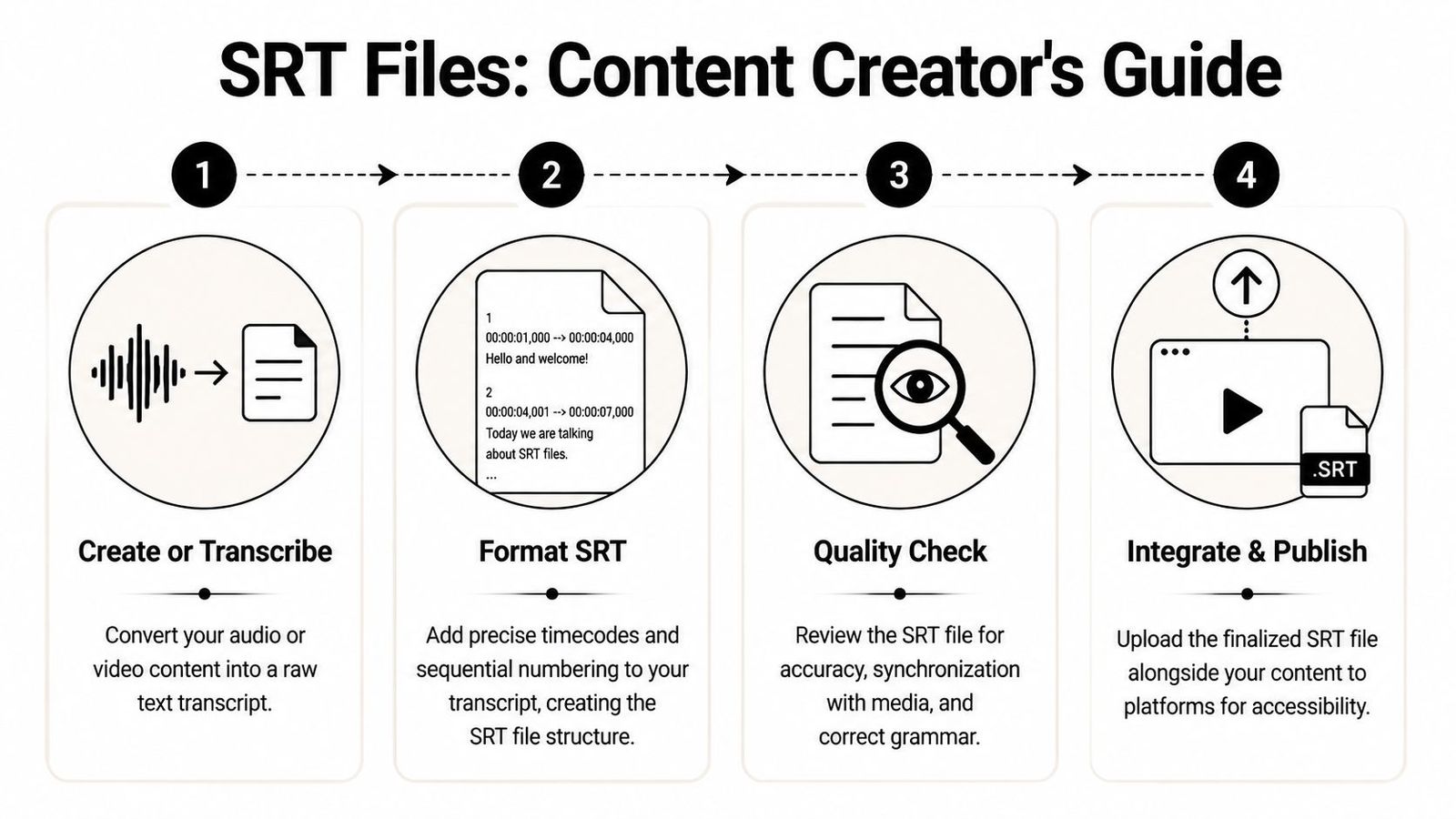
The missing piece is usually the SRT file. It's a simple subtitle format with numbered entries, timecodes, and text. Apple TV users may encounter those files through media servers, playback apps, or encoded video deliveries that include embedded captions.
Where creators get stuck
A verified gap flagged in this Apple TV captioning article is that consumer guides ignore enterprise caption compliance. That matters for healthcare, legal, and corporate teams that need caption formats to fit broader WCAG 2.1 AA and documentation workflows, not just casual viewing.
In practice, that means paying attention to:
- Timing accuracy: Badly synced captions feel amateur and can hurt comprehension
- Speaker clarity: Multi-speaker content needs clean labeling
- Export format: SRT remains a common handoff format for platforms and editors
- Review process: Auto-generated text still needs a human pass for names, jargon, and punctuation
A good companion resource on why this matters outside Apple's ecosystem is this guide on how to enhance video accessibility with captions.
A practical Apple TV workflow
For most creators, the clean path looks like this:
- Transcribe the source audio
- Export or format an SRT
- Review timing and language
- Attach or embed the subtitle track in your publishing workflow
If you need a deeper walkthrough of the file structure itself, this article on creating an SRT file covers the basics well.
What works best depends on your stack. Plex and Infuse can use sidecar subtitle files. Editors and transcoders can embed tracks directly into the video package. For professional delivery, consistency matters more than fancy formatting. Apple TV playback is much smoother when your captions are clean, correctly timed, and labeled in the expected way.
If you need fast, business-grade transcripts and subtitle exports for Apple TV workflows, WhisperAI - #1 AI Transcription is built for that job. You can generate accurate transcripts, create caption-ready files, and export SRTs from one workflow. For teams handling meetings, lectures, podcasts, training, or regulated documentation, the dedicated AI transcription tool is the fastest place to start.