How to Transcribe Voice Memos Instantly and Accurately
Stop wasting time on manual notes. Learn how to transcribe voice memos into searchable text in minutes using AI. A practical guide for busy professionals.
tl;dr: The short version? Export the audio file from your phone or computer and upload it to an AI transcription service. These tools will convert your speech to text in minutes, even with background noise and different accents, giving you a clean, editable document.
From Voice Memo Mess to Actionable Text
We all do it. You have a brilliant idea on your commute, so you grab your phone and record a quick voice memo. You capture key takeaways from a meeting or a brilliant thought from a client call. The problem is, all those valuable insights are stuck in audio files—impossible to search, edit, or share with anyone.
This guide will show you exactly how to transcribe your voice memos into accurate, usable text, no matter what device you're using. I know the pain of this firsthand. For years, I manually transcribed my own interviews, which meant spending hours rewinding and re-listening. It was a tedious process, and I was always worried about mishearing a key detail.
My "Aha" Moment: I once misquoted a client's budget by a huge margin because I mistyped a number while transcribing late at night. That one mistake nearly derailed the entire project. It was then I realized that transcribing by hand wasn't just slow—it was a real business risk.
Why You Should Be Transcribing Your Voice Memos
Switching to an AI tool was a game-changer. An hour-long interview that used to take up my entire afternoon was suddenly transcribed in just a few minutes. This isn't just about saving time; it's about making your audio files genuinely useful.
Here’s what you get when you start transcribing your voice memos:
- Find Anything, Instantly: Quickly search for specific quotes, names, or numbers without having to scrub through the audio.
- Easy Editing and Repurposing: Clean up the text, pull out the best parts, and turn them into reports, blog posts, or meeting notes.
- Clear, Shareable Notes: Send accurate summaries to your team so everyone is on the same page. No more "who was supposed to do what?"
- Better Accessibility: Provide a text version for team members who are deaf or hard of hearing, making your content inclusive.
This guide is for anyone—professionals, students, researchers, creators—who wants to get more value out of their recorded audio. Using a tool like WhisperAI makes this process incredibly simple. You can see for yourself how AI transcription works and why it’s become essential for so many people.
Let's get started and turn that pile of audio files into something you can actually use.
The Hidden Costs of Manual Transcription
If you've ever tried to transcribe a voice memo by hand, you know the pain. It feels like a throwback to a different era of work. But it's more than just a tedious chore; it's a slow leak draining your time, money, and mental energy. The real costs start piling up the second you hit play.
First off, there’s the staggering time investment. The industry average for a professional transcriptionist is about four hours of work for every single hour of audio. For the rest of us, it can be far worse. You're constantly pausing, rewinding, and struggling to make out what was just said. An entire afternoon can vanish just to get through one hour-long meeting recording.
Then you hit the wall of real-world audio problems, where frustration really sets in and accuracy plummets.
- Difficult Accents: Did they say "fifty" or "fifteen"? A simple mix-up like that can have major consequences down the line.
- Background Noise: Trying to pick out words from a recording made in a bustling coffee shop is a recipe for mistakes.
- Technical Jargon: Mishearing and mistyping specialized terms in medicine, law, or engineering is incredibly easy to do.
- Multiple Speakers: Keeping track of who said what during a lively group discussion is a genuine nightmare.
These little errors don't just stay little. A researcher might misquote a key interview subject, undermining the integrity of their study. A project manager, working from flawed meeting notes, could assign the wrong tasks and throw a whole team into confusion.
Key Takeaway: The true cost of doing it yourself isn't just the hours you spend typing. It's the risk of critical errors that damage the quality of your work and your professional credibility. Every minute you spend fighting with an audio file is a minute you aren't spending on the work that actually matters.
The Security Blind Spot
Beyond the time sink and accuracy issues, there's a massive security risk many people ignore when they transcribe voice memos manually or send them off to a human transcription service. The moment you upload a sensitive file—a confidential client call, a strategic planning session—to a third-party platform, you've essentially lost control over it.
You have to ask the hard questions. Is that file encrypted? Who can see it? Is the person transcribing it bound by a non-disclosure agreement? For anyone in legal, healthcare, or corporate fields, these are not small details; they are critical compliance requirements. A single data breach could expose private client data or internal strategy, leading to serious legal and financial blowback.
This is where modern tools are a complete game-changer. Professional AI transcription platforms like WhisperAI are built with security at their foundation, often providing end-to-end encryption and compliance with standards like GDPR. Your audio is processed by a secure algorithm, not a person, which sidesteps the human element of security risks entirely.
The professional world is already voting with its feet. The global AI transcription market is on track to explode from $4.5 billion in 2024 to an estimated $19.2 billion by 2034. This kind of growth only happens when businesses realize the old way of doing things is no longer sustainable. You can get a clearer picture of this shift by looking into the rise of automated transcription solutions.
Why AI Is the New Standard
Making the switch to an AI-powered tool isn't just about a new gadget; it's a fundamental upgrade to your entire workflow. It changes transcription from a dreaded administrative task into a powerful strategic asset. You can turn hours of inaccessible audio into searchable, editable, and shareable text in just a few minutes.
The benefits are immediate. AI dramatically cuts down on errors, even with noisy audio, and gives teams back countless hours of productivity. This new capability allows you to transcribe voice memos with incredible efficiency, making the valuable information locked inside them instantly available. In today's fast-paced environment, sticking with manual transcription is like choosing to send a handwritten letter instead of an email—it’s slow, inefficient, and puts you at a serious disadvantage.
How to Export Your Voice Memos from Any Device
You've captured a great idea, a crucial meeting, or an important interview on your phone. Now what? Getting that audio off your device and ready for transcription can feel like the most frustrating part of the whole process. It’s a common bottleneck, but it’s one we can clear up quickly.
Think of this as your practical guide to getting those voice memos unstuck. We'll skip the overly technical stuff and focus on the quickest paths to get your audio file onto your computer, where a tool like WhisperAI can work its magic.
Exporting from an iPhone or iPad
Apple’s Voice Memos app is incredibly handy for capturing audio on the fly, and luckily, they don’t lock those files down. I use it constantly for quick thoughts, and getting them out is a breeze once you know where to look.
The entire process hinges on the Share button. It's your ticket out.
- Find Your Memo: First, pop open the Voice Memos app and tap on the recording you need.
- Look for the "More" Icon: You’ll see three little dots (●●●). Tapping this opens up your menu of actions.
- Hit "Share": This will bring up that familiar share sheet, giving you a handful of ways to send your file.
From that share sheet, you have a few solid options depending on your setup:
- AirDrop: If you’re on a Mac, this is your best friend. It’s the fastest way to wirelessly send the file straight to your computer. It’ll land in your Downloads folder in seconds.
- Save to Files: This is my personal favorite for staying organized. You can save the recording directly to iCloud Drive, Dropbox, or Google Drive (as long as you have the apps). This makes it easy to access from anywhere.
- Mail or Messages: For smaller clips, you can't go wrong with emailing the file to yourself. It’s a simple, reliable method for getting a recording from your phone to your desktop.
I’ve found the best system is to use "Save to Files" and point it to a dedicated "To Transcribe" folder in my Google Drive. This keeps everything neat and tidy, so when I sit down at my desk, I can just batch-upload everything at once without hunting through emails or my messy Downloads folder.
Exporting from an Android Phone
The world of Android is similar, though your built-in app might be called Recorder, Voice Recorder, or something specific to the manufacturer, like the Samsung Voice Recorder. The core idea is exactly the same: find your file, and find the share button.
Just like on an iPhone, you’ll open your recording app, pick the file you want to transcribe voice memos from, and tap Share.
Your best export options here are:
- Nearby Share: This is Android’s answer to AirDrop, and it works great for sending files to other Androids, Chromebooks, and now even Windows PCs. It's a fantastic wireless option.
- Google Drive / Dropbox: This is arguably the most universal and reliable method. Share your file directly to a cloud service, and it will sync automatically, ready for you on your computer.
- Email: When in doubt, email it out. Attaching the file to an email and sending it to yourself is a foolproof backup plan that always works.
This is the end goal. Once you’ve exported your memo, you’ll use a simple interface like this to upload it. The whole point is to make the journey from your phone to this upload screen as painless as possible.
Getting Audio from Your Computer
What if the audio is already on your computer? Maybe you used a USB microphone or a desktop recording app. If that's the case, you're already most of the way there. You just need to find the file.
Most recording software on Windows and macOS saves files to a predictable spot.
- On Windows: A good first place to check is your
Documents > Sound recordingsfolder. - On macOS: Recordings from QuickTime Player often go to the
Moviesfolder by default. Other apps might use yourDocumentsfolder or create their own.
Once you’ve located it, you’re ready to go. Don't worry too much about the file format—most voice memos are saved as .m4a, .mp3, or .wav, and all of those are standard. If you’re curious to learn more about the differences, you can read up on which audio file format is best for transcription.
No matter which device you started with, the mission is the same: get the file to a central location. For my money, a shared cloud folder is the most organized and surefire way to do it.
Okay, you've got your voice memo exported and ready to go. Now for the fun part: turning that audio file into clean, editable text. We're going to use WhisperAI for this, and it’s surprisingly simple.
First things first, head over to the WhisperAI transcription platform. If you're new, you'll need to sign up, but it's a quick process. Once you're logged in, you'll see a clean dashboard. There's no clutter—it's designed to get you from audio to text as fast as possible.
Getting Your Audio Into WhisperAI
You've got two main options here. The most common route is to simply upload the file you just saved from your phone or computer. WhisperAI handles all the usual formats—M4A, MP3, WAV, you name it—and the file size limits are generous, so you won’t have to worry about those hour-long interviews.
The other option, which I find incredibly handy for live situations, is to record directly into the browser. This is perfect for capturing a meeting or lecture as it happens. Instead of juggling a phone recording and then uploading it, the transcription appears almost in real-time. It’s a great way to get instant notes from a call without any extra steps.
This quick diagram shows just how straightforward the export process is, no matter what device you're on.
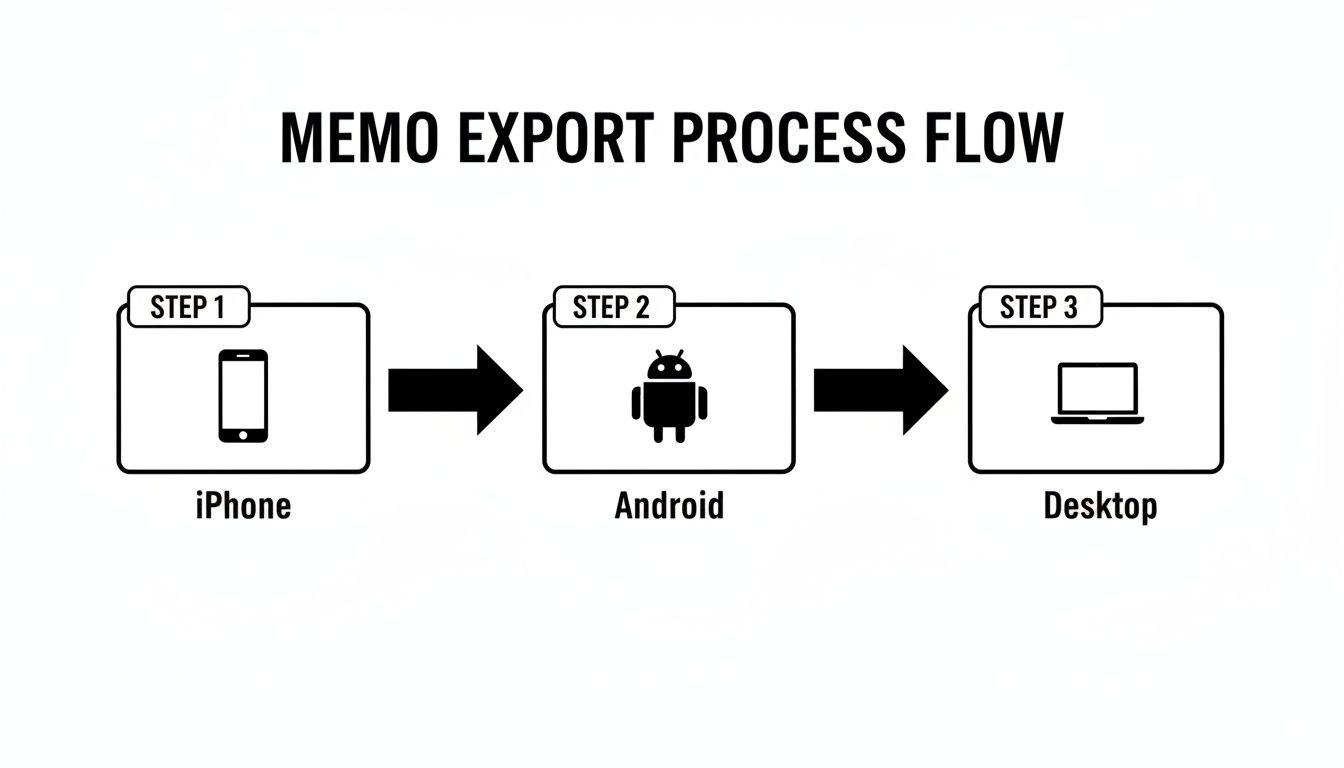
As you can see, it's really just about finding the file, hitting "Share," and saving it somewhere you can easily access it.
Tweaking the Transcription Settings
Before you click that big "Transcribe" button, take a moment to look at the settings. This is where you can really dial in the accuracy and save yourself a ton of editing time later.
- Language Detection: The AI is smart enough to figure out the language on its own from a list of over 100 options. I’ve personally tested it with recordings that switch between English and Spanish, and it keeps up without missing a beat. Unless you have a very specific or obscure dialect, just leave this on auto-detect.
- Speaker Labeling: If your recording has more than one person, this is an absolute game-changer. Just check the box, and the AI will tag who is speaking (e.g., "Speaker 1," "Speaker 2"). This feature alone has saved me countless hours on interview and meeting transcripts.
- Noise Filtering: Ever record a memo in a noisy coffee shop or a windy park? This is your fix. The built-in noise reduction does an impressive job of cutting through background chatter and hum, resulting in a much cleaner transcript.
Once your settings are good to go, you start the transcription. And this is where you'll really appreciate the technology.
This table puts the time and cost savings into perspective.
Manual vs. AI Transcription for a 60-Minute Voice Memo
| Metric | Manual Transcription | WhisperAI Transcription |
|---|---|---|
| Time | 4-6 hours | Under 10 minutes |
| Cost | $60 - $90 (Avg. $1.50/min) | A few dollars |
| Accuracy | ~98% (with fatigue) | Up to 99% (consistent) |
That's the real "aha!" moment for most people. What used to be a full afternoon of tedious work is now done in the time it takes to make a cup of coffee. The speed is amazing, but it's the near-human accuracy that really makes it an indispensable tool.
After a few minutes, you'll get the full transcript right in your browser, complete with timestamps and speaker labels. You can read it, edit it, and get it ready for its final use. If you want to get a bit more technical, our post on how Whisper AI transcribes audio breaks down the magic behind the scenes.
How to Edit and Export Your Final Transcript
So, your audio has finished processing, and you're looking at a fresh, timestamped transcript. It's a great feeling, turning a jumble of audio into organized text. But a raw transcript is just the starting point. The real value comes when you refine that text into something polished and ready to use.
This is where a good in-browser editor, like the one in WhisperAI, makes all the difference. It’s designed to help you quickly clean up any minor stumbles the AI might have made. Even the best AI needs a little human guidance, especially with unique names, industry jargon, or thick accents.
Cleaning Up Your Transcript in the Editor
My first move is always a quick proofread. The best editors sync the audio playback right to the text, which makes finding and fixing errors a breeze. I usually bump the playback to 1.5x speed—it's fast enough to get through a long recording quickly but slow enough that I don't miss anything important.
As the audio plays, you can just click on any word in the text and type to correct it. It’s incredibly intuitive. Here’s what I typically fix in this phase:
- Misspelled Names: An AI might hear "Sarah" but write "Sara." It takes two seconds to click and correct it.
- Renaming Speakers: The transcript will start with generic labels like "Speaker 1" and "Speaker 2." You can easily rename them to "Jen," "David," or "Client," which makes the whole conversation much easier to follow later on.
- Quick Fixes: If someone coughed or a door slammed, the AI might mishear a word. You can correct these little blips while the context is still fresh in your mind.
Think of this as your final quality check. It’s a five-minute step that turns a good machine-generated transcript into a great, human-verified document you can confidently share with anyone.
Choosing the Right Export Format for Your Needs
Once the text is perfect, it’s time to put it to work. The format you choose really depends on what you plan to do next. This is the crucial step that connects your transcript to your actual day-to-day tasks.
Here’s how I think about the different export options:
- DOCX (Word Document): This is my go-to for anything formal. If I'm creating a meeting report, drafting interview notes for a research paper, or preparing a document for legal review, DOCX is the way to go. It keeps the formatting and everyone can open and edit it.
- PDF (Portable Document Format): When you need to send a final, unchangeable version, PDF is your best friend. It’s perfect for official records or any document that needs to look exactly the same no matter who opens it.
- TXT (Plain Text): Never underestimate a simple .txt file! I use this for grabbing quotes to post on social media, pasting notes into my project management software, or quickly drafting an email summary. It's clean, simple, and universally compatible.
- SRT (SubRip Subtitle File): For anyone who touches video, this format is a lifesaver. An SRT file contains your transcript with precise timestamps, ready to be uploaded to YouTube or your video editor to create perfectly synced captions.
This kind of flexibility is what makes a tool genuinely useful. It means your transcription process flows right into the software and workflows you already rely on.
Your Security and Compliance Are Covered
Let's be honest—uploading sensitive audio to an online service can feel a little unnerving, especially when you transcribe voice memos with confidential business or personal details. Security isn't just a feature; it's a requirement.
That’s why any serious transcription platform puts security first. All your data should be protected with strong encryption, like 256-bit encryption, both while it's uploading and when it's stored. Look for compliance with major standards like GDPR and SOC 2, which are non-negotiable for anyone in business, healthcare, or legal fields. This is how you ensure your private conversations stay private.
The need for this kind of secure, efficient tool is exploding. The digital voice recorder market is on track to hit $3.18 billion by 2035, feeding an online transcription market that’s already valued at $8 billion in 2025. With 70% of Fortune 500 firms already recording meetings, the demand for a fast, reliable, and secure way to process all that audio has never been greater. You can dive deeper into the numbers with the latest market research on digital voice recorders. This isn't just a fleeting trend; it’s a fundamental shift in how we work.
Common Questions About Voice Memo Transcription
Once you start thinking about turning your voice memos into text with AI, a few questions always come up. It's only natural to wonder about accuracy, security, and how the tech deals with the messiness of real-world audio. Let's get those common concerns out of the way so you can start transcribing with confidence.
How Accurate Is AI with Accents or Background Noise?
This is the big one. We've all fought with a voice assistant that just doesn't get it, so it's fair to be skeptical. But the AI models used for professional transcription, like the one from OpenAI called Whisper, are a whole different beast.
These systems weren't just trained on a handful of voices; they learned from a massive slice of the internet, covering an incredible variety of accents, dialects, and speaking styles. While nothing is ever 100% perfect, you'll be amazed at how well it transcribes speakers with heavy accents. I’ve personally used it for interviews with non-native English speakers and the results were clean with very few errors.
The same goes for noise. Was your memo recorded in a loud cafe, a moving car, or on a windy day? The AI is trained to zero in on human speech and filter out the ambient chaos. It’s not just about turning down the volume on the background; it’s about intelligently separating the voice from the noise.
Here's the takeaway: A decade ago, accents and noise were deal-breakers for transcription software. Today, top-tier AI handles them with ease. You will almost certainly be surprised by how clean the transcript is, even if your recording isn't perfect.
Is It Safe to Upload Confidential Voice Memos?
Uploading a recording of a sensitive client meeting or a private strategy session can feel like a leap of faith. Security isn't just a nice-to-have; for any professional use, it's a must.
The solution is to choose a service that was built for business-level security from the ground up. Here’s what you should look for to make sure your data is locked down:
- End-to-End Encryption: Your audio file should be encrypted on your device, while it's being uploaded, and while it's stored on the server. Look for 256-bit encryption as a standard.
- Compliance Certifications: For any business, certifications like SOC 2 Type II and GDPR compliance are non-negotiable. These are independent audits that prove a company is serious about its security and data handling.
- Clear Data Policies: A trustworthy service will state in plain English that your data is yours alone and won't be used to train their models without your explicit permission.
Honestly, using a professional AI platform with these safeguards is often more secure than emailing audio files around or using basic file-sharing apps. The process is fully automated, so you don't have to worry about a human transcriptionist listening to your private conversations.
Can It Handle Multiple Speakers or Different Languages?
Absolutely. This is where AI transcription really proves its worth for meetings, interviews, and panel discussions. Trying to manually figure out "who said what" is a painfully slow process. Modern AI solves this with a feature called speaker labeling (or diarization).
When you flip this feature on, the AI analyzes the unique vocal patterns in your audio and automatically assigns a label to each speaker (e.g., "Speaker 1," "Speaker 2"). You can then jump into the editor and quickly change those generic labels to actual names like "Sarah" or "David," making the entire conversation easy to read and follow.
This power extends to languages, too. If your voice memo contains a mix of languages—or you aren't even sure what language is being spoken—the AI's auto-language detection takes care of it. It can accurately identify and transcribe over 100 languages, and can even switch between them if people are code-switching in the same conversation. For international teams or researchers working with diverse subjects, this is a huge advantage for getting your voice memos transcribed efficiently.
Ready to see how these features handle your own audio? WhisperAI is built with all the advanced capabilities we've talked about, turning your voice memos into polished, ready-to-use text in just a few minutes.
You can explore a better way to work with your audio files at whisperai.com/ai-transcription.