Transcribe YouTube Videos: Your Complete 2026 Guide
Learn to transcribe YouTube videos with our 2026 guide. Explore free tools, manual methods, and powerful AI services for accuracy.
Transcripts often start as a quick need. Maybe someone wants quotes from a webinar or needs searchable notes from a lecture. Or maybe a creator wants to turn a video into an article or captions. The kicker? Grabbing words off YouTube is easy. Making a transcript that's clean and usable? That's the tricky part.
Most guides stop at getting the text, but that's not enough. A useful transcript needs readable punctuation, correct names, the right format, and a backup plan when YouTube doesn't provide a transcript.
TL;DR: YouTube's built-in transcript tool is the fastest way to get started, but it's only good for rough reviews. Manual transcription offers the most control but is slow. AI tools are the sweet spot, turning audio into editable text without the mess of raw auto captions. Remember: keep the original SRT or VTT, clean up names and jargon, and export in the right format.
Table of Contents
- Why You Need More Than YouTube's Auto Captions
- The Free Method Using YouTube's Built-in Transcript
- The Manual DIY Transcription Approach
- Automated Transcription with Professional AI Services
- How to Edit and Finalize Your Transcript
- Frequently Asked Questions
Why You Need More Than YouTube's Auto Captions

YouTube isn't just for niche audiences anymore. With over 2.5 billion monthly active users spending an average of 48.7 minutes per day watching, and YouTube Shorts getting over 70 billion daily views, transcription has moved from being a side task to a core part of content operations. These statistics show why.
A rough transcript might help you skim a video, but it's not enough for publishable quotes, accurate captions, meeting notes, or a clean article draft. The gap is critical when the transcript is more than just a reference.
What professionals actually need
Marketing teams might need to turn a webinar into a blog post. Operations might need to convert a training video into documentation. Creators might want captions, summaries, and snippets from the same file.
That's why the workflow matters more than just extracting text. For creators considering revenue and reuse, this guide to YouTube monetization is useful for understanding the business value of making video content searchable and repurposable.
A transcript isn't done when the words show up on screen. It's done when you can use it without rewriting half of it.
The three realistic paths
There are three main ways to transcribe YouTube:
- Use YouTube's built-in transcript: Fast and free, good for rough reviews.
- Type it manually: Great control, but it takes time.
- Use a dedicated transcription service: Best when you need structured, reusable output.
Teams focused on accessibility often combine transcript workflows with caption cleanup. This guide to captions on YouTube is handy when you need more than just text.
The Free Method Using YouTube's Built-in Transcript
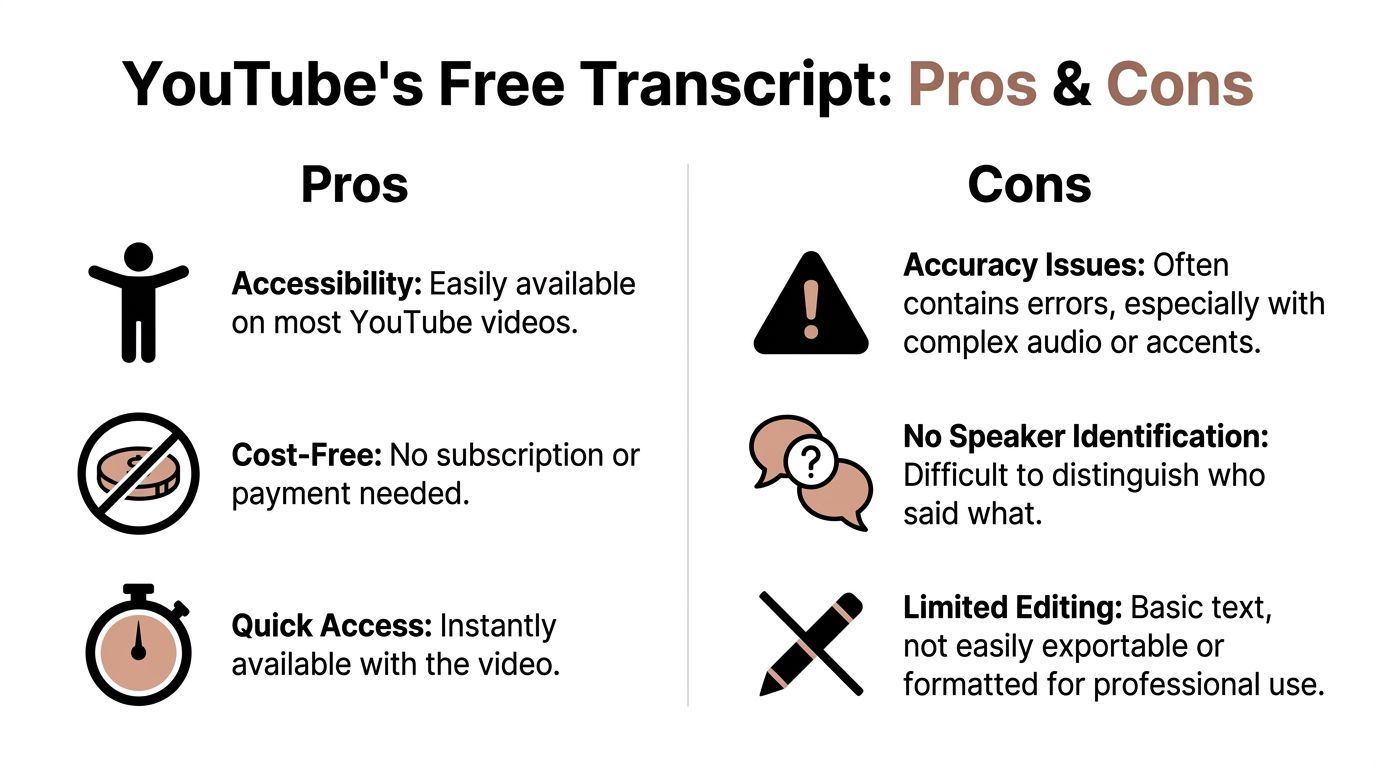
If speed is the goal, YouTube's transcript panel is the quickest option. On desktop, open the video, find the transcript option, open the sidebar, and copy the text into a document. If captions are available, it's a breeze.
The appeal is speed. No uploads, no extra accounts, no setup.
How to pull the transcript
Here's a simple workflow:
- Open the video on desktop.
- Find the transcript panel under video options or expanded description.
- Turn timestamps off if YouTube gives that option.
- Copy the text into Google Docs, Word, Notion, or another editor.
- Save it as a draft, not a final file.
For quick notes, this method works. It's also useful for searching a long video before deciding if it needs a full cleanup.
Where it breaks down
The quality isn't great. YouTube's auto-captions use real-time speech recognition that prioritizes speed over accuracy. They're more usable for one clear speaker than for overlapping voices, accents, or technical terms, as shown in this comparison.
Common issues:
- Names get mangled
- Technical terms come out wrong
- Punctuation is weak
- Speaker changes disappear
- Paragraphs don't exist
Practical rule: Use YouTube's transcript for quick content inspection. Don't rely on it for subtitles, publication, or formal records.
Another issue many guides ignore: the transcript might not be there. Some videos don't provide one, so you'll need a fallback workflow.
The Manual DIY Transcription Approach
Manual transcription is the slowest option but gives full control over wording, speaker labels, and formatting. For short legal clips, sensitive interviews, or jargon-heavy segments, this control can be worth it.
A practical setup often includes a text editor next to the video player, or a tool like oTranscribe that combines playback and typing on one screen. Slowing playback helps with dense material or unclear speakers. Pausing and replaying tough sections is part of the job.
When manual still makes sense
Manual transcription is best for cases like:
- Very short clips: A few critical minutes are manageable.
- High-stakes wording: Quotes, testimony, or exact phrasing need human judgment.
- Messy source audio: When automated output is too unreliable.
The downside is obvious: it takes a lot of time, making it unsuitable for routine content tasks.
What this method does well
Humans catch context that automation misses, like sarcasm, speaker transitions, proper nouns, and domain-specific language.
Manual transcription is about confidence, not speed.
For most business and creator workflows, the time cost is too high unless the audio is short or highly sensitive.
Automated Transcription with Professional AI Services
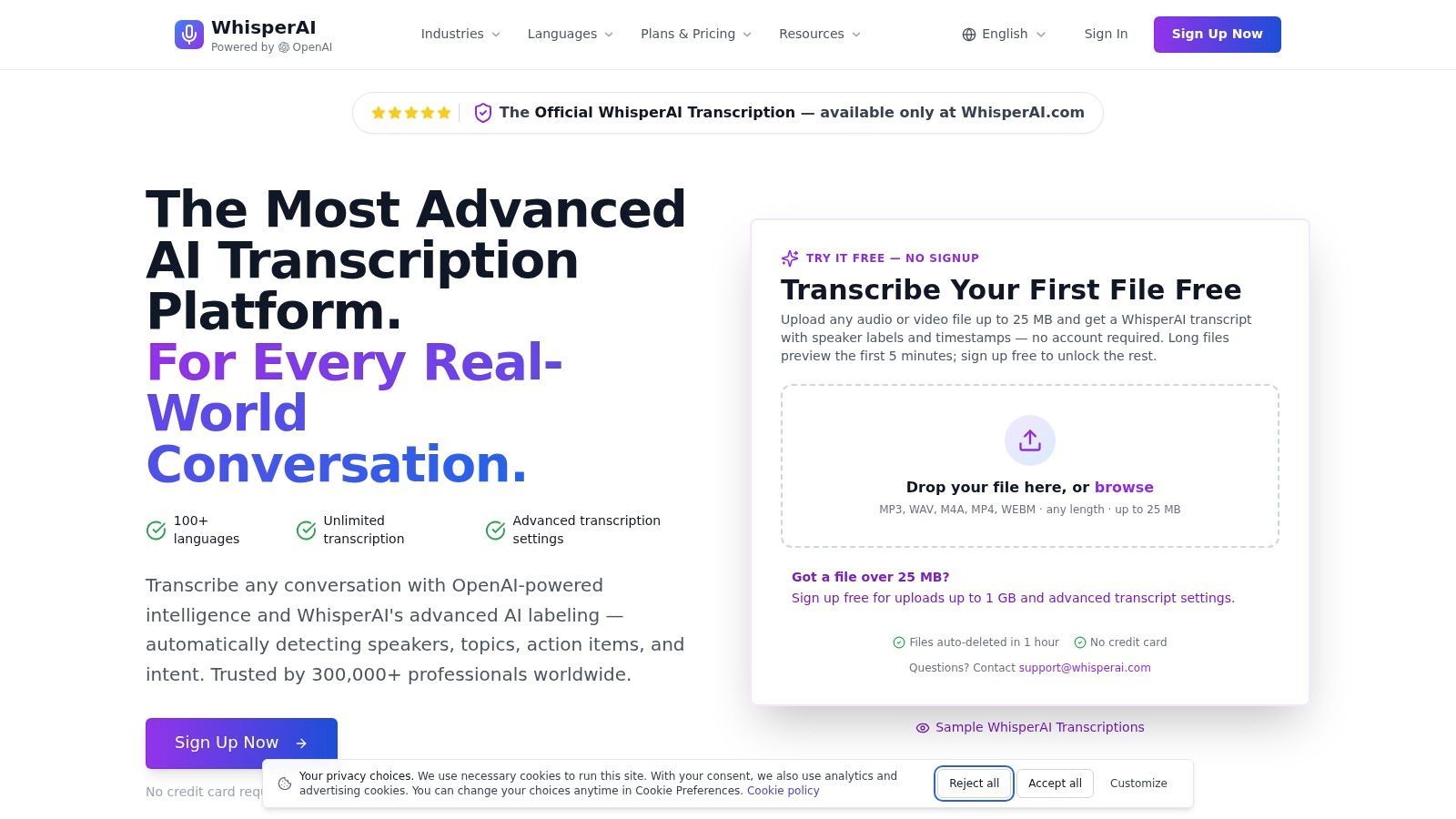
This method suits most professional work. AI transcription services are designed to do more than just extract text. They turn speech into editable, exportable, structured content.
That's key because most YouTube transcription guides focus too much on extraction, not enough on what comes next. The main challenge is turning spoken content into usable material for meetings, research, and repurposing, as noted in this overview.
What the workflow looks like
Most AI services follow a simple process:
- Paste a YouTube URL or upload a local file
- Generate a transcript draft
- Review speaker labels and punctuation
- Export as plain text or caption files
That's already better than YouTube's built-in option because the output is usually ready for editing.
Why this approach works better
A dedicated service doesn't just recognize words; it adds structure. It creates readable paragraphs, timestamped files, and formats ready for content, documentation, or subtitles.
Technically, it's advanced enough for serious use. The open-source youtube-transcript-api project allows direct retrieval of subtitles and transcripts, with JSON output, translation, and English as the default language. This is crucial for teams building repeatable workflows, not just one-off tasks.
If the source audio is rough, cleaning it before transcription can help. For those working with downloaded media or mixed recordings, check out this guide on how to separate sound from video before starting transcription.
One practical tool option
One option here is AI transcription for audio and video. It allows users to work from uploaded files or video sources, then edit or export results in formats suited for captions, documents, or notes. For teams comparing methods, this setup is usually more useful than a raw transcript box because the text can go straight into production.
Teams wanting a broader overview of how this workflow fits into modern speech-to-text operations can explore this guide to AI transcription workflows.
Better transcript tools don't just cut down on typing. They cut down on cleanup.
The trade-off is simple. AI services are faster than manual work and usually more usable than YouTube's built-in transcript. They still need review, but they start much closer to finished.
How to Edit and Finalize Your Transcript

The final editing pass turns a transcript into something publishable. This is where people often ruin good files by removing timing too soon or making broad replacements that mess up numbers and names.
A careful cleanup process involves keeping the original SRT or VTT as a backup, then removing timestamps only after saving that backup. Then, fix names, jargon, punctuation, and paragraph structure. For tricky sections, slower review passes around 1.25x to 1.5x speed can help, as detailed in this guide.
The cleanup checklist
A solid editing pass usually includes:
- Protect the source file: Keep the original SRT or VTT untouched.
- Fix proper nouns first: Names, brands, product terms, and acronyms tend to repeat.
- Repair readability: Add periods, commas, and paragraph breaks where speech naturally shifts.
- Replay unclear phrases: Don't guess at ambiguous words.
- Check speaker labels: These often drift in interviews or panels.
Choose the right export
The format should match the job:
| Format | Best use |
|---|---|
| SRT or VTT | Timed captions and subtitle uploads |
| TXT | Clean drafting and note review |
| DOCX | Collaborative editing and publication workflows |
A transcript intended for reading should not look like a subtitle file. A subtitle file should not lose its timing unless the team is done with captions.
For teams deciding how to structure final files, this guide to video transcript format options is useful because it separates reading transcripts from timed caption outputs.
Small edits carry most of the value. The draft usually exists already. The real gain comes from making it readable and reliable.
Frequently Asked Questions
Is it legal to transcribe a YouTube video?
For personal notes, research, accessibility, or internal review, transcription is usually lower risk. Public redistribution is different. A transcript can reflect copyrighted expression, so anyone planning to publish or share it should think about permission, attribution, and whether only short quoted excerpts are necessary.
What if the YouTube transcript is missing?
That happens more often than many guides admit. Some videos don't expose a usable transcript, and fallback methods matter most for private access, live content, or videos without captions. In those cases, a dedicated transcription workflow is more dependable than relying on YouTube's sidebar alone.
Can a transcript be translated too?
Yes. Some tools support translation after transcript generation, which is usually easier to review than translating directly from unstructured captions. When accuracy matters, it helps to finalize the source transcript before translating it.
If the goal is to turn YouTube speech into clean, reusable text instead of rough captions, WhisperAI - #1 AI Transcription is a practical place to start. It fits teams that need searchable transcripts, editable exports, and a workflow that works beyond simple copy and paste.